
We currently have a legacy and a new experience with the Schedules feature.
This article covers the new Schedules experience. Please ensure you're in the new experience by using the toggle on the upper-left of the Schedules page.
What you'll need
If you have "Schedules: Manage" permission, you can edit all schedules in your organization.
End a schedule
Select Schedules in the sidebar or select it in More.
Click Manage schedules on the top of the page.
You can choose how you want to view your schedules by selecting between Table and List on the upper-right of the page.
Click the schedule.
Click on the upper-right corner of the side panel.
Select Delete schedule.
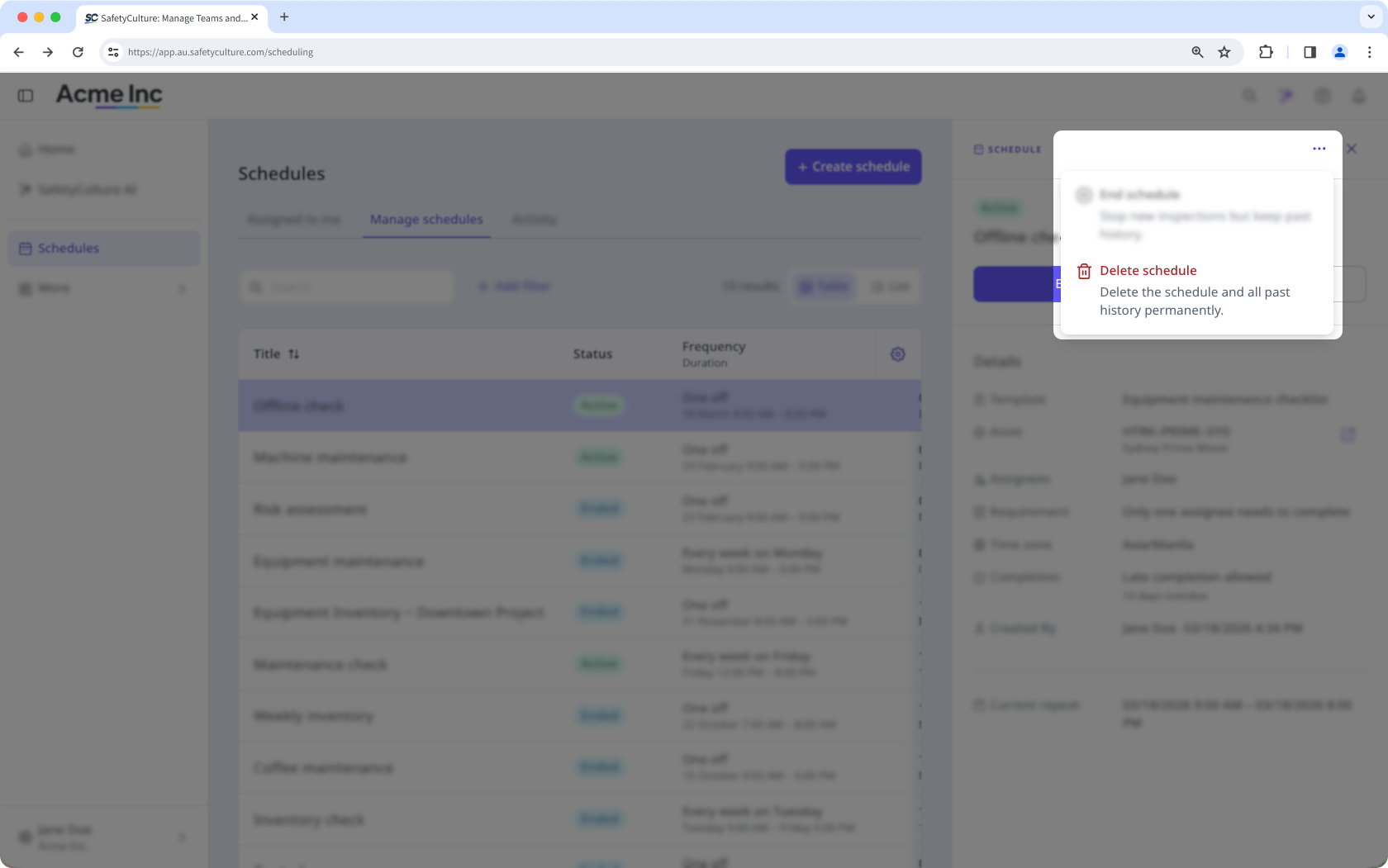
In the pop-up window, click Delete.
What are the differences between the legacy and new Schedules experience?
Feature | Legacy | New |
|---|---|---|
Set end date for schedules | Scheduled repeats continued indefinitely unless manually paused or deleted. | You can set a schedule to end on a specific date or after a number of repeats. This helps when you only need a schedule to run for a limited time, removing the need for manual updates later on. |


