
Delete courses, lessons, and lesson slides
Learn how to delete courses, lessons, and lesson slides via the web app to keep your workspace up-to-date and clutter-free.Deleting courses, lessons, and lesson slides is permanent and cannot be undone. Deleting a course will also erase all associated progress and data, and it will be removed from all analytics.
Delete a course
Select
 Training in the sidebar or select it in
  More.
More.If you're on the "Learn" page, click Content at the top of the page and select Courses.
Hover your cursor over the course, then click
 , and select Delete.
In the pop-up window, enter “delete” and click Delete.
Open the mobile app.
Tap
Training in the navigation bar or select it from More. If you're currently on Learn or Facilitate tab, tap Create at the top of your screen.
Tap the course you want to delete.
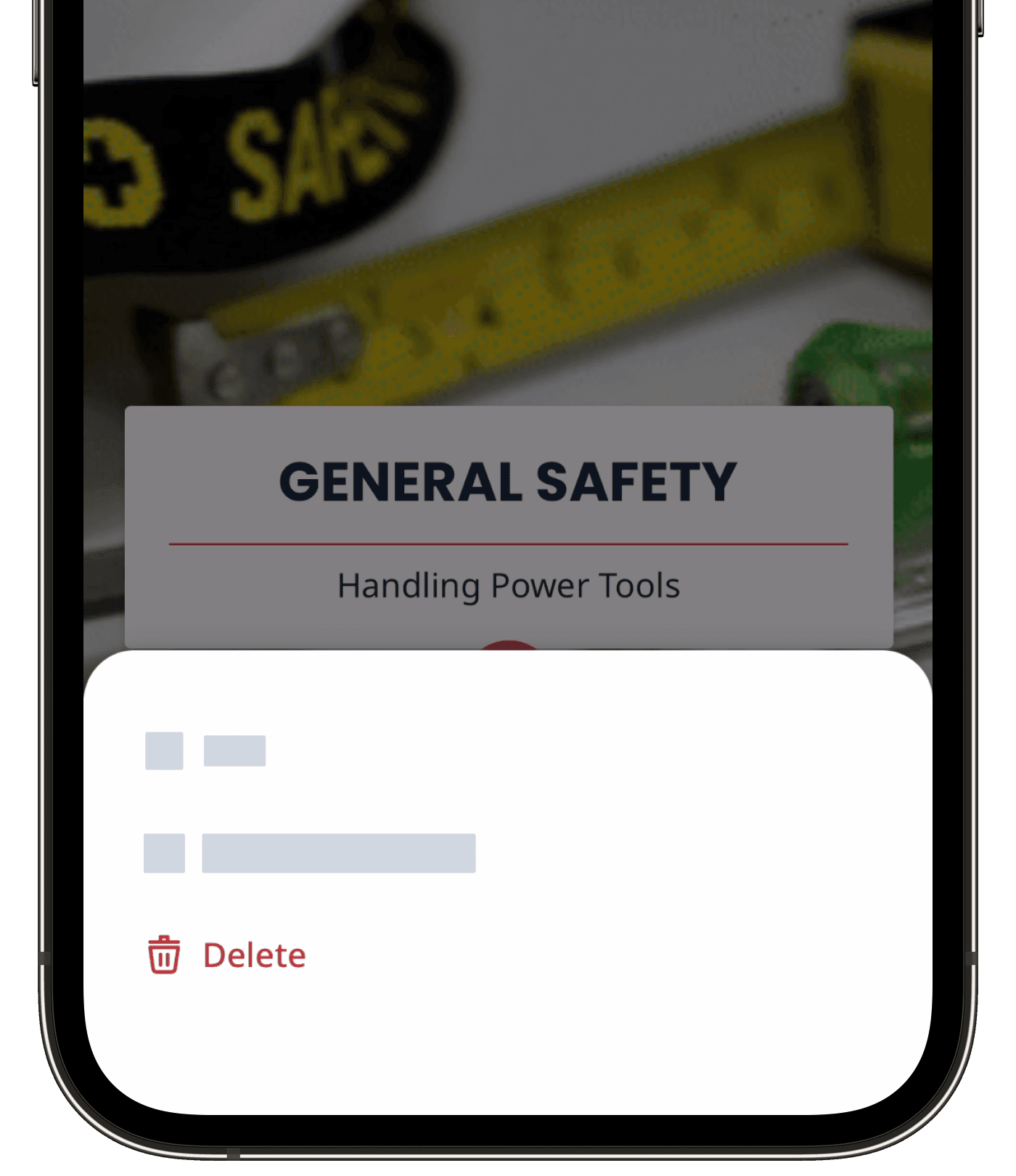
Tap
at the upper-right of your screen, and select  Delete.
In the pop-up window, enter "delete" and tap Delete.
If a published course is part of an onboarding workflow, make sure to remove the course from the onboarding steps before deleting or reverting it to draft.
Delete a lesson
Select
Training in the sidebar or select it in More.If you're on the "Learn" page, click Content at the top of the page and select Courses.
Create a new course or click Edit on an existing one.
If you're editing an existing course and it's published, click
 Edit on the upper-right of the page.
Hover your cursor over the lesson you want to delete, then click
, and select Delete.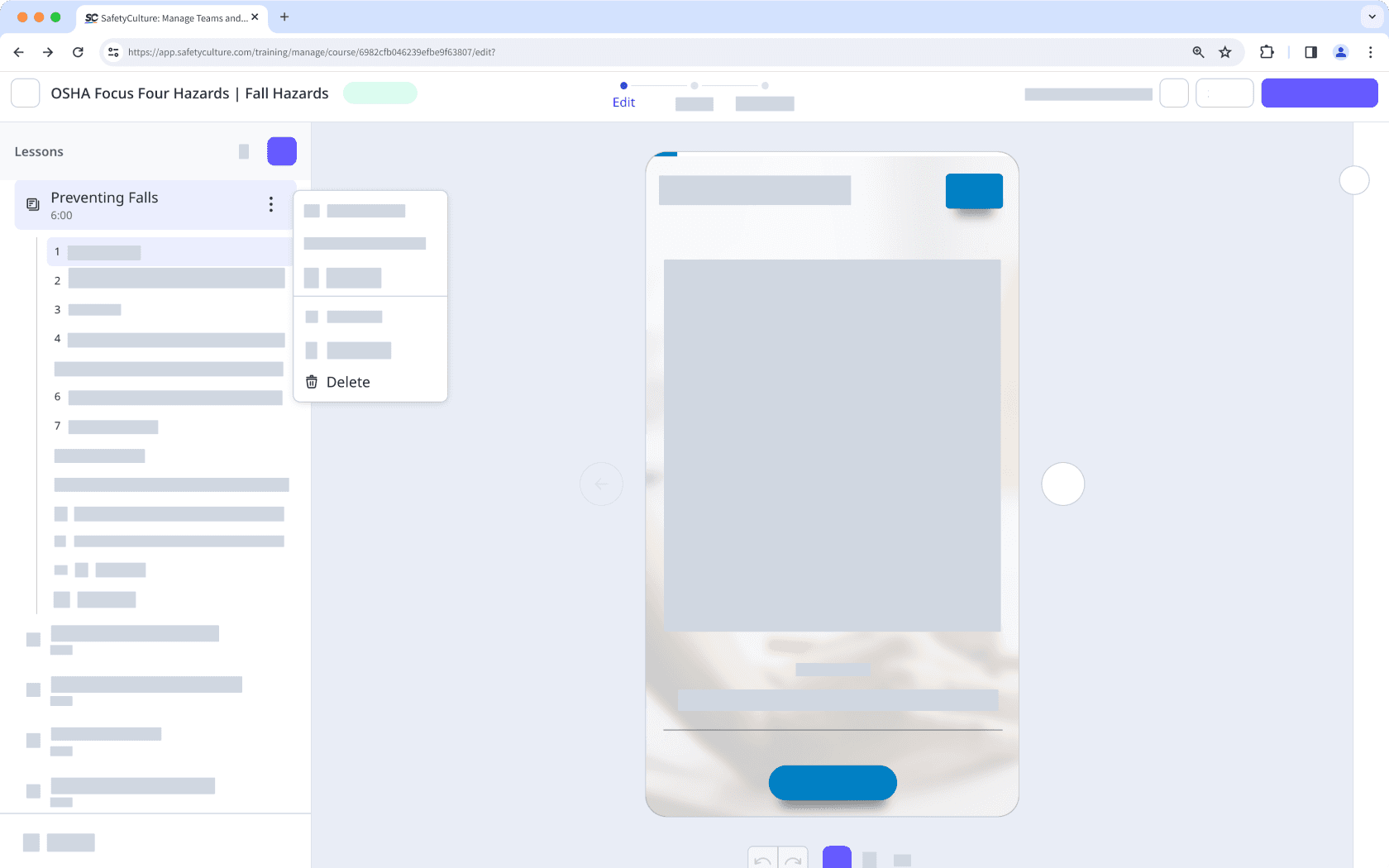
In the pop-up window, click Delete.
Delete a lesson slide
Select
Training in the sidebar or select it in More.If you're on the "Learn" page, click Content at the top of the page and select Courses.
Create a new course or click Edit on an existing one.
If you're editing an existing course and it's published, click
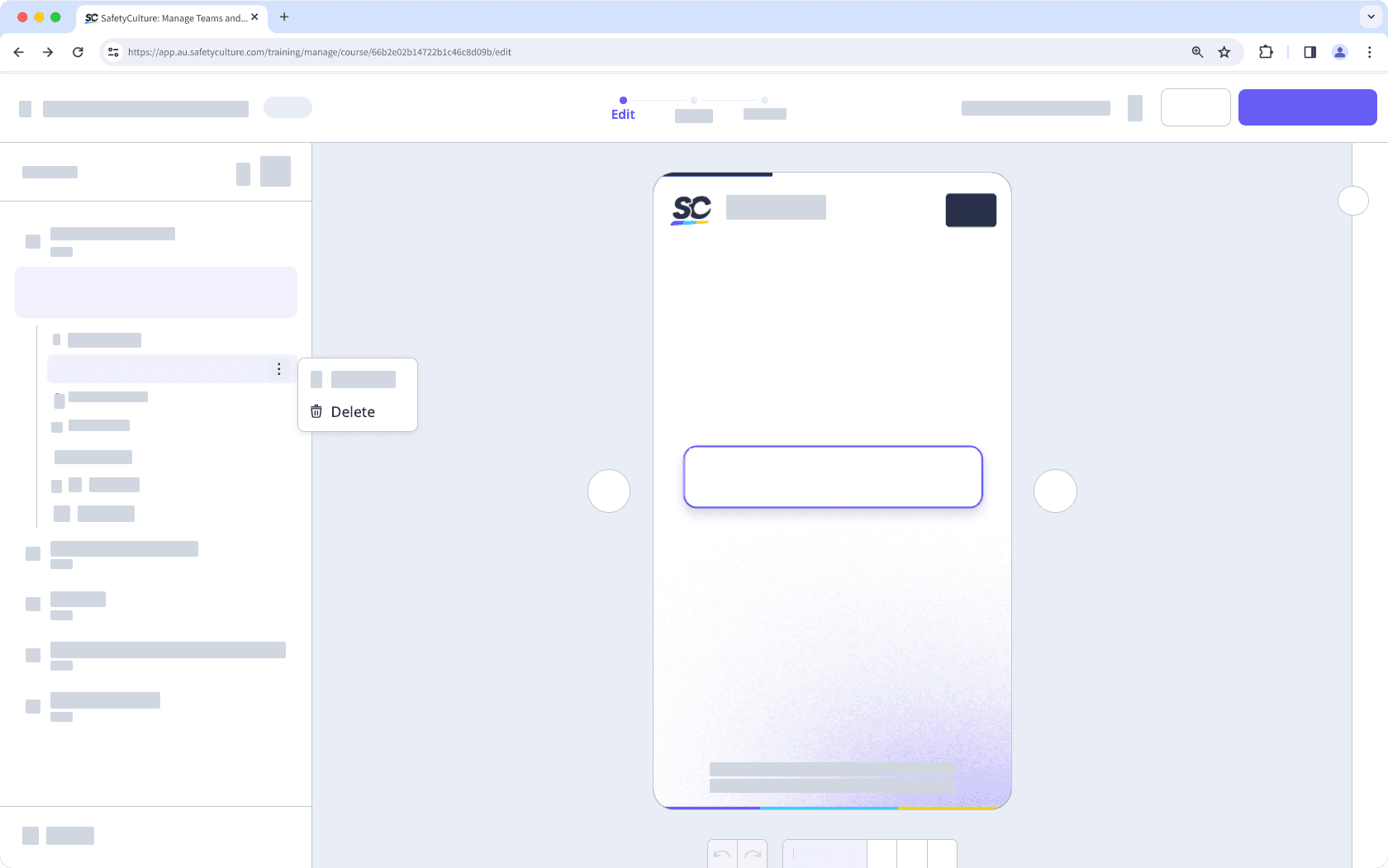
Edit on the upper-right of the page.Select a lesson and hover your cursor over the lesson slide you want to delete.
Click
 and select Delete.
If your course is currently a draft, remember to publish it to make your changes available to your team.
Was this page helpful?
Thank you for letting us know.