
What are issue categories?
Issue categories allow you to manage who can report incidents in your organization, arrange information that's included in the initial report, and edit the contents and recipients of your issue notifications. You can also use categories to set up Critical Alerts for high-priority issues to ensure that users receive notifications even when their devices are on mute or in "Do not Disturb" mode. Plus, with issue categories, you can suggest templates for more detailed analyses of specific issues.
Create an issue category
Select Issues in the sidebar or select it in More.
Select Categories from the top of the page.
Click Add category on the upper-right of the page.
In the pop-up window, enter a category name and click Create.
In Workflow, you can customize the following settings:
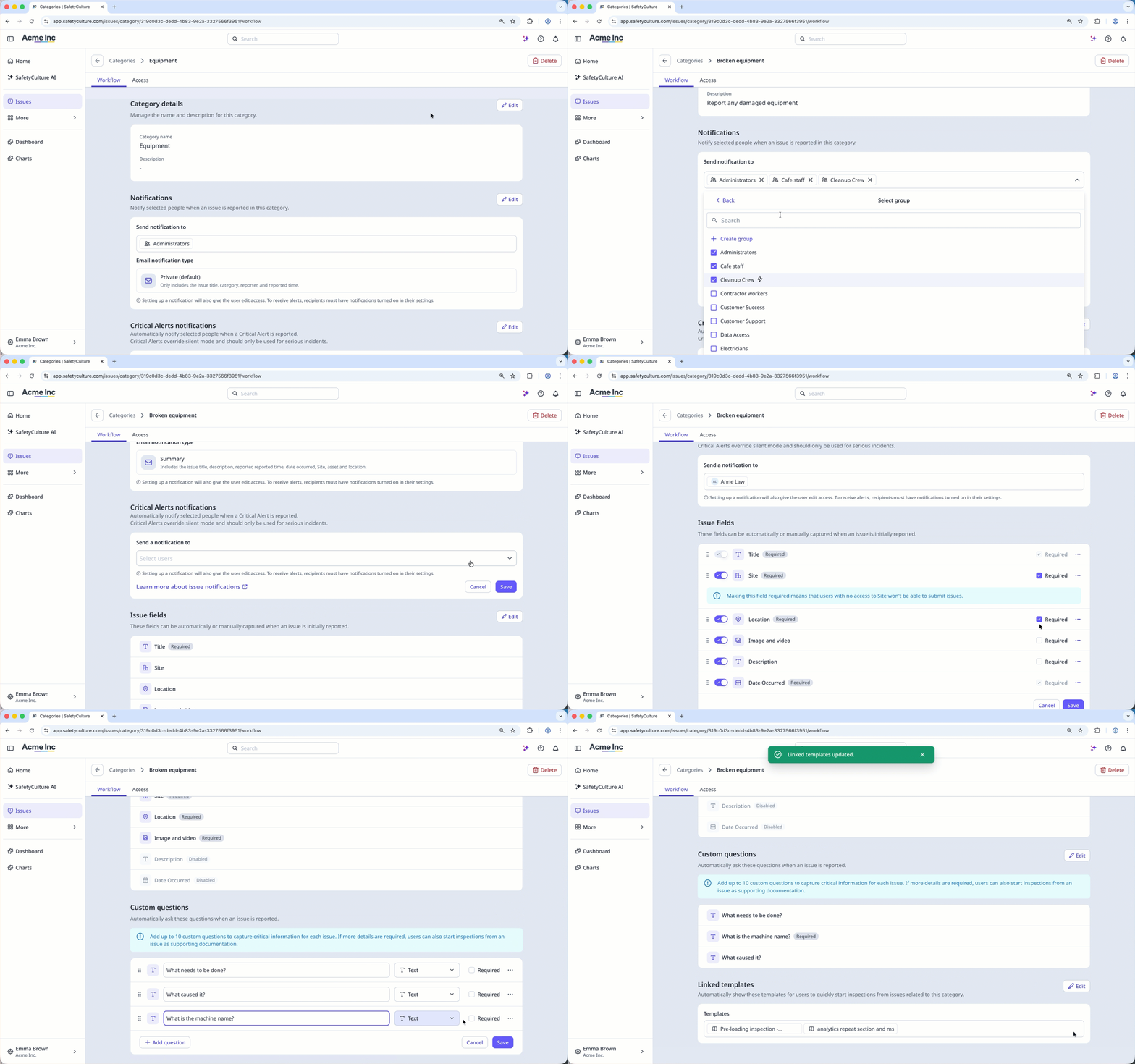
Edit the category details: Click Edit on the right-hand side of the "Category details" section. Click the category name and enter a new name. You can also add a description in the "Description" field.
Set up your email notifications: Click Edit on the right-hand side of the "Notifications" section. Select the recipients of your notifications from the drop down and select your preferred email notification type.
Set up Critical Alerts: Click Edit on the right-hand side of the "Critical Alerts" section, and select the recipients of your alerts from the dropdown.
Manage issue fields: Click Edit on the right-hand side of the "Issue fields" section. Turn each field on or off and check the checkbox on the right-hand side to mark the fields as required. Click
 to reorder the fields.
Add custom questions: Click Edit on the right-hand side of the "Custom questions" section. Click Add question, enter the questions you want to include in the report, and check the checkbox on the right-hand side to mark the question as required.
Link templates: Click Link templates on the right hand side of the " Linked templates" section, and select the template from the dropdown.
Click Access at the top of the page to customize the following settings:
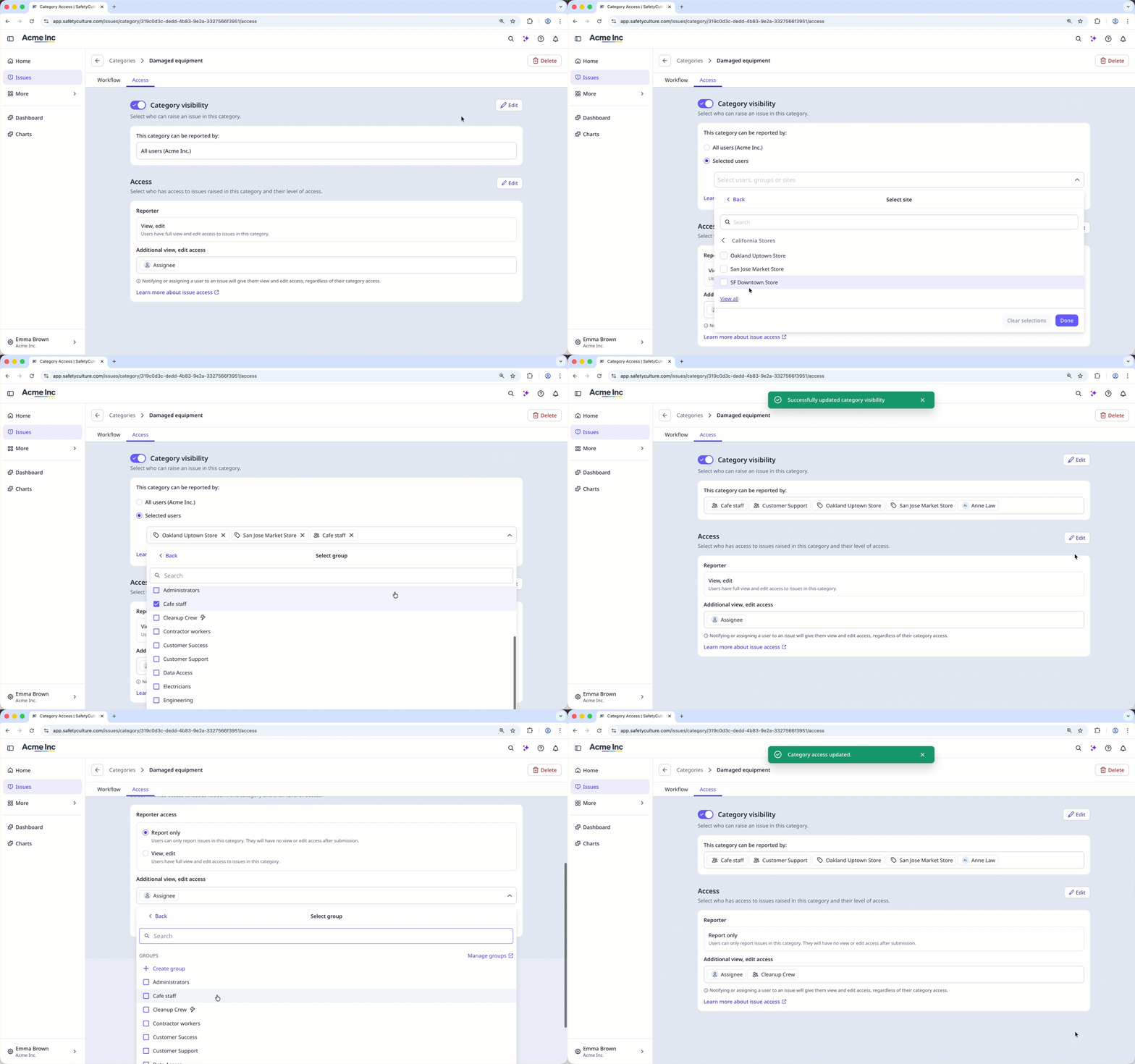
Manage category visibility: Turn Category visibility on or off to show or hide the issue category. Click Edit on the right-hand side, and select who can report issues related to this category.
Set up issue access: Click Edit on the right hand side of the " Access" section, and select the reporter access level. You can also add additional view and edit access to users and groups.
Adding descriptions to issue categories helps the AI categorize reports more accurately. The more specific the description, the better the match.


