
Why clear templates and inspections on the mobile app?
Clearing templates and inspections removes locally stored data on your mobile device and helps make sure you have the latest updates and changes. It is helpful when your organization makes frequent updates, when changes have not appeared on your device, or when you are preparing to work offline and need the correct and most up-to-date versions. It prevents outdated information and keeps your team aligned with the most current versions.
What you'll need
Clear templates and inspections
Open the mobile app.
Tap your user profile icon at the upper-right corner of your screen.
In the pop-up menu, select Settings.
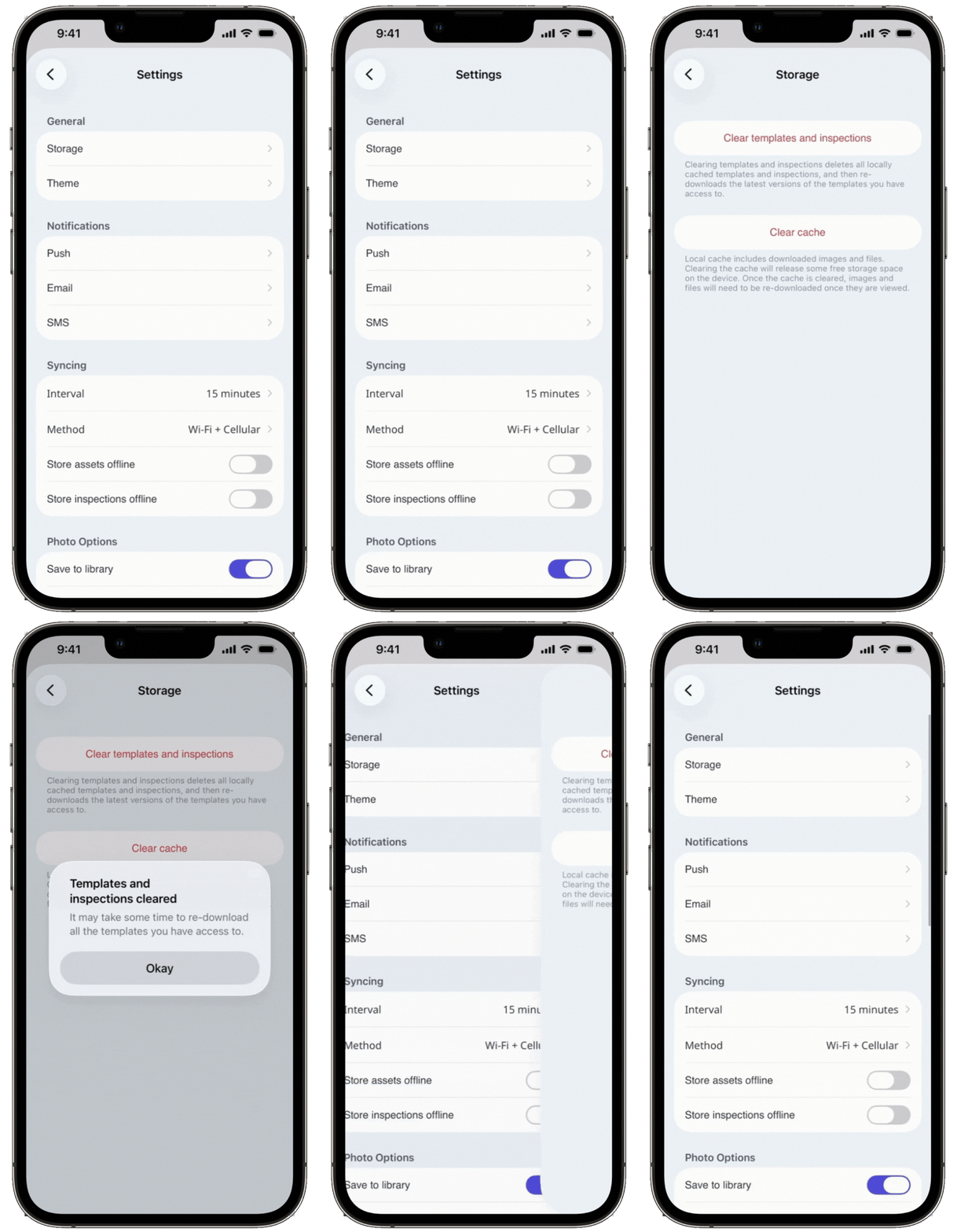
Select Storage from the list of options.
Tap Clear templates and inspections. Please note that templates and inspections locally stored on your device will be cleared and replaced with their latest versions.
In the pop-up window, tap Okay.
You can also manually sync your mobile app to ensure your templates and inspections are cleared.


