Was sind Statusgruppen für Assets?
Asset-Statusgruppen in SafetyCulture sind standardmäßige oder konfigurierbare Sätze von Statusoptionen, die Administratoren erstellen und den Asset-Typen unter zuweisen können. Asset-Statusgruppen helfen Unternehmen dabei, den Betriebszustand jedes Assets zu verfolgen, und unterstützen so die täglichen Entscheidungen darüber, welche Geräte eingesetzt werden sollen und was Aufmerksamkeit erfordert. Der Anlagenstatus ist sowohl in der Anlagenliste unter als auch im Anlagenprofil unter in der Web-App und der mobilen App einsehbar und bearbeitbar. Jede Statusgruppe enthält farbcodierte Status.
Eine Gruppe für die Verfügbarkeit von Geräten könnte beispielsweise Optionen wie „In Gebrauch“, „In Reparatur“ und „Außer Betrieb“ umfassen. Statusgruppen bieten Unternehmen eine einheitliche Möglichkeit, den Zustand von Anlagen zu verfolgen und zu kommunizieren, sodass Teams schnell erkennen können, welche Anlagen verfügbar, in Gebrauch oder wartungsbedürftig sind.
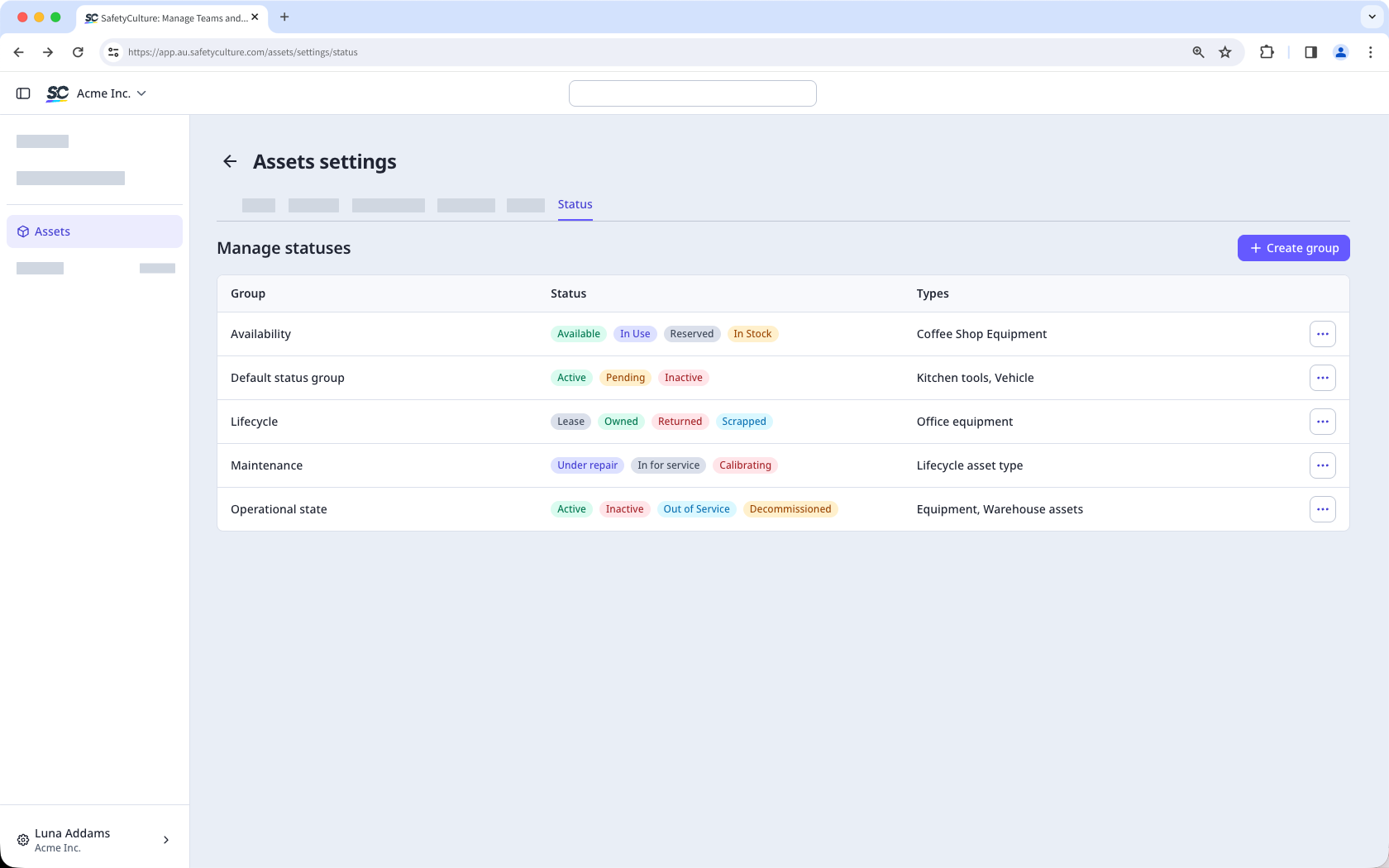
Wenn Sie Kostenloser Tarif nutzen, verfügt Ihre Organisation über folgende Standardstatus: „Aktiv“, „Ausstehend“ sowie „Inaktiv“.
Was Sie brauchen
Statusgruppe erstellen
Select Assets in the sidebar or select it in Mehr.
Click Einstellungen on the upper-right of the page.
Click Status at the top of the page.
C lick Gruppe erstellen on the upper-right of the page.
In the pop-up window, enter the group name and description. Then, click Erstellen.
In the "Statuses" section, click Status hinzufügen on the right-hand side of the page.
In the new status field, enter the status name and select a color.
Under "Asset types," click the dropdown menu and select the asset type you want to assign the asset status group to.
Click Speichern on the upper-right of the page.
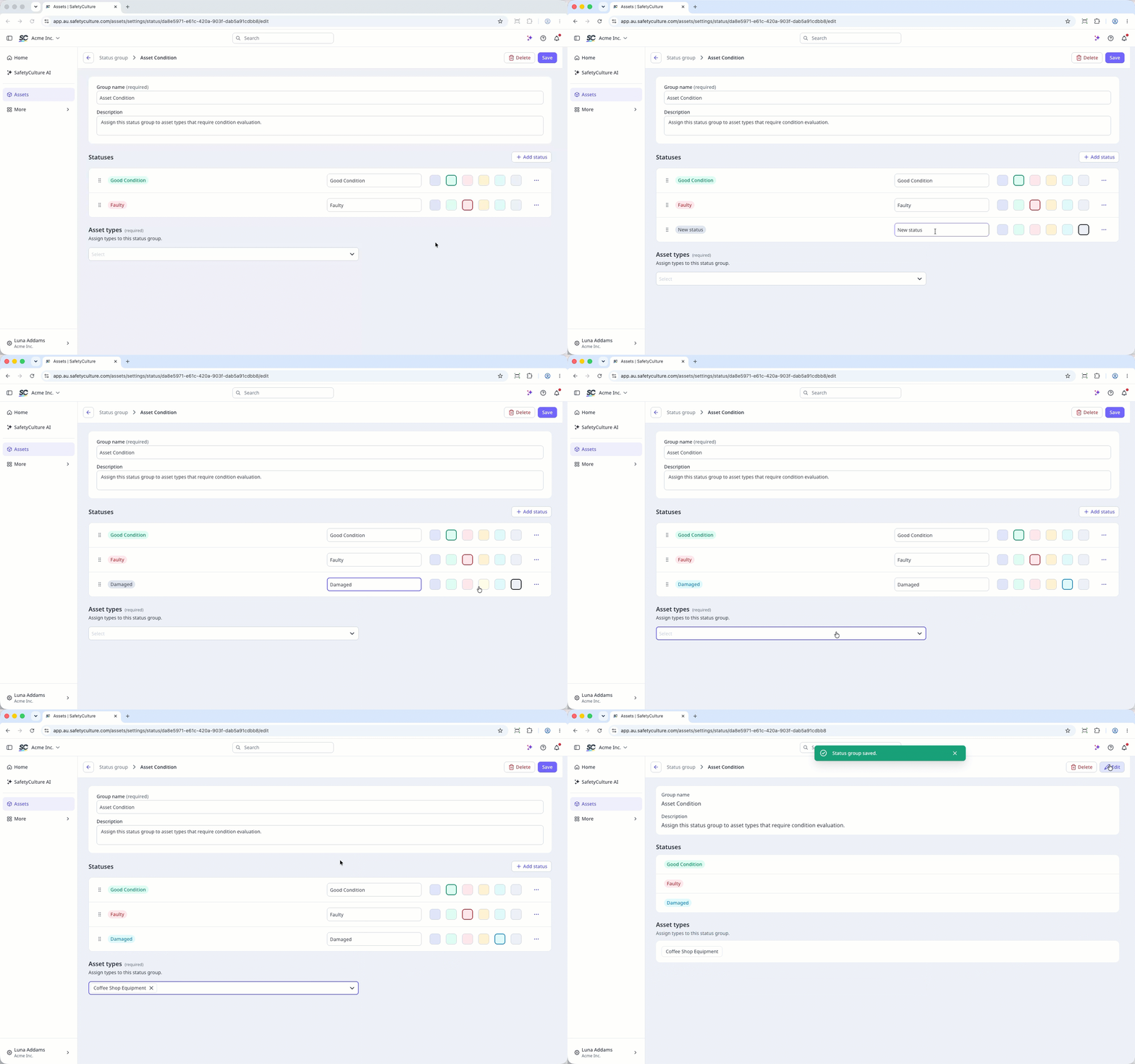
Sie können pro Organisation maximal 10 Statusgruppen mit jeweils bis zu 10 Status anlegen.
Statusgruppe bearbeiten
Select Assets in the sidebar or select it in Mehr.
Click Einstellungen on the upper-right of the page.
Click Status at the top of the page.
Click on the right-hand side of the status and select Bearbeiten.
Update the name or description as needed.
In the "Statuses" section, you can manage the statuses.
To create a status, click Status hinzufügen, enter a name and select a color.
To edit a status, click the status name or color and make your changes.
To sort statuses, click and drag the to your preferred position.
To delete a status, click on the status and select Löschen.
Under "Asset types," click the dropdown menu and select or change the asset type you want to assign the asset status group to.
Click Speichern on the upper-right of the page.
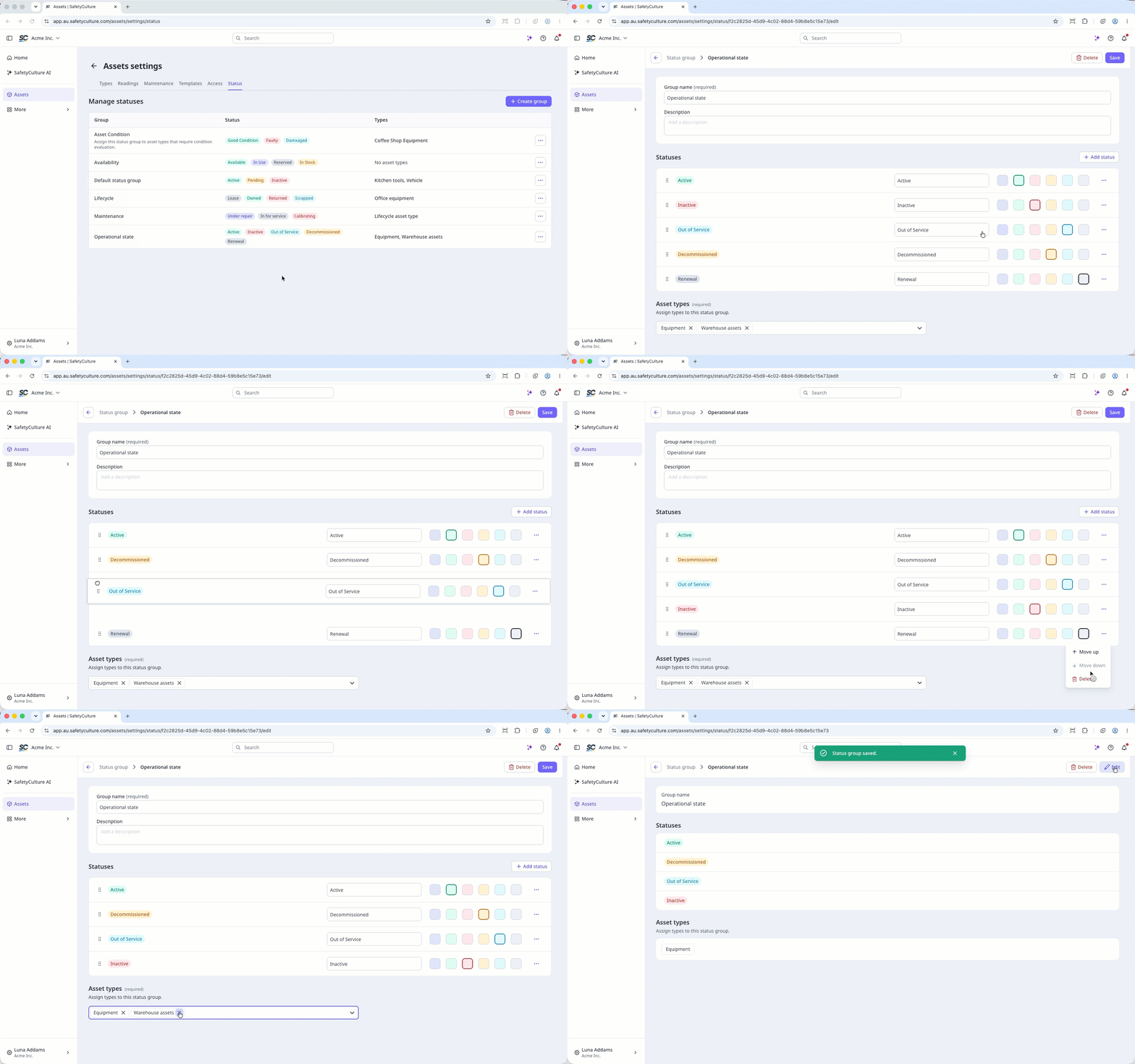
Das Löschen ist nicht rückgängig zu machen, und wir können dauerhaft gelöschte Elemente nicht wiederherstellen. Vor dem Löschen ist immer eine Bestätigung erforderlich, um sicherzustellen, dass Sie nicht versehentlich das falsche Objekt löschen.
Durch das Löschen einer Gruppe wird auch der Zugriff zu Vorlagen und Inspektionen für diese Gruppe entfernt.
Eine Statusgruppe löschen
Wählen Sie Assets in der Seitenleiste oder in Mehr aus.
Klicken Sie in der oberen rechten Ecke der Seite auf Einstellungen.
Klicken Sie oben auf der Seite auf Status.
Klicken Sie rechts neben dem Status auf und wählen Sie Löschen aus.
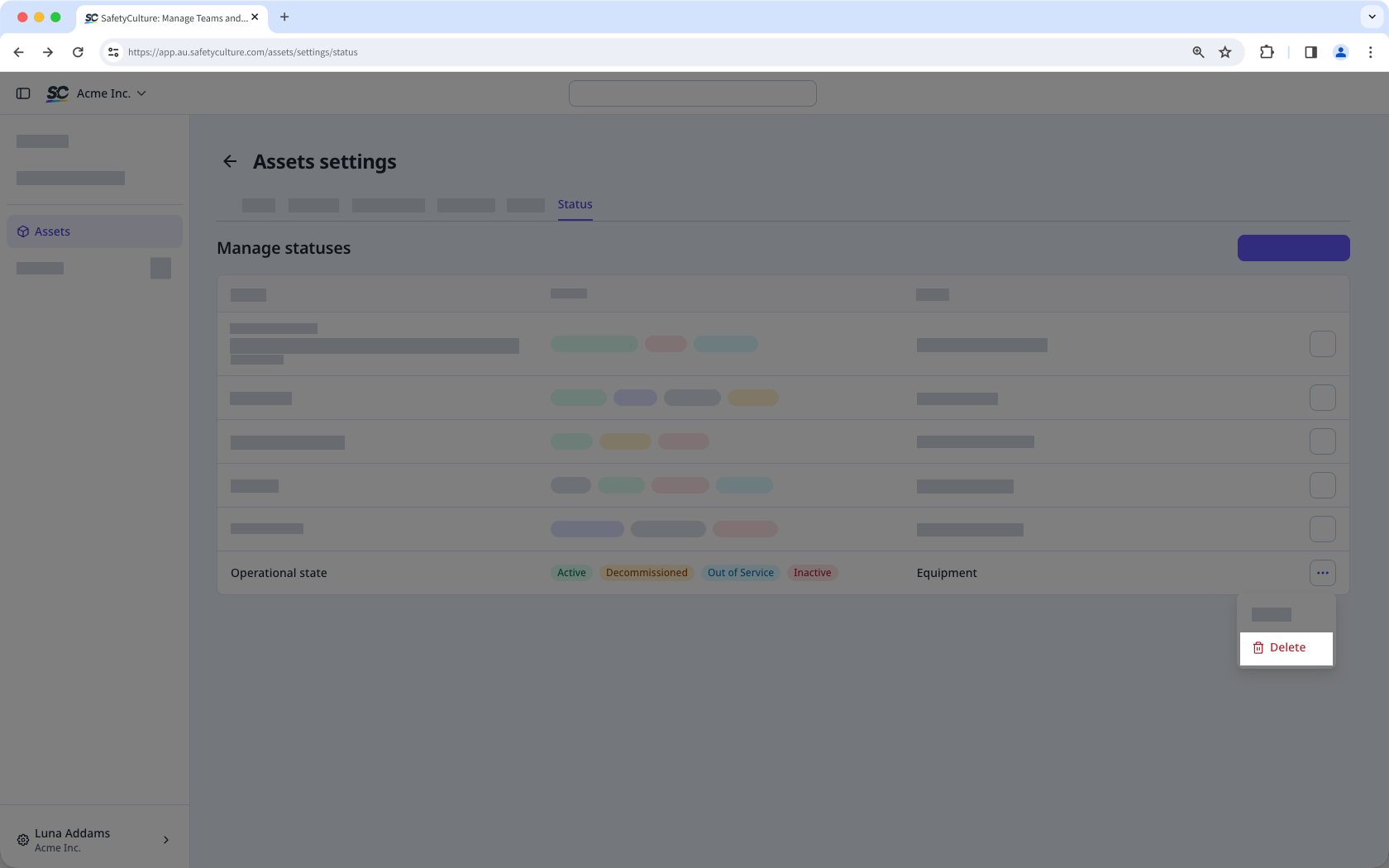
Geben Sie im Popup-Fenster „Löschen“ ein.
Klicken Sie auf Löschen.
Wenn Sie eine Statusgruppe löschen, ist dem ihr zugeordneten Assettyp keine Statusgruppe mehr zugeordnet.