Last updated:

Customize my asset list

Learn how to customize your asset list view via the web app and the mobile app.

What is an asset list?

An asset list is a comprehensive inventory of all your assets in SafetyCulture. It dynamically updates to show assets based on search queries and filters that you have set. You can access and manage your asset list from both the web app and the mobile app, with each platform offering different views tailored to your work style.

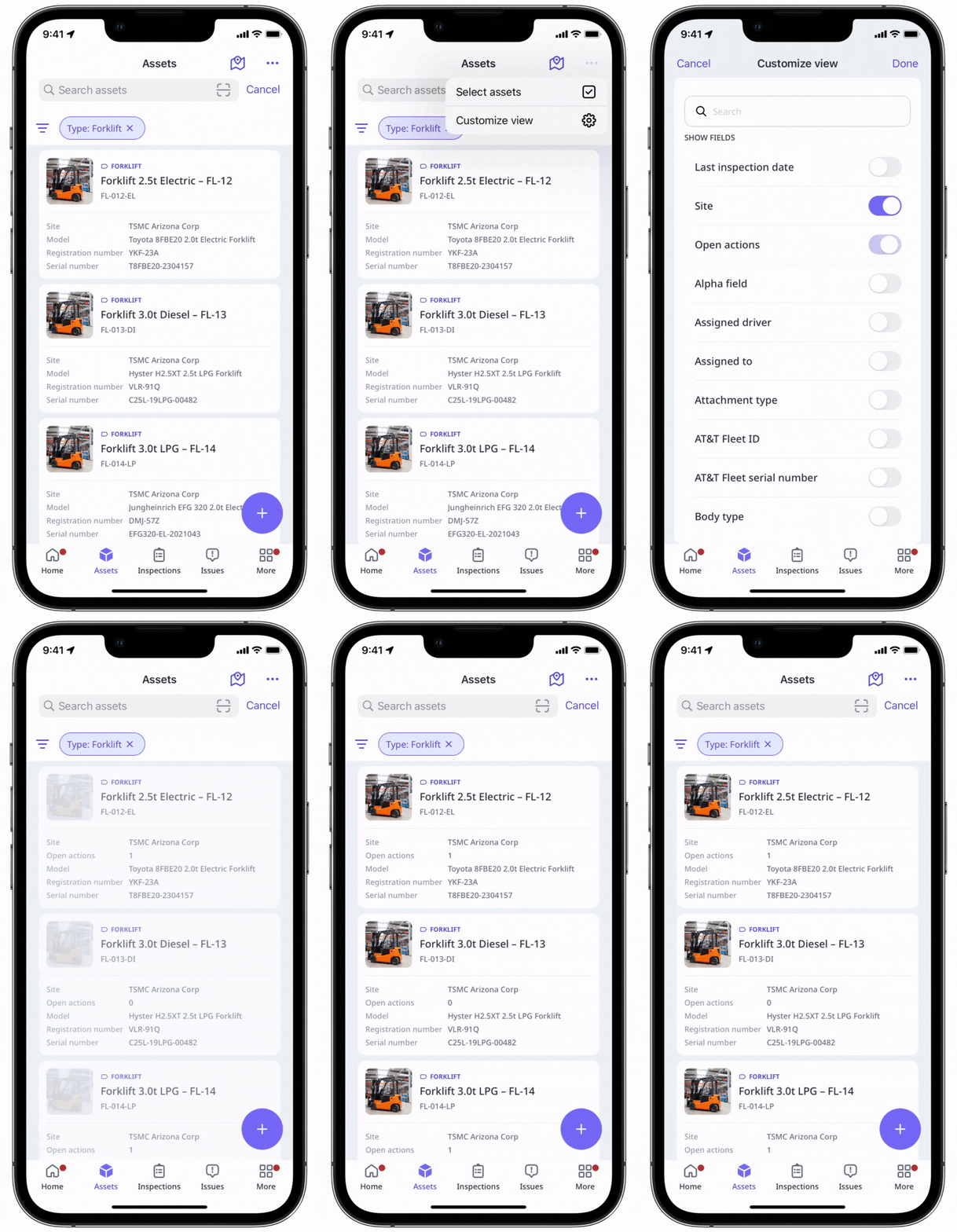
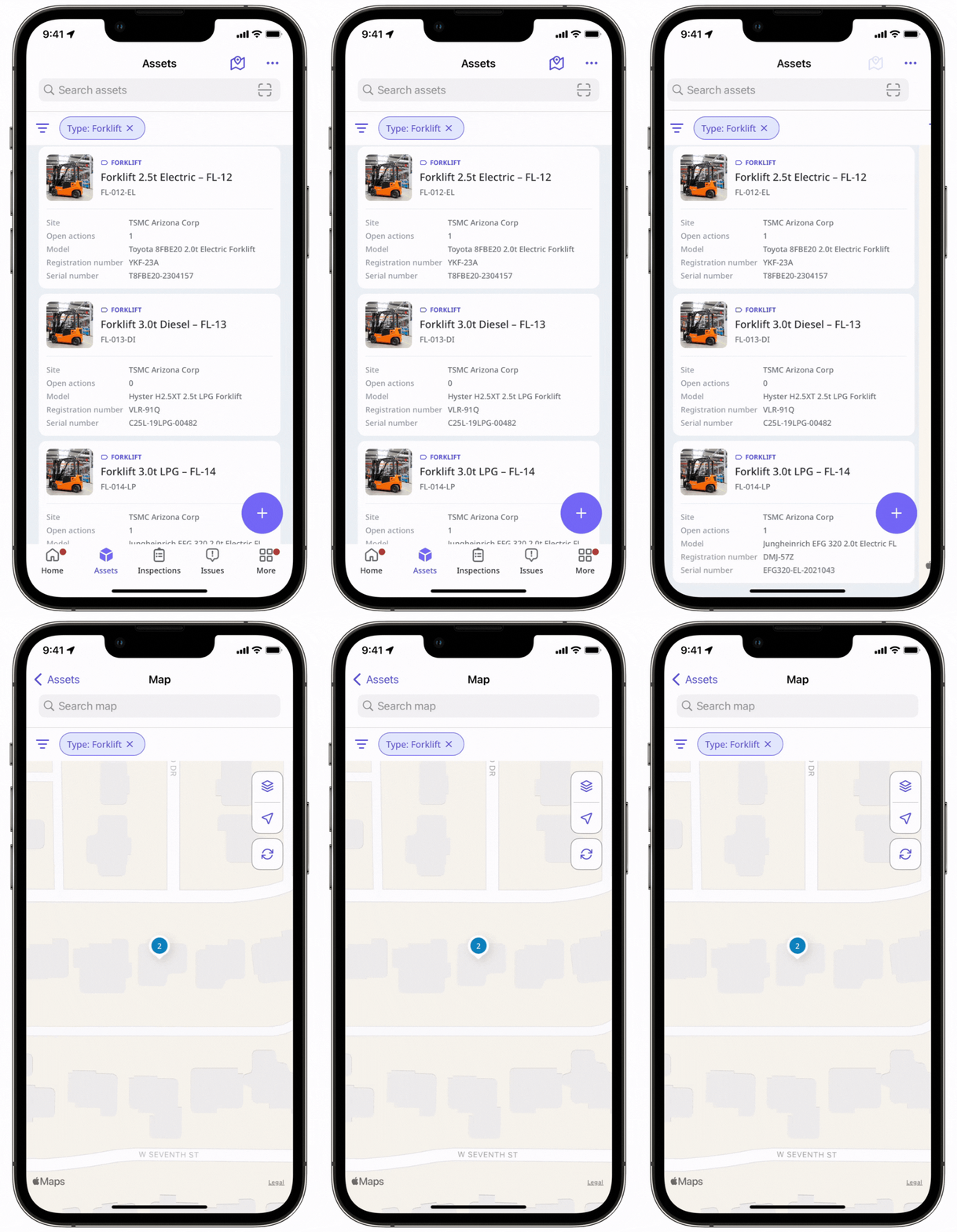
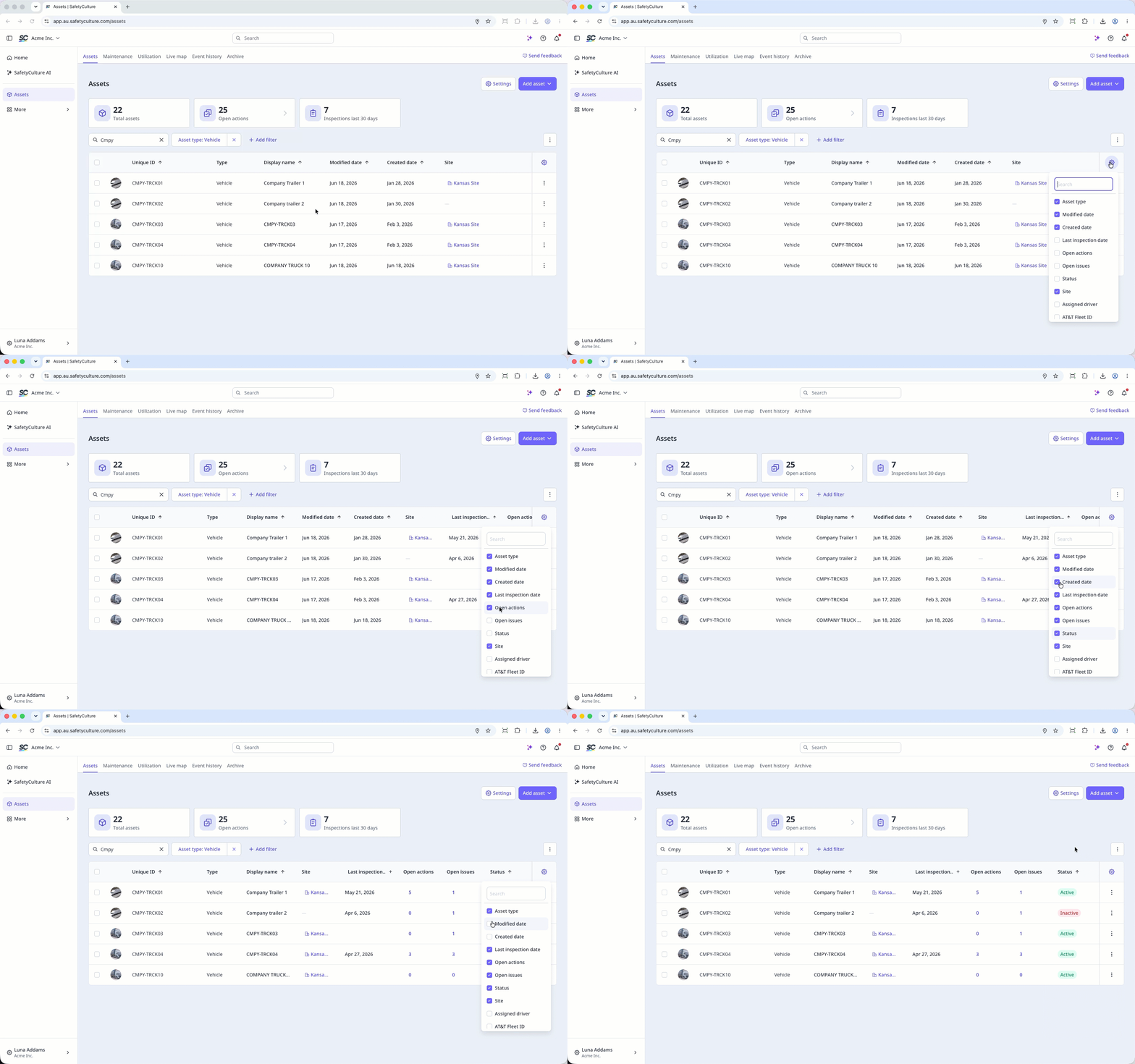
From the web app, you can switch between table, gallery, and map views to visualize your assets in the format that works best for you. You can also customize your asset list to display up to seven fields, ensuring that only the information you need is shown. As for the mobile app, you can view your assets either in a list or on a map. In addition, you can show five relevant fields on the list and filter your assets accordingly.
Depending on asset access settings, the assets you can view and manage may vary based on your site membership.

Customize your asset list

  1. Log in to the web app.

  2. Select Assets cube iconAssets in the sidebar or select it in Assets gallery view iconMore.

  3. Click Table view iconTable at the upper-right of the asset list to switch between gallery and map views.

  4. Click Settings icon and check the up to seven detail fields to display on the asset list.

  1. Open the mobile app.

  2. Tap Assets gallery view iconMore at the lower-right corner of your screen.

  3. Select Assets cube iconAssets from the list of options.

  4. Click Filter (bar) icon to filter your assets by site, type, and open actions.

  5. Tap More vertical icon at the upper-right corner of the screen.

  6. Click Settings iconCustomize view and select up to five detail fields to show on the asset list, then tap Apply.

  7. Select Map location pin to view all your assets on a map.

Need more help?
In this article