What's the difference between SafetyCulture Groups and EdApp Groups?
In SafetyCulture, Groups are a collection of users you can set up and manage collectively. All users in a group automatically get the group's access permissions. In EdApp, User Groups segment learners for course assignment and analytics.
Groups in SafetyCulture and User Groups in EdApp have some key differences:
Area | SafetyCulture Groups | EdApp Groups |
|---|---|---|
Primary Use | Organize users for access management, course and quiz assignment, and lone-work alert escalations. | Segment learners for course assignment and group-specific analytics. |
Hierarchy | Groups in SafetyCulture don't support a parent and child structure. All groups sit at the same level within your organization. | Supports User Group Collections with parent and child structure, multiple parents, multiple hierarchies, and up to 6 levels. |
Dynamic Membership | Rule-based groups use user fields to add and remove users automatically. You can have up to 5 rules per group and up to 15,000 users in a rule-based group. | Dynamic User Groups use custom fields and SSO and bulk-upload matching; matching can be case-sensitive and may require exact matches depending on the operator. |
Plans | Standard groups are available on any SafetyCulture plan. Rule-based groups require Premium-Tarif oder Enterprise-Tarif user fields . | User Groups are on paid plans. Dynamic User Groups are on Pro plans. |
Admin Management | Users can be added or removed individually or in bulk via the Group matrix. Each user can belong to up to 100 groups. | Managed from the User Groups area. Courses can be assigned via Access Rules or from the group page. |
Bulk upload behavior | When bulk uploading existing users, SafetyCulture overwrites current group and site assignments rather than offering an option to add or replace. | EdApp lets admins choose whether to add to or replace existing group assignments when uploading a CSV. |
Migration caveat | If you recreate dynamic behavior in SafetyCulture, rule-based groups depend on user fields. If those fields change or are removed, rules may need to be rebuilt. | Dynamic groups and complex hierarchies can block or complicate migration. Groups that don't meet the required format may need manual cleanup first. |
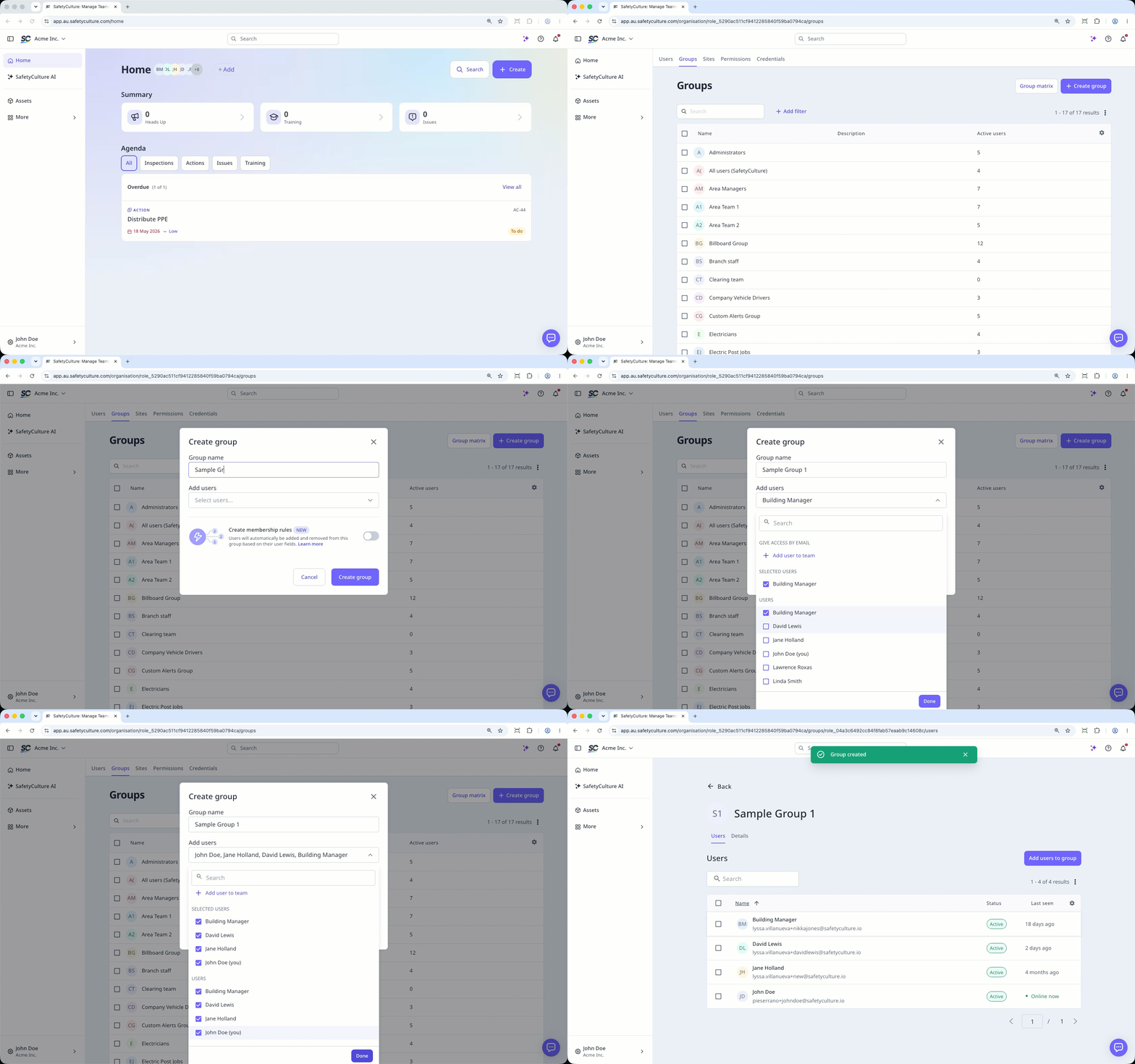
Legen Sie Gruppen an, bevor Sie Berechtigungen zuweisen oder Mitglieder hinzufügen. So können Sie die Struktur Ihrer Organisation besser darstellen und festlegen, wie Sie Ihre Benutzer organisieren möchten.
Was Sie brauchen
Eine Gruppe erstellen
Klicken Sie unten links auf der Seite auf den Namen Ihrer Organisation und wählen Sie Gruppen aus.
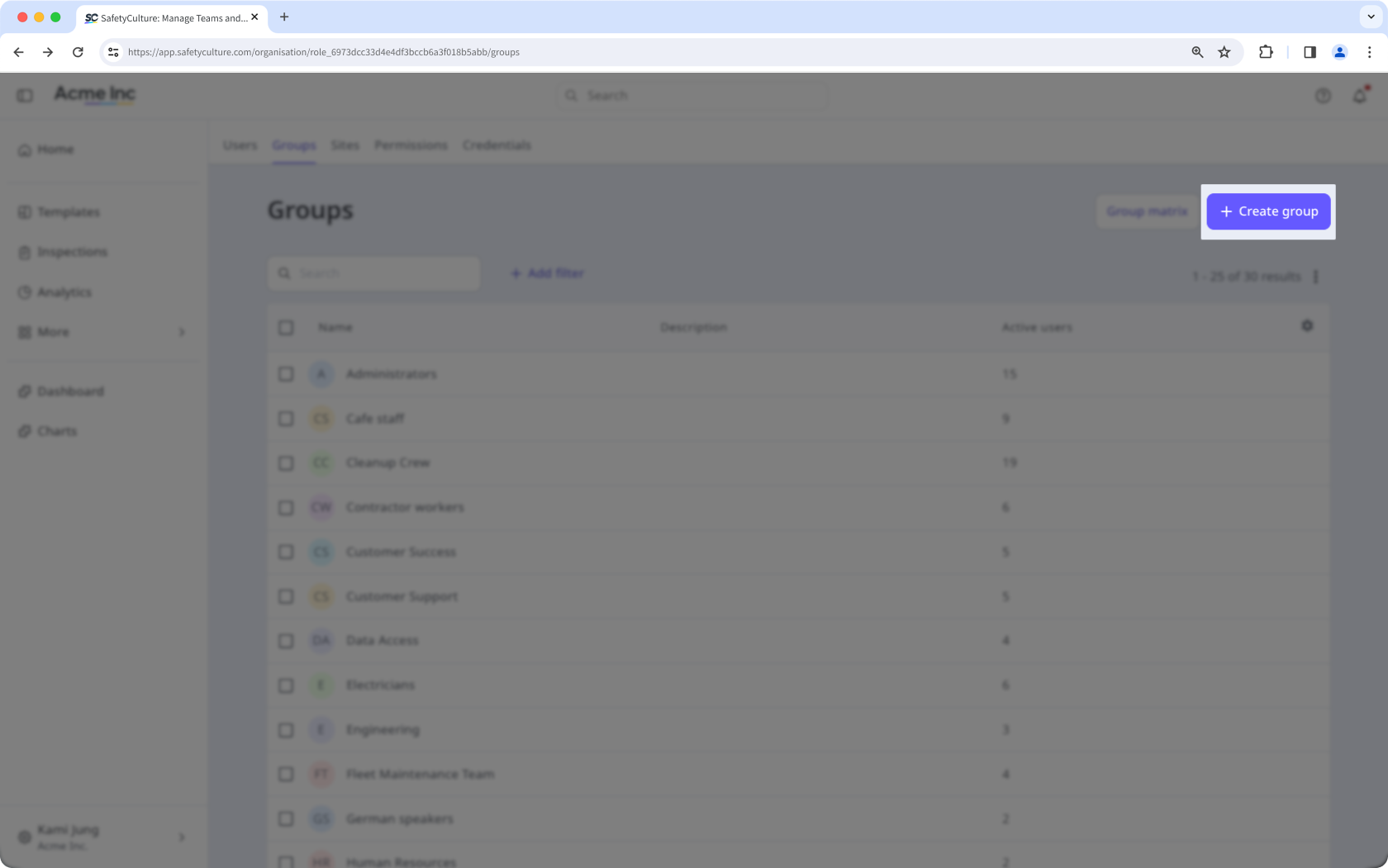
Klicken Sie auf Gruppe erstellen oben rechts auf der Seite.
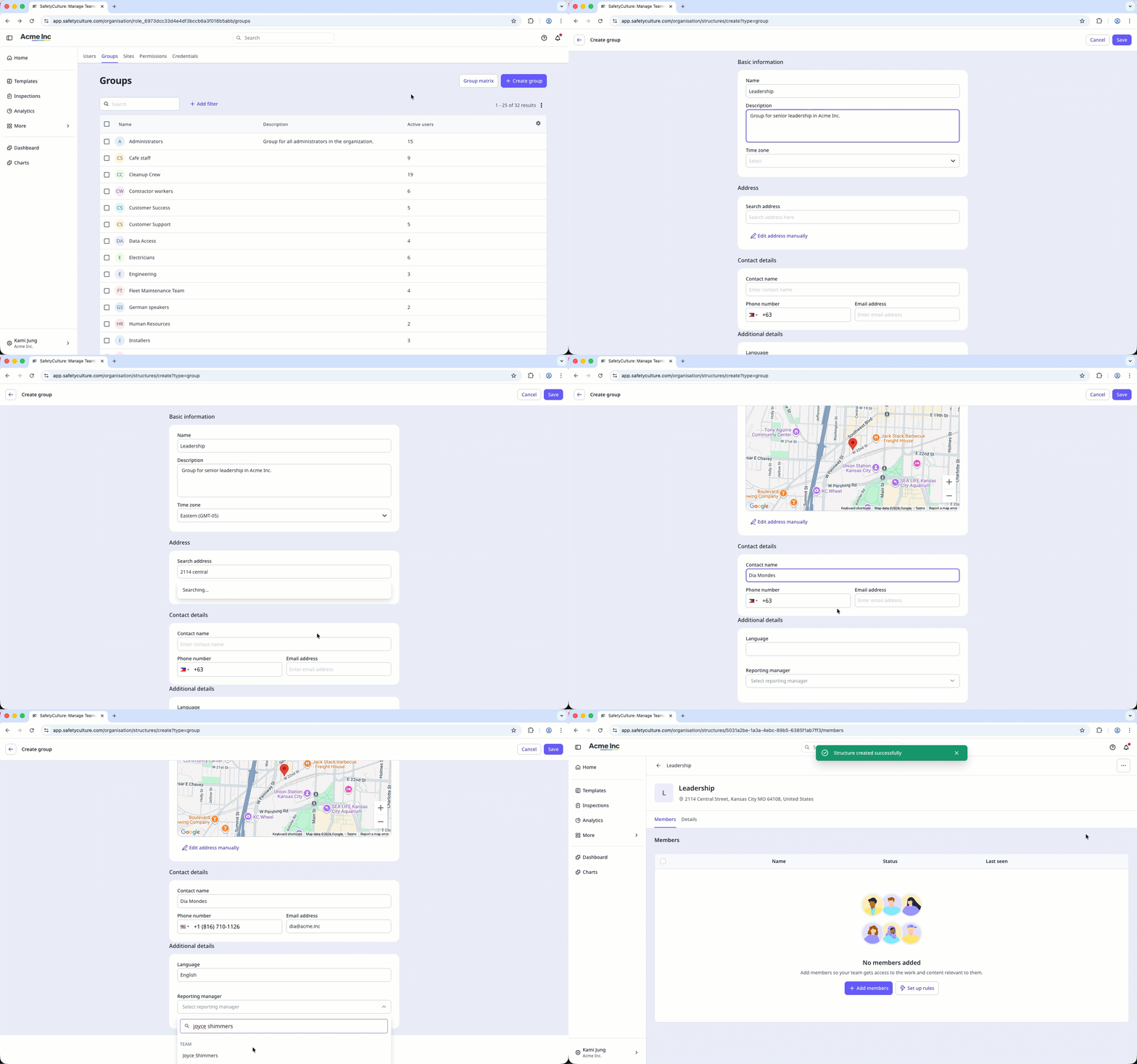
Geben Sie den "Namen" und die "Beschreibung" ein und konfigurieren Sie die Organisationsfelder entsprechend.
Klicken Sie auf Speichern in der oberen rechten Ecke der Seite.