
We currently have a legacy and a new experience with the Schedules feature.
This article covers the new Schedules experience. Please ensure you're in the new experience by using the toggle on the upper-left of the Schedules page.
What you'll need
Pause or resume a main schedule
Pausing or resuming the main schedule will automatically pause or resume all of its sub-schedules.
Select Schedules from the sidebar or in More.
Click Manage schedules on the top of the page.
Click the schedule.
In the side panel, click Pause or Resume.
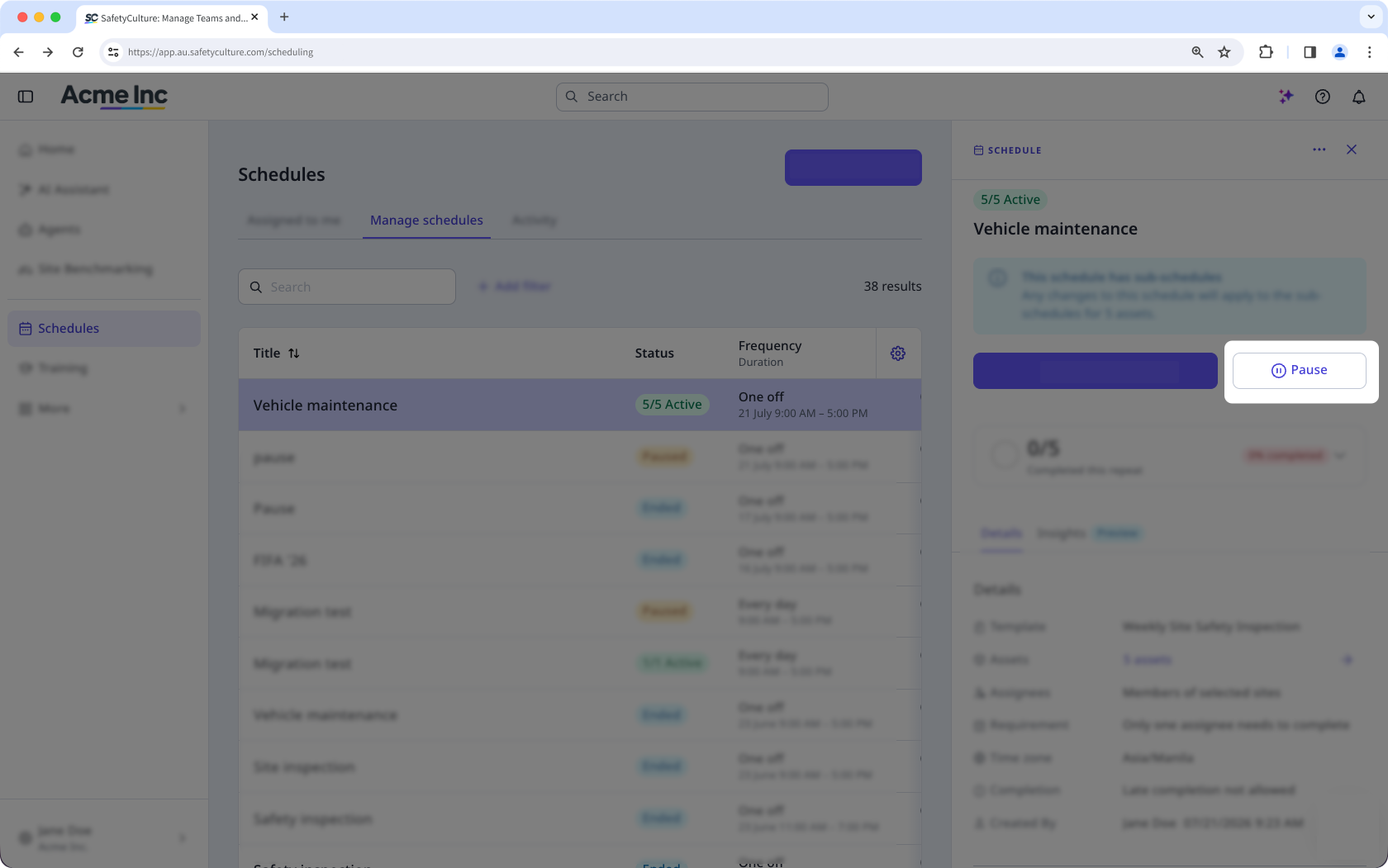
In the pop-up window, click Pause or Resume.
Pause or resume a sub-schedule
Pausing or resuming a sub-schedule does not affect other sub-schedules.
Select Schedules from the sidebar or in More.
Click Manage schedules on the top of the page.
Click the schedule.
In the side panel, click the site or asset listed next to the "Sites" or "Assets" field.
Click or on the right of the sub-schedule.
In the pop-up window, click Pause or Resume.


