
Deleting is irreversible, and we cannot restore permanently deleted items. Confirmation is always required before any deletion, so be sure you're not accidentally deleting the wrong item.
Delete a document from an asset
Select Assets in the sidebar or select it in More.
You can choose how you want to view your assets by selecting Table, Gallery, or Map on the upper-right of the page. You can also filter by type or site.
Search and select the asset.
In Overview, go to the "Documents" section.
Click on the right-hand of the file, and then select
 Remove.
In the pop-up window, click Remove.
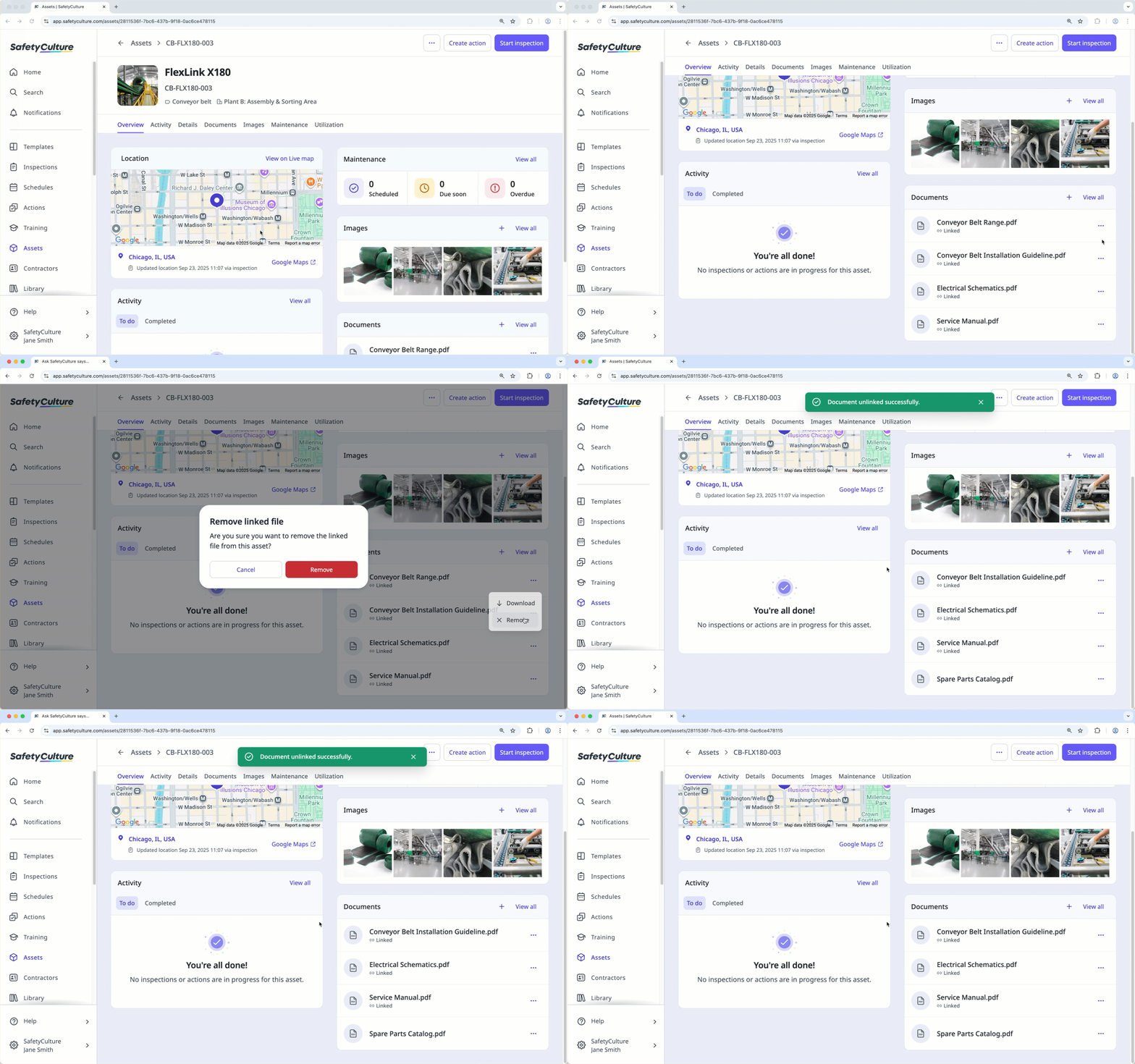
Alternatively, click Documents at the center of the page.
Click on the right-hand of the file, and then select
Remove.In the pop-up window, click Remove.
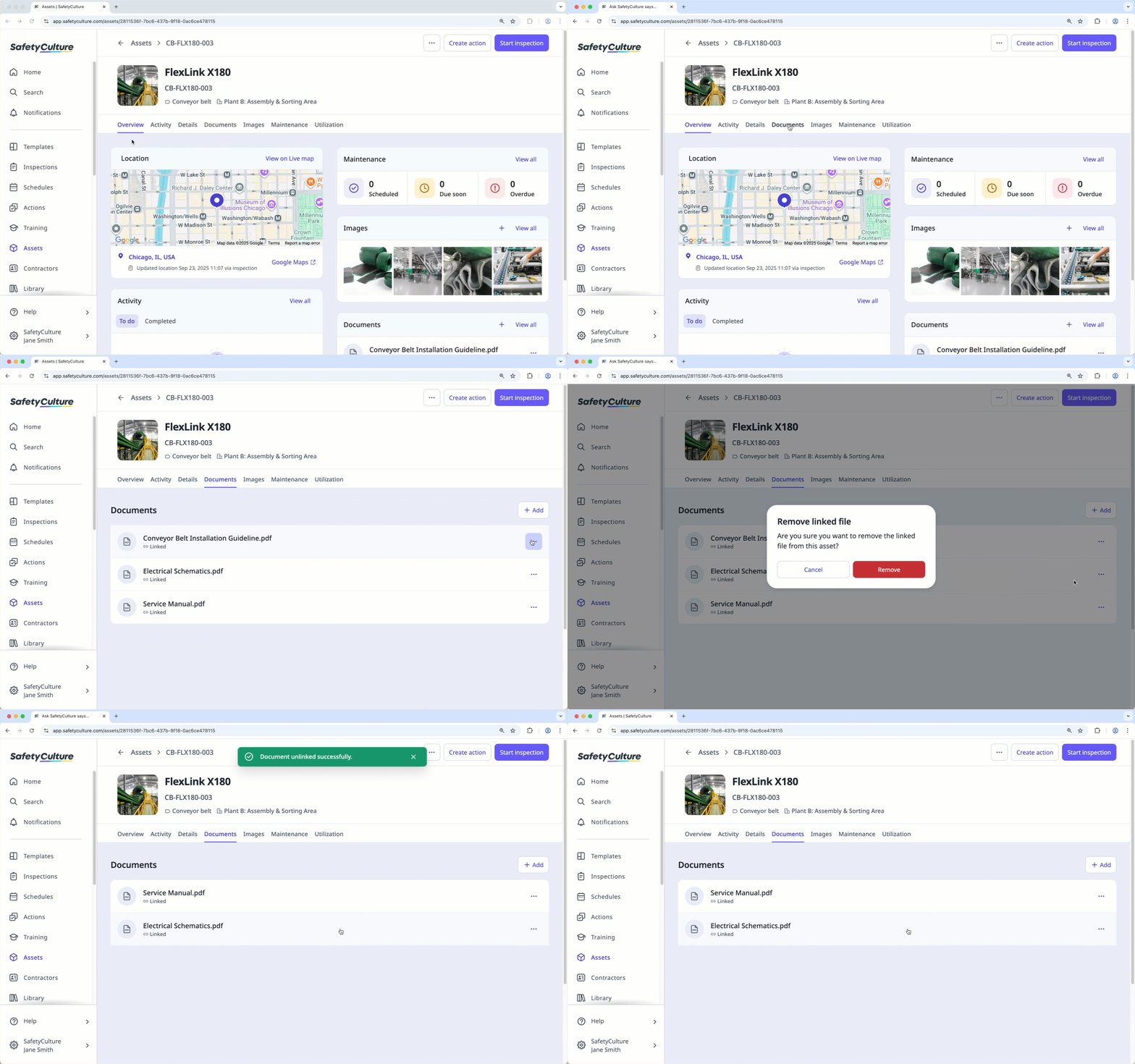
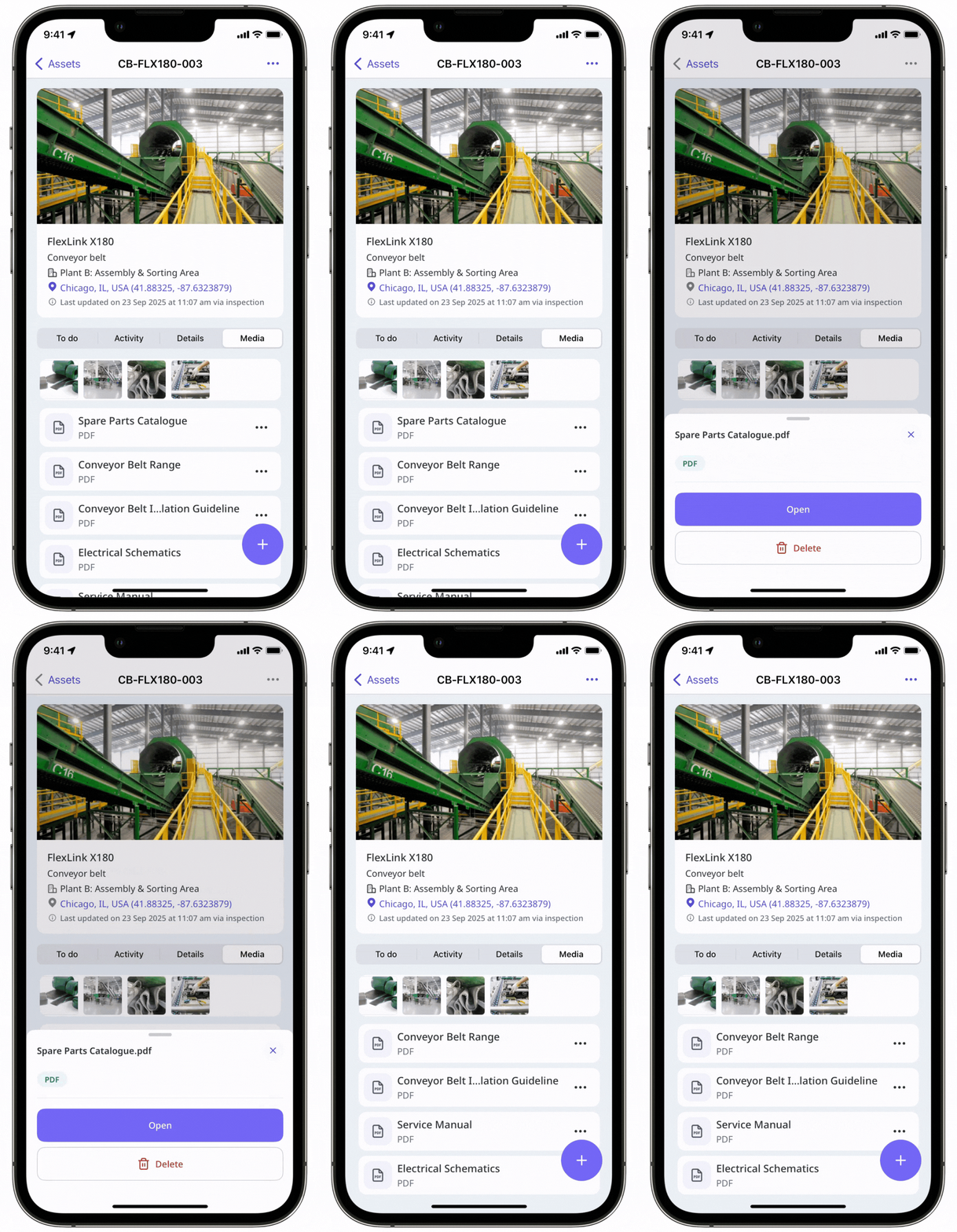
Delete an image from an asset
Select Assets in the sidebar or select it in More.
You can choose how you want to view your assets by selecting Table, Gallery, or Map on the upper-right of the page. You can also filter by type or site.
Search and select the asset.
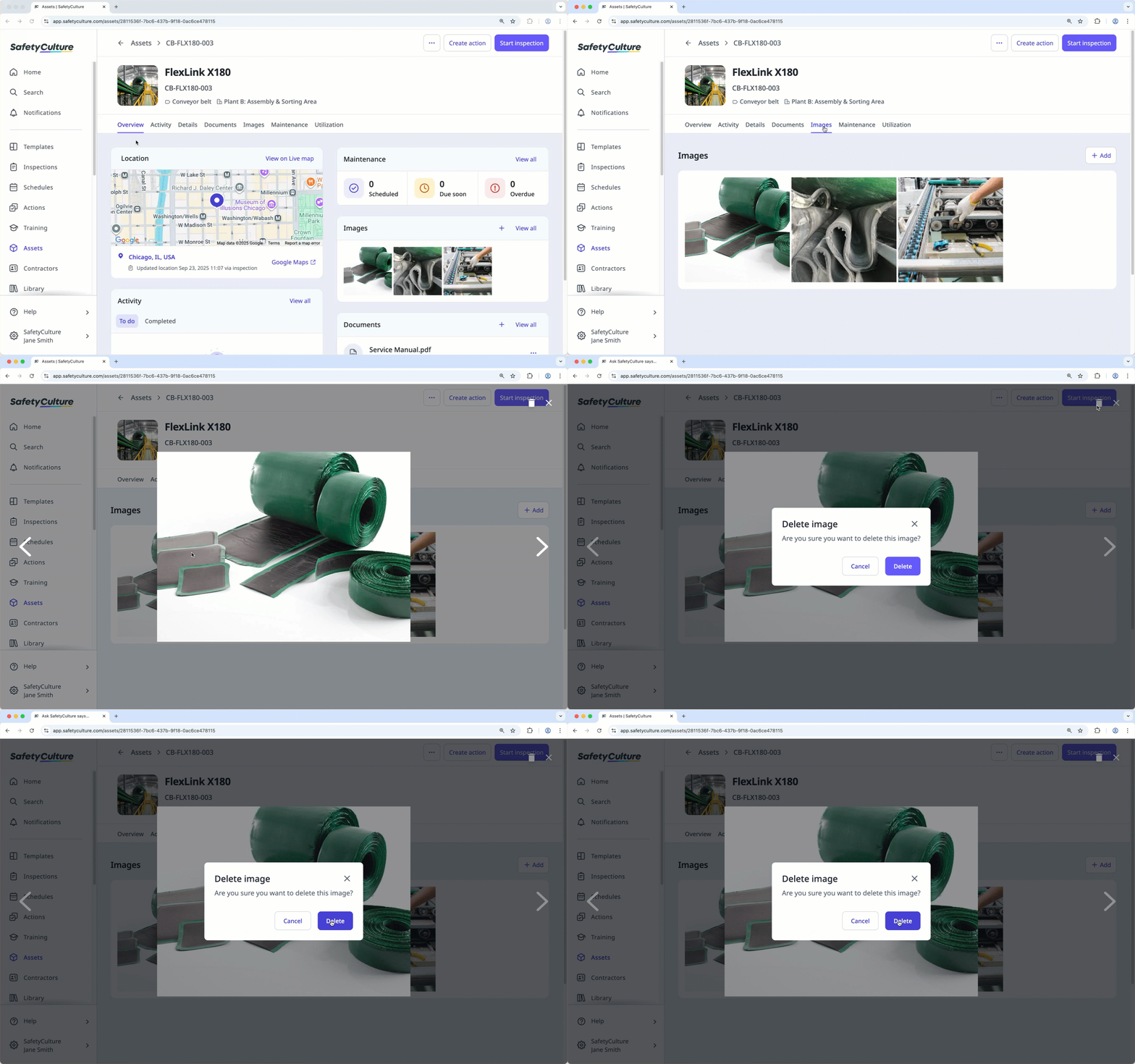
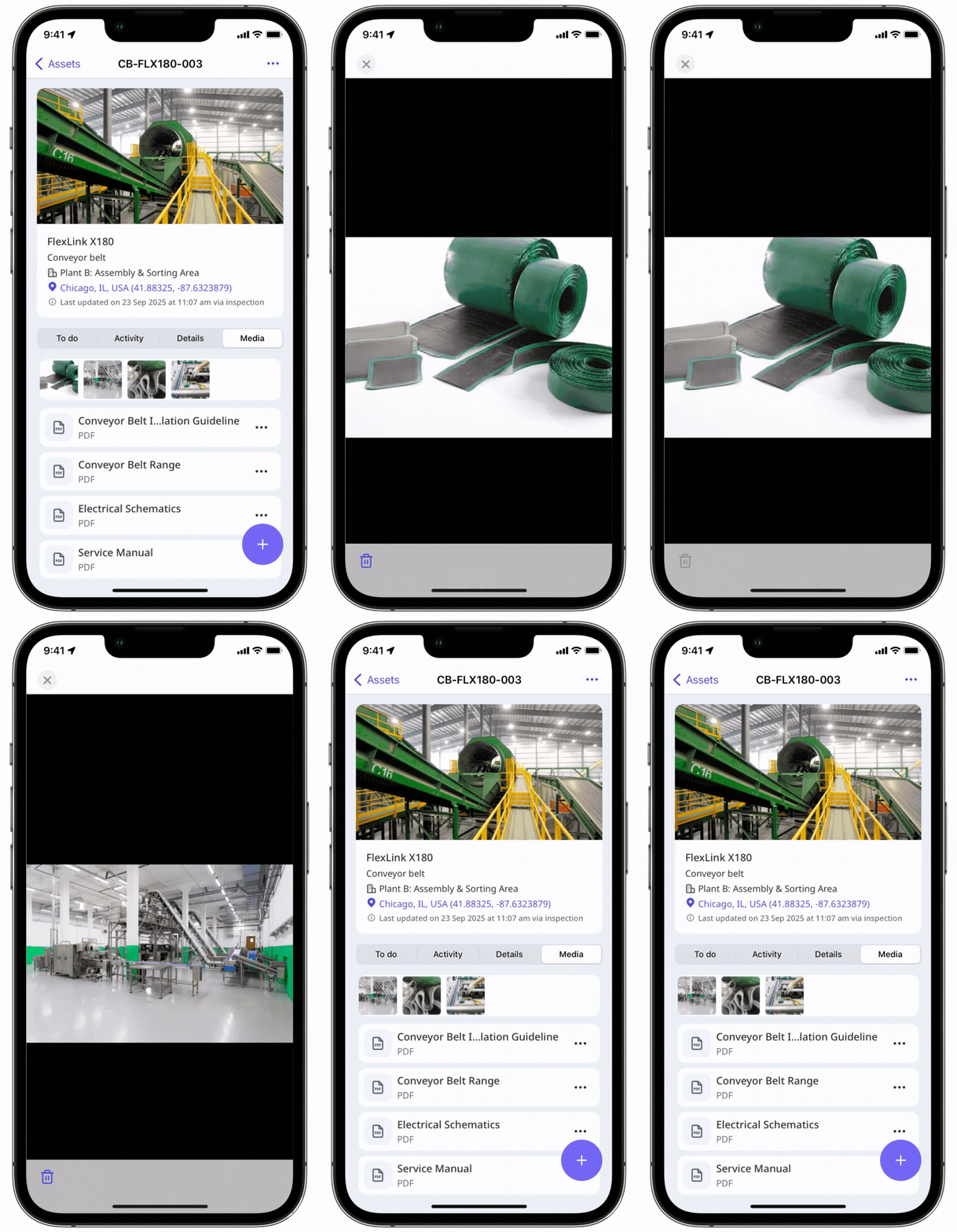
In Overview, go to the "Images" section.
Select the image.
Click on the upper-right of the page.
In the pop-up window, click Delete.
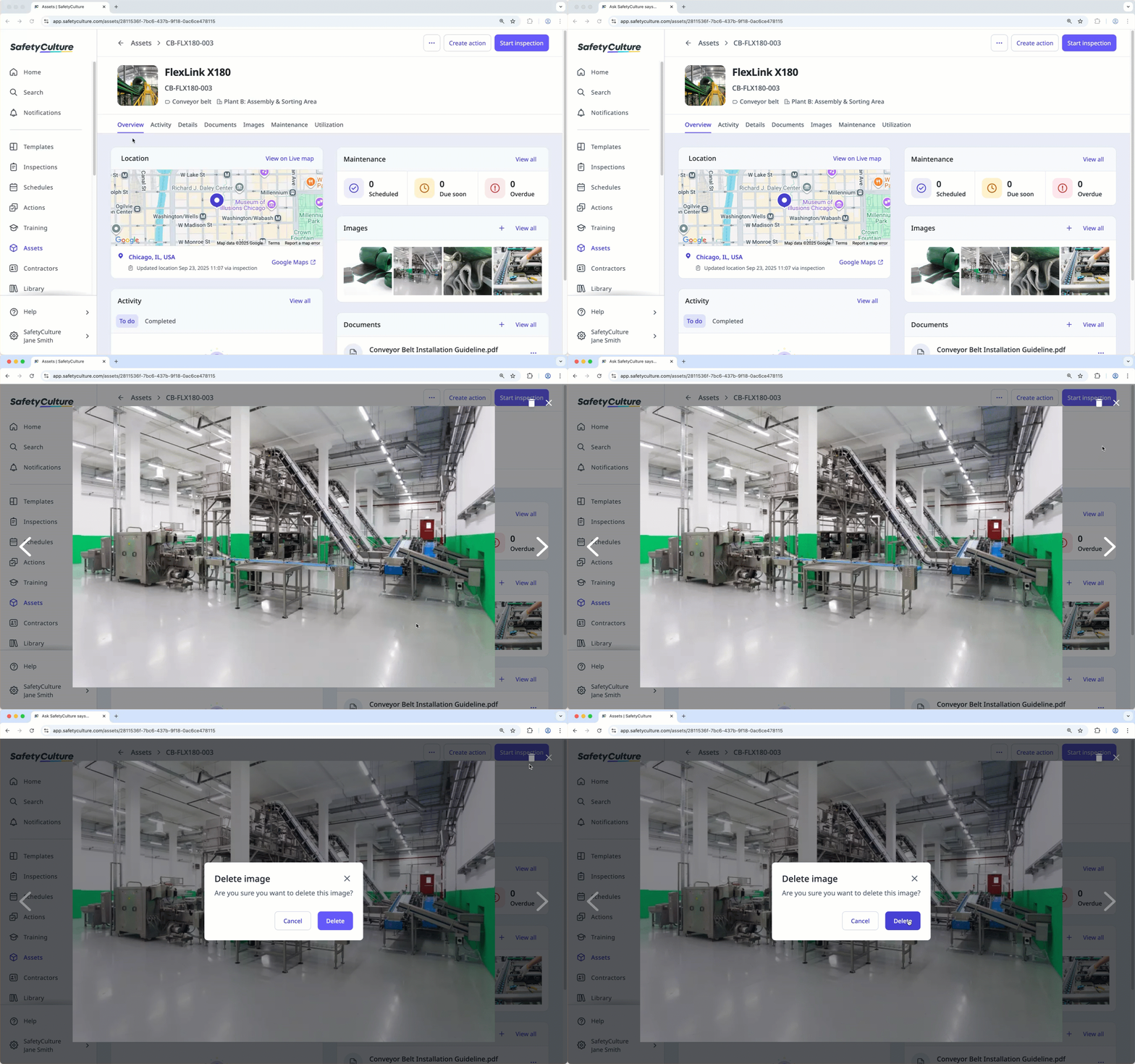
Alternatively, click Images at the center of the page.
Select the image.
Click on the upper-right of the page.
In the pop-up window, click Delete.
Unlink a file from an asset
Select Assets in the sidebar or select it in More.
You can choose how you want to view your assets by selecting Table, Gallery, or Map on the upper-right of the page. You can also filter by type or site.
Search and select the asset.
In Overview, go to the "Documents" section.
Click on the right-hand of the file, and then select
Remove.In the pop-up window, click Remove.
Alternatively, click Documents at the center of the page.
Click on the right-hand of the file, and then select
Remove.In the pop-up window, click Remove.


