Why start inspections from actions?
Creating an action allows you to identify, track, and complete tasks as a team while conducting inspections helps your team gather data. With SafetyCulture, you can add templates to actions and use them to start an inspection directly from the action. Imagine you’re managing a warehouse and notice an area with potential safety hazards, like an uneven floor. You create an action to address this and assign it to the safety manager.
From this action, they can immediately start an inspection to assess and document the specific hazards, gather photos, and add relevant notes. By starting an inspection from the action, your team can track progress in one place, enabling them to complete tasks as efficiently as possible.
If you have "Actions: Settings" permission, you can turn on the option to link templates to an action type. This allows your team to add a template and start an inspection directly from an action.
What you'll need
Inspections started from actions are only visible to assignees and users with access to the relevant inspections.
Start an inspection from an action
Select Actions in the sidebar or select it in More.
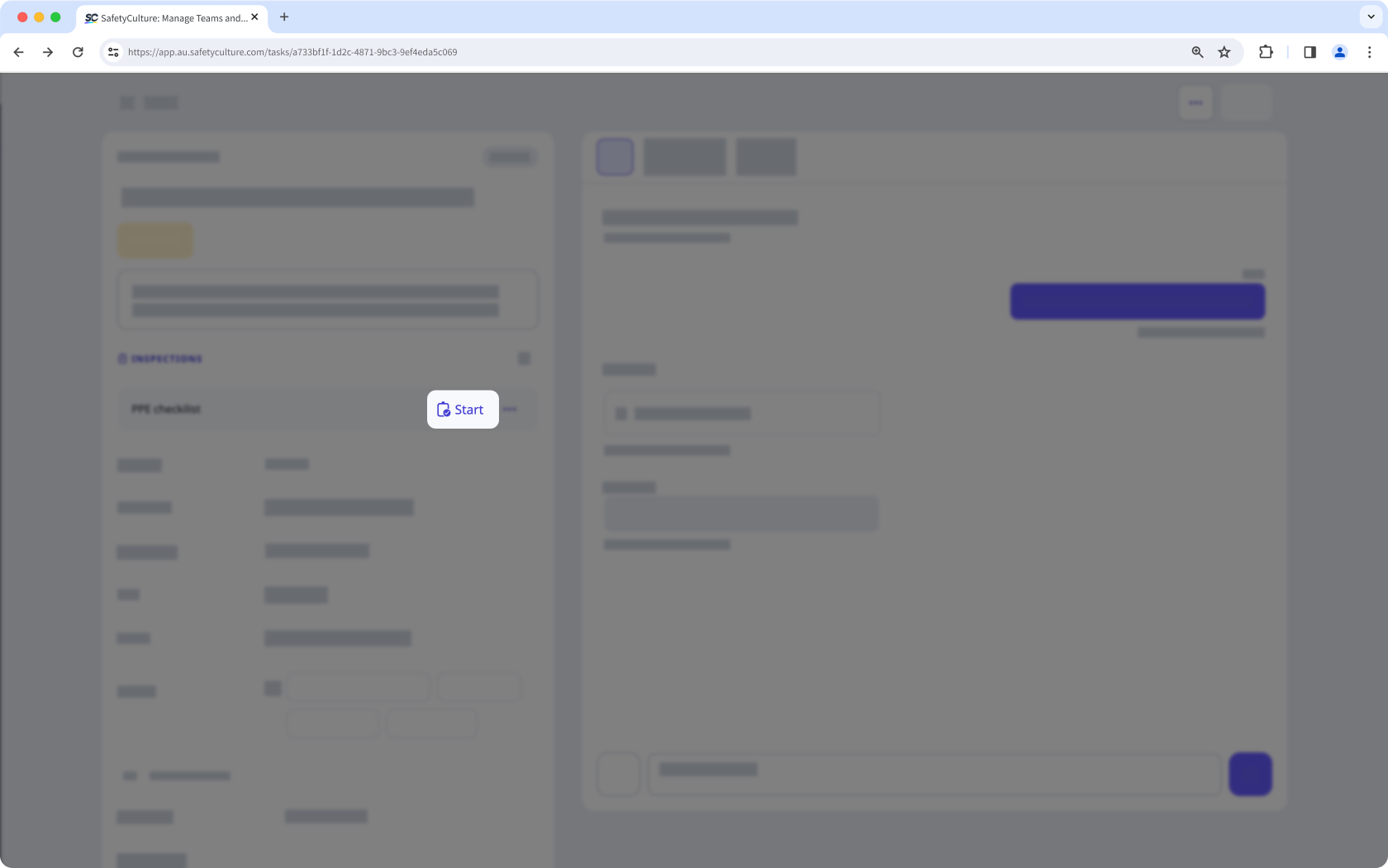
In the "INSPECTIONS" section, click Start on the template you want to use.
Go through the inspection accordingly.