
How do course assignments work?
Course assignments allow you to check whether team members have understood the information covered in a course. When you add an assignment lesson to a course, you set a task for team members to submit as a written response. Once a team member submits their response, you can grade it as pass or fail and share feedback directly with them.
Depending on your preference, you can control who can view posts and comments in an assignment:
Anyone: All users taking the course can view each other's posts and comments.
Only their user group: Users can only view posts and comments from members of their own user group.
Administrators only: Only administrators can view posts and comments, giving team members a private space to submit their work.
When you reset the progress for a course that includes an assignment, it resets all user progress for that course, including any completed assignments. To complete the course again, users need to retake the course and resubmit their assignments.
What you'll need
Grade a course assignment
Select Training in the sidebar or select it in More.
Click Facilitate at the top of the page and select Assignments.
Click the course assignment you want to grade.
Click View Submission.
Write your feedback in the Submission section. This feedback is visible only to the user who submitted the assignment and is hidden from other users who are taking the similar course.
Select the grade from the dropdown list and click Publish Feedback.
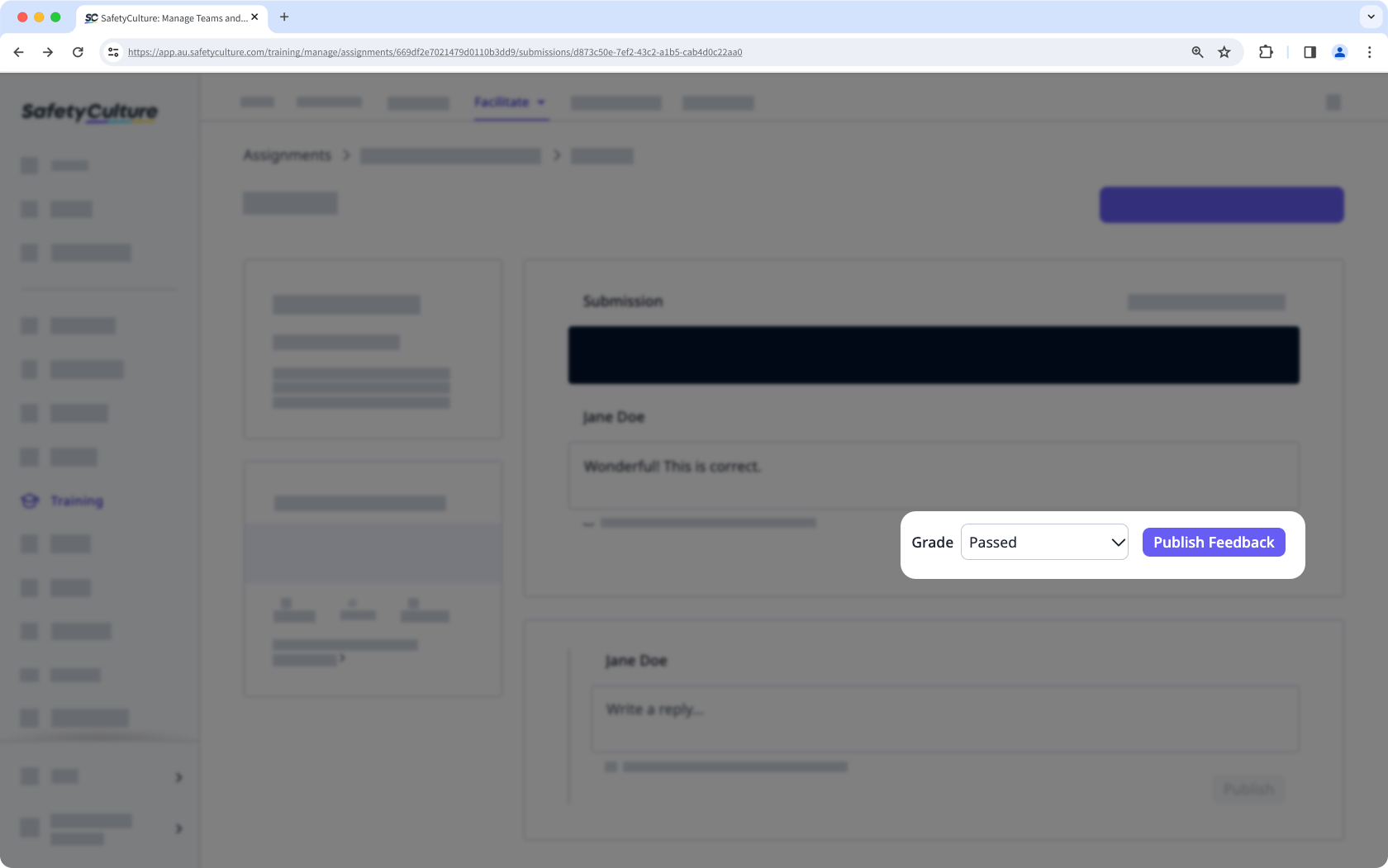
To give feedback that is visible to other users, add it in the "Write a reply" section below your name and click Publish.
When you reset the progress for a course, it resets all user progress, including graded assignments. Users need to retake the course and resubmit their assignments for grading again.


