You can delete an asset type only after removing it from all active and archived assets. System-generated fields like unique ID and site can’t be deleted.
Deleting is irreversible, and we cannot restore permanently deleted items. Confirmation is always required before any deletion, so be sure you're not accidentally deleting the wrong item.
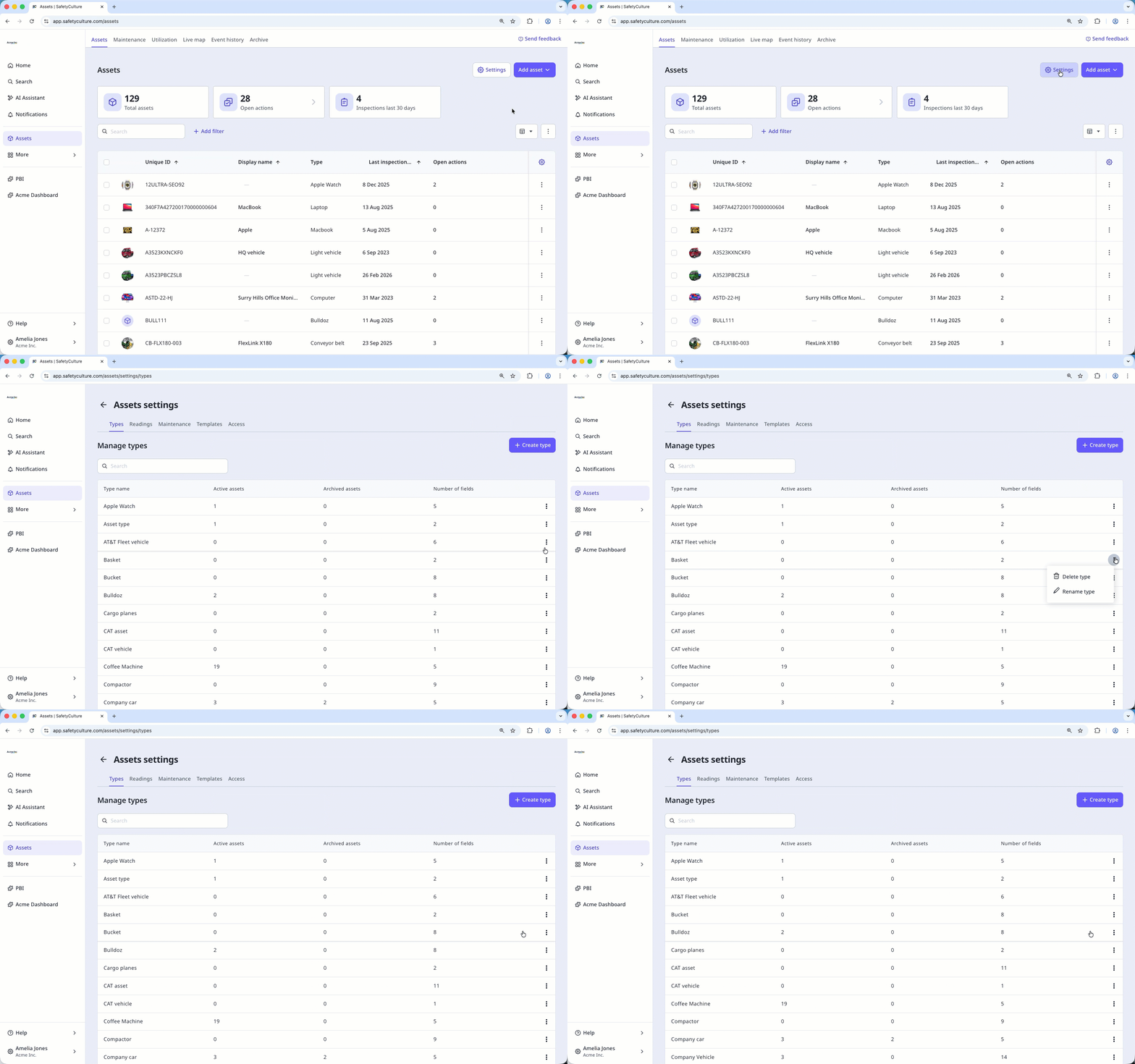
Delete an asset type
Select Assets in the sidebar or select it in More.
Click Settings on the upper-right of the page.
In Types, click on the asset type's right-hand side and select Delete type.
Delete an asset field
Select Assets in the sidebar or select it in More.
Click Settings on the upper-right of the page.
In Types, click any asset type.
Find the asset field you want to delete on the right-hand side under "Add an existing field". If the asset field is currently added to the asset type, click to remove it from the type first.
Click on the asset field's right-hand side and select Delete field.
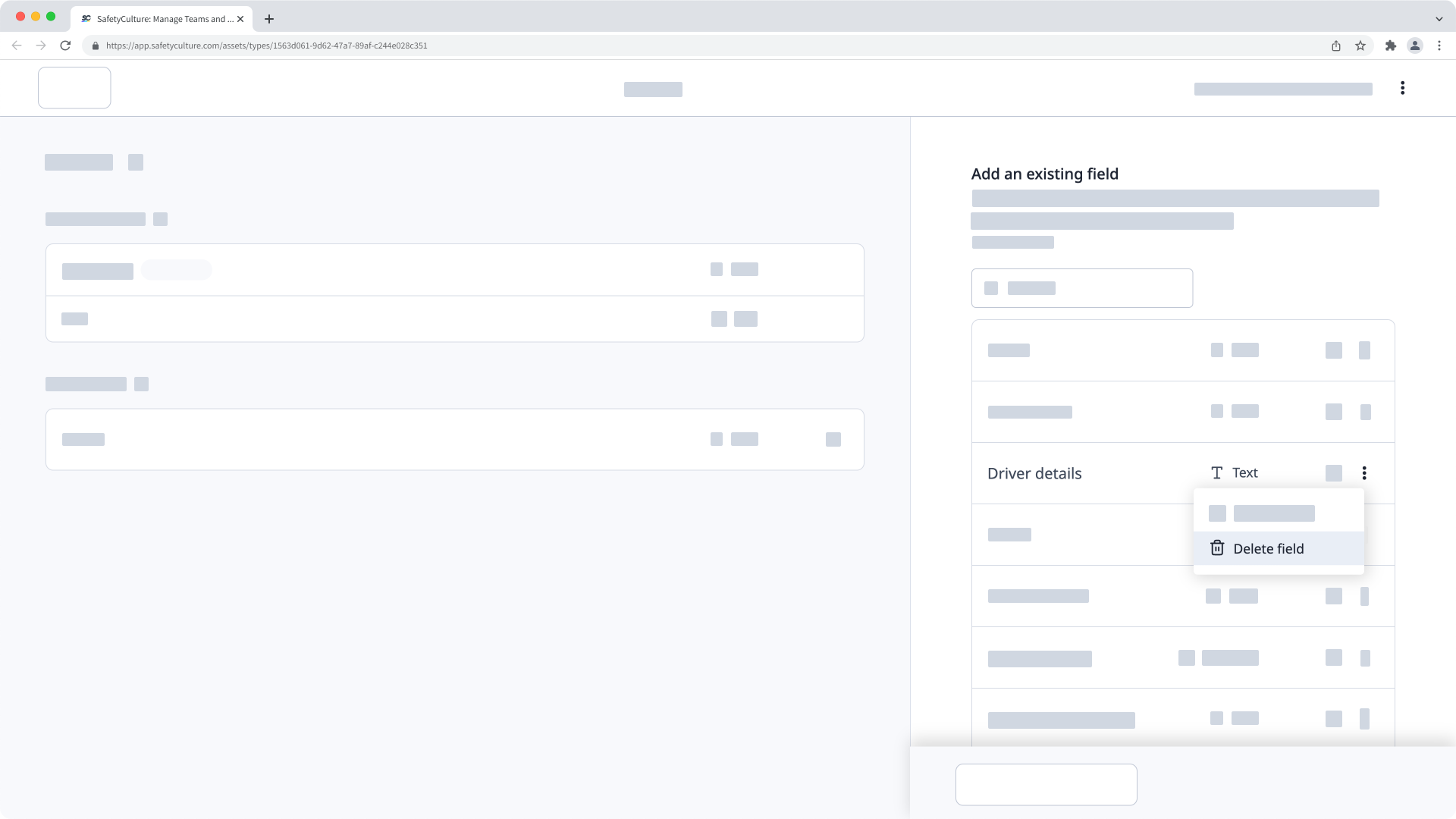
In the pop-up window, enter "DELETE FIELD" and click Delete field.