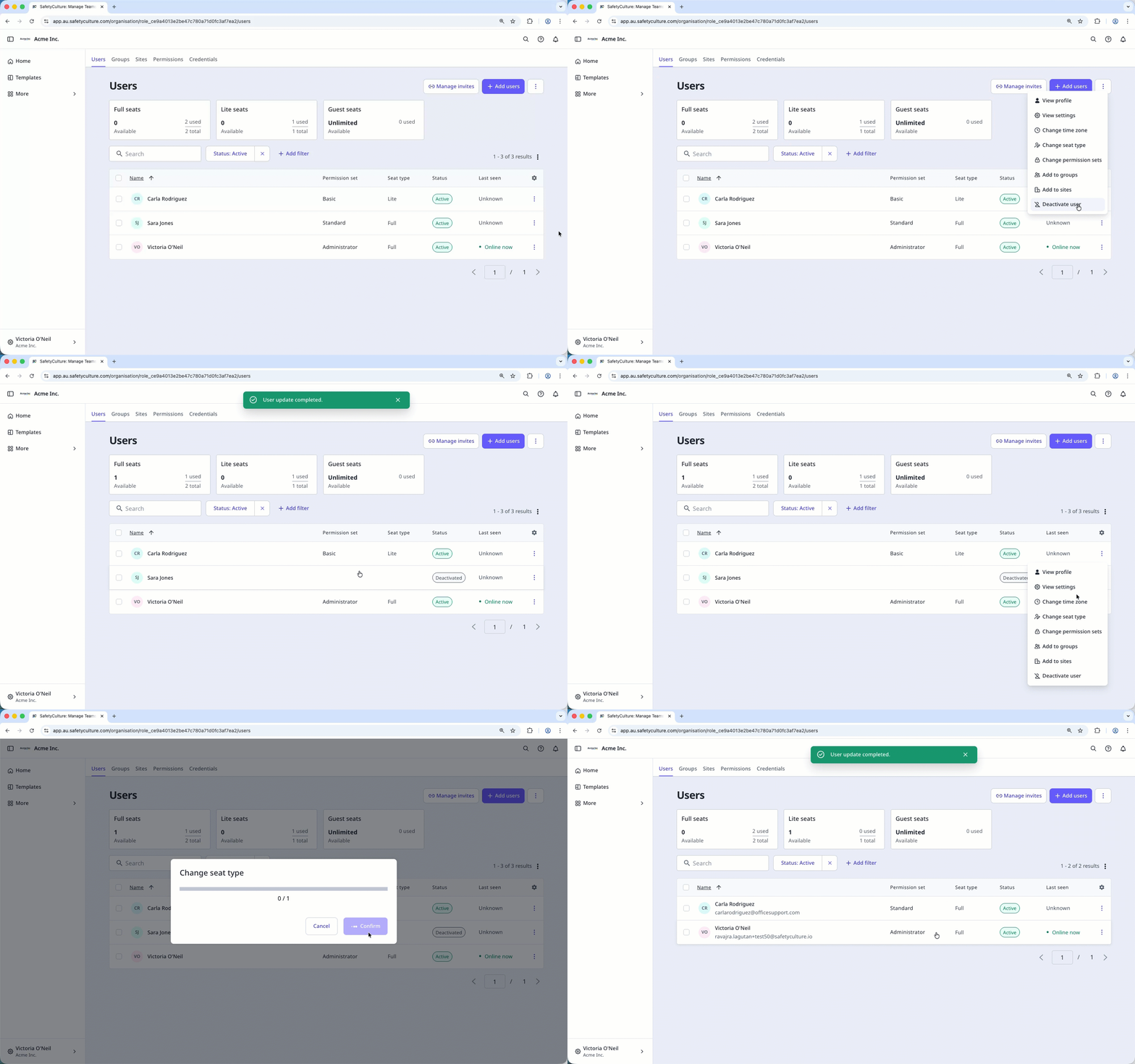
What does it mean to reassign a user's seat?
When you deactivate users from your organization, their seats become available for new or existing users. This allows you to give the right seat type to the right people as their responsibilities change, without purchasing additional seats. For example, if three employees resign, you can deactivate their accounts and reassign one full seat to a newly promoted manager and two lite seats to contractors.
If a user leaves your organization, deactivate the user instead of replacing them with new user details. This ensures that data isn't compromised while keeping the organization accurate.
What you'll need
You can change a user's seat type without deactivating them, which gives you flexibility in how you manage your available seats.
Reassign a user's seat
Click your organization name on the lower-left corner of the page and select Users.
Click on the right-hand side of the user whose seat you want to reassign and select Deactivate user.
In the pop-up confirmation window, click Deactivate.
Once a seat has been freed up, you can either add a new user or change an existing user's seat type.