
What are Heads Up acknowledgments?
Heads Up acknowledgments make it easy to confirm that important messages have been seen and understood. They help keep teams aligned and informed, especially when people are working across different locations or shifts.
With acknowledgments, you can see exactly who has viewed and acknowledged a Heads Up, follow up with reminders for those who haven’t, and track overall engagement through analytics. This gives you confidence that critical updates aren’t being missed and helps ensure important information reaches the right people at the right time.
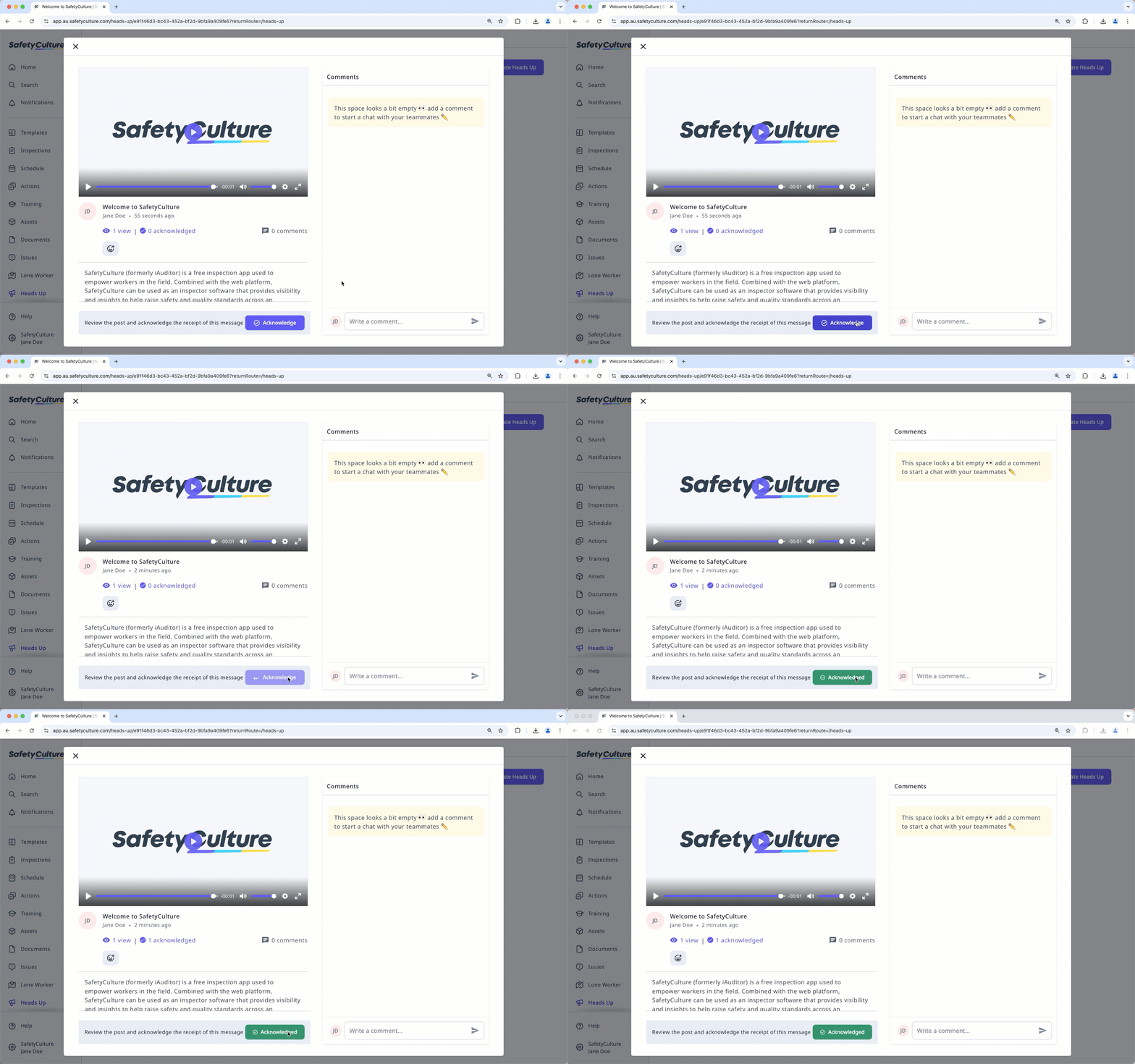
Acknowledgment is not available for people who view Heads Ups via external links. If you want them to acknowledge Heads Ups, consider adding them to your organization as users.
If you have "Heads Up: Manage" permission, you can manage, view acknowledgments, send reminders, and download all Heads Ups as CSV.
View a Heads Up's acknowledgments
Select Heads Up in the sidebar or select it in More.
Select Manage Heads Up tab on the top of the page.
Click the Heads Up.
On this page, you can see the assignee list and view who has and hasn't acknowledged the Heads Up.
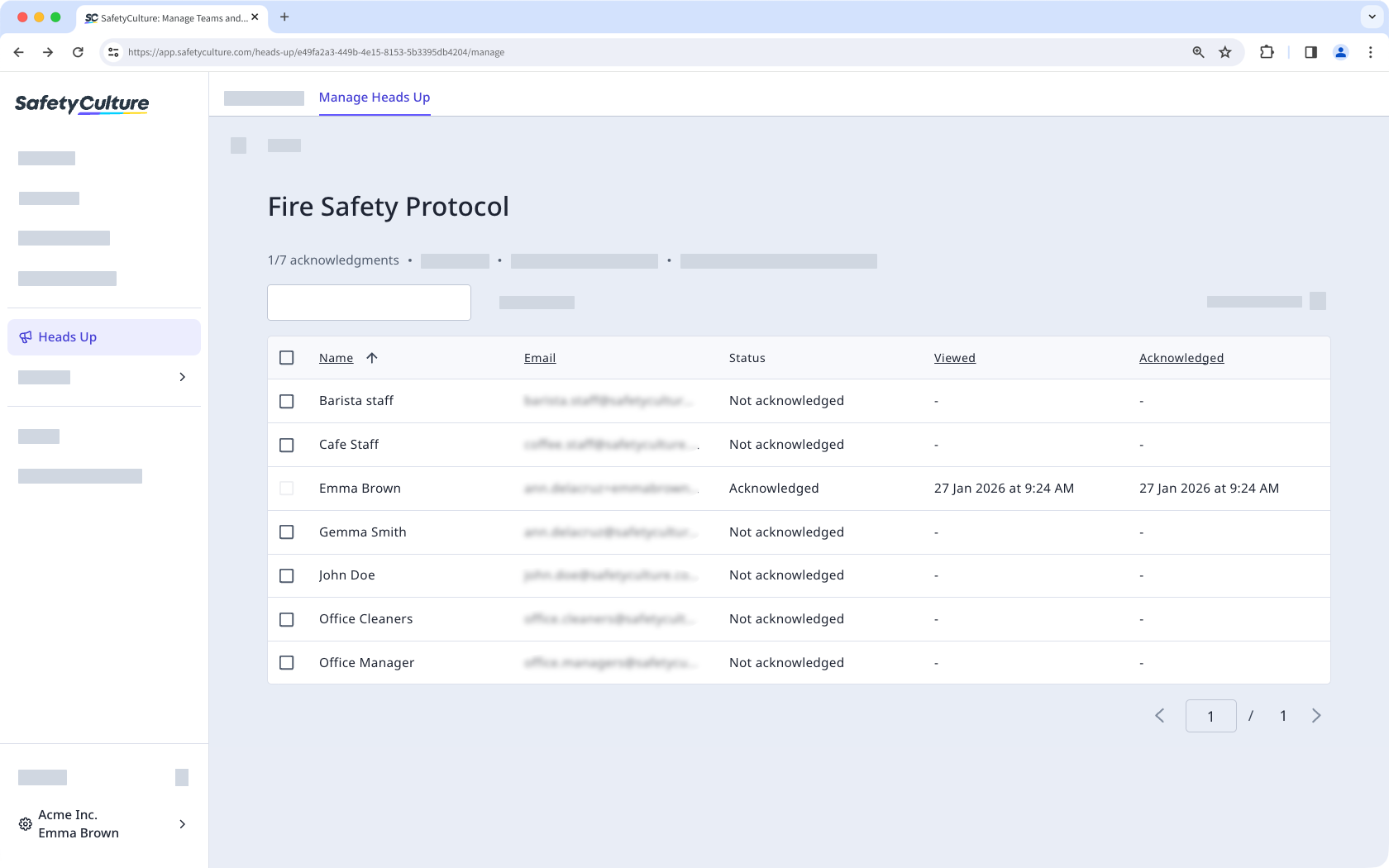
You can track Heads Up engagement in Analytics or download your Heads Up list as CSV to easily send reminders to assignees who haven't acknowledged.


