
What you'll need
You can view the following details within a Heads Up:
Basic information such as the title, description, and any media attachments.
The number of users who have viewed and acknowledged the Heads Up.
The number of users who commented on the Heads Up.
The emoji reactions and the number of users who reacted on the Heads Up.
Recent Heads Ups will be shown on both the web app and the mobile app "Home" screen for 9 days from their publish date, irrespective of whether they've been viewed or acknowledged.
View a Heads Up
Select Home from the menu on the left-hand side.
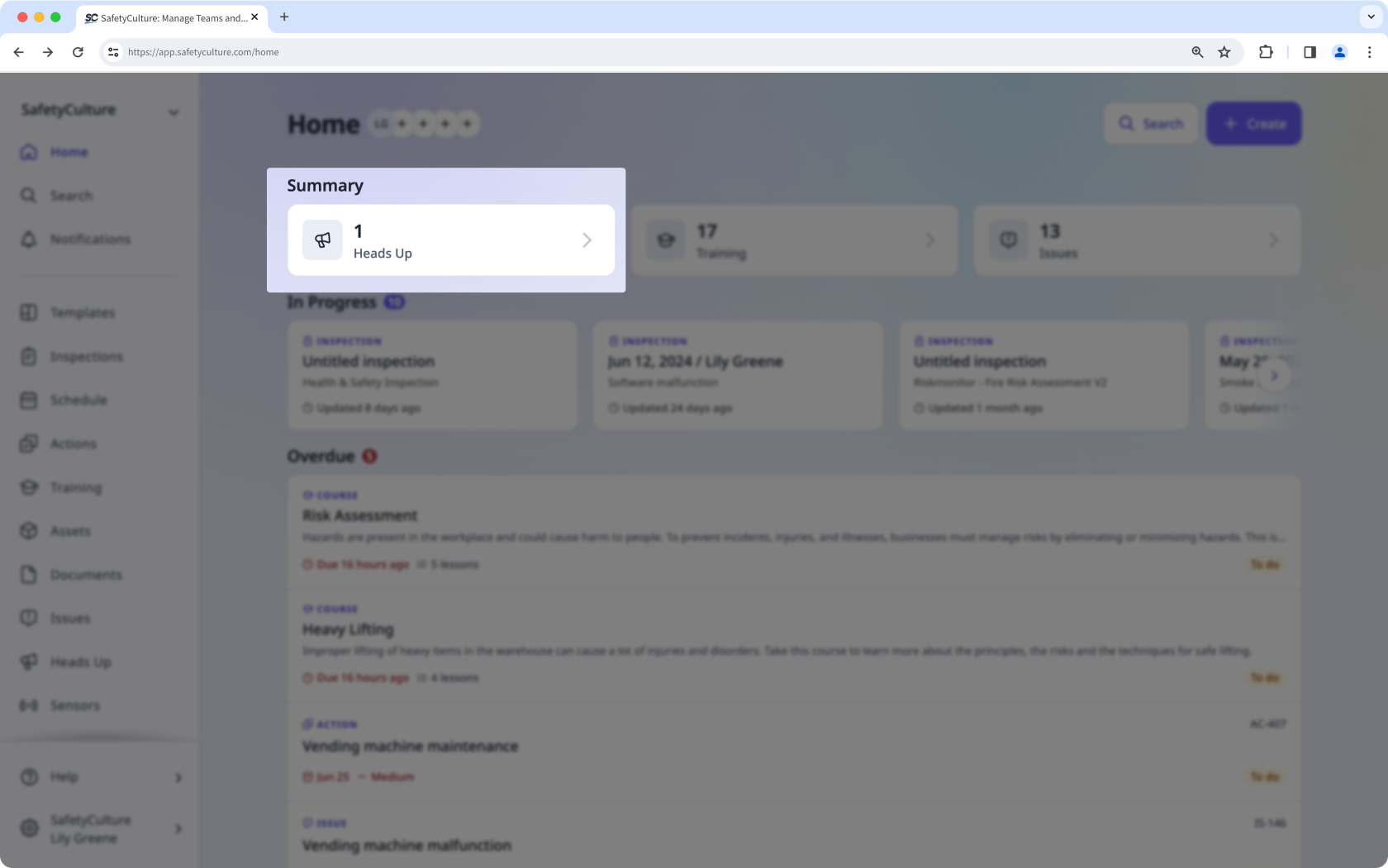
Heads Ups assigned to you are available at the top of the page. Click the Heads Up.
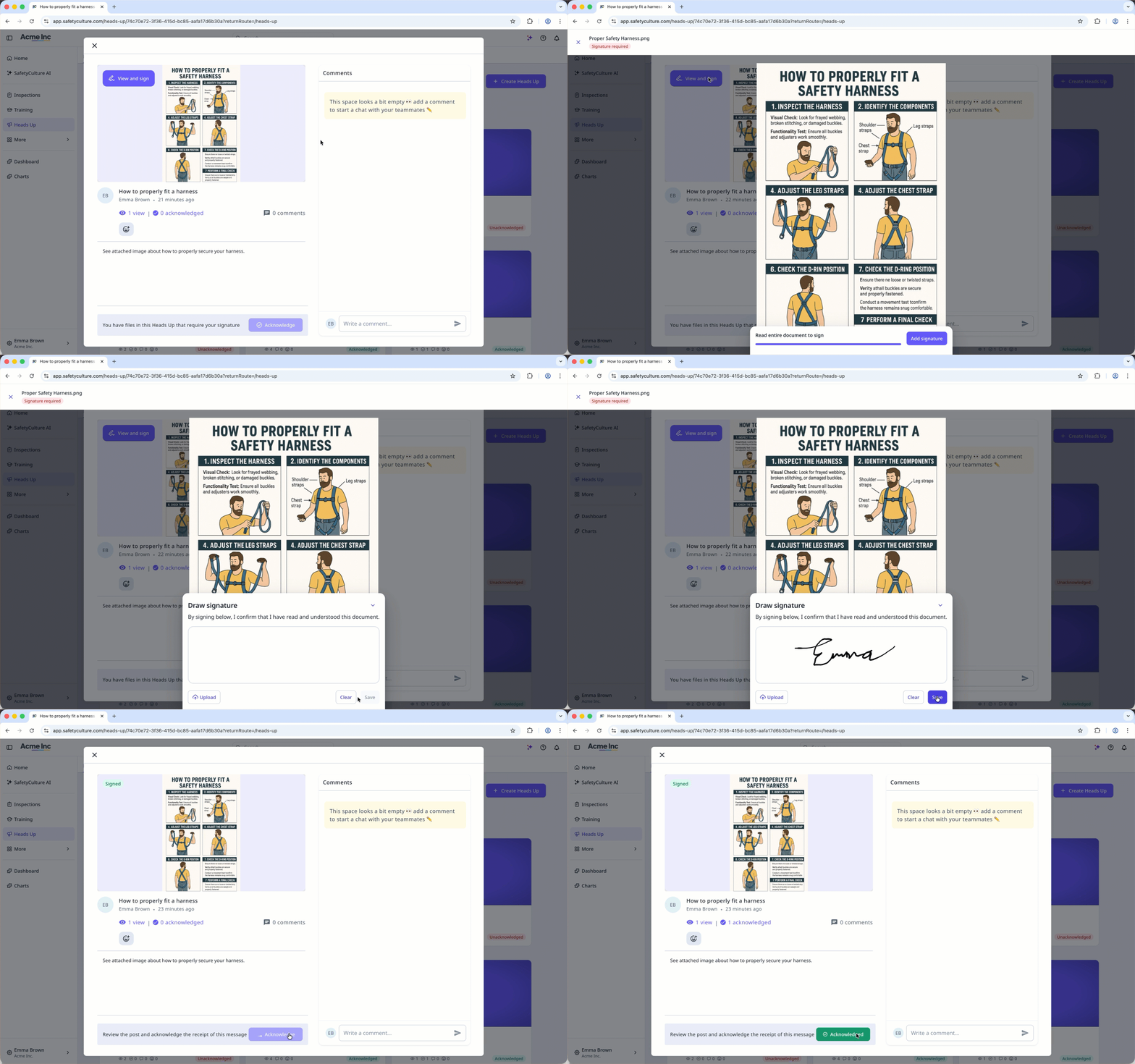
If you have files that require a signature, click View and sign on the upper-left of the file.
Click Add signature at the bottom of the page.
Draw your signature or click Upload to select an image from your device.
Click Save.
Once you've viewed the Heads Up, you may be required to acknowledge this by clicking Acknowledge at the bottom of the pop-up window.
If you have emoji reactions turned on for a Heads Up announcement, you also have the option to add an emoji reaction to a Heads Up you view by clicking .

You can only acknowledge the Heads Up after signing all files that require a signature.
View a past Heads Up
Select Heads Up in the sidebar or select it in More.
Filter and sort the page to find and click the Heads Up.
You can filter the My Heads Up and Manage Heads Up lists only to show Heads Ups you've created using the "Author" filter.


