Third-party products can change over time, so some labels or screen layouts in this article may look different in your environment. If you notice anything out of date, use the feedback form at the bottom of this page to let us know.
Why use Zapier to email inspection reports?
You can use integration tools like Zapier to create automations to email completed inspection reports from SafetyCulture. This helps streamline repetitive tasks and keeps your team updated with the latest data without needing to manually share information across the organization.
While t his Zap utilizes Gmail and Outlook as the clients to email inspection reports, it can also be interchanged with other connectors such as Email by Zapier, depending on your organization's workflow.
What you'll need
If you're a part of multiple organizations, please contact our customer support team for assistance in connecting Zapier to the correct SafetyCulture organization.
1. Set Up Trigger in Zapier
Click Create on the upper-left of the page. Then, select Zaps.
Click Trigger, then search and select SafetyCulture.
Click the "Event trigger" dropdown menu and select from the following options:
Any Inspection Completed: Select this event if you want to email all completed inspections your account has access to.
Inspection Completed: Select this event if you want to only email completed inspections from a specific template to which your account has access.
Click the “Account” dropdown to select an account. If this is your first Zap with SafetyCulture, click Connect a new account and then add your SafetyCulture account to Zapier by logging in.
Click Continue.
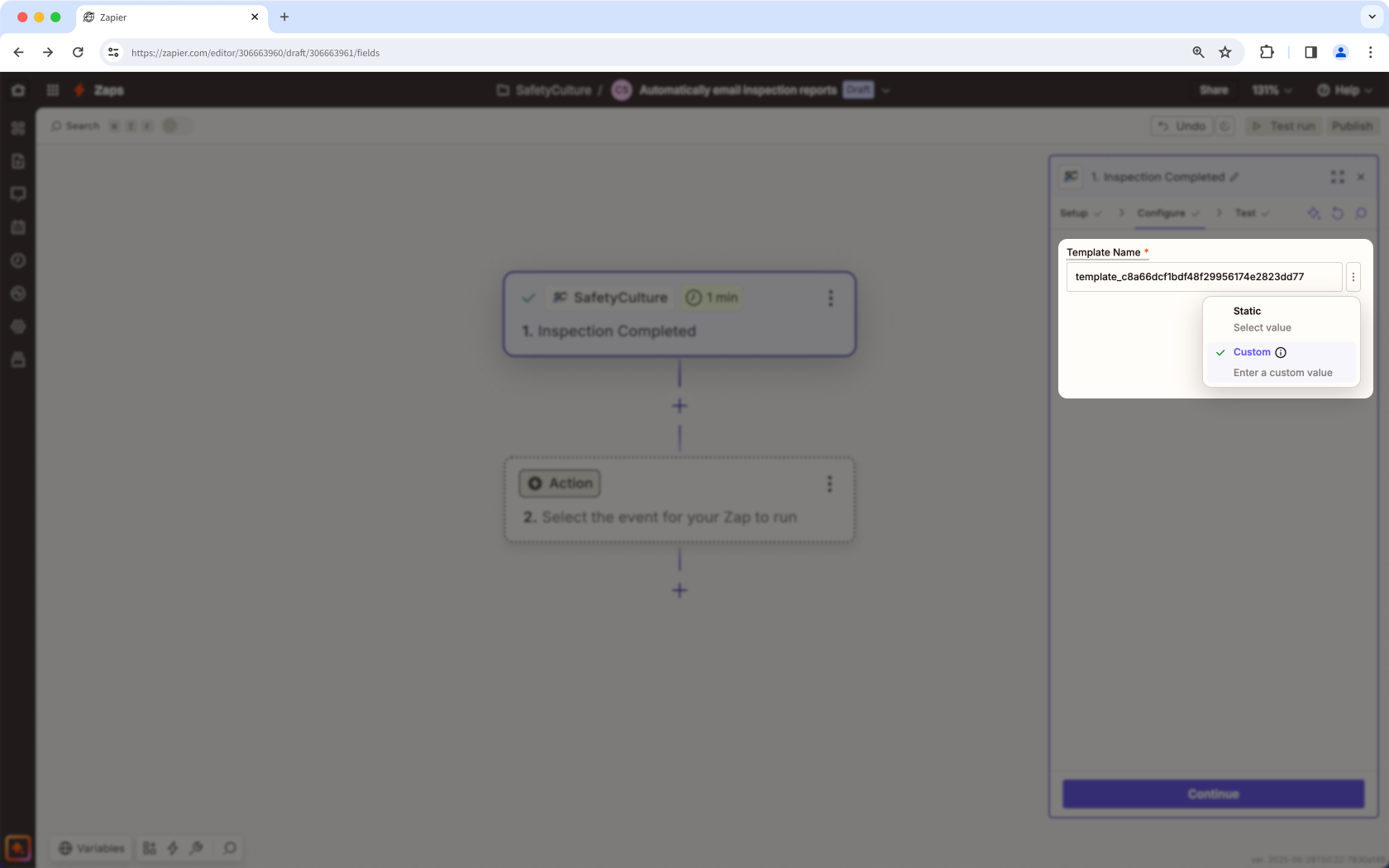
If you selected "Inspection Completed" in step 4, click the "Template Name" dropdown in the "Configure" tab to select the template. Only the 20 most recently modified templates are shown.
If the template you want to use is not on the list, click and select Custom to enter the template's unique identifier in the text field.
Click Continue.
Click Test trigger and click Continue with selected record once an inspection has been found.
This Zap can also be set up to only email inspection reports when completed inspections contain flagged items. If you're up for the challenge, you can now add the optional "Run Python" and "Only continue if..." actions. Otherwise, skip to the "2. Start Inspection Report Export in SafetyCulture" section.
Run Python (optional)
In "2. Action", search and select Code.
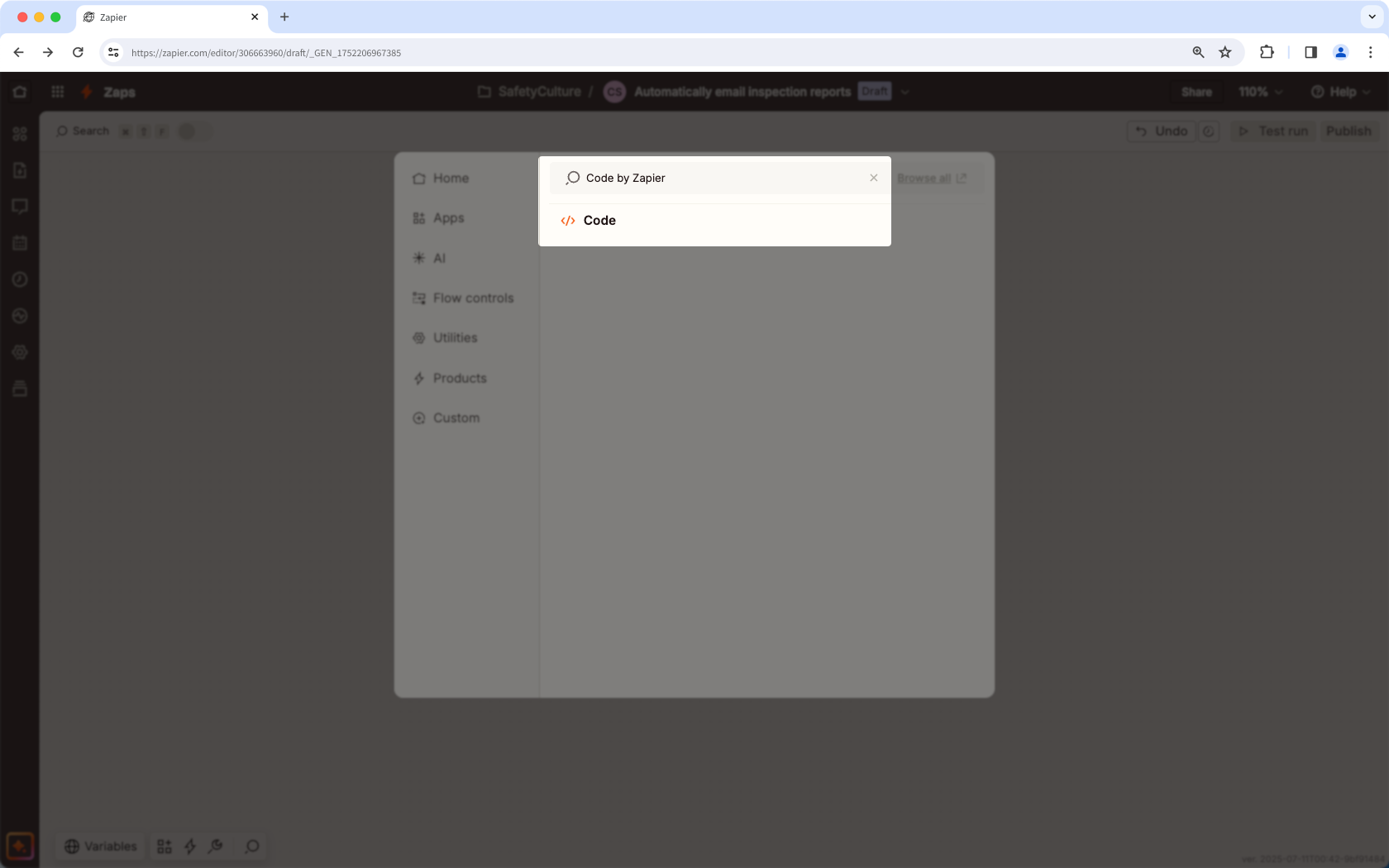
Click the "Action event" dropdown menu and select Run Python.
Click Continue.
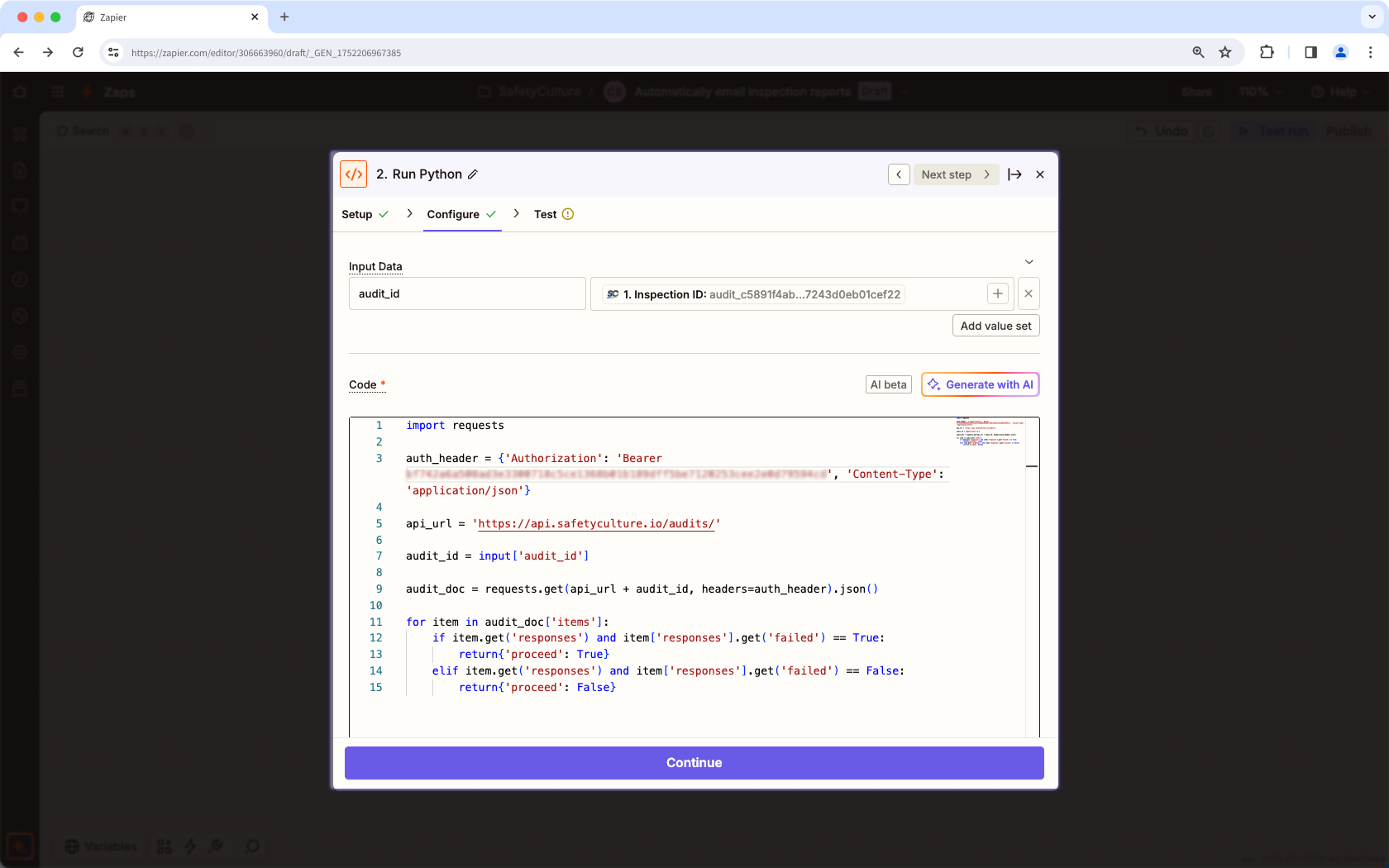
Configure the following fields:
Input Data (left): Enter "audit_id".
Input Data (right): Click the field and select Inspection ID.
Code:type: asset-hyperlink id: 2dhAQk9Vzk5WqGWuBL3XUA, then copy and paste it into the "Code" field. Make sure to replace "API_token" on line 3 with your SafetyCulture API token.
You should see something that resembles the following example:
Click Continue.
Click Test step.
Only continue if... (optional)
Click underneath the "2. Run Python" tile.
Search and select Filter.
Configure the following fields:
Choose field…: Click the dropdown menu and select Proceed under "Run Python".
Choose condition…: Click the dropdown menu and select (Boolean) Is true.
Click Continue.
3. Delay For
Click at the bottom of the Zap.
Search and select Delay.
Click the "Event" dropdown menu and select Delay For.
Click Continue.
Configure the following fields:
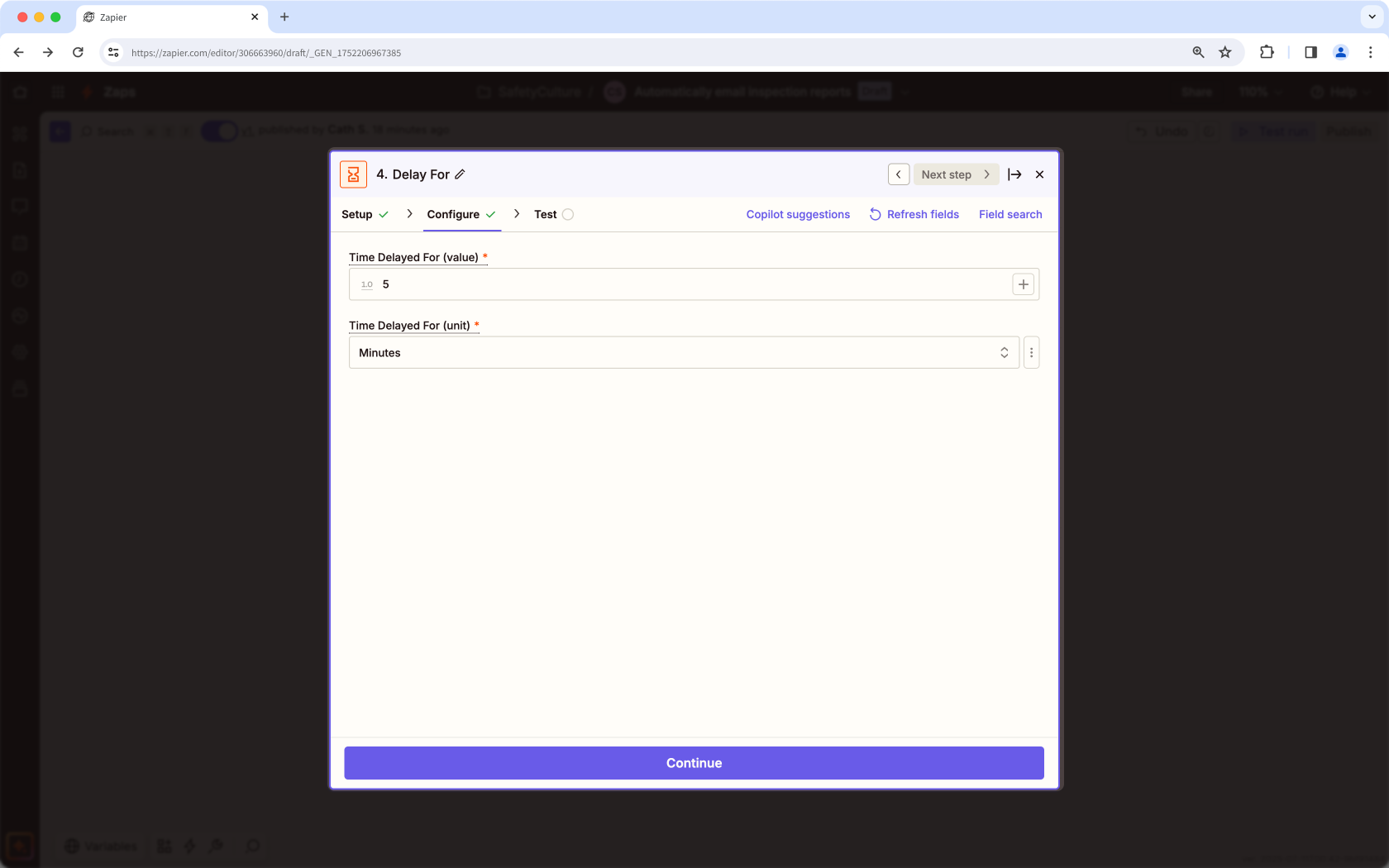
Time Delayed For (value): Enter "5".
Time Delayed For (unit): Click the dropdown menu and select minutes.
Click Continue.
Click Test step.
4. Get Exported Inspection Report in SafetyCulture
Click at the bottom of the Zap.
Search and select SafetyCulture.
Click the "Action Event" dropdown menu and select Get Exported Inspection Report.
Click Continue.
Configure the following fields:
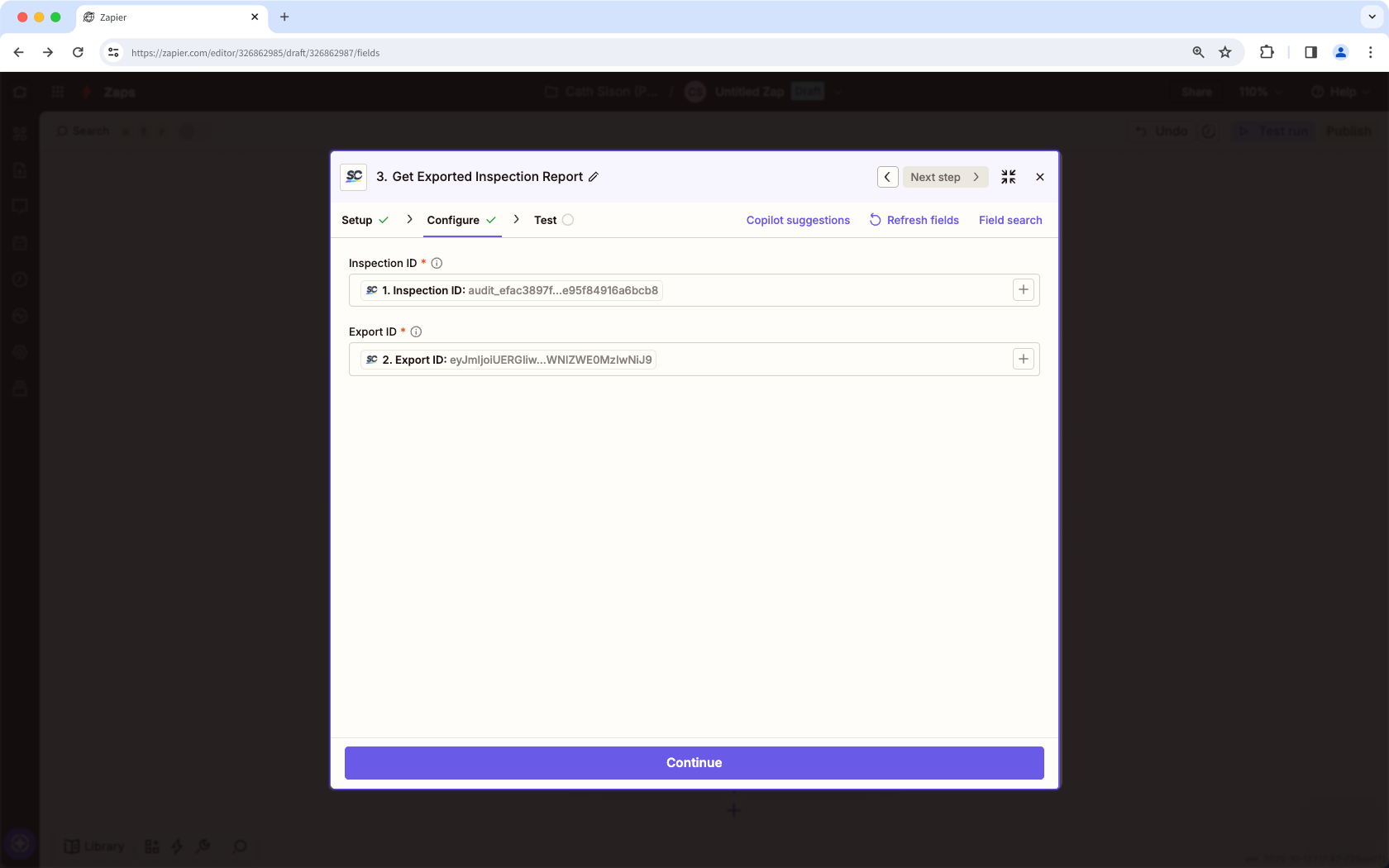
Inspection ID: Click the field and select Inspection ID under "Any Inspection Completed in SafetyCulture".
Export ID: Click the field and select Export ID under "Start Inspection Report Export in SafetyCulture".
Click Continue.
Click Test step.
Inspection reports that get emailed are based on the inspections your account has access to. Learn how to give yourself inspection access by creating access rules or assigning the "Override permissions: View all data" permission.
5. Send Email
Click at the bottom of the Zap.
Search and select Gmail.
Click the "Action Event" dropdown menu and select Send Email.
Click Continue.
Select your Gmail account from the dropdown menu. If this is your first Zap with Gmail, click Sign in to Gmail or click Connect a new account from the dropdown menu, then sign in to Gmail and add it to Zapier.
Click Continue.
Configure the following fields:
To: Click the field and specify the email recipients you want to email inspection reports to.
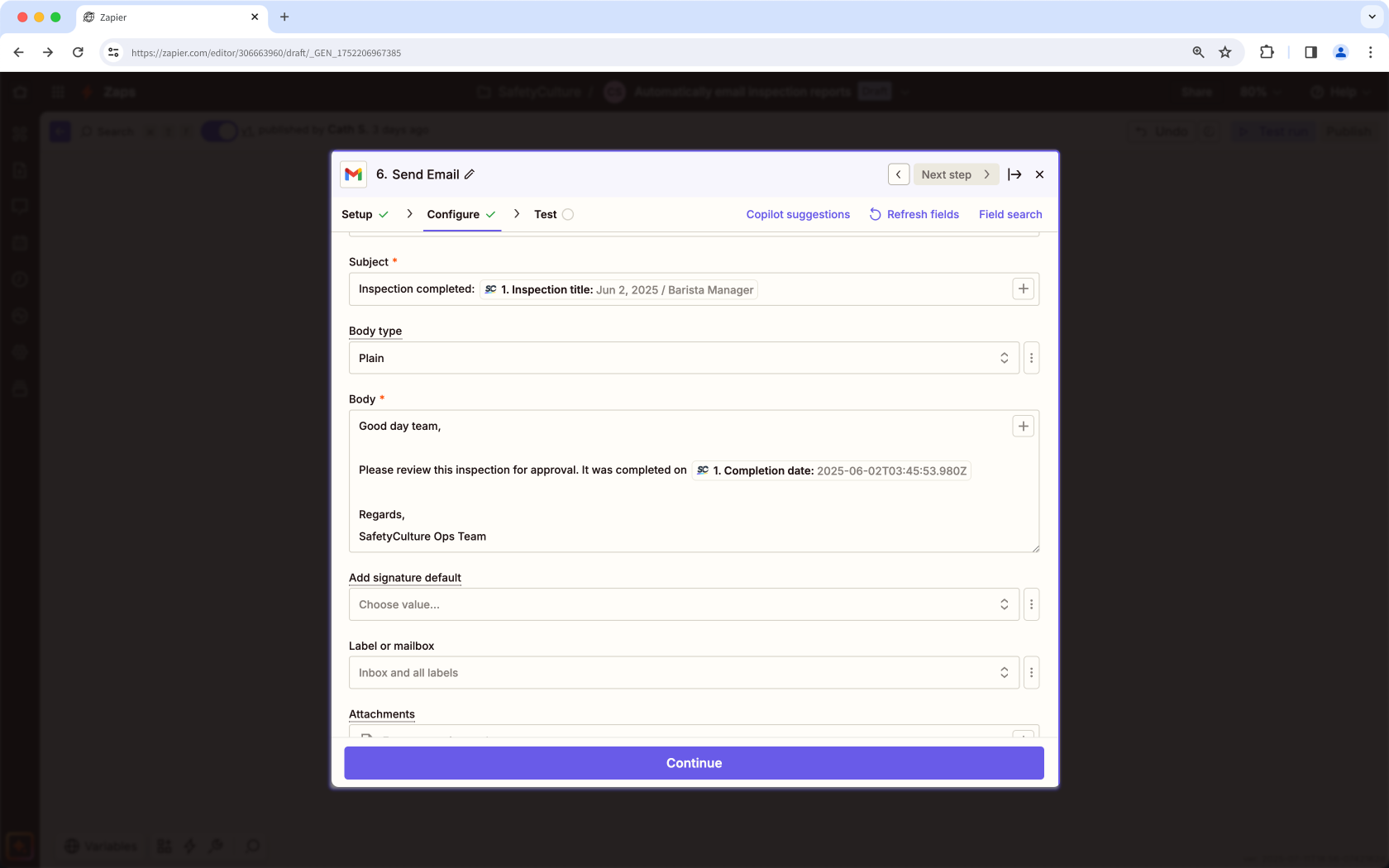
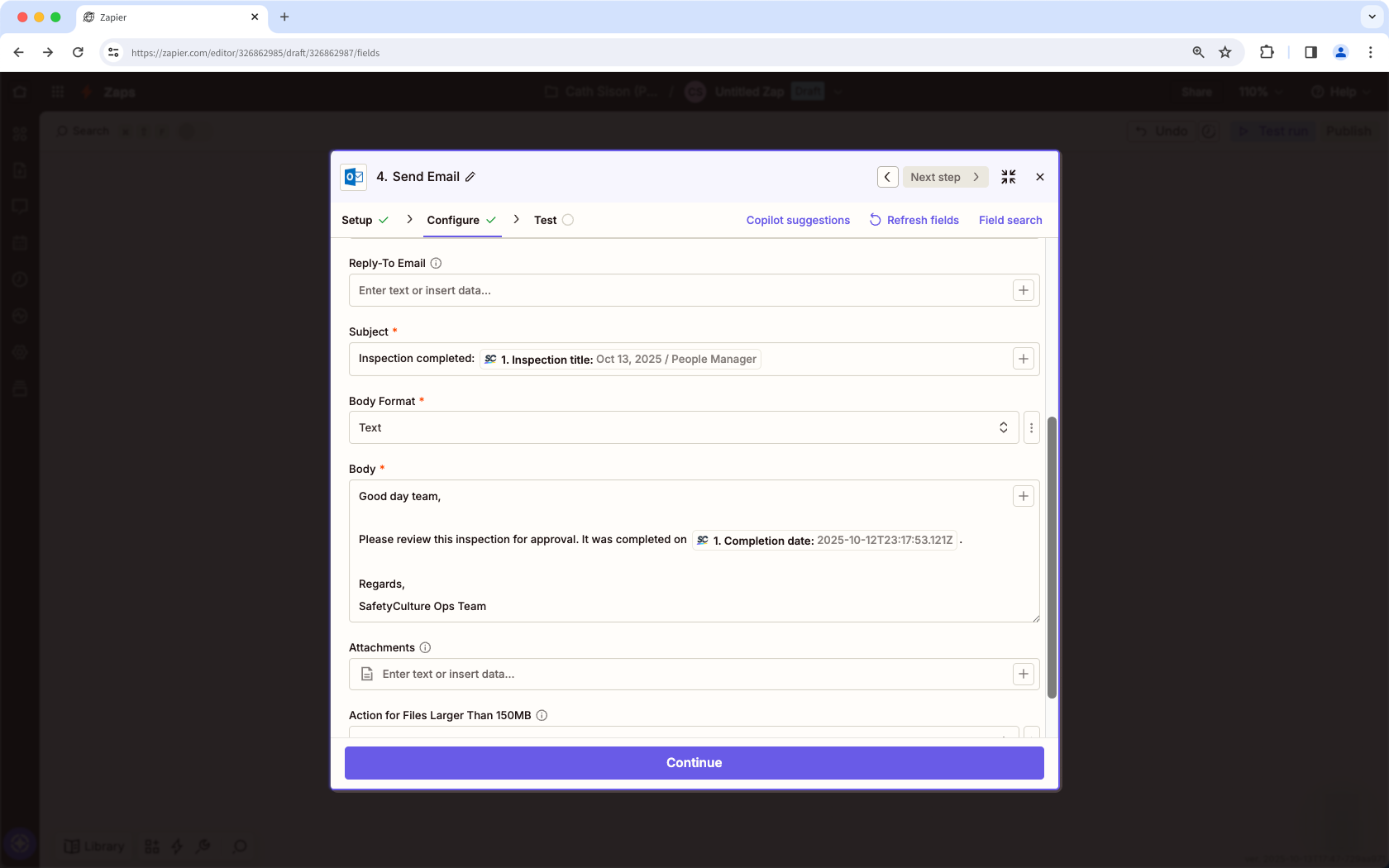
Subject: Click the field and specify the email subject. You can use inspection details from the dropdown menu to create a naming convention. For example, "[1. Template Name]: [1. Audit Title]".
Body: Click the field and specify the email body. Similar to the subject field, you can use inspection details to construct the email body. Check out the following example:
Attachments: Click the field and select Exported inspection report under "Get Exported Inspection Report in SafetyCulture".
Click Continue.
Click Test step. This should send an email to the recipients you specified.
Publish your Zap to start emailing completed inspection reports to your specified recipients. We also recommend that you name your Zap on the upper-left corner of the page.
If you're on Enterprise Plan, contact your customer success manager for help with SSO, user provisioning, or third-party integrations (Power Automate, Power BI, Zapier). Our customer support team can only provide limited assistance in these areas.