¿Qué son los grupos de estado de activos?
Los grupos de estados de activos de SafetyCulture son conjuntos predeterminados o configurables de opciones de estado que los administradores pueden crear y asignar a tipos de activos. Los grupos de estados de activos ayudan a las organizaciones a realizar un seguimiento del estado operativo de cada activo, lo que facilita las decisiones del día a día sobre qué equipamiento utilizar y qué requiere atención. El estado de los activos es visible y editable en la lista de activos y en el perfil del activo en la aplicación web y la aplicación móvil. Cada grupo de estados contiene estados con código de colores.
Por ejemplo, un grupo para la disponibilidad del equipamiento podría incluir opciones como En uso, En reparación y Fuera de servicio. Los grupos de estados ofrecen a las organizaciones una forma coherente de seguir y comunicar el estado de los activos, para que los equipos puedan ver rápidamente qué activos están disponibles, en uso o necesitan atención.
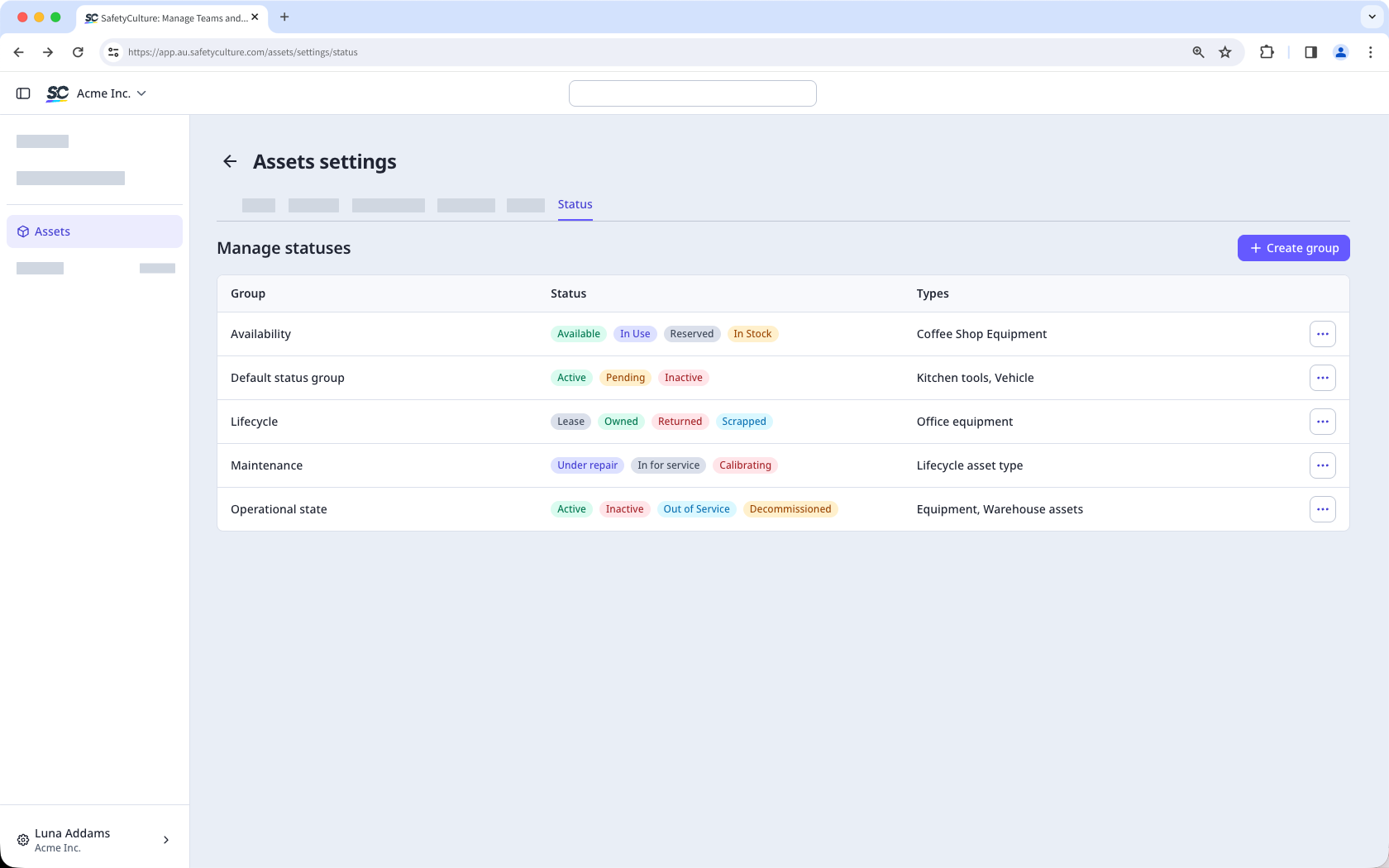
Si está en Plan Gratuito, su organización tiene estos estados predeterminados: Activo, Pendiente e Inactivo.
Lo que necesitarás
Crear un grupo de estados
Select Activos in the sidebar or select it in Más.
Click Ajustes on the upper-right of the page.
Click Estado at the top of the page.
C lick Crear grupo on the upper-right of the page.
In the pop-up window, enter the group name and description. Then, click Crear.
In the "Statuses" section, click Añadir estado on the right-hand side of the page.
In the new status field, enter the status name and select a color.
Under "Asset types," click the dropdown menu and select the asset type you want to assign the asset status group to.
Click Guardar on the upper-right of the page.
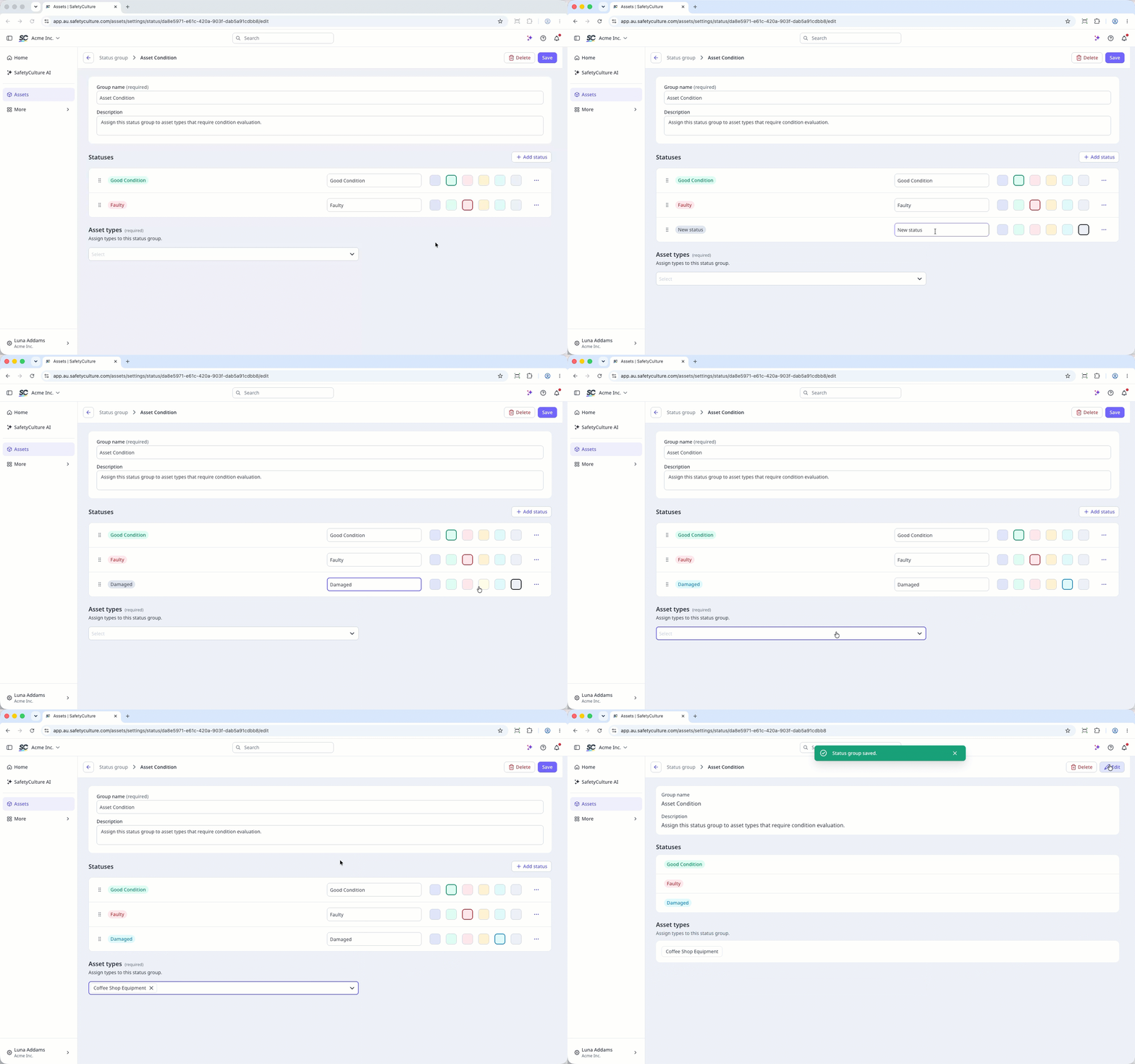
Puede crear un máximo de 10 grupos de estados por organización, con hasta 10 estados por grupo.
Editar un grupo de estados
Select Activos in the sidebar or select it in Más.
Click Ajustes on the upper-right of the page.
Click Estado at the top of the page.
Click on the right-hand side of the status and select Editar.
Update the name or description as needed.
In the "Statuses" section, you can manage the statuses.
To create a status, click Añadir estado, enter a name and select a color.
To edit a status, click the status name or color and make your changes.
To sort statuses, click and drag the to your preferred position.
To delete a status, click on the status and select Eliminar.
Under "Asset types," click the dropdown menu and select or change the asset type you want to assign the asset status group to.
Click Guardar on the upper-right of the page.
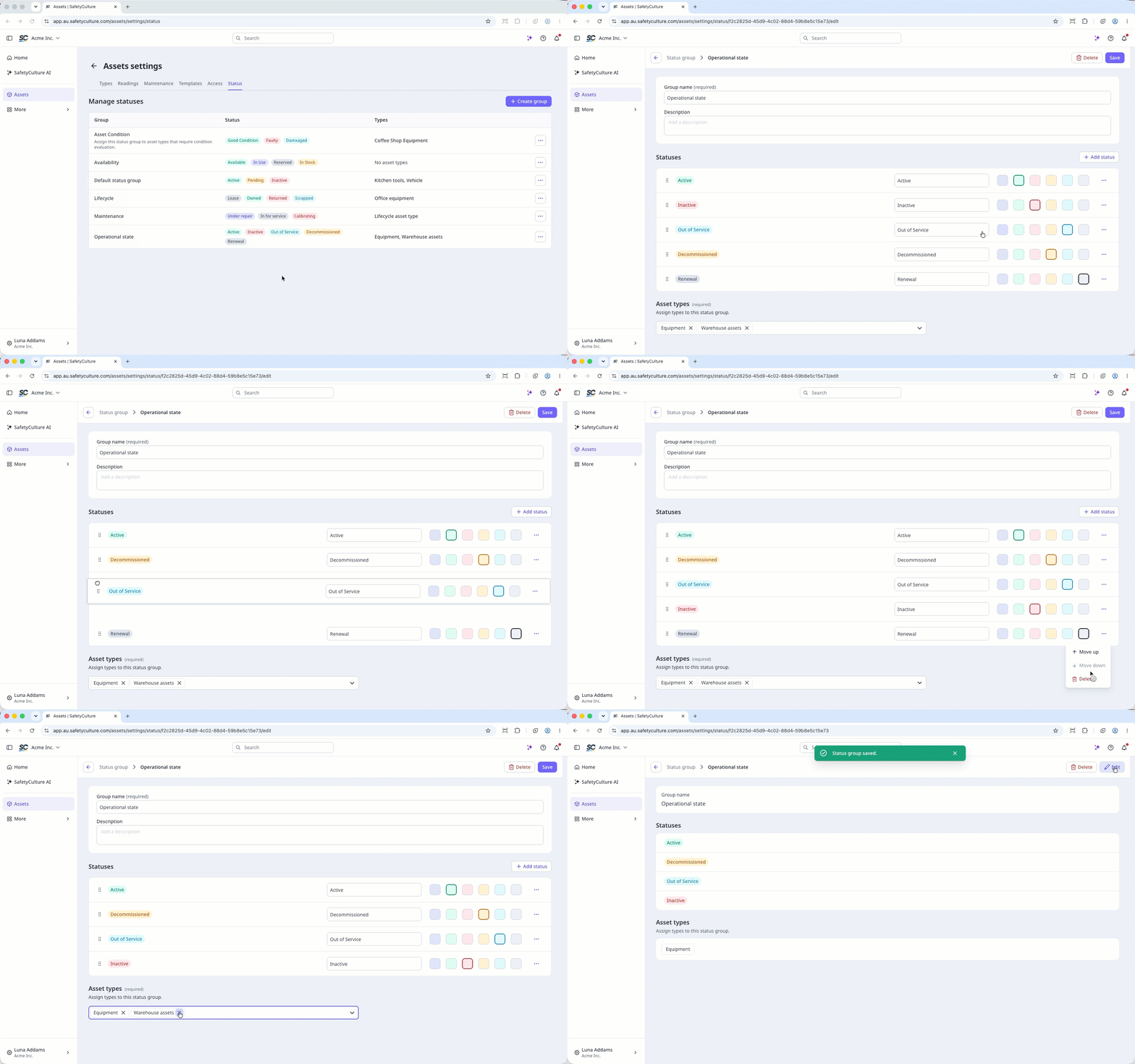
La eliminación es irreversible y no podemos restaurar elementos eliminados permanentemente. Siempre se requiere confirmación antes de cualquier eliminación, así que asegúrese de no eliminar accidentalmente el elemento equivocado.
Al eliminar un grupo, también se eliminará el acceso a plantillas e inspecciones que se le proporcionó.
Eliminar un grupo de estados
Seleccione Activos en la barra lateral o selecciónelo en Más.
Haga clic en Ajustes en la parte superior derecha de la página.
Haga clic en Estado en la parte superior de la página.
Haga clic en en el lado derecho del estado y seleccione Eliminar.
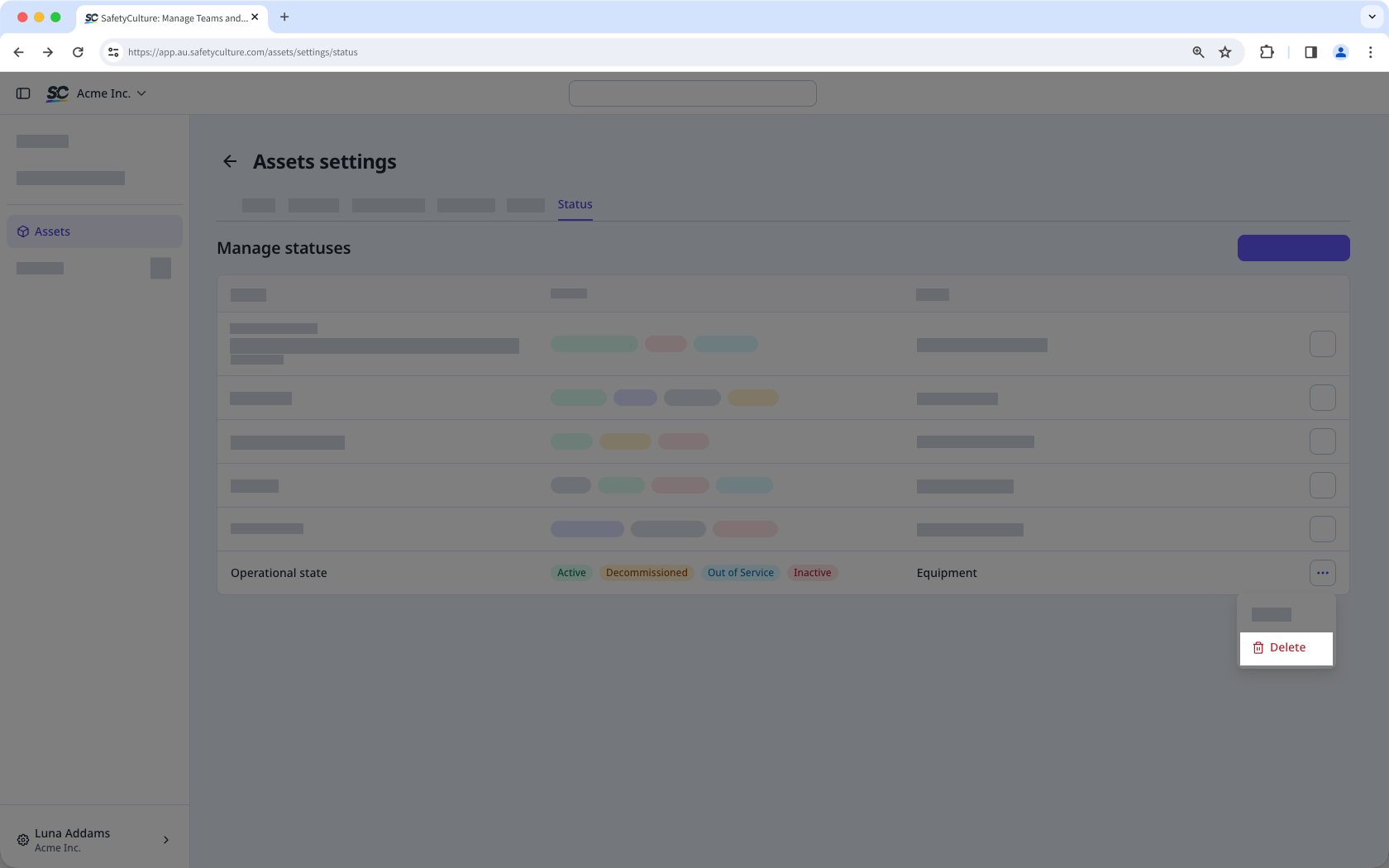
En la ventana emergente, introduzca «eliminar».
Haga clic en Eliminar.
Cuando elimina un grupo de estados, el tipo de activo asignado a él ya no tendrá un grupo de estados asignado.