What happens when you delete a file from an action?
When you delete a file from an action, it's permanently removed from the action and can't be recovered. The action's activity timeline records who deleted it and when, so there's still a traceable history of what changed. This keeps action records accurate so your team can assign, follow up on, and complete actions with confidence.
What you'll need
If you have "Override permissions: Manage all data" permission, you can also delete files uploaded in actions by other users in the organization.
Deleting is irreversible, and we cannot restore permanently deleted items. Confirmation is always required before any deletion, so be sure you're not accidentally deleting the wrong item.
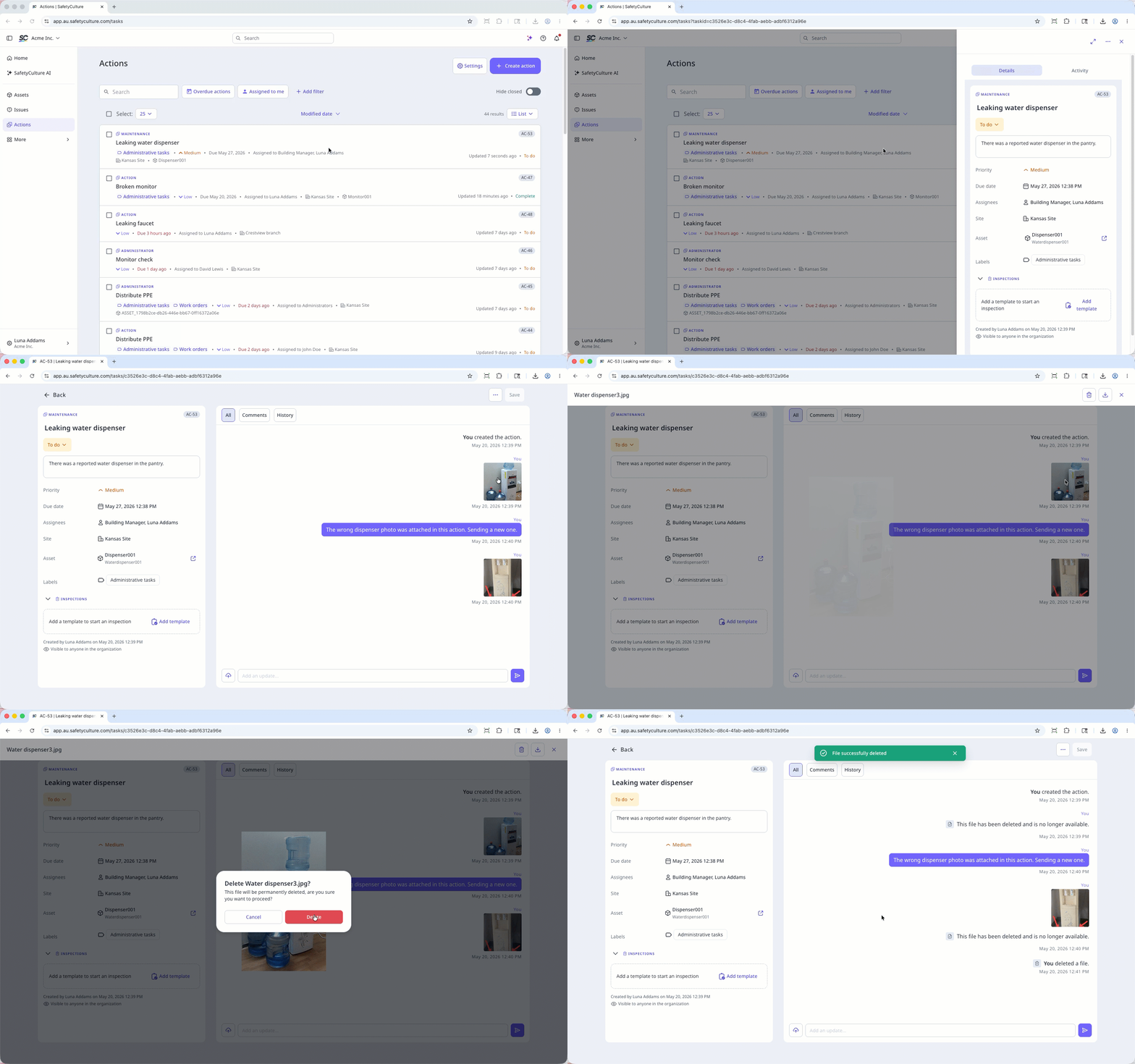
Delete a file in an action
Select Actions in the sidebar or select it in More.
Select between List, Calendar, or Board on the upper-right of the page to view the actions.
Select an action.
Click Activity on the upper-right of the page.
Click the file to preview.
Click on the upper-right of the media preview.
In the pop-up window, click Delete.