
- Using SafetyCulture
- Lone Worker
- Start and complete lone-work shifts
Start and complete lone-work shifts
Learn how to start and complete a lone-work shift via the mobile app to ensure safety monitoring while on the job.What you'll need
Location services
Notifications enabled
When shifts are turned on for your organization, lone workers will be required to start a shift before starting a job.
Start and complete a shift
Open the mobile app.
Tap
 More at the bottom of your screen.
 Select
 Lone Worker from the list of options.
Tap
 at the lower-right of your screen.
You can also tap Home at the bottom of your screen, then tap
and select Start lone work.
Tap Start shift.
If you're assigned to multiple groups in your organization, select the group where you would like to start your shift.
Tap Start shift.
While a shift is in progress, you can:
Start and complete a lone-work job. In the duration of your shift, you can complete more than one job.
Tap and hold
 Panic for 3 seconds to manually trigger a panic at any time during your shift, even without an active job.
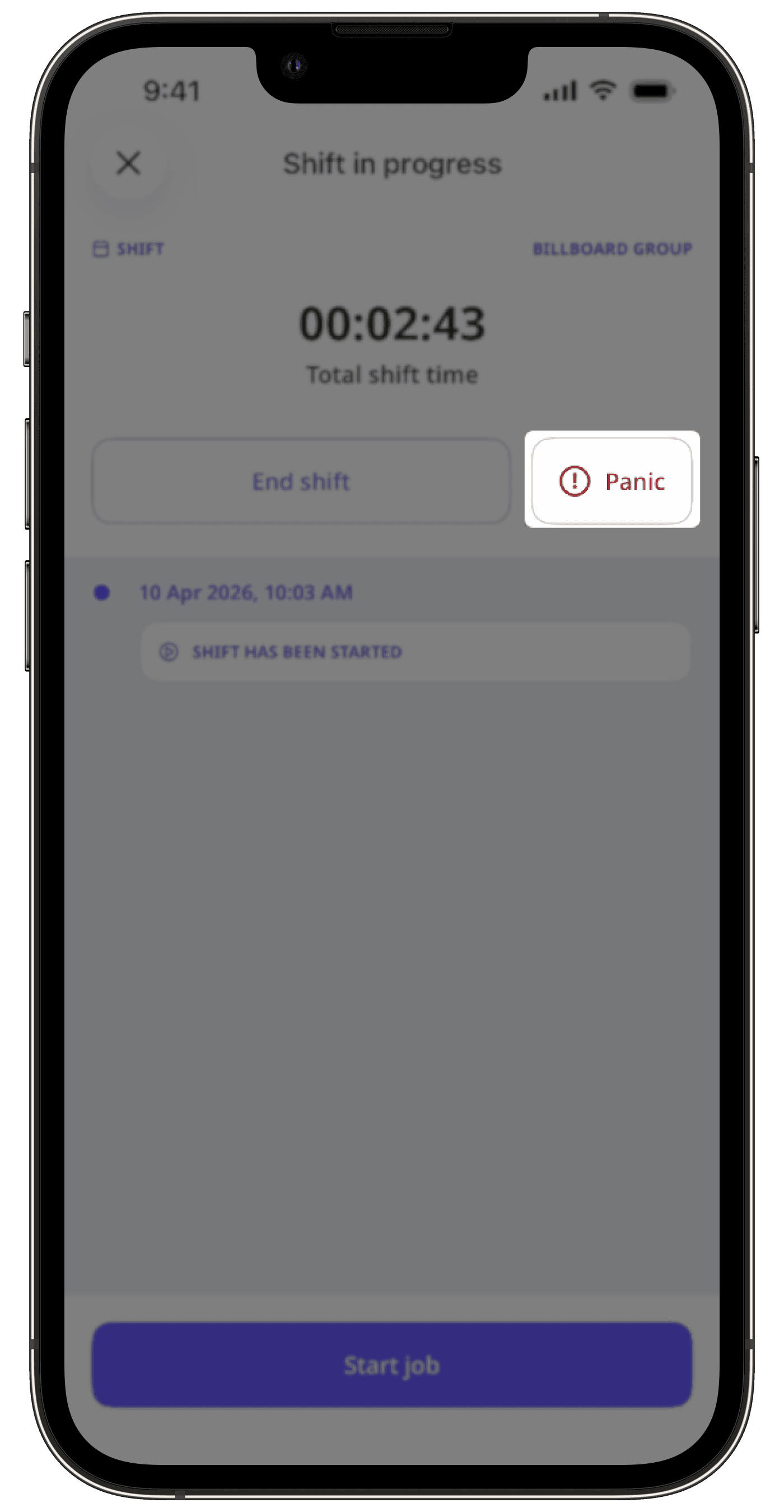
When your shift is done, tap End shift.
If applicable, you can include your break in the total duration of your shift.
Tap End shift.
In the pop-up window, tap Done.
You can only start a shift from one device at a time. If you use multiple devices, location updates will only be sent from the device you used to start the shift.
Frequently asked questions
No. Only your organization's administrator can change your break duration. If you want to adjust the duration, reach out to your administrator.
Was this page helpful?
Thank you for letting us know.