
Last updated:

Track Heads Up engagement in Analytics

Learn how to track Heads Up engagement in Analytics via the web and mobile app to measure reach, identify visibility gaps, and improve team alignment.

What does it mean to track Heads Up engagement in Analytics?

Tracking Heads Up engagement in Analytics gives you clear visibility into how your messages are performing across your organization. You can create charts that show who has viewed and acknowledged your Heads Ups, making it easy to see where engagement is strong and where more action is needed. This visibility helps managers quickly confirm whether important updates are being seen and acted on, so they can focus follow-ups on the right teams or locations instead of relying on guesswork.

By turning Heads Up engagement into clear, actionable insights, teams can reduce missed communications, strengthen accountability, and make more confident decisions.
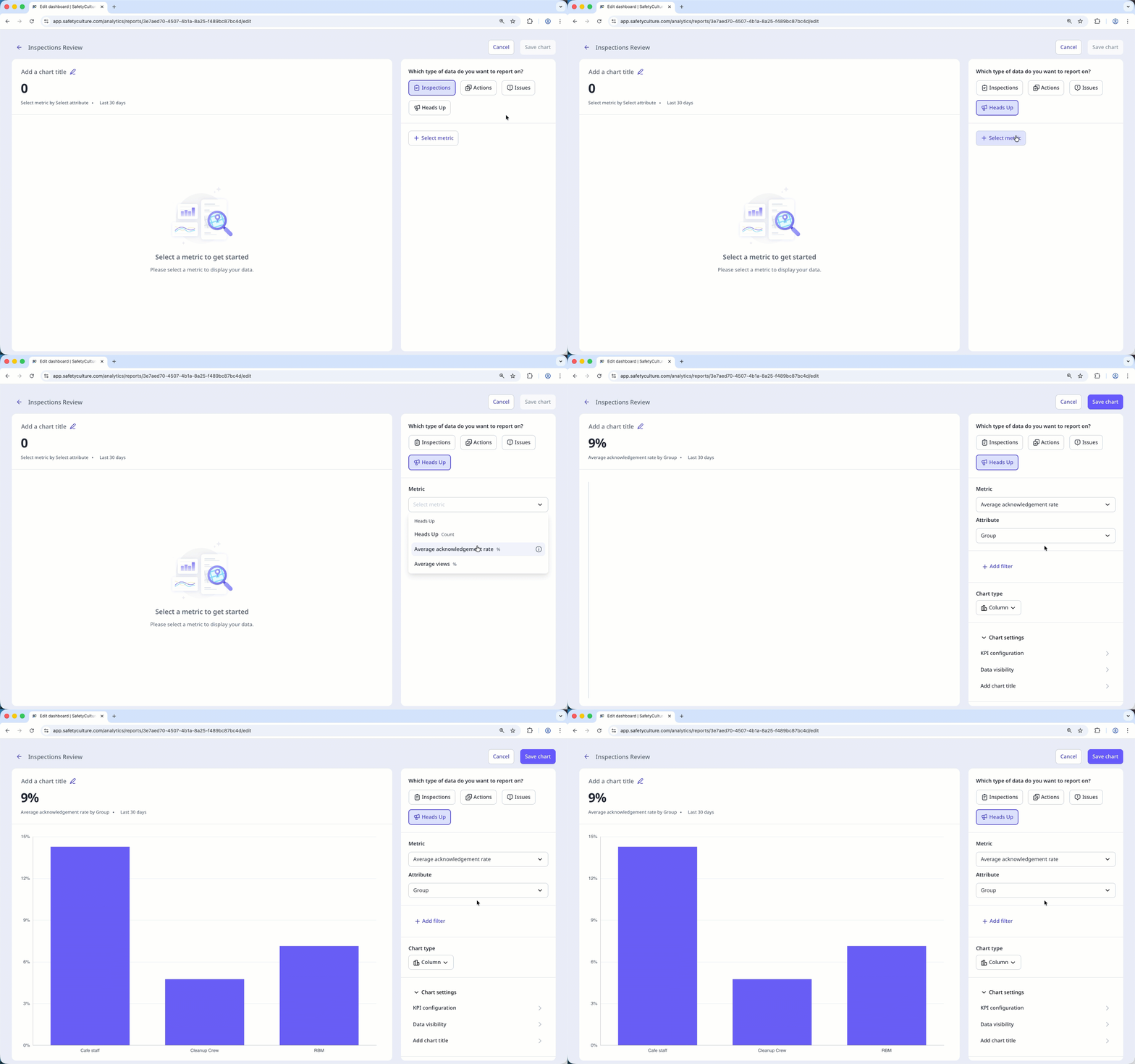
Track Heads Up engagement

  1. Log in to the web app.

  2. Select Pie chart iconAnalytics in the sidebar or select it in Assets gallery view iconMore.

  3. Create or edit an existing dashboard.

  4. Add or edit an existing chart.

  5. Click Plus iconAdd chart on the upper-right of the page, and select Plus iconAdd custom chart.

  6. In the chart builder, configure the data type and metric as follows:

    • Data type: Select Heads Up iconHeads Up from the upper-right of the page.

    • Metric: Select Average acknowledgement rate or Average views from the dropdown.

  7. Configure your chart type accordingly.

  8. Click Save chart on the upper-right of the page to save the changes to the chart.

  9. Click Save on the upper-right of the page to save the changes to your dashboard.

The chart will display the assignees grouped by the selected attribute, which is different from the number of Heads Ups created in the organization.

Frequently asked questions

The average acknowledgement rate is calculated by dividing the number of acknowledged Heads Ups by the total number of assigned Heads Ups and then multiplying by 100 to get the percentage.

For example, a user has been assigned to 4 Heads Ups and has acknowledged 2 of them. The average acknowledgement rate is calculated like this:

  • (2/4) x 100 = 50%

When you delete a Heads Up, any associated data, such as count, acknowledgement rates, or views, will no longer be visible in Analytics.

Acknowledgment is not available for people who view Heads Ups via external links. If you want to see and track engagements from external users, consider adding them to your organization as users.

The overall total shows the number of unique Heads Ups created, while the chart displays the assignees grouped by the selected attribute and shows each assignment. If a Heads Up has multiple assignees, it will appear more than once in the chart.

As a result, the number of heads ups displayed in the chart may be higher than the overall Heads Up count.

Need more help?
