
What you'll need
Configure a chart's metric and attribute
Select Analytics in the sidebar or select it in More.
Click on the upper-right corner of the chart.
Click the dropdown menu under “Metric” and select the metric depending on the type of data you want to report on.
If you're creating a new chart, click Select metric to add one.
Click the dropdown menu under "Attribute" to select the relevant attribute for your metric.
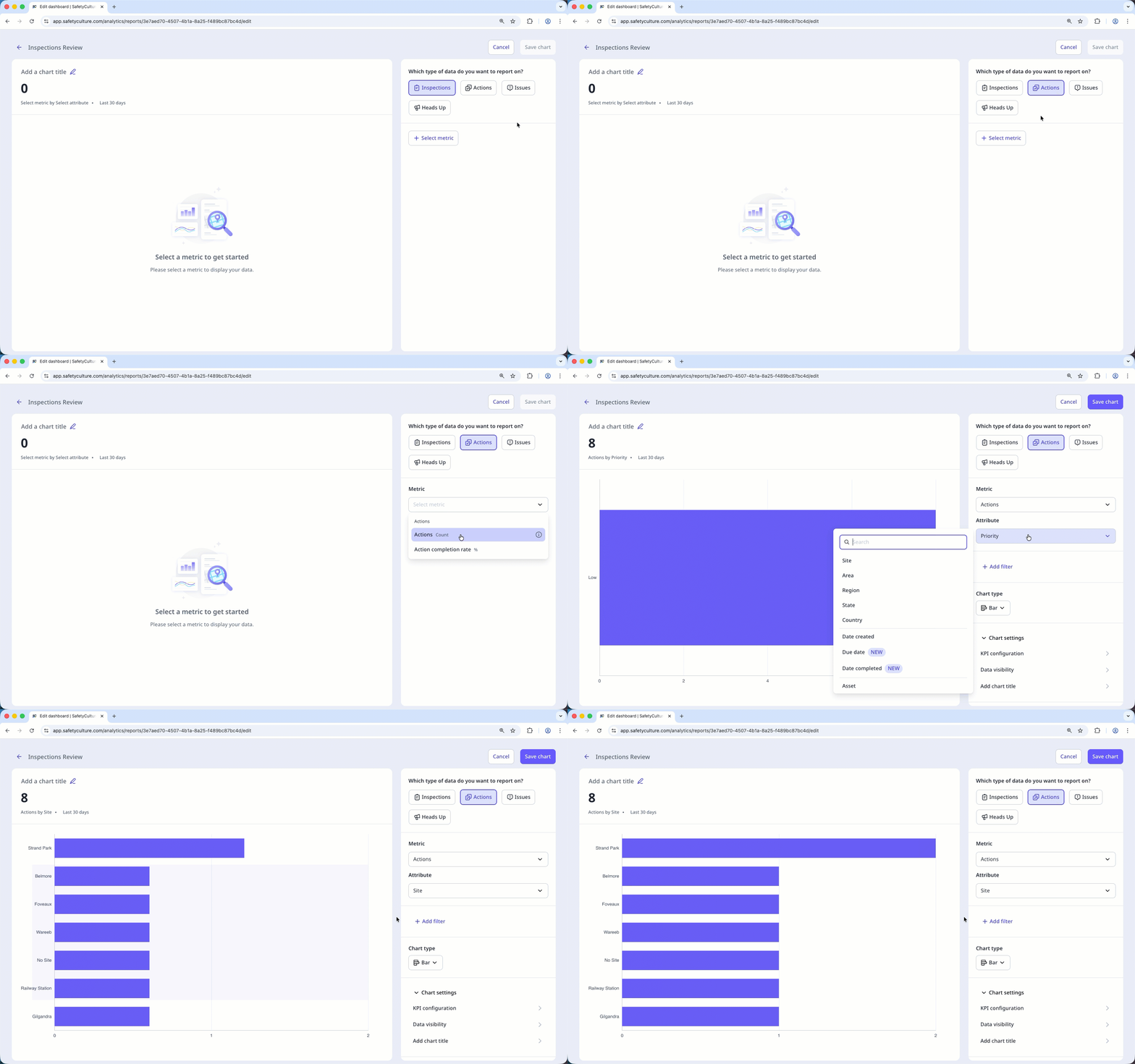
Click Save chart on the upper-right of the page to save the changes to the chart.
Click Save on the upper-right of the page to save the changes to your dashboard.
Selecting metrics under different data types is not currently supported for dual-axis charts. For example, only metrics under the Inspections data set can be used in a dual-axis chart.


