
Last updated:

Turn note, media, and action on or off

Learn how to display or hide the note, media, and action options via the web app and mobile app to simplify inspections and capture only the most important information.

Why turn note, media, and action on or off?

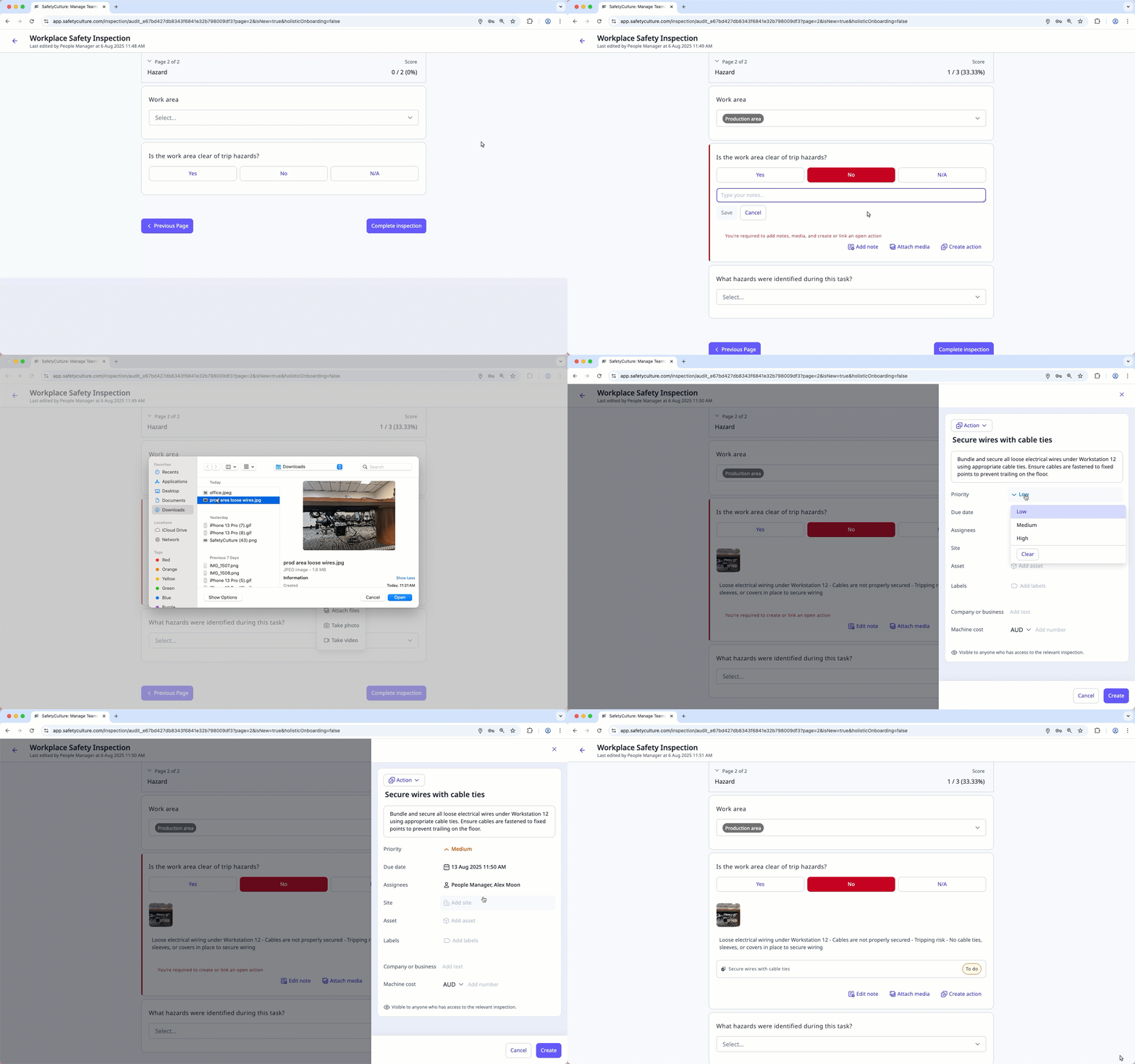
Turning note, media, and action options on helps teams capture detailed information and gain clearer insights during inspections. For example, if someone finds a broken office monitor, they can leave a note about when it last worked, attach a photo showing the damage, and create an action to request repairs.

However, not all templates need this level of detail. These options can overwhelm users and lead to cluttered or low-quality data. Turning them off can help simplify the interface, reduce unnecessary input, and keep inspectors focused on completing inspections efficiently.
Turn note, media, and action on

  1. Log in to the web app.

  2. Select Templates iconTemplates in the sidebar or select it in Assets gallery view iconMore.

  3. Click a template and select Pencil iconEdit template in the side panel.

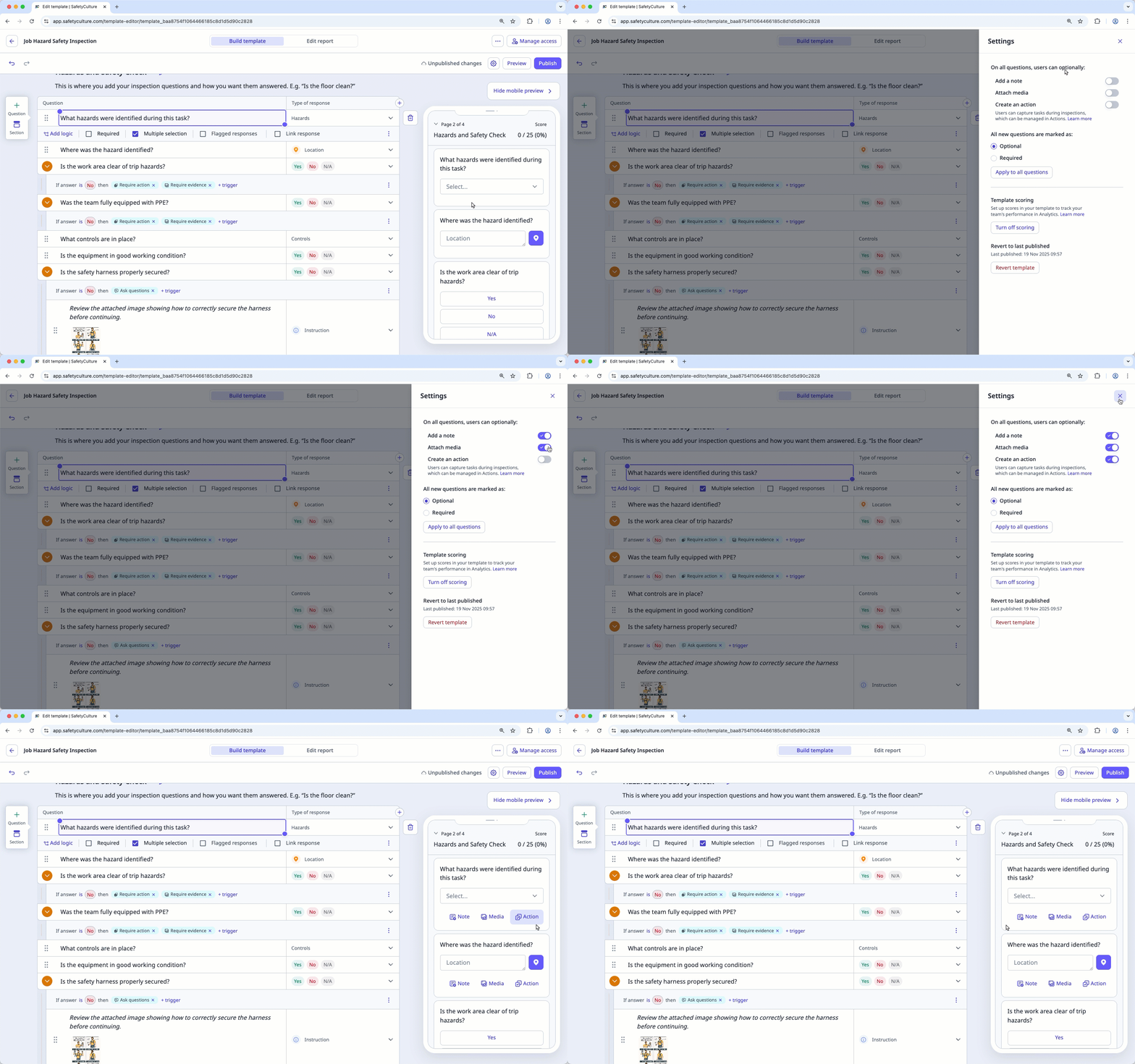
  4. Click Settings icon on the upper right of the page.

  5. In the side panel, turn on the options you want to display in your inspection.

    • Add a note: Add additional details or instructions.

    • Attach media: Add photos, videos, or files for context, reference, or proof.

    • Create an action: Create actions or link open actions as follow-up tasks.

  6. Click Cross/close/clear icon on the upper-right corner of the side panel.

  7. Click Publish on the upper-right of the page to publish the template. If you're not ready to publish the template, you can go back to the template list and publish the changes when you're ready.
  1. Open the mobile app.

  2. Tap Inspections icon mobileInspections in the navigation bar or select it from Assets gallery view iconMore.

  3. Select Templates tab at the top of your screen.

  4. Tap a template and select Pencil iconEdit template from the pop-up options.

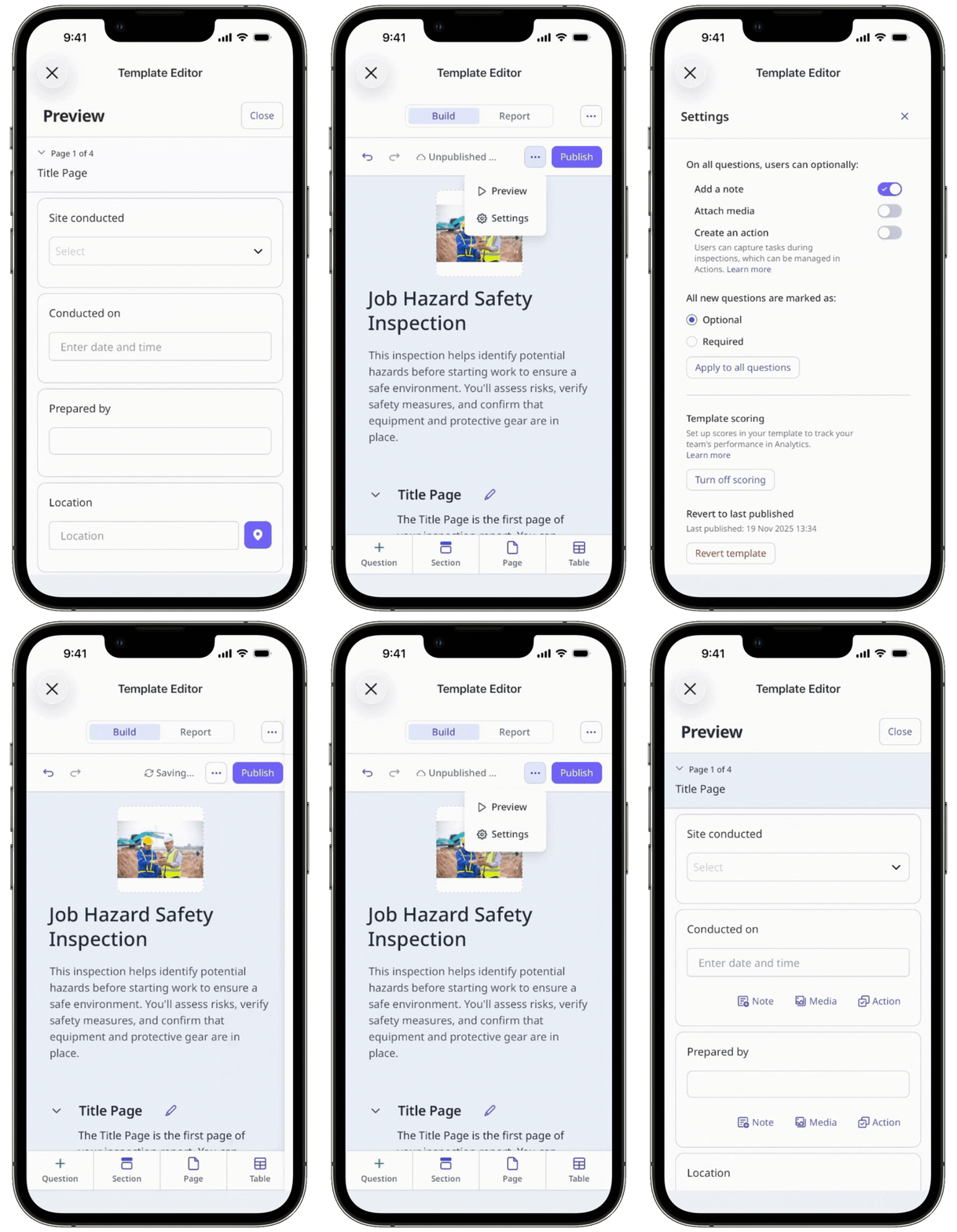
  5. Tap More horizontal icon on the left-hand side of Publish and select Settings iconSettings.

  6. Tap the options you want to display in your inspection.

    • Add a note: Add additional details or instructions.

    • Attach media: Add photos, videos, or files for context, reference, or proof.

    • Create an action: Create actions or link open actions as follow-up tasks.

  7. Tap Cross/close/clear icon on the upper-right corner of the side panel.

  8. Tap Publish on the upper-right of your screen to publish the template. If you're not ready to publish the template, you can go back to the templates list and come back when you're ready.

Even if you turn off note, media, and action, they may still appear during inspections if you've set logic to require them.

Turn note, media, and action off

  1. Log in to the web app.

  2. Select Templates iconTemplates in the sidebar or select it in Assets gallery view iconMore.

  3. Click a template and select Pencil iconEdit template in the side panel.

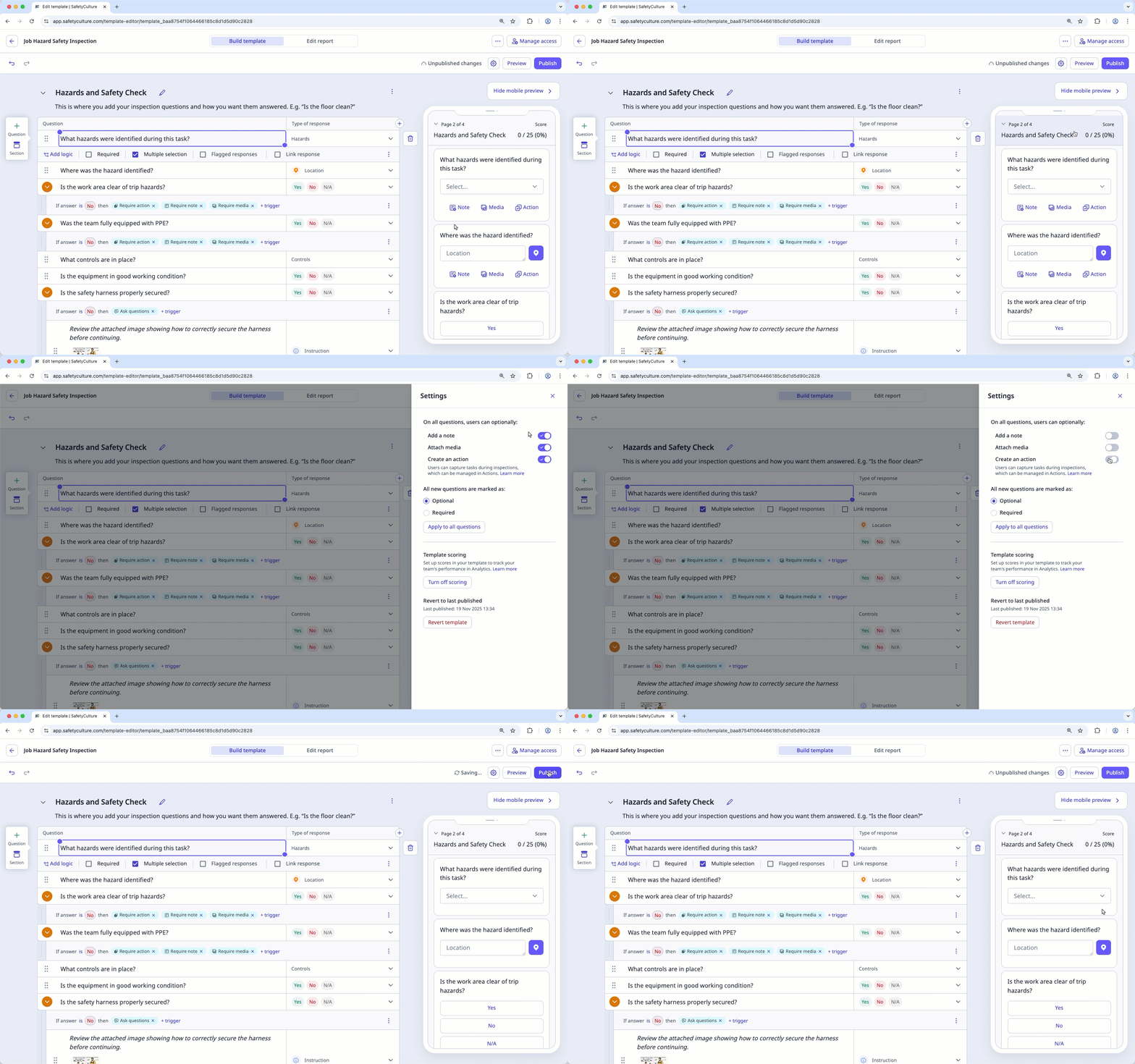
  4. Click Settings icon on the upper right of the page.

  5. In the side panel, turn off the options you want to hide in your inspection.

  6. Click Cross/close/clear icon on the upper-right corner of the side panel.

  7. Click Publish on the upper-right of the page to publish the template. If you're not ready to publish the template, you can go back to the template list and publish the changes when you're ready.
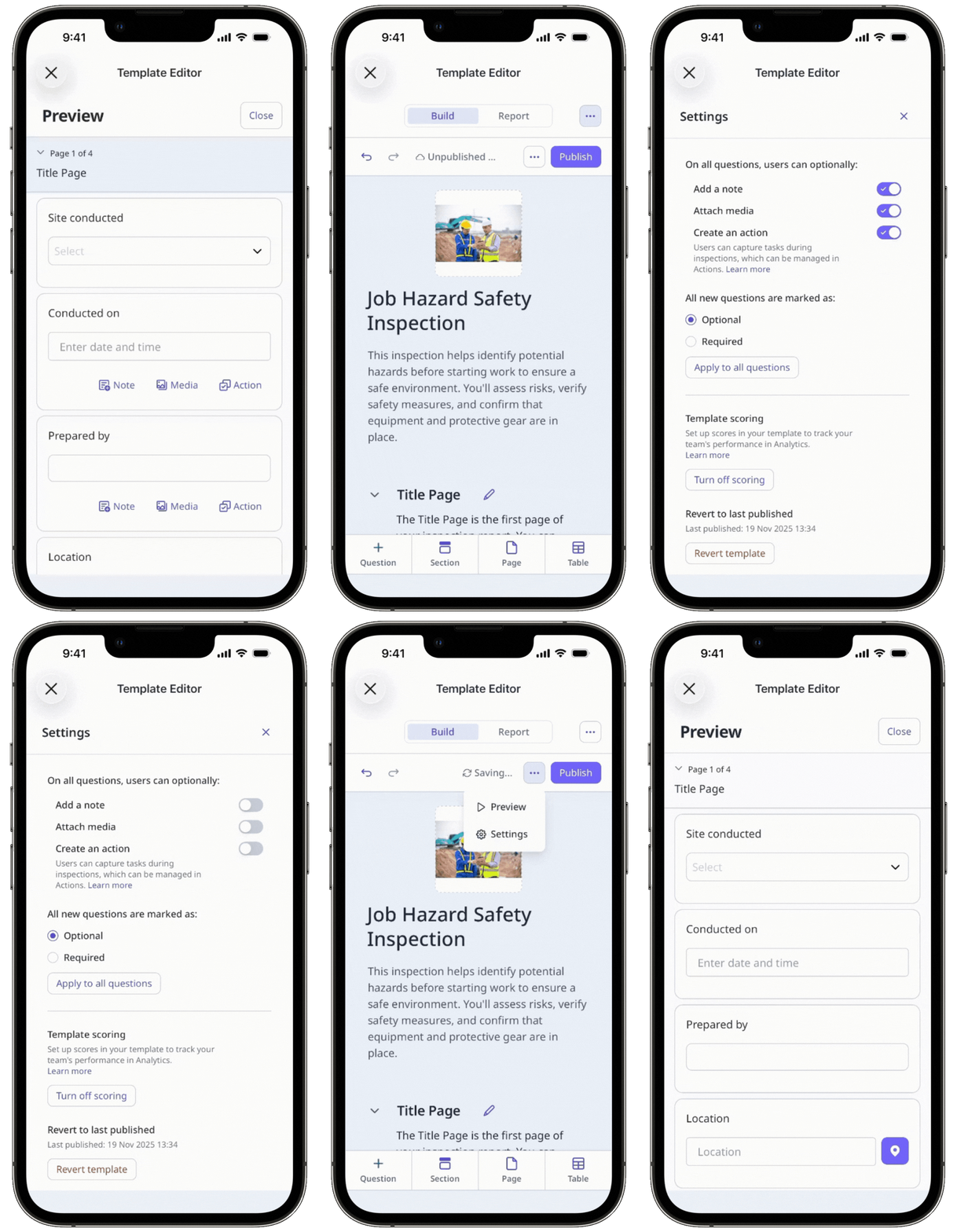
  1. Open the mobile app.

  2. Tap Inspections icon mobileInspections in the navigation bar or select it from Assets gallery view iconMore.

  3. Select Templates tab at the top of your screen.

  4. Tap a template and select Pencil iconEdit template from the pop-up options.

  5. Tap More horizontal icon on the left-hand side of Publish and select Settings iconSettings.

  6. Tap the options you want to hide in your inspection.

  7. Tap Cross/close/clear icon on the upper-right corner of the side panel.

  8. Tap Publish on the upper-right of your screen to publish the template. If you're not ready to publish the template, you can go back to the templates list and come back when you're ready.

Published changes made to templates only apply to new inspections moving forward.

Frequently asked questions

To do this, first turn off the note, media, and action options in your template. Then, for questions where you want these options to show, add logic fields so they only appear when certain conditions are met. The options will turn on when those conditions are met and stay off otherwise.

No. The settings for note, media, and action must be adjusted individually for each template.

Need more help?
In this article
