
What are geofences in Lone Worker?
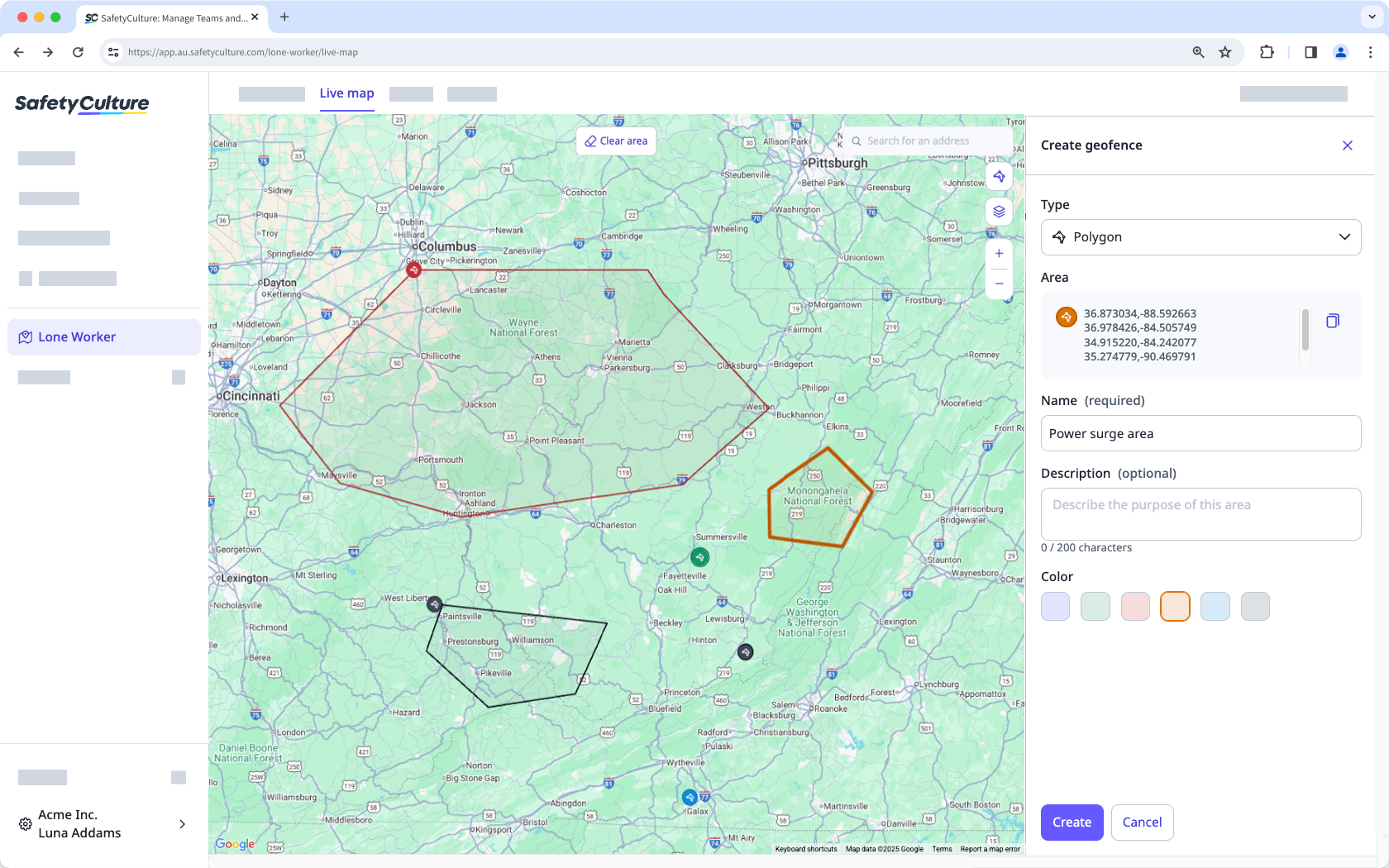
Geofences in Lone Worker allows you to create areas on the Live map to monitor when a worker enters or exits an area, and start their lone-work jobs. This helps you understand time spent in an area, highlight arrival or departure times for high-risk jobs, and provide proof of attendance when needed.
For example, a utilities company can track when technicians arrive at and leave different work areas, confirming service times and supporting worker safety.
What you'll need
View a geofence on the Live map
Select Lone Worker in the sidebar or select it in More.
Select Live map at the top of the page.
Click on the right-hand side of the screen.
Turn on Show on live map.
Click a geofence to zoom in and see more details about the location.
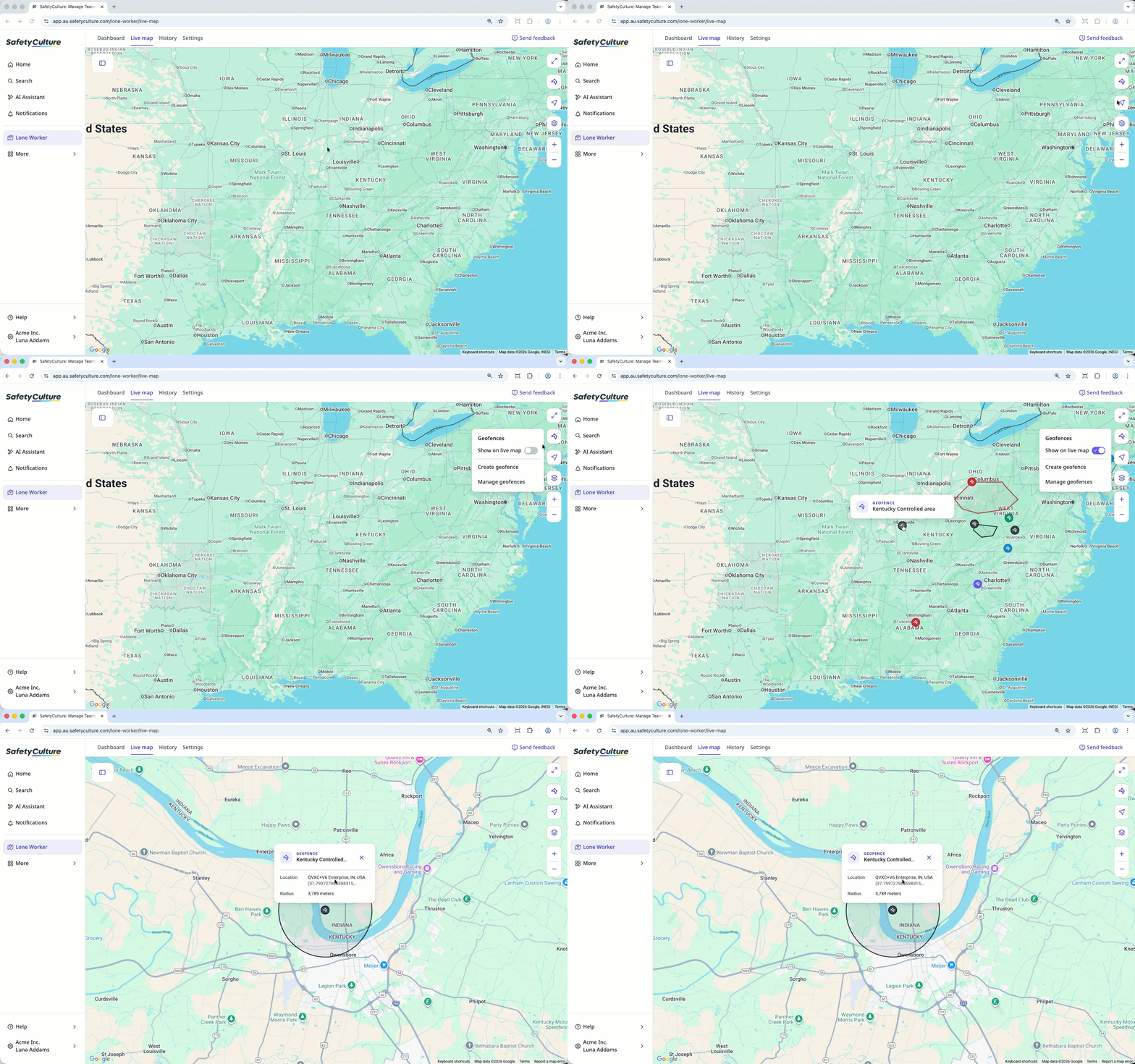
Viewing Polygon geofence on the Live map displays only the title and description, while Location with radius geofence displays the title, description, location, and radius.


