
What are geofences in Lone Worker?
Geofences in Lone Worker allows you to create areas on the Live map to monitor when a worker enters or exits an area, and start their lone-work jobs. This helps you understand time spent in an area, highlight arrival or departure times for high-risk jobs, and provide proof of attendance when needed.
For example, a utilities company can track when technicians arrive at and leave different work areas, confirming service times and supporting worker safety.
What you'll need
You can create up to 100 geofences per organization.
Create a geofence
Select Lone Worker in the sidebar or select it in More.
Click Settings at the top of the page and select Geofences.
Click Create geofence.
In the dropdown menu, choose the type of geofence you want to create:
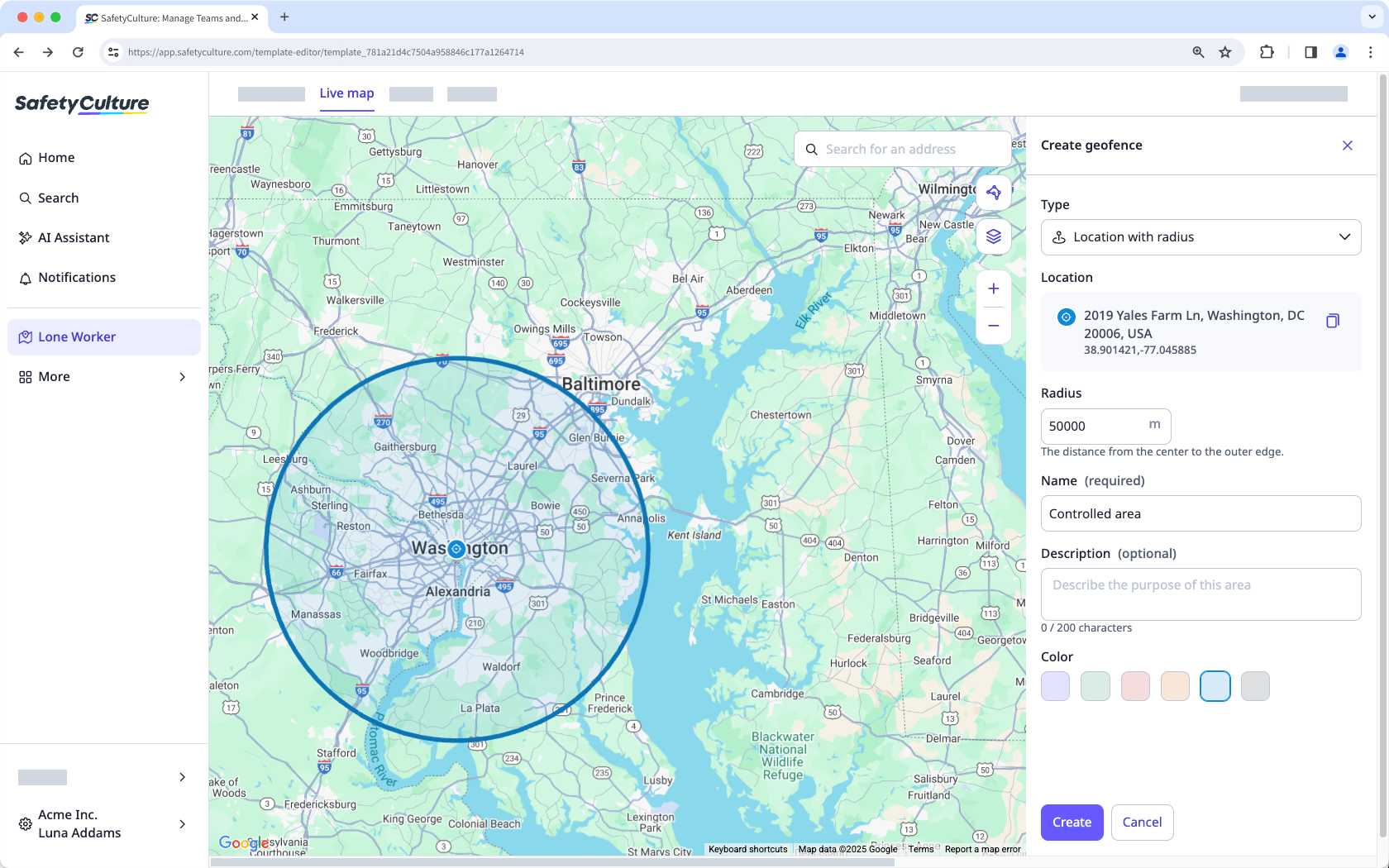
Location with radius: Click the location on the map or search for an address. Then, enter the radius distance from the center to define the geofence area.
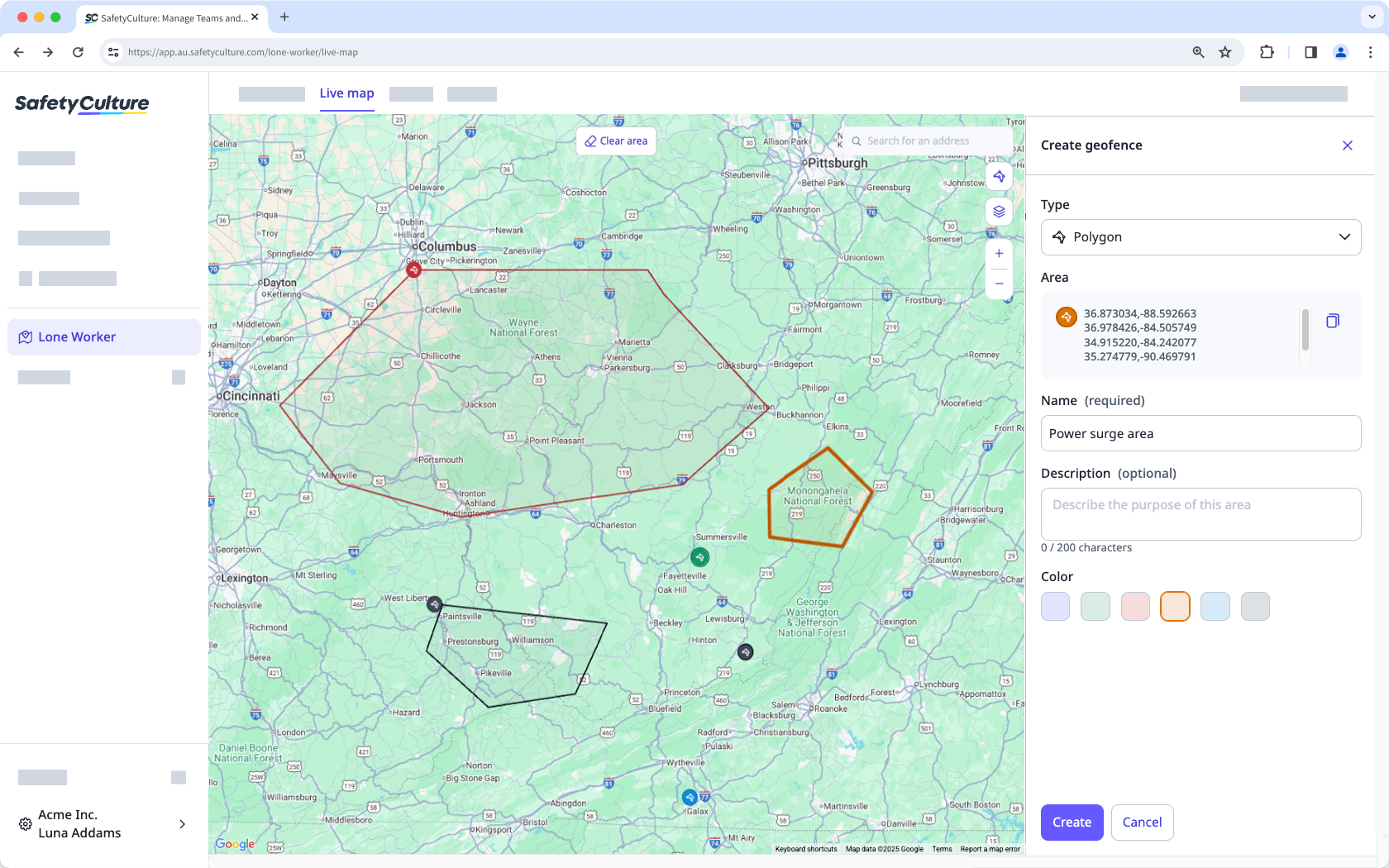
Polygon: Click three or more points on the map to draw a polygon.
Enter the name of your geofence. You can also add a description to describe the purpose of the area.
Assign the color of your geofence.
Click Create at the bottom of the page.
For Location with radius geofences, you can set a maximum radius of 3 km or 1.87 mi to ensure precise location-based monitoring.
When creating a Polygon geofence, the maximum number of points allowed is 32.
Edit a geofence
Select Lone Worker in the sidebar or select it in More.
Click Settings at the top of the page.
Select Geofences.
Select the geofence you want to edit from the list.
Click and select Edit geofence.
Edit the geofence details accordingly.
Click Save at the bottom of the page.
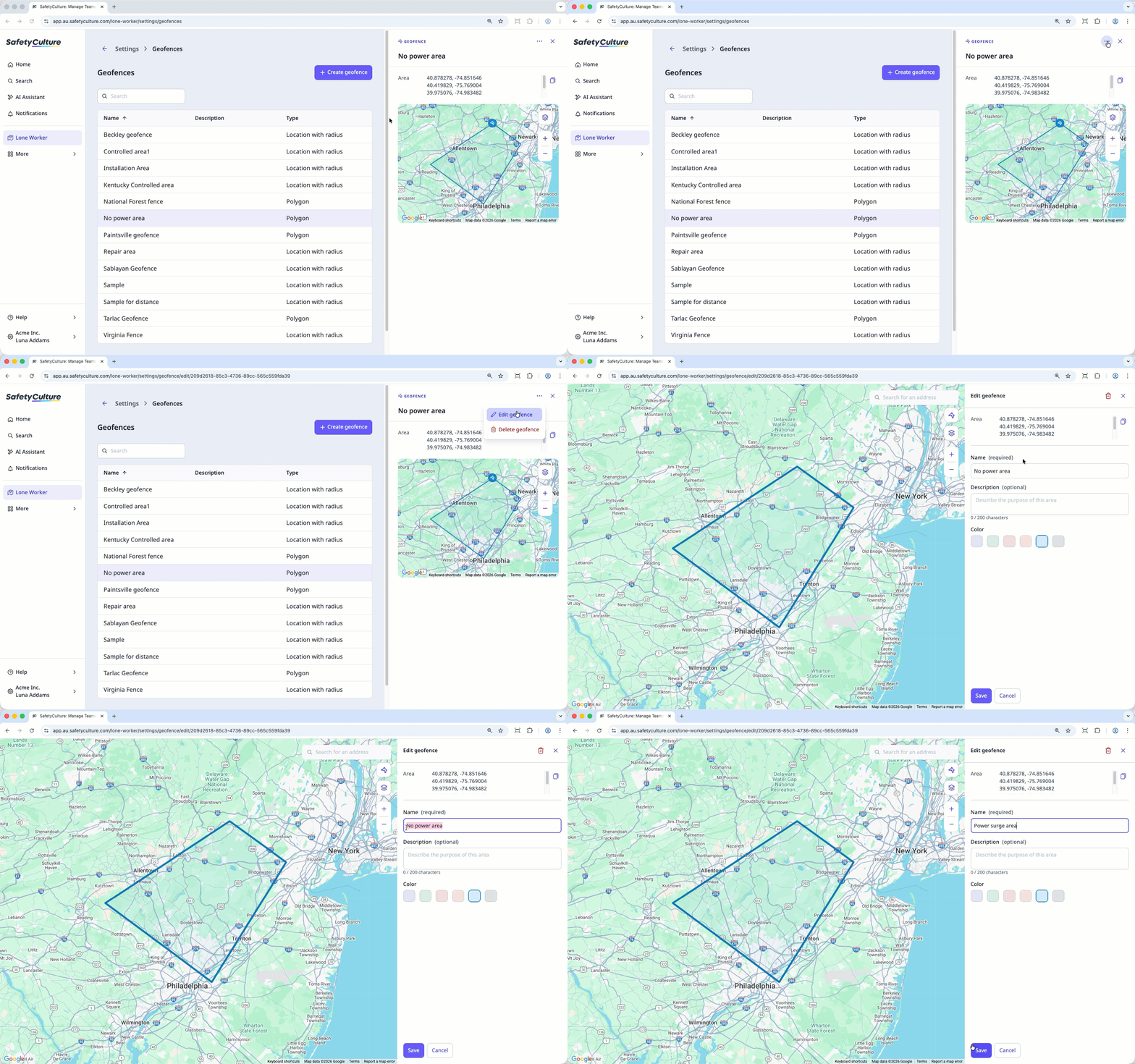
You can only edit a geofence’s name, description, and color. To change its type, area, or location, you’ll need to create a new geofence.
View a geofence
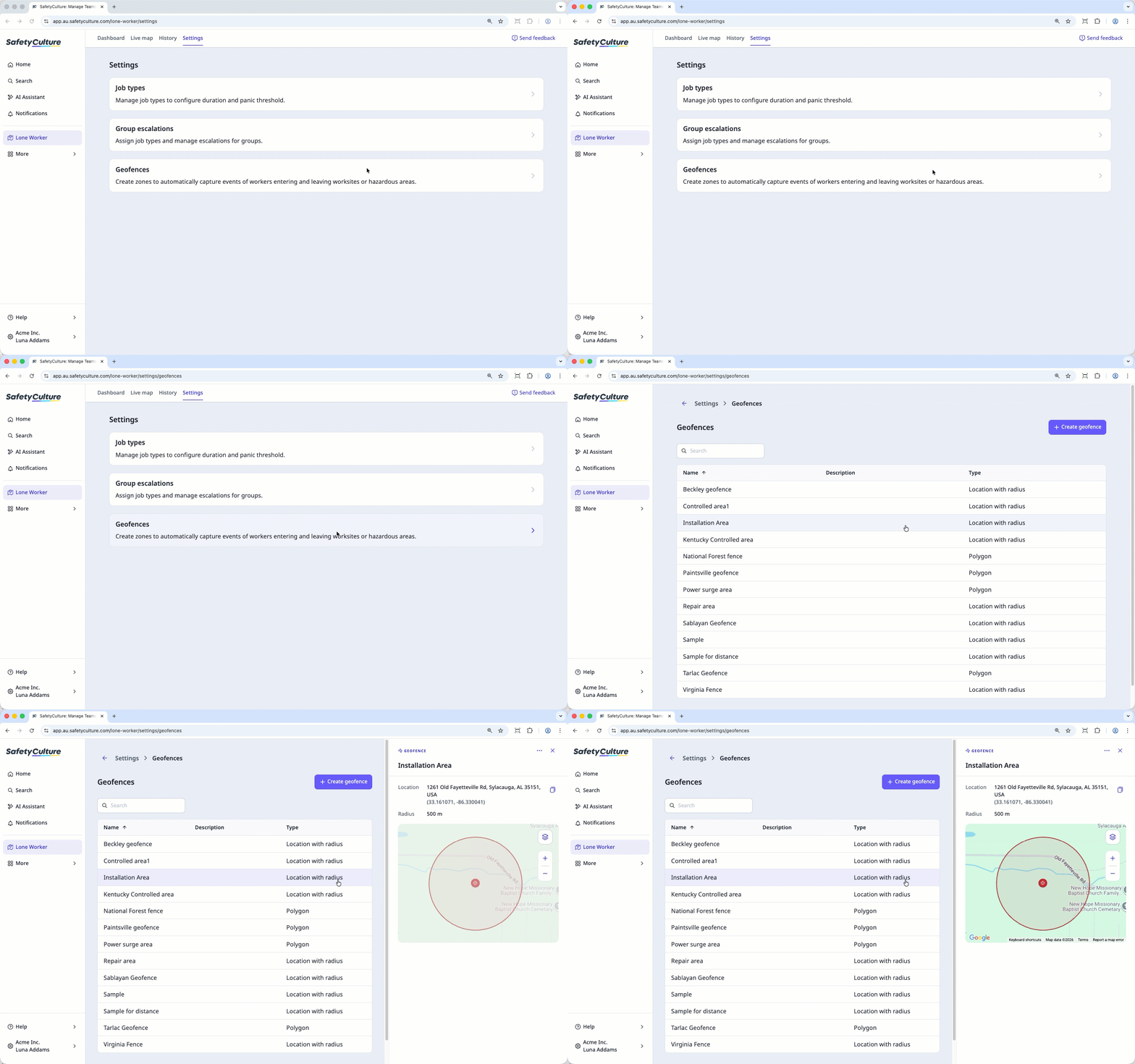
Select Lone Worker in the sidebar or select it in More.
Click Settings at the top of the page.
Select Geofences.
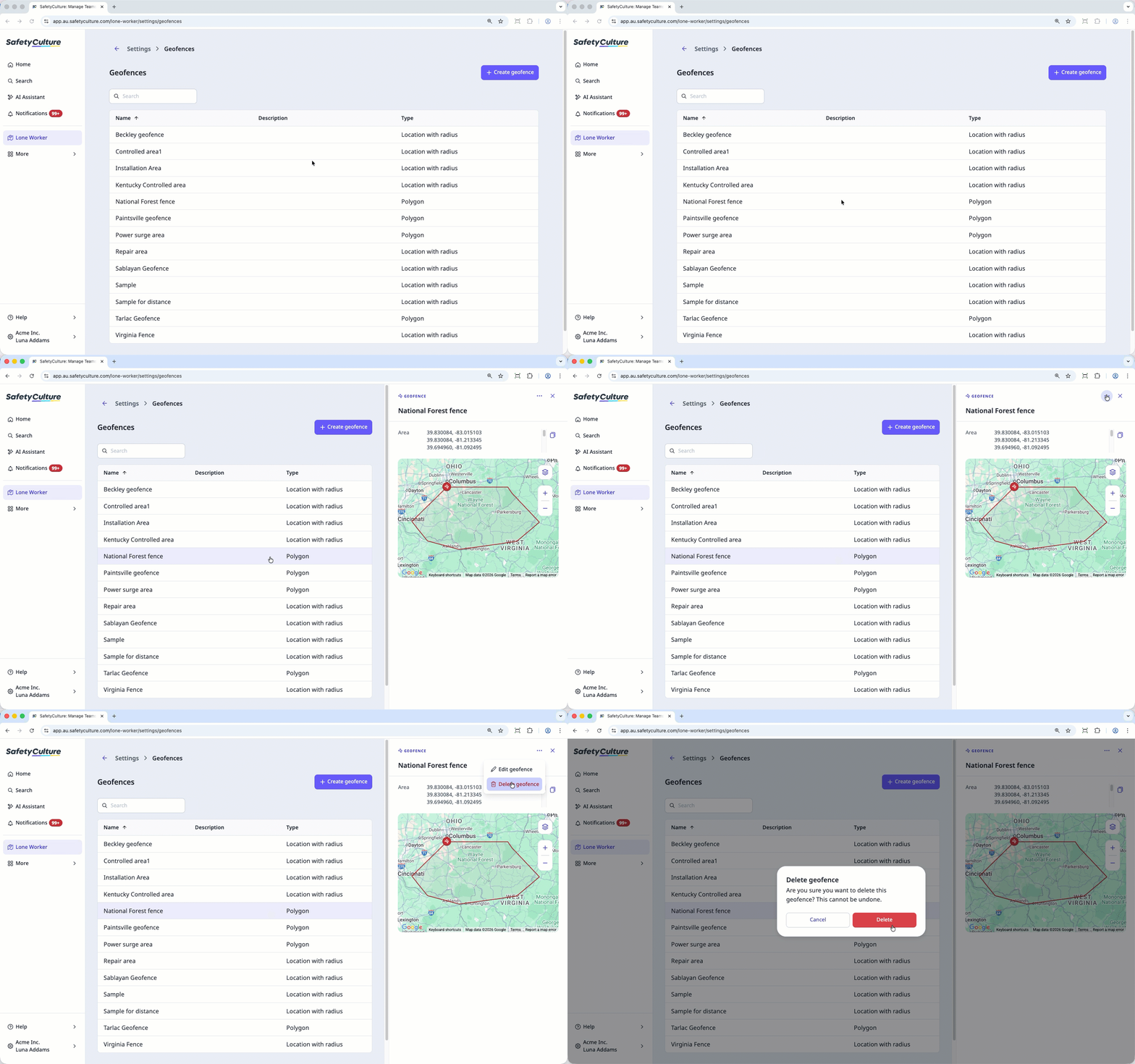
You can now view a list of geofences.
Select the geofence you want to view .
Delete a geofence
Select Lone Worker in the sidebar or select it in More.
Click Settings at the top of the page.
Select Geofences.
Select the geofence you want to delete from the list.
Click and select Delete geofence.
In the pop-up window, click Delete.
You can also manage geofences from the live map.


