
We currently have a legacy and a new experience with the Schedules feature.
This article covers the new Schedules experience. Please ensure you're in the new experience by using the toggle on the upper-left of the Schedules page.
What can I view in schedule activity?
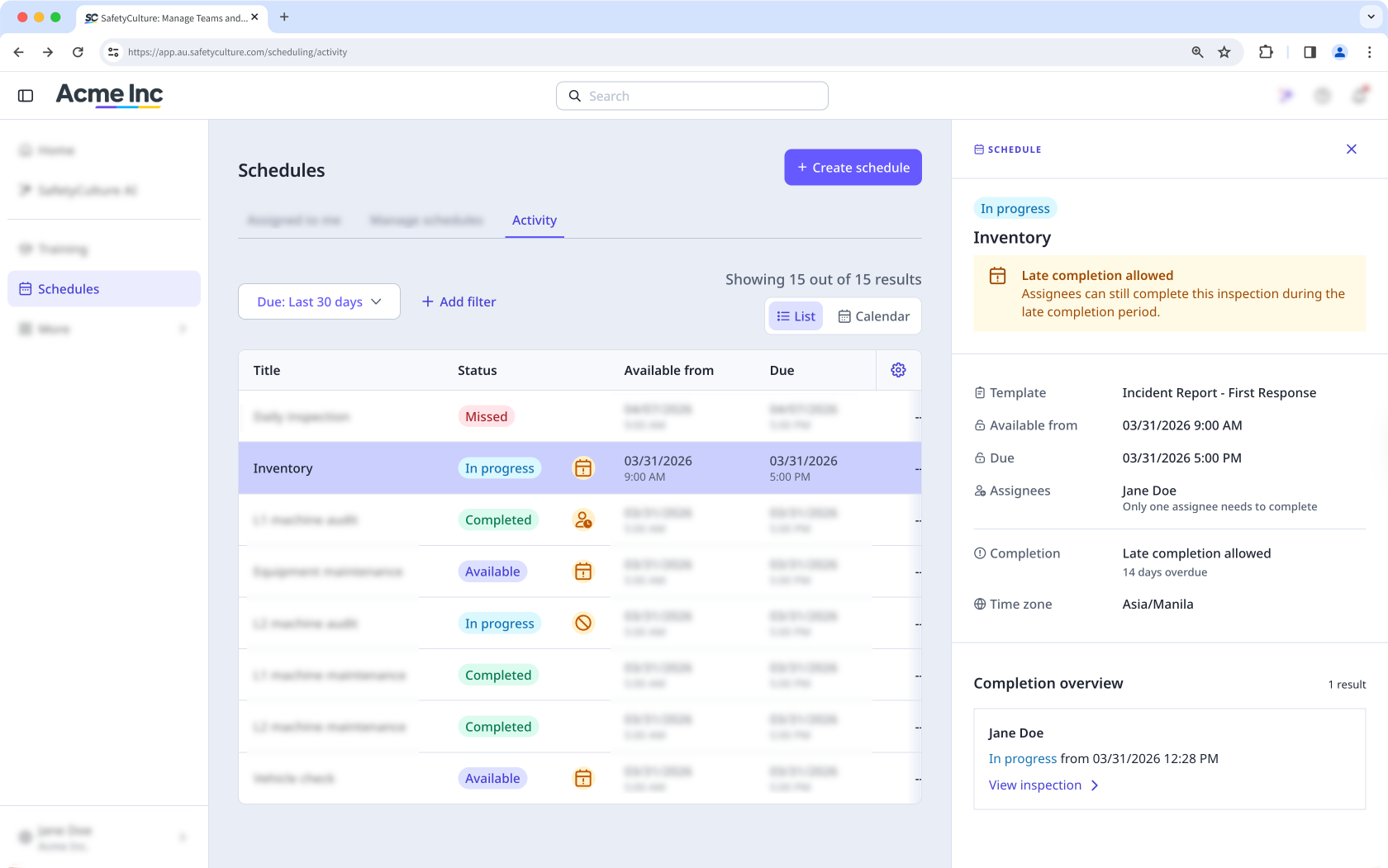
Schedule activity gives you a complete view of all scheduled inspections, including those that are completed, missed, late, available, or overdue, so you can quickly understand what's happening across your schedules. You can view activity in a list or switch to a calendar view to see your inspections laid out by date, making it easier to spot gaps, overlaps, and upcoming inspections at a glance. Select any activity to see more detailed information, and follow up where needed.
What you'll need
If you have "Schedules: Manage" permission, you can view the activity for all schedules in your organization.
View schedule activity
Select Schedules in the sidebar or select it in More.
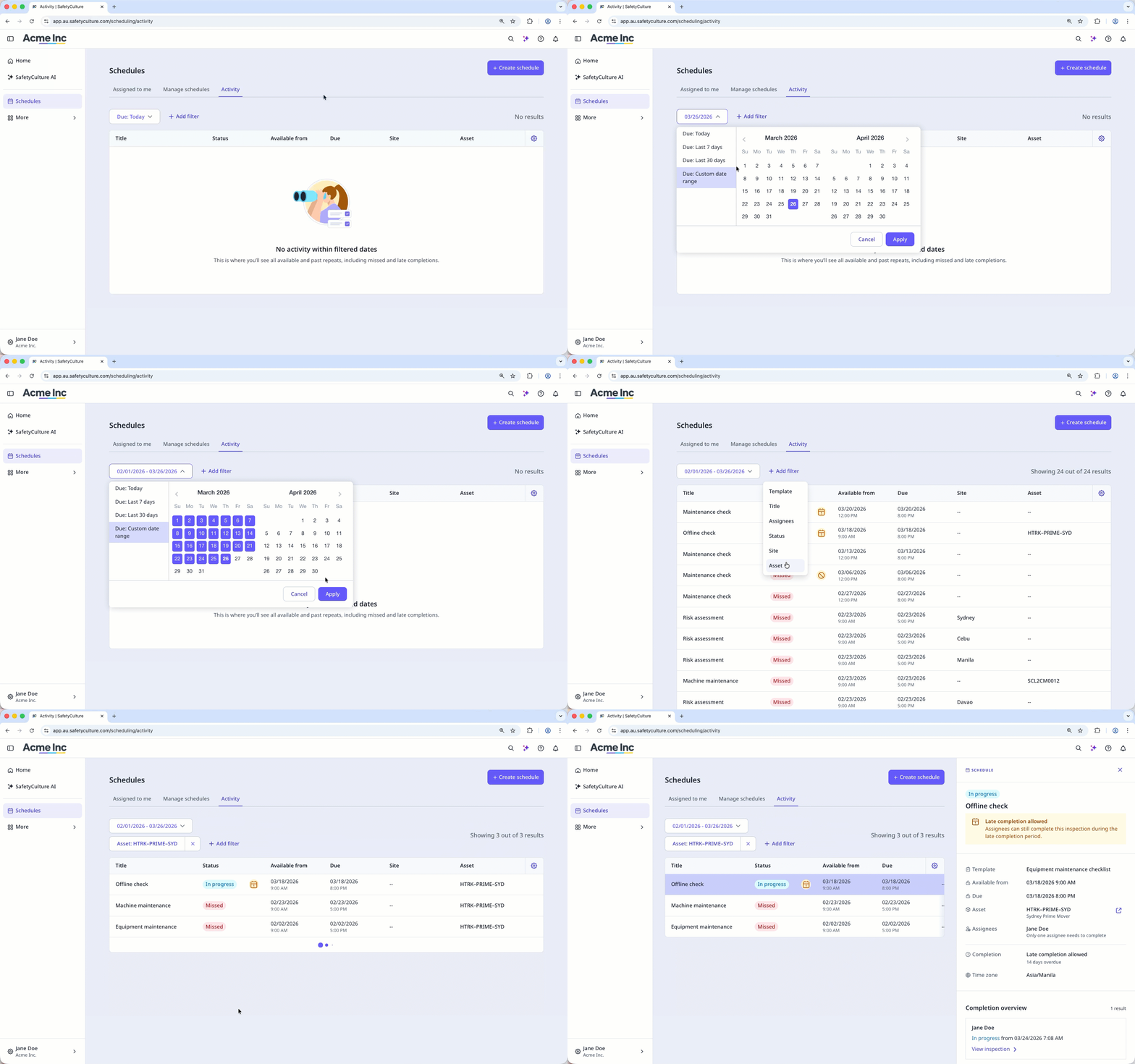
Click Activity on the top of the page.
You can choose how to view your schedules by selecting between List or Calendar on the upper-right of the page.
On List view, you can click the "Due" dropdown list to view scheduled repeats that are due within a specific timeframe, or click Add filter to narrow results based on selected filters.
Select a scheduled repeat to view additional details in the side panel.
What filters are available?
Filter | Description |
|---|---|
Template | Filter based on the template used for the schedule. |
Title | Filter by the schedule's title. |
Assignees | Filter by the groups and users assigned to the schedule. |
Status | Filter by whether schedules are "Available", "In progress", "Completed", "Completed late", "Missed", "Overdue", or "Won't do". |
Site | Filter by the sites assigned to the schedule |
Asset | Filter by the assets assigned to the schedule. |
Filters aren't available in Calendar view and do not carry over from List view.
Schedule statuses
Status | Description |
|---|---|
Available | The scheduled inspection is open and ready to start, but no one has started it yet. |
In progress | At least one assignee has started the scheduled inspection, but it hasn't been completed yet. |
Completed | The scheduled inspection was completed before its due date. |
Completed late | Late completion setting is turned on for the schedule, and the inspection was completed after the due date but within 14 days of it. |
Missed | The inspection wasn't completed in time. This happens if the late completion setting is off and the due date passes, or if the setting is on and the inspection still isn't completed within 14 days of the due date. |
Overdue | The scheduled inspection is past its due date but can still be completed. If the late completion setting is on, assignees can submit it up to 14 days after the due date. After it's submitted, the status changes to Completed late or Missed, depending on when it was submitted. |
Won’t do | An assignee has marked the scheduled inspection as "Won't do" and can add a note explaining why. |
What are the differences between the legacy and new Schedules experience?
Feature | Legacy | New |
|---|---|---|
Schedule activity | You could only view overdue, missed, or late schedule completions. | The new experience gives you a complete view of all scheduled inspections, including those that are completed, missed, late, available, or overdue. |
Side panel details | Minimal details shown when viewing each schedule. | Selecting an activity opens a side panel where you can view details such as template, due date, completion, timezone, site, assignee, requirement, and completion overview. |


