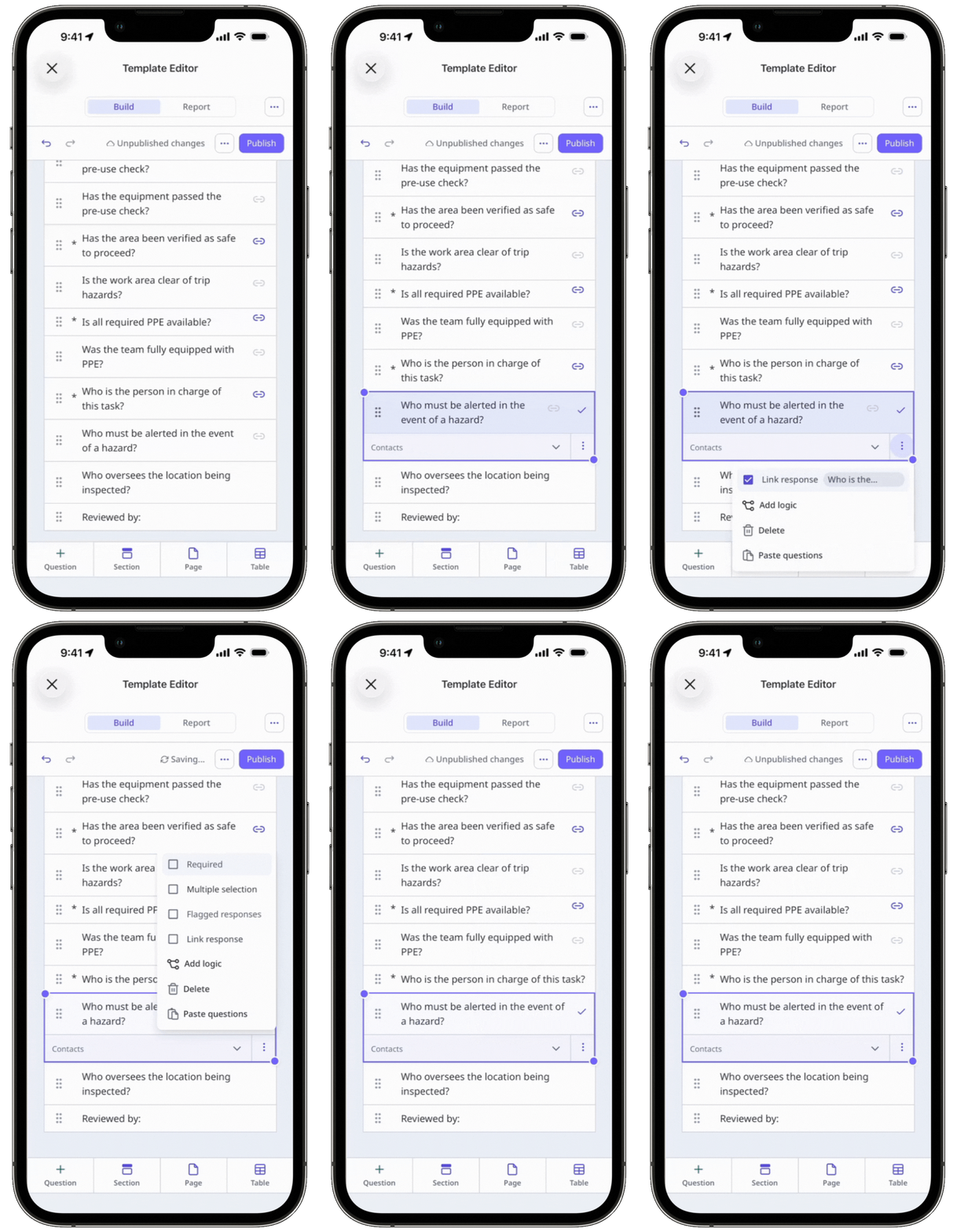
What are linked responses?
Linked responses allow you to link your questions in your templates to reduce repetitive input, save time, and keep your inspections consistent. Once linked, questions can be automatically populated with the same responses selected for an earlier question. For example, if multiple questions rely on the same response, linking them means your team only needs to answer once, making inspections faster and easier to complete.
You need at least two multiple-choice response questions in your template to set up linked responses.
Source: The question that your team needs to answer. This question isn't required by default, but you can mark it as required if needed. Keep in mind that if it's left unanswered, all target questions linked to it will also remain unanswered.
Target: The question(s) linked to the source question, which are automatically populated based on the responses selected in the inspection. Target questions can't be answered manually.
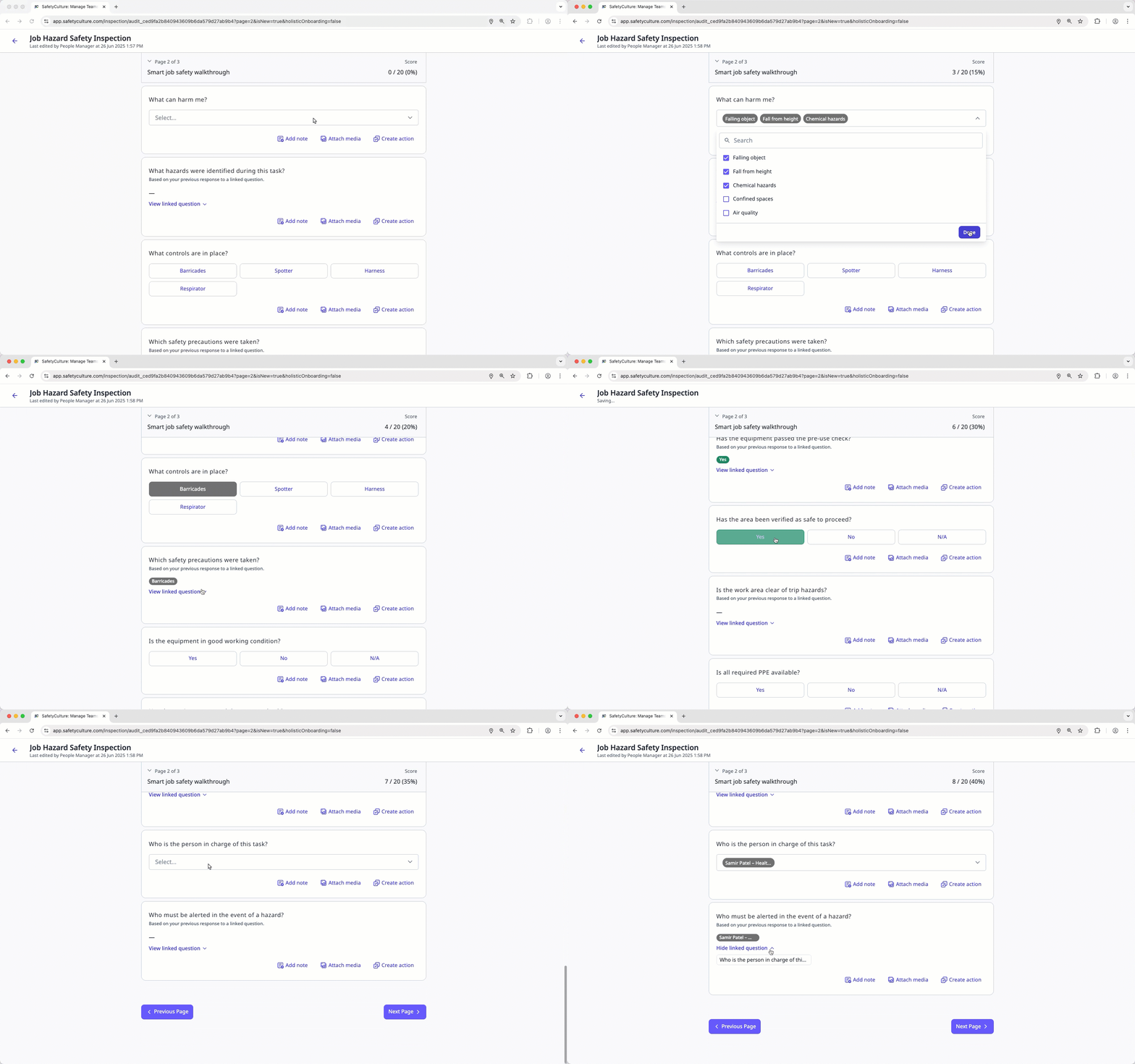
Published changes made to templates only apply to new inspections moving forward.
Link a response
Select
 Templates in the sidebar or select it in More .
Click a template and select Edit template in the side panel.
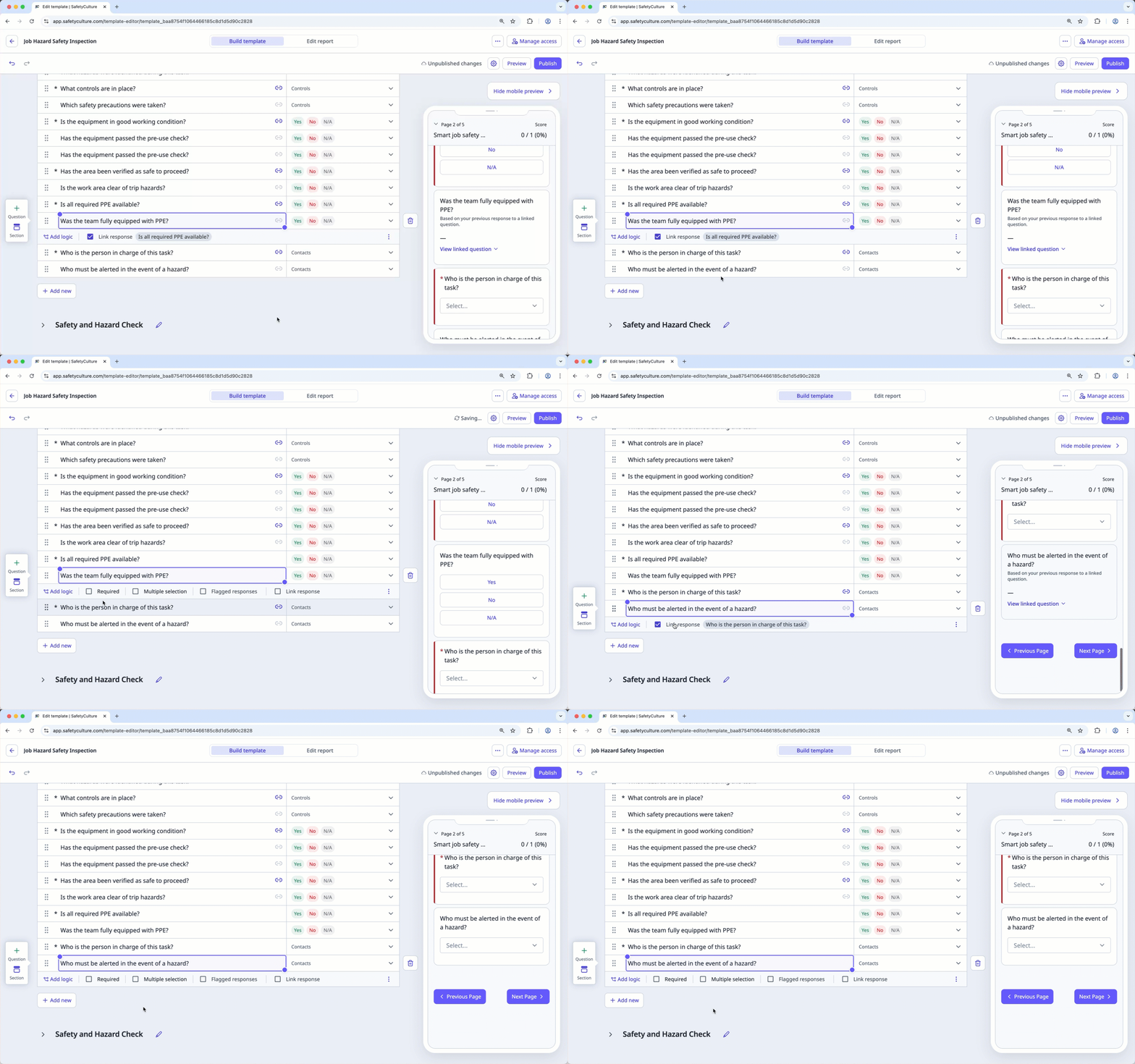
Select a target question with a multiple-choice response type, or add a new one.
Check Link response below the question label.
Select the question you want to reference.
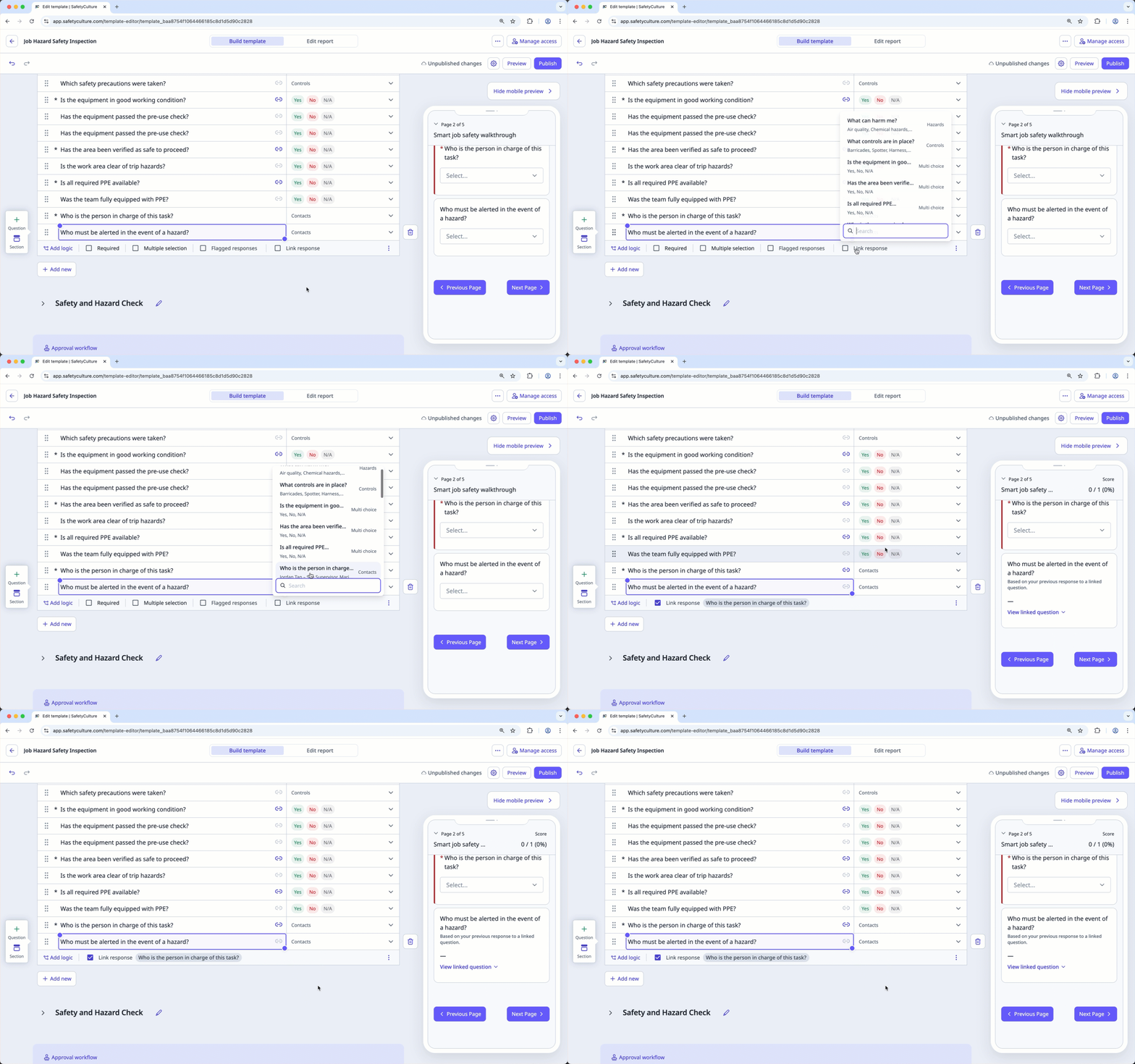
Click Publish on the upper-right of the page to publish the template. If you're not ready to publish the template, you can go back to the template list and publish the changes when you're ready.
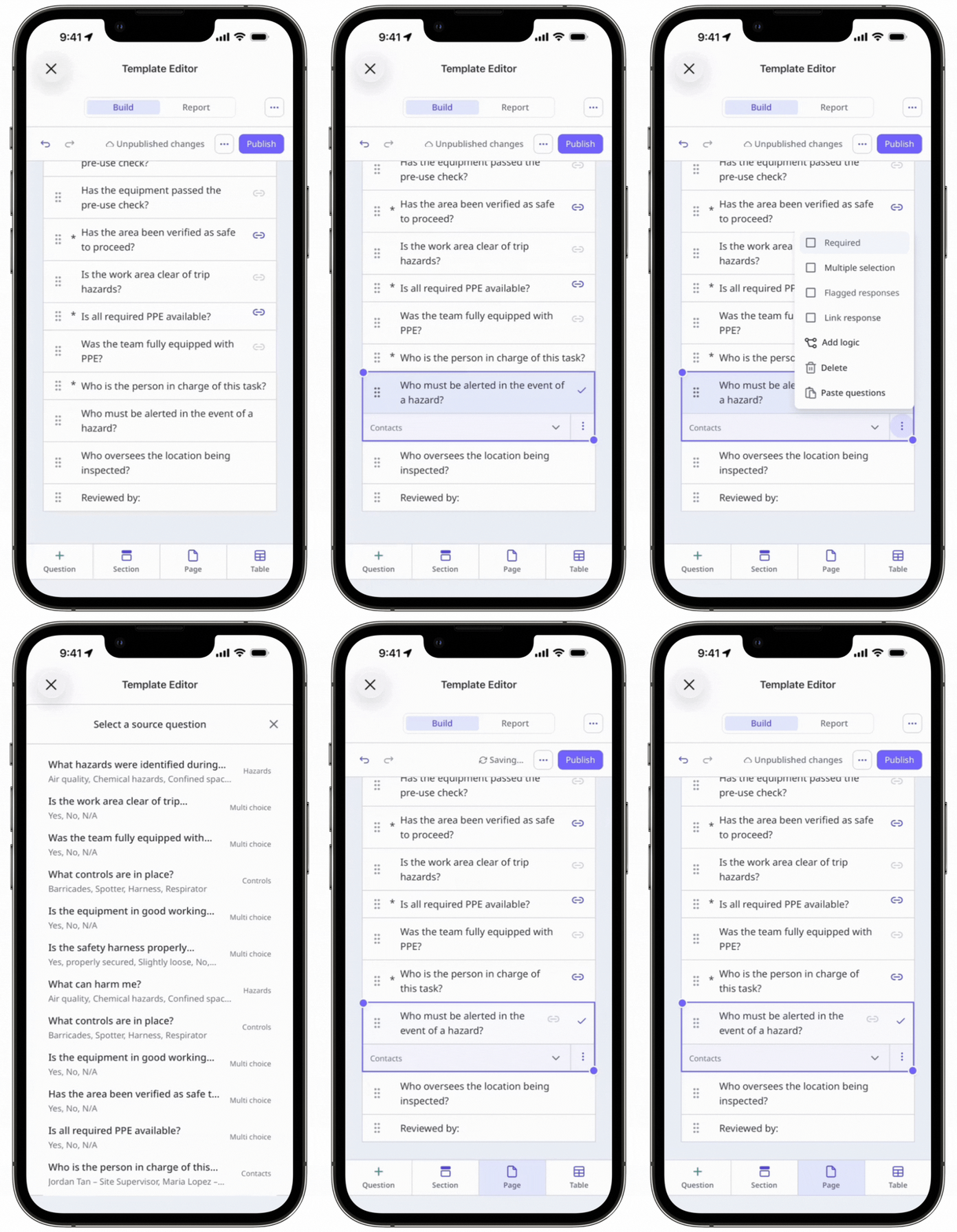
A iconwill appear beside a question to signify that it’s currently linked.
Blue: Represents the source question.
Gray: Represents the target question.
Red: Represents that the source question is invalid.
Responses can only be unlinked from the target question.
Unlink a response
Select
Templates in the sidebar or select it in More .Click a template and select Edit template in the side panel.
Click the question you want to unlink.
Uncheck Link response below the question label.
Click Publish on the upper-right of the page to publish the template. If you're not ready to publish the template, you can go back to the template list and publish the changes when you're ready.