
Share courses
Learn how to share courses for editing and previewing via the web app and mobile app.Sharing a course for editing or preview is different from sharing a course link with your team so they can take the course. You can use this option only when you want collaborators to review or edit the course content. To let users start and complete the course, share the course link instead.
How does sharing for editing or preview work?
Sharing a course for editing or preview creates a collaborative way for course creators and stakeholders to review course content before it's assigned to the users. When a course is shared for editing, course editors can update the content directly and add comments to lesson slides to make suggestions, call out potentially inaccurate content, and more.
When shared for preview, course creators can generate a public preview link that opens in a web browser allowing anyone with the link, such as subject-matter experts, to see the full course and confirm whether the content is accurate and relevant for their teams.
Share a course for editing
Select
 Training in the sidebar or select it in
  More.
More.If you're on the "Learn" page, click Content at the top of the page and select Courses.
Hover your cursor over the course and click View or Edit.
Click Share on the upper-right of the page.
In the pop-up window, search for the user's name or email address and then select the user accordingly. You can also add a note to provide context or instructions.
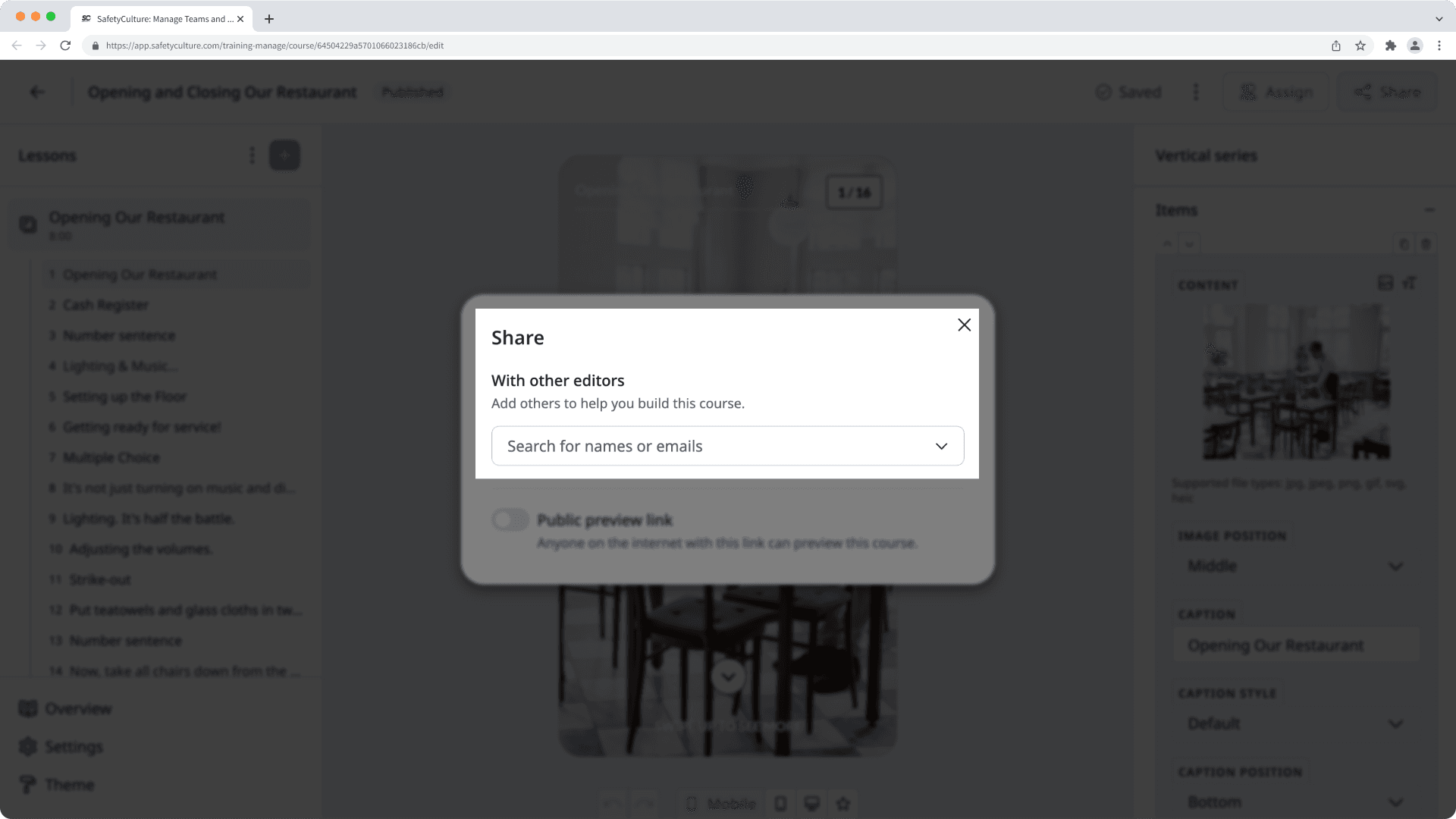
Once you're ready, click Share and an email with your note and a direct link to edit the course will be sent to the user.
Open the mobile app.
Tap
Training in the navigation bar or select it from More. If you're currently on Learn tab, tap Manage at the top of your screen.Tap on the course that you want to share for editing.
Tap
 on the right-hand corner of your screen.
In the pop-up menu, tap the dropdown menu under "With other editors".
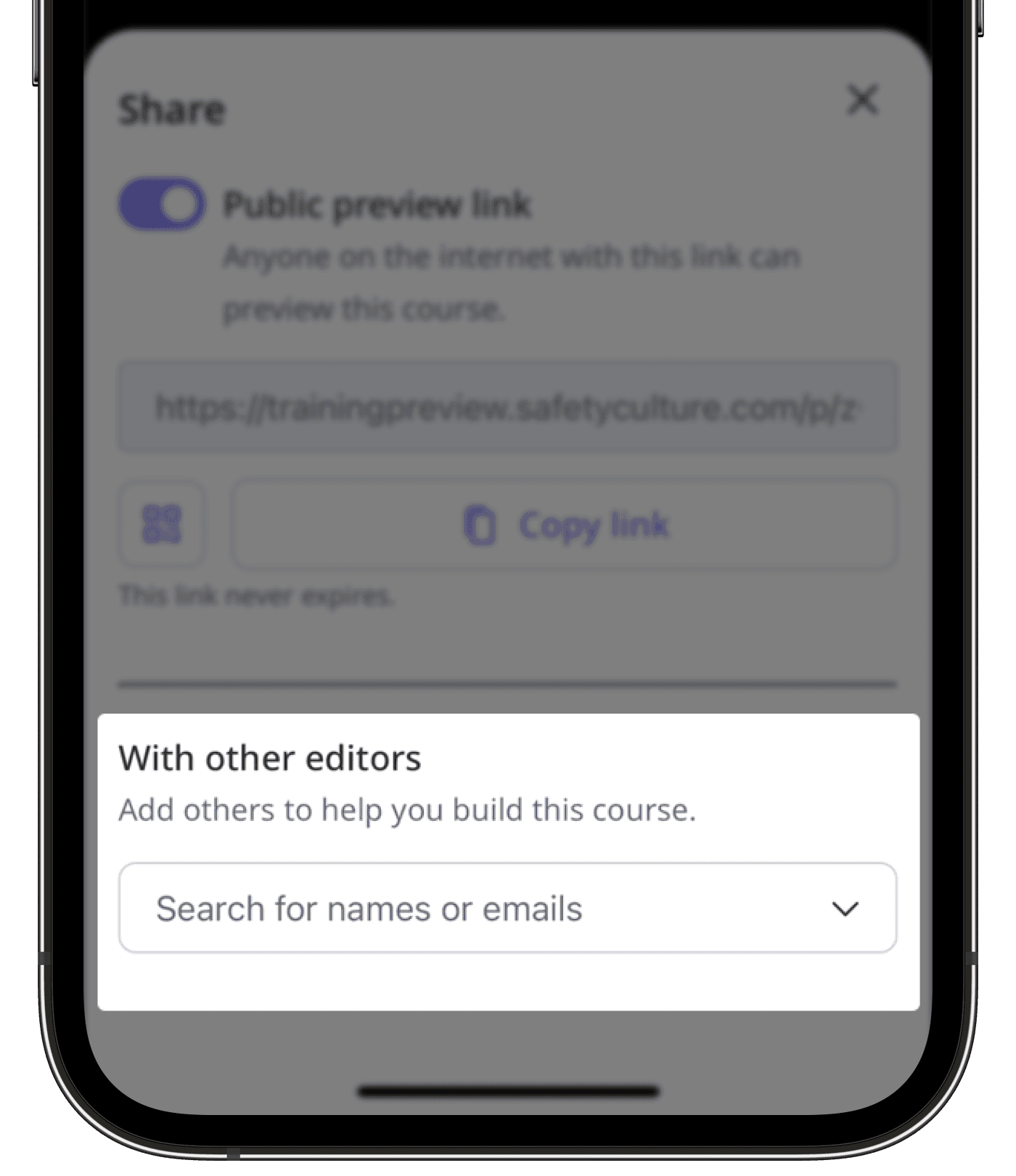
Search for the user's name or email address and then select the user accordingly. You can also add a note to provide context or instructions.
Once you're ready, tap Share and an email with your note and a direct link to edit the course will be sent to the user.
Share a course for previewing
Select
Training in the sidebar or select it in More.If you're on the "Learn" page, click Content at the top of the page and select Courses.
Hover your cursor over the course and click View or Edit.
Click Share on the upper-right of the page.
In the pop-up window, turn the public preview link on accordingly. You can also:
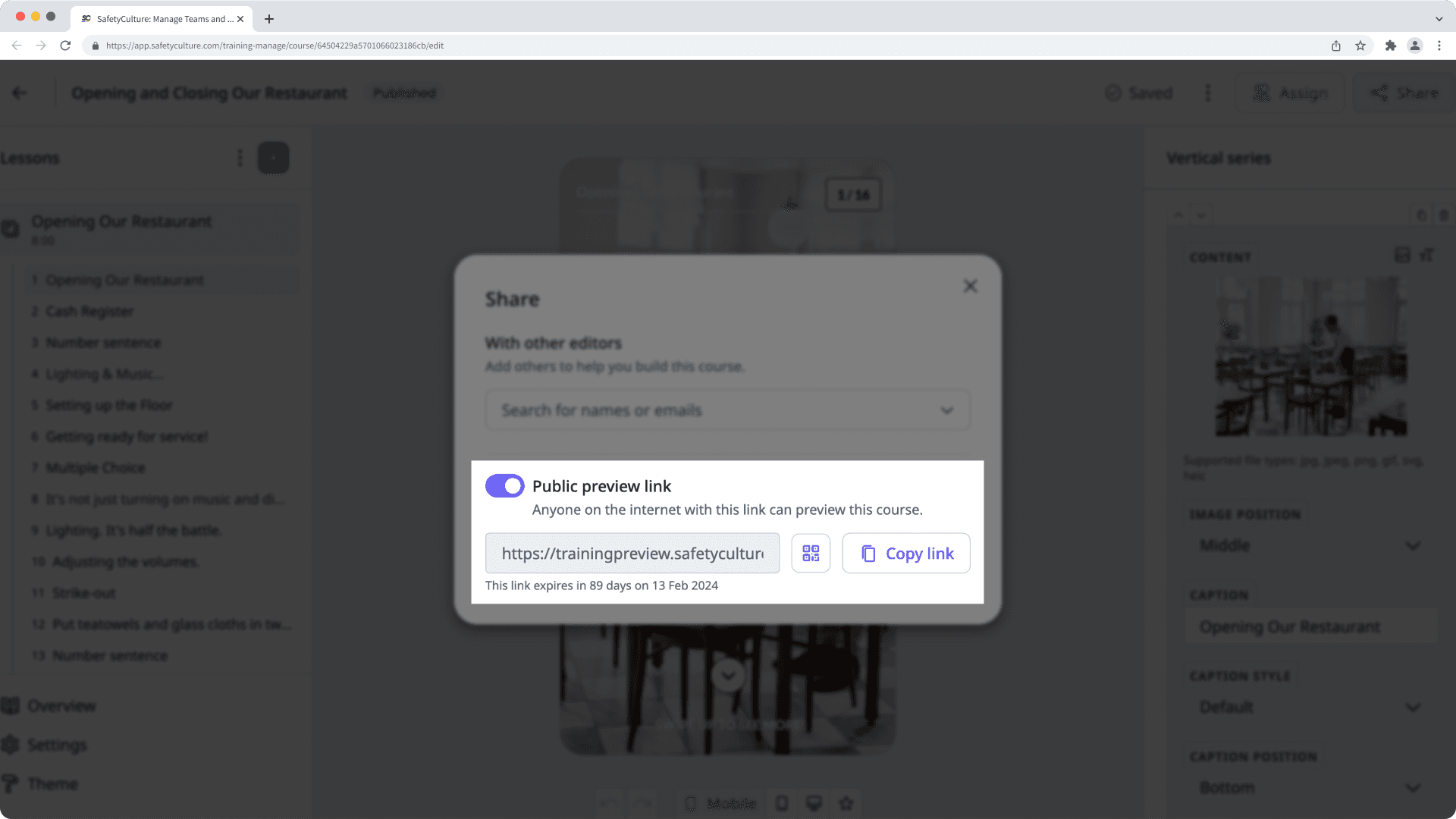
Download a QR code with the public preview link by clicking
 .
.Copy the public preview link to your clipboard by clicking
 Copy link.
Open the mobile app.
Tap
Training in the navigation bar or select it from More.Select Manage at the top of your screen.
Tap on the course that you want to share for previewing.
Tap
on the right-hand corner of your screen.In the pop-up, turn the public preview link on accordingly. You can also tap
Copy link to copy the public preview link to your clipboard.
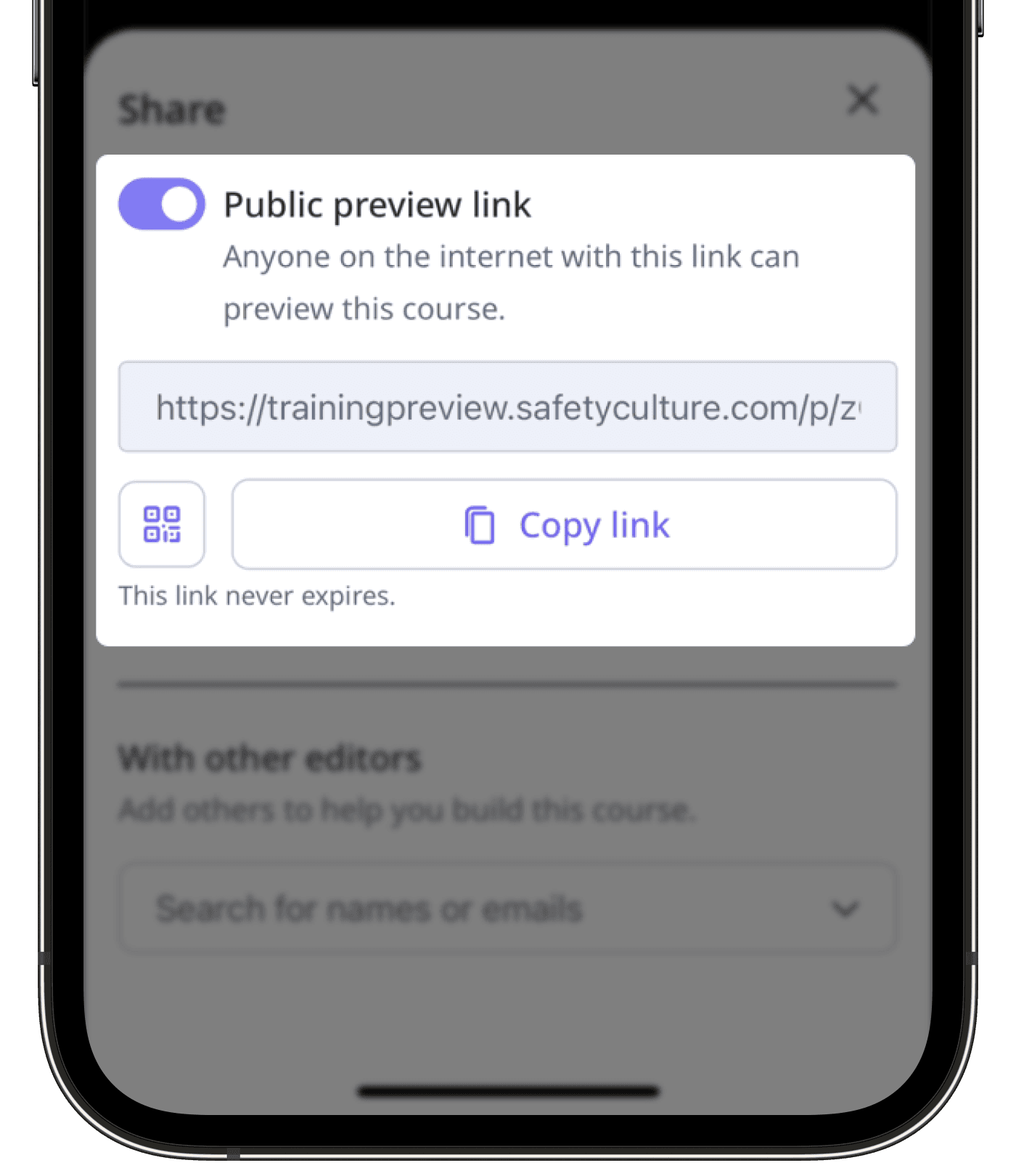
By default, course public preview links don't expire. If you have "Training: Administration" permission, you can turn off public preview links for your organization or customize the expiration date.
Was this page helpful?
Thank you for letting us know.