
What are rules in company document approvals?
Rules in company document approvals set the criteria a submitted document must meet to be considered compliant. When a key contact uploads a document, AI checks it against the rule you've set up for that document type and acts based on the action mode you've chosen. This gives company managers control over how much AI can do, from reviewing a document and recommending a decision to approving or rejecting submissions automatically.
Each rule supports three action modes:
Recommend only: AI checks the document and recommends whether to approve or reject it, with key details already noted. If AI can't determine whether the document is compliant, it's flagged for you to review.
Automatically reject: AI rejects non-compliant documents automatically. If AI can't determine whether the document is compliant, it's flagged for you to review.
Automatically reject or approve: AI approves compliant documents and rejects non-compliant ones automatically. If AI can't determine whether the document is compliant, it's flagged for you to review.
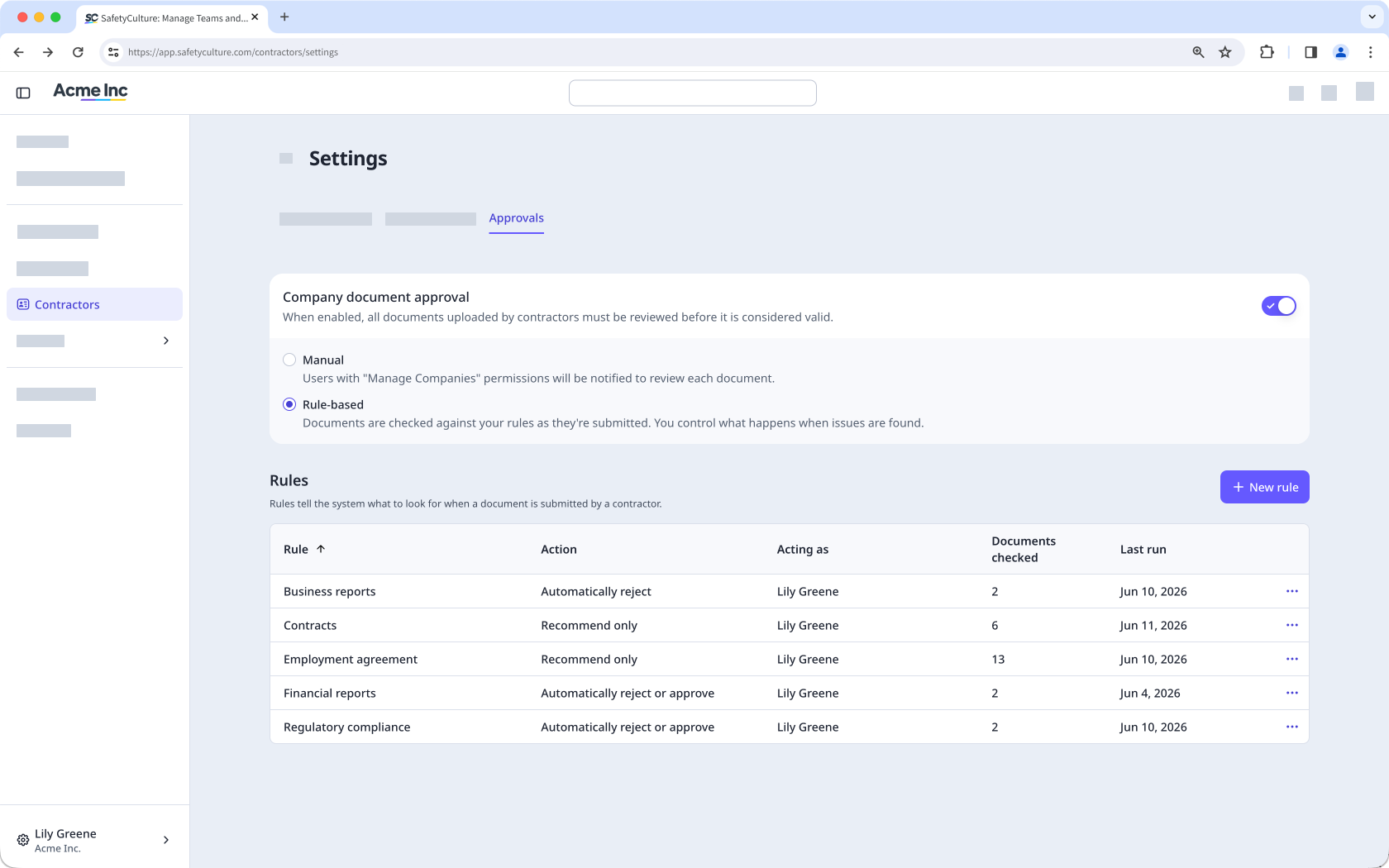
Make sure Rule-based is selected in the company document approvals setting to manage rules.
Add a document approval rule
Select Contractors in the sidebar or select it in More.
Click Settings on the upper-right of the page.
Select the Approvals tab at the top of the page.
Select the Rule-based setting.
In the "Rules" section, click New rule on the right-hand side of the page.
In the side panel, select a document type or create a new one.
Enter a description of what AI should check for. Alternatively, click Draft with AI to generate a description.
Select the action mode you want to set:
Recommend only: Each document comes with a suggested approval or rejection for you to act on.
Automatically reject: Documents are rejected without any manual review on your behalf.
Automatically reject or approve: Documents are approved or rejected without any manual review on your behalf.
Click Add rule on the lower-right of the page.
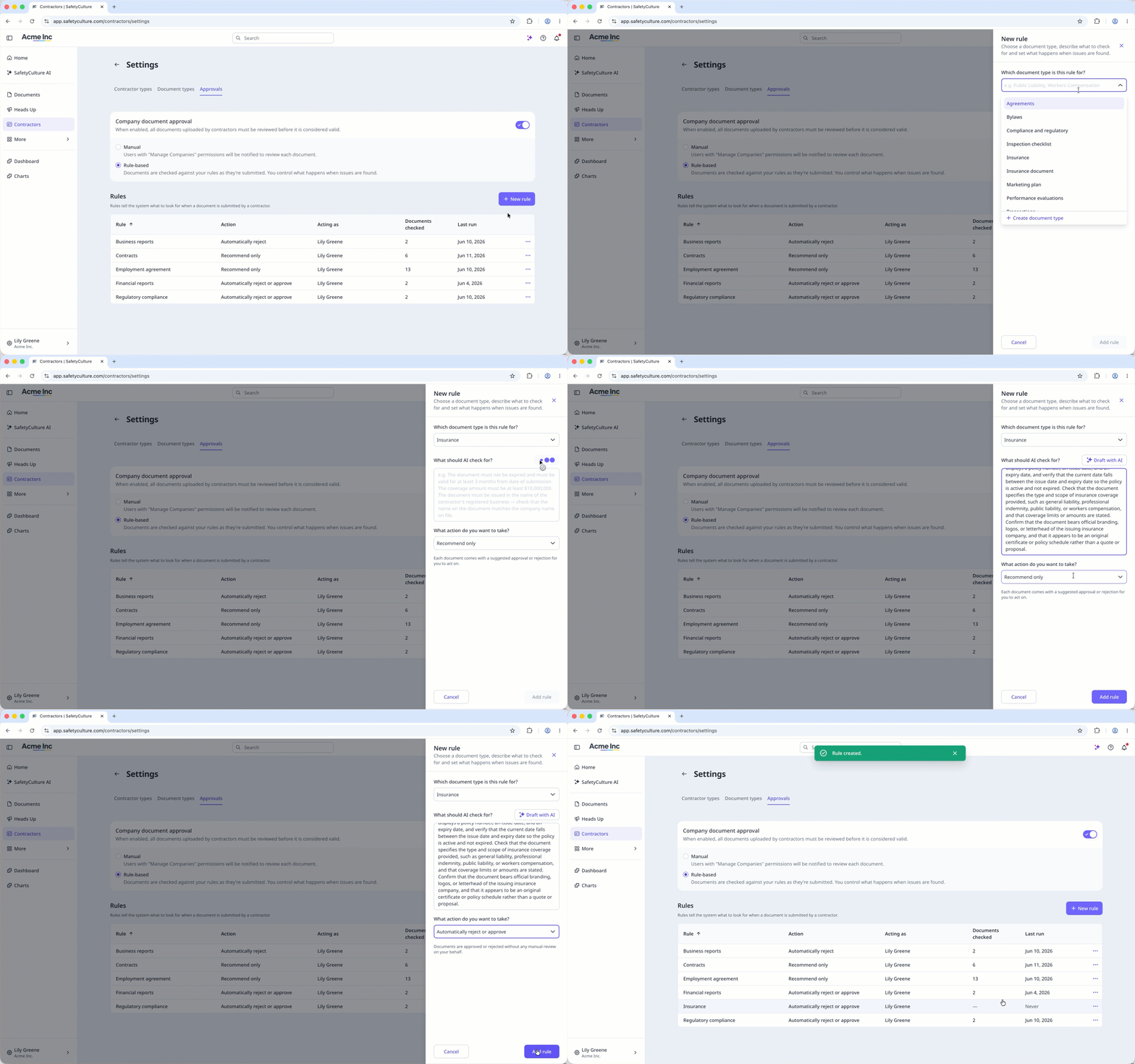
You can only set up a rule for one document type at a time.
Edit a document approval rule
Select Contractors in the sidebar or select it in More.
Click Settings on the upper-right of the page.
Select the Approvals tab at the top of the page.
Select the Rule-based setting.
In the "Rules" section, click on the rule's right-hand side and select Edit.
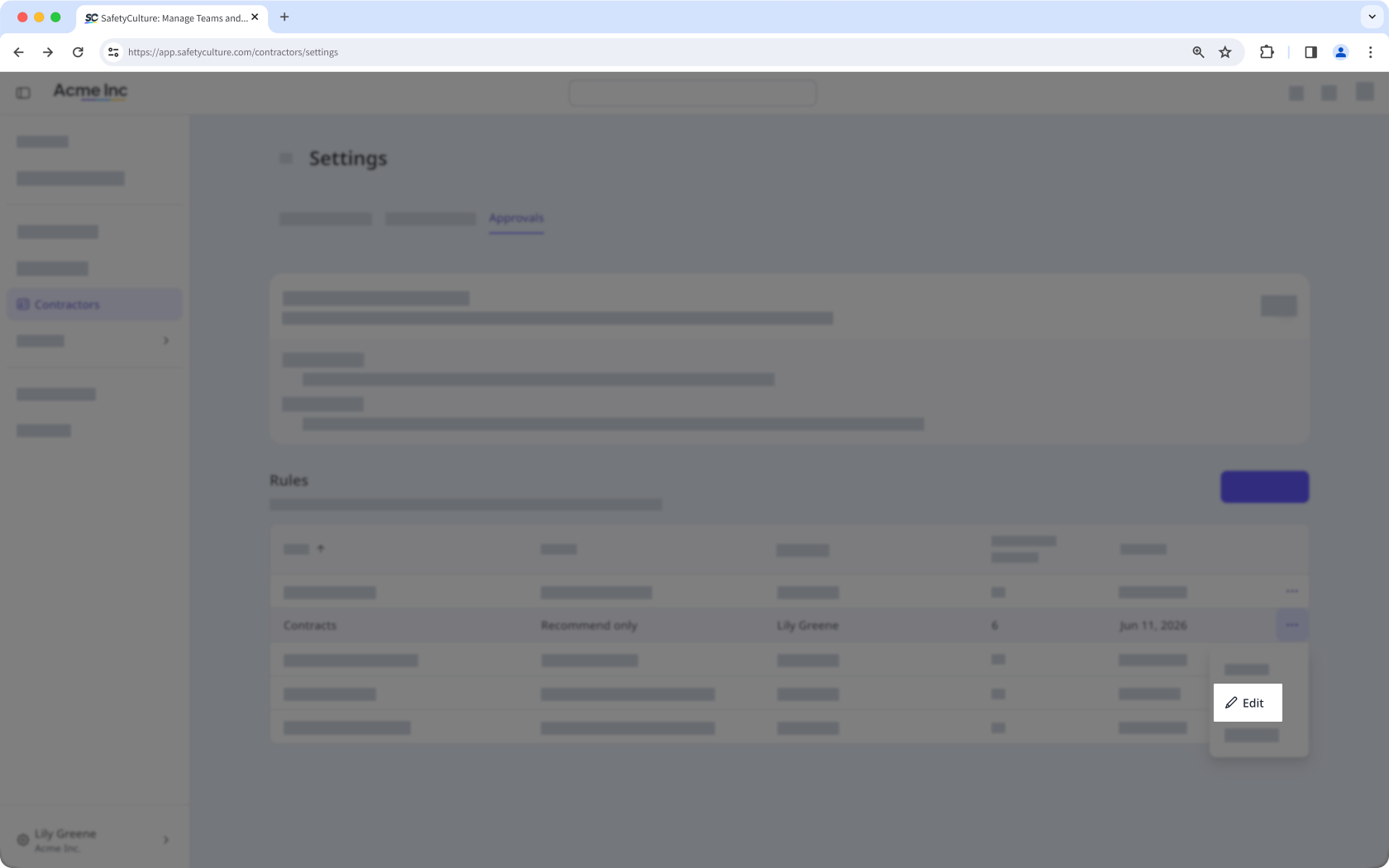
In the side panel, update the rule accordingly.
Click Save rule on the lower-right of the page.
View a document approval rule
Select Contractors in the sidebar or select it in More.
Click Settings on the upper-right of the page.
Select the Approvals tab at the top of the page.
Select the Rule-based setting.
In the "Rules" section, click on the rule's right-hand side and select View.
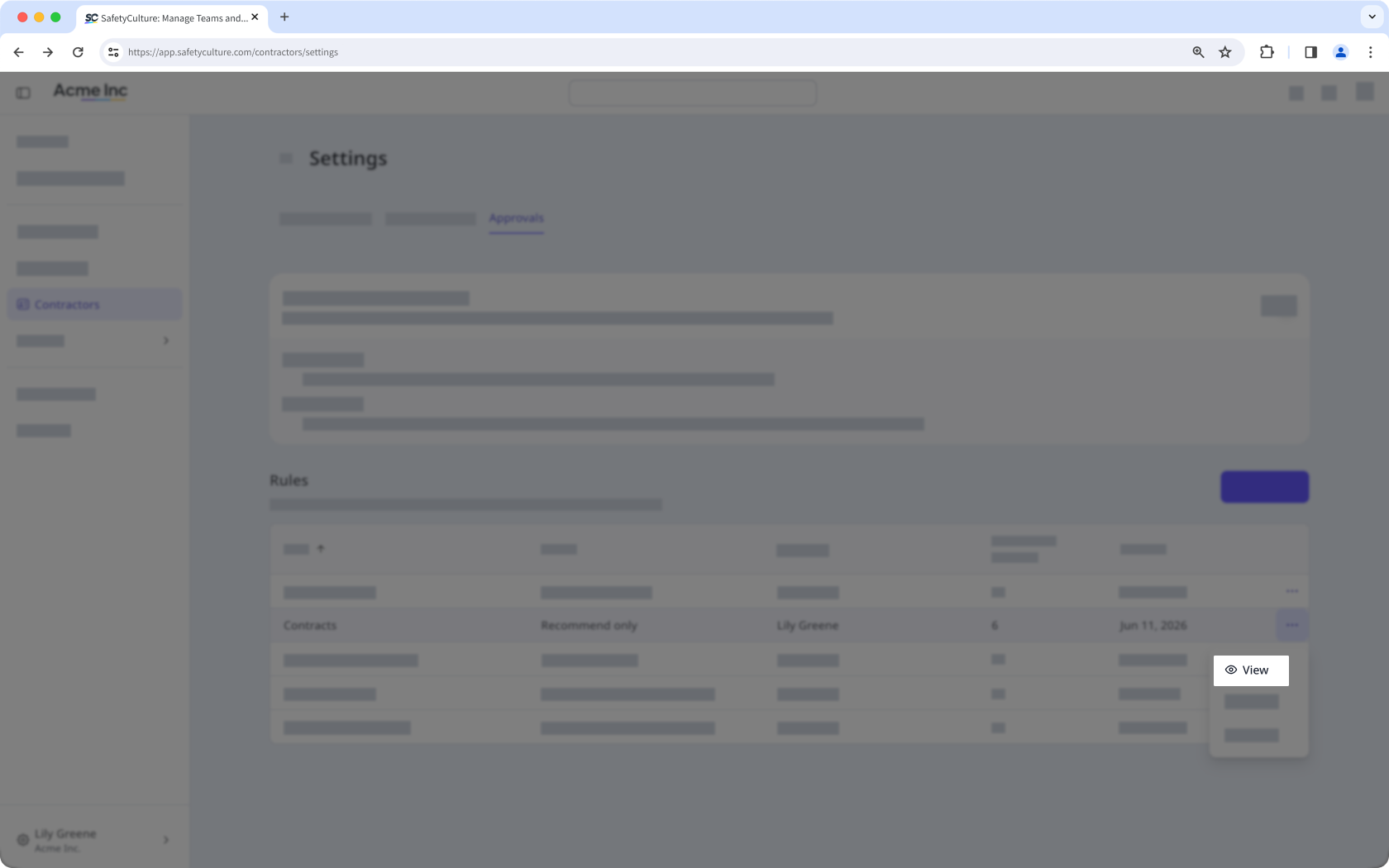
In the side panel, select a tab:
Details: View the rule's details, including the document type, description, and action.
Activity: View a log of changes made to the rule.
Delete a document approval rule
Deleting is irreversible, and we cannot restore permanently deleted items. Confirmation is always required before any deletion, so be sure you're not accidentally deleting the wrong item.
Select Contractors in the sidebar or select it in More.
Click Settings on the upper-right of the page.
Select the Approvals tab at the top of the page.
Select the Rule-based setting.
In the "Rules" section, click on the rule's right-hand side and select Delete.
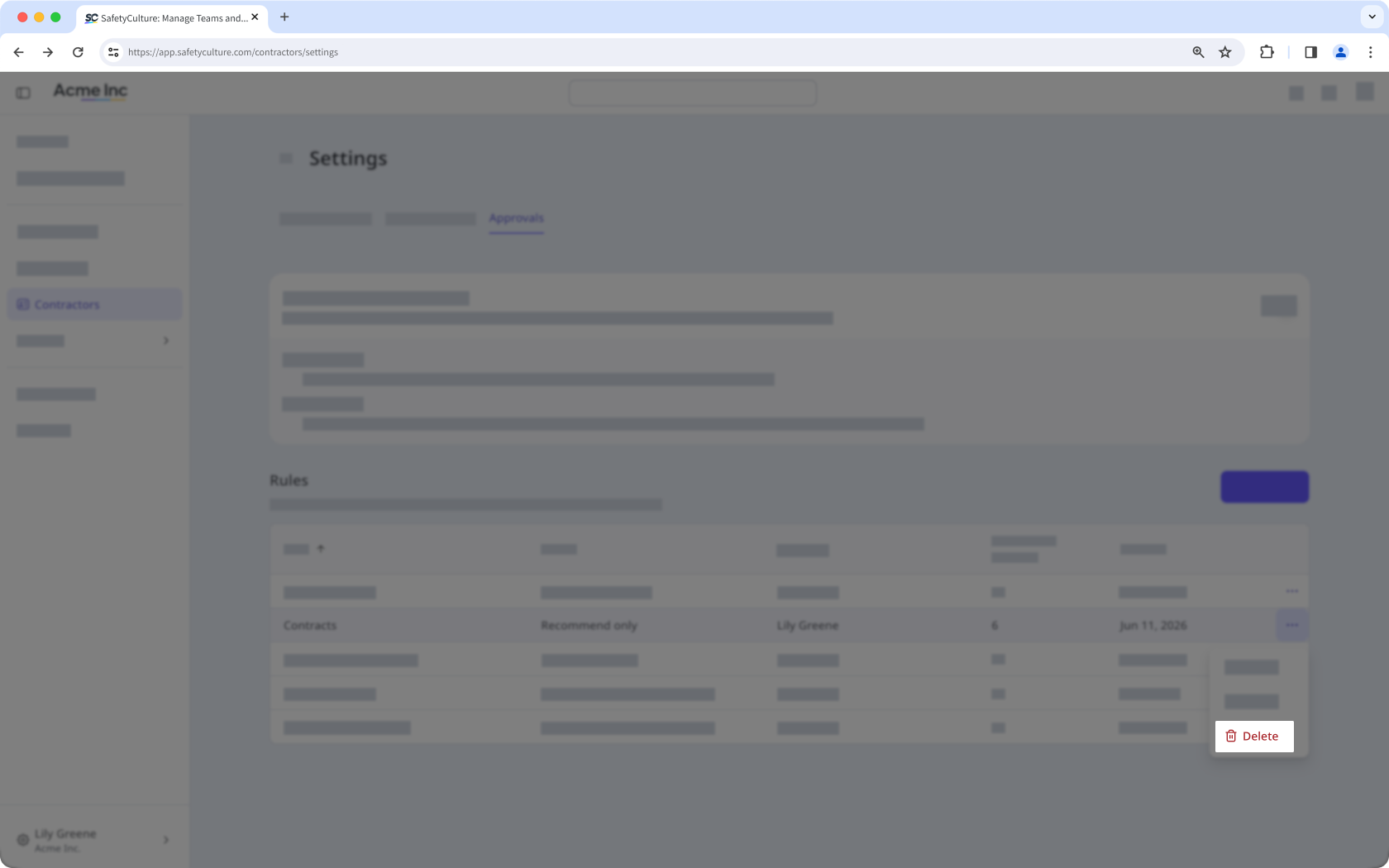
In the pop-up window, click Delete rule.


