How does AI issue creation work?
With AI issue creation, you can capture and submit issues faster without manually filling in every field. Record a voice note to capture details and attach photos for further context, and AI generates suggested values for issue fields such as the title, description, category, date occurred, and custom questions based on what you’ve shared.
You can review, edit, or clear any field before submitting, so the final report always reflects what you actually observed on site.
Adding descriptions to issue categories helps the AI categorize reports more accurately. The more specific the description, the better the match.
Get started as an admin
Configure user access
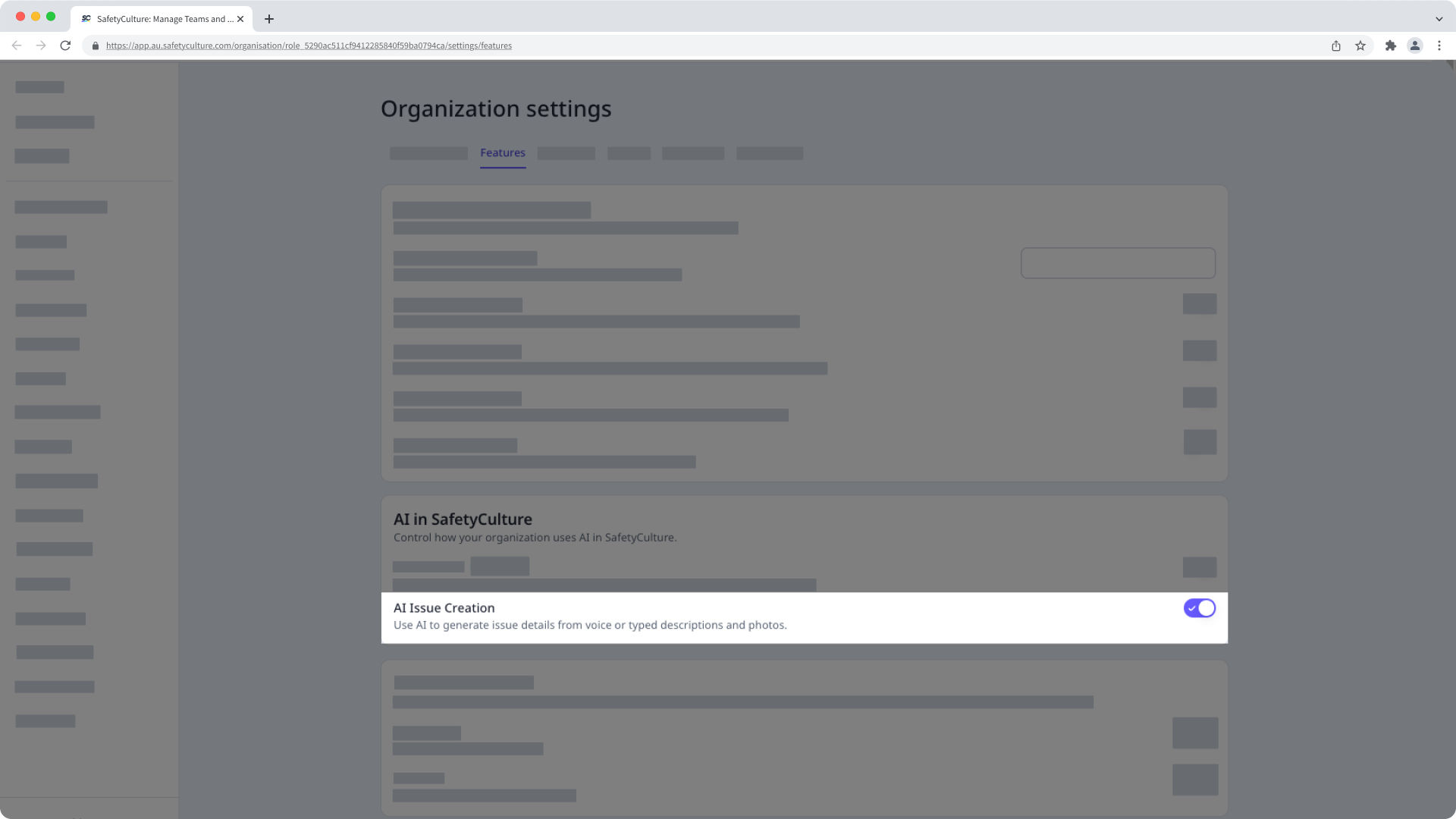
Turn on AI issue creation in your Organization settings before your team can use it. Once AI issue creation is on, the AI suggests answers for issue fields and custom questions based on what the reporter shares.
Make sure the people reporting issues have the "Issues: Access" permission. Without it, they can't create issues, so the AI issue creation won't be available to them even if the feature is turned on.
Set up issue categories with clear descriptions
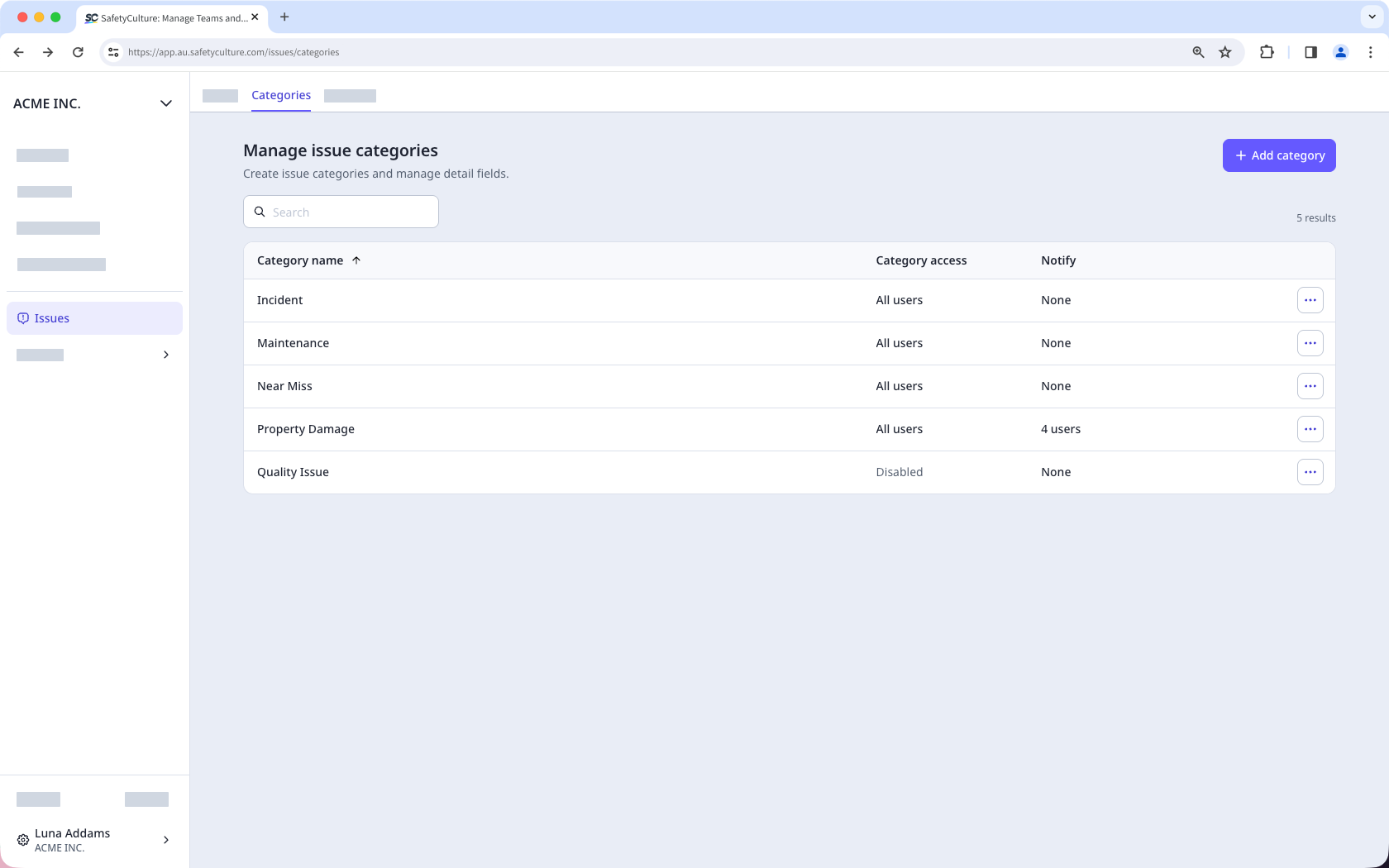
Create issue categories to organize and prioritize what gets reported across your organization, so issues land in the right place and the right people can act on them quickly.
Add a clear description to each category. The AI uses these descriptions to decide which category a reported issue belongs to. The more specific you are about what each one covers, the more accurately the AI can select a category for the issue. When you write a description, explain what the category covers, what it doesn't include, and which kinds of issues belong in it.
Write custom questions the AI can fill in
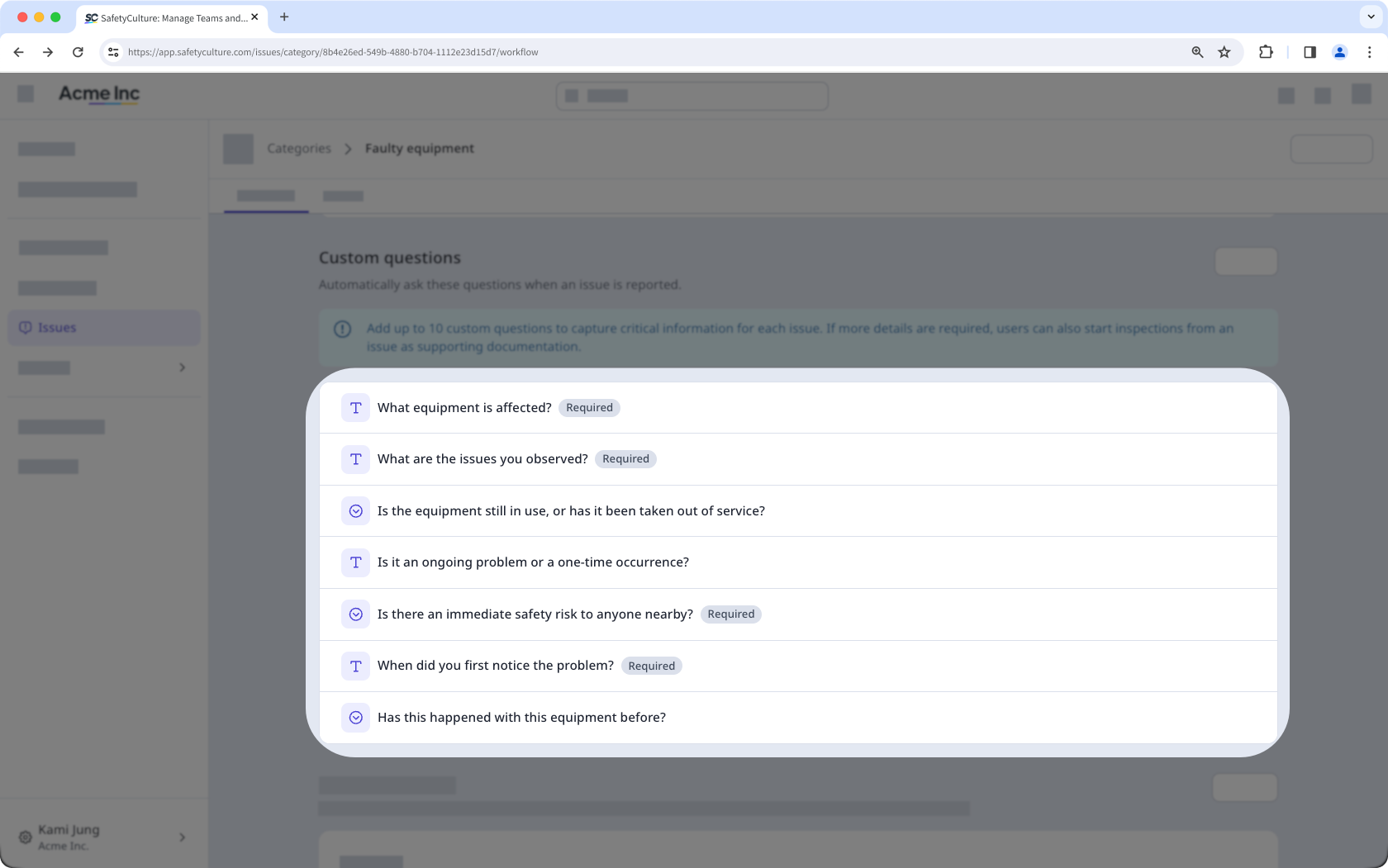
Add custom questions to capture the extra detail specific to your organization, beyond the standard issue fields, title, and description. The AI suggests answers to your custom questions based on the reporter's voice note and photos. The clearer and more specific each question is, the more accurately the AI can fill it in. Vague or unclear questions are harder for both the reporter and the AI to answer well.
Keep each question focused on one thing, and phrase it the way you'd ask it out loud. If a question can't be answered from what someone says or shows on site, that's a sign to simplify it or make it optional.
Manage category visibility and access
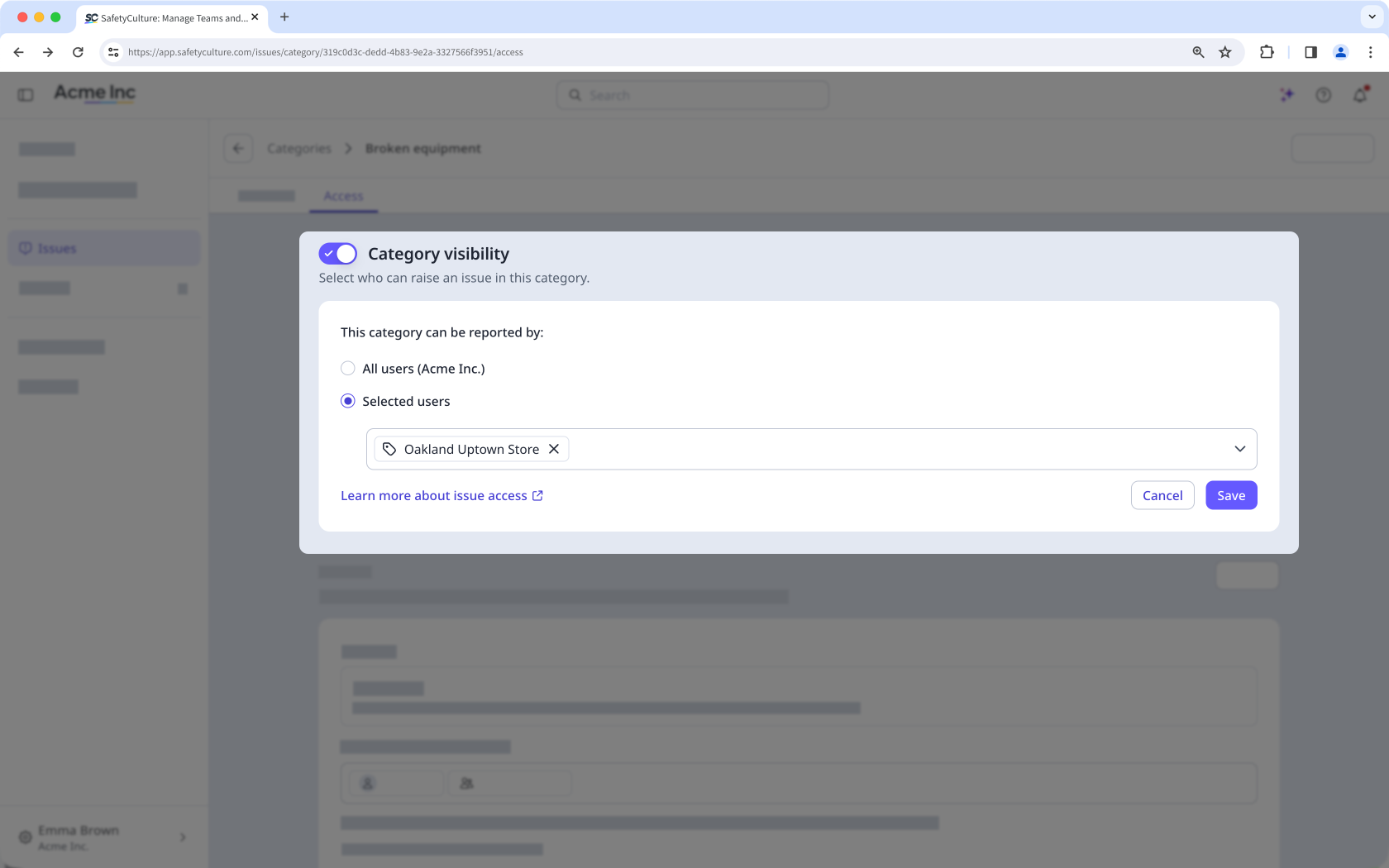
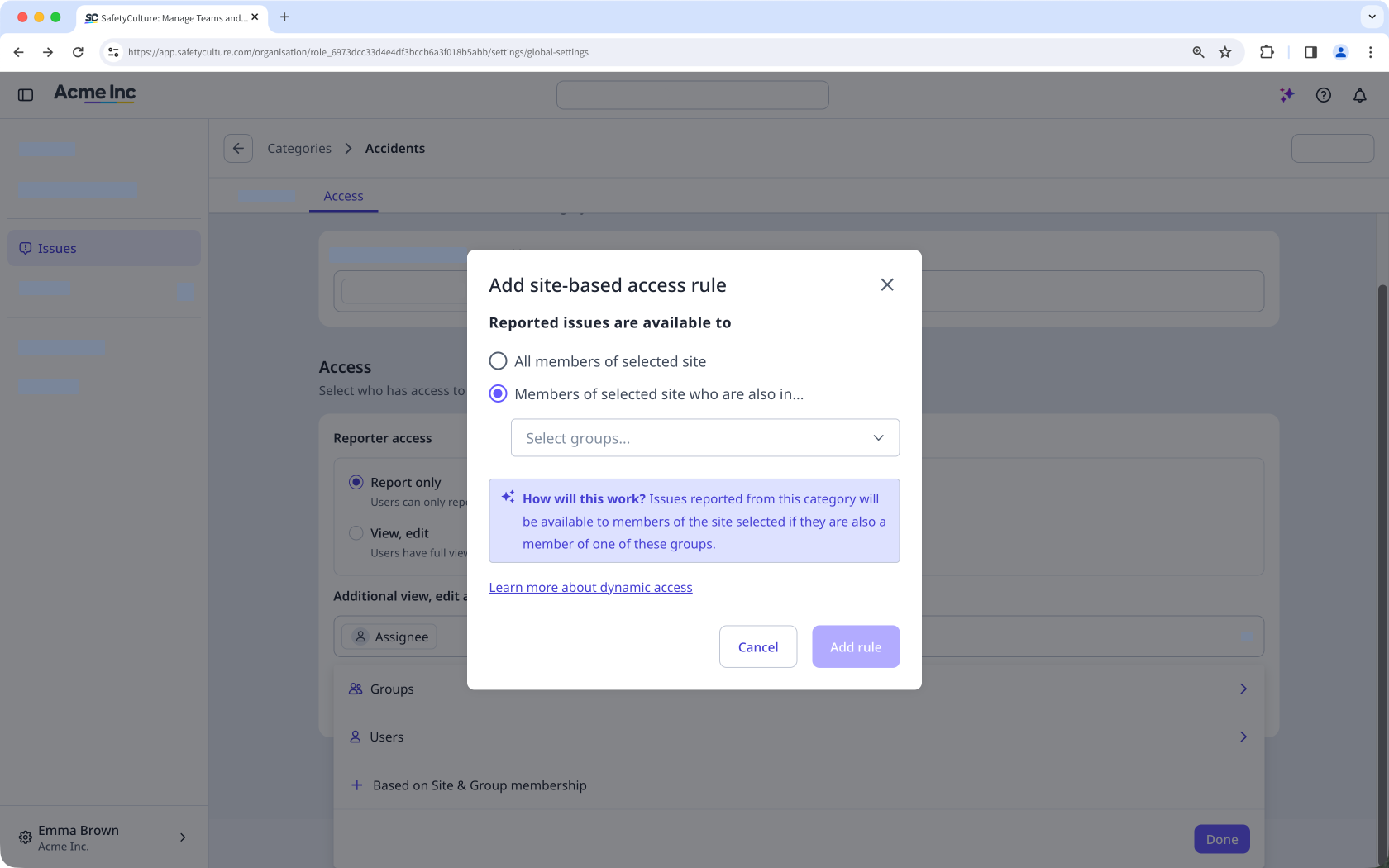
Before your team starts reporting issues, decide who can see each category using category visibility and who can view and edit reported issues using issue access. Category visibility controls which users can select a category when reporting. If you leave category visibility unrestricted, anyone with "Issues: Access" permission can report an issue using any category. Manage visibility to limit each category to users, groups, and sites they're relevant to.
Issue access controls what reporters can do after an issue is submitted. You can set the default access level for issue reporters to either "Report only" or "View, edit". The access level you set determines whether users can only submit issues without access to view and edit them afterward or have full view and edit access to reported issues.
Create issue QR codes
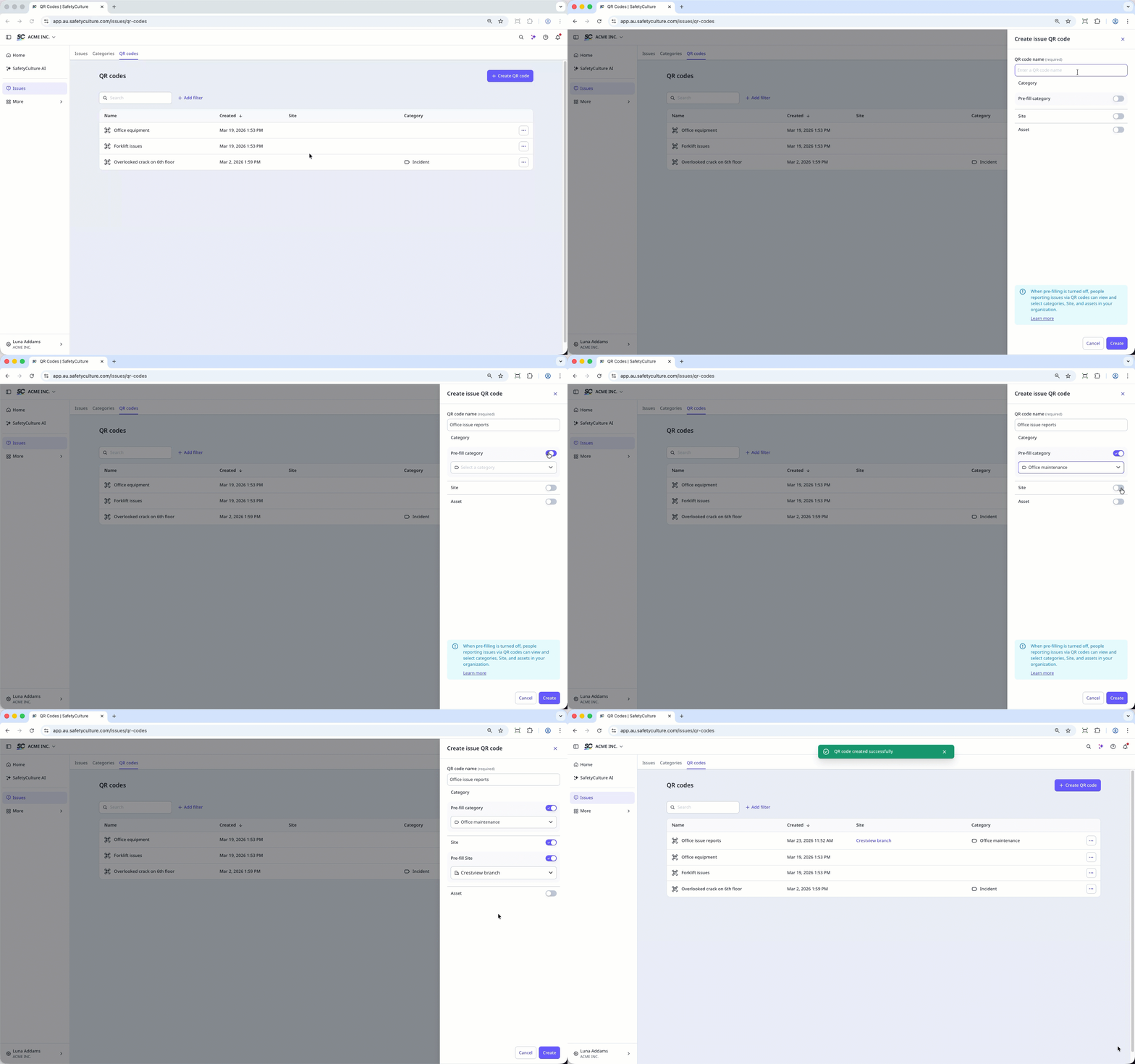
Issue QR codes let anyone on your team report issues by scanning a code, even without a SafetyCulture account. This is useful for frontline workers or contractors who aren't set up in the platform.
When you create a QR code, you can configure it to automatically fill in the category, site, or asset fields. Place QR codes anywhere issues are commonly reported: at site entrances, near equipment, or on vehicles. You can download and print each code or share it as a link.
On iOS, you can set up your device so that you can report an issue using AI directly from the Action button, Siri, or Spotlight.
Get started as a team member
Describe the issue clearly
When you record a voice note, speak in full sentences and describe what you're seeing as if you're explaining it to someone who isn't on site. Include where the issue is, what's causing it, and how serious it is.
The AI uses what you say to generate the title, description, category, and any custom questions. The more details you give, the more accurate those suggestions are, and the less you'll need to fix before submitting.
Add photos for context
Attach photos that show the issue and its surroundings, not just a tight close-up. Clear, well-lit images help the AI generate more accurate details and help whoever reviews the report understand the situation.
You can upload up to 10 images per issue, with each image up to 10 MB.
Review and edit before submitting
The AI suggests values based on what you shared, but you're the one who saw the issue. Check each field, fix anything that doesn't match, and add or clear details so the final report reflects what's actually happening on site.
You can upload images up to 10 MB and videos up to 1.5 GB or three minutes long.
After the AI generates details, tap or to provide feedback to let us know how it did so we can keep improving AI issue creation.