What is the difference between the EdApp facilitator role and the SafetyCulture team manager role?
Feature | EdApp facilitator | SafetyCulture Training team manager |
|---|---|---|
How it’s set up | User is assigned the Facilitator role for specific user groups | User is given "Training: Manage teams" permission and assigned to specific groups or sites |
Facilitate group training | Yes | Yes |
Conduct practical assessments | Yes | Yes |
View training analytics | No. It is handled by a separate “Manager Analytics” role | Yes |
Data scope | Assigned user groups only | Assigned groups and sites |
What you'll need
Before you assign a user as a team manager, ensure they're assigned a permission set that has "Training: Manage teams" permission.
Assign a team manager
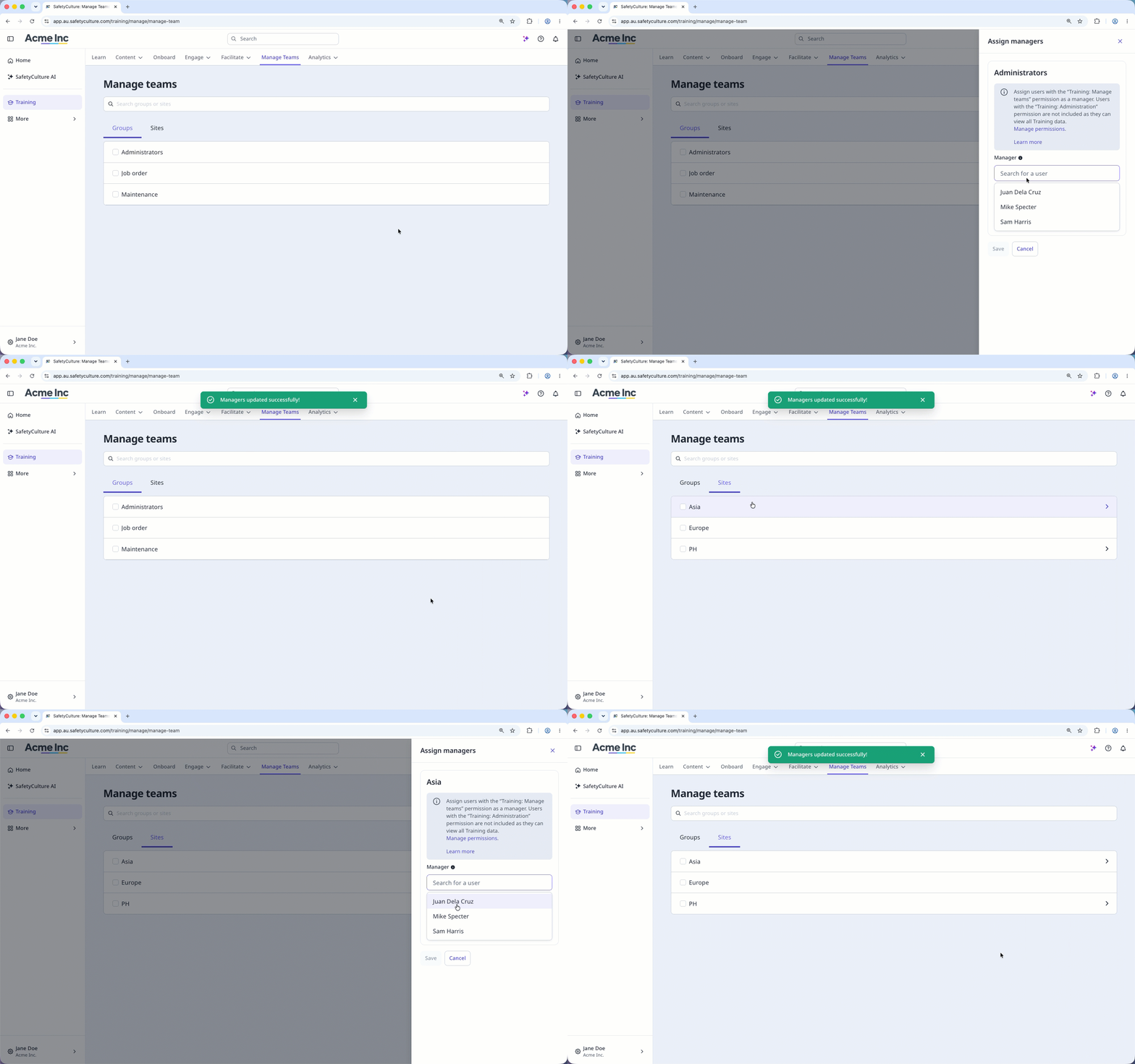
Select Training in the sidebar or select it in More.
Select Manage Teams at the top of the page.
Click the group or site name.
In the side panel, search for the user in the "Manager" field and select them.
Click Save.
Bulk assign team managers
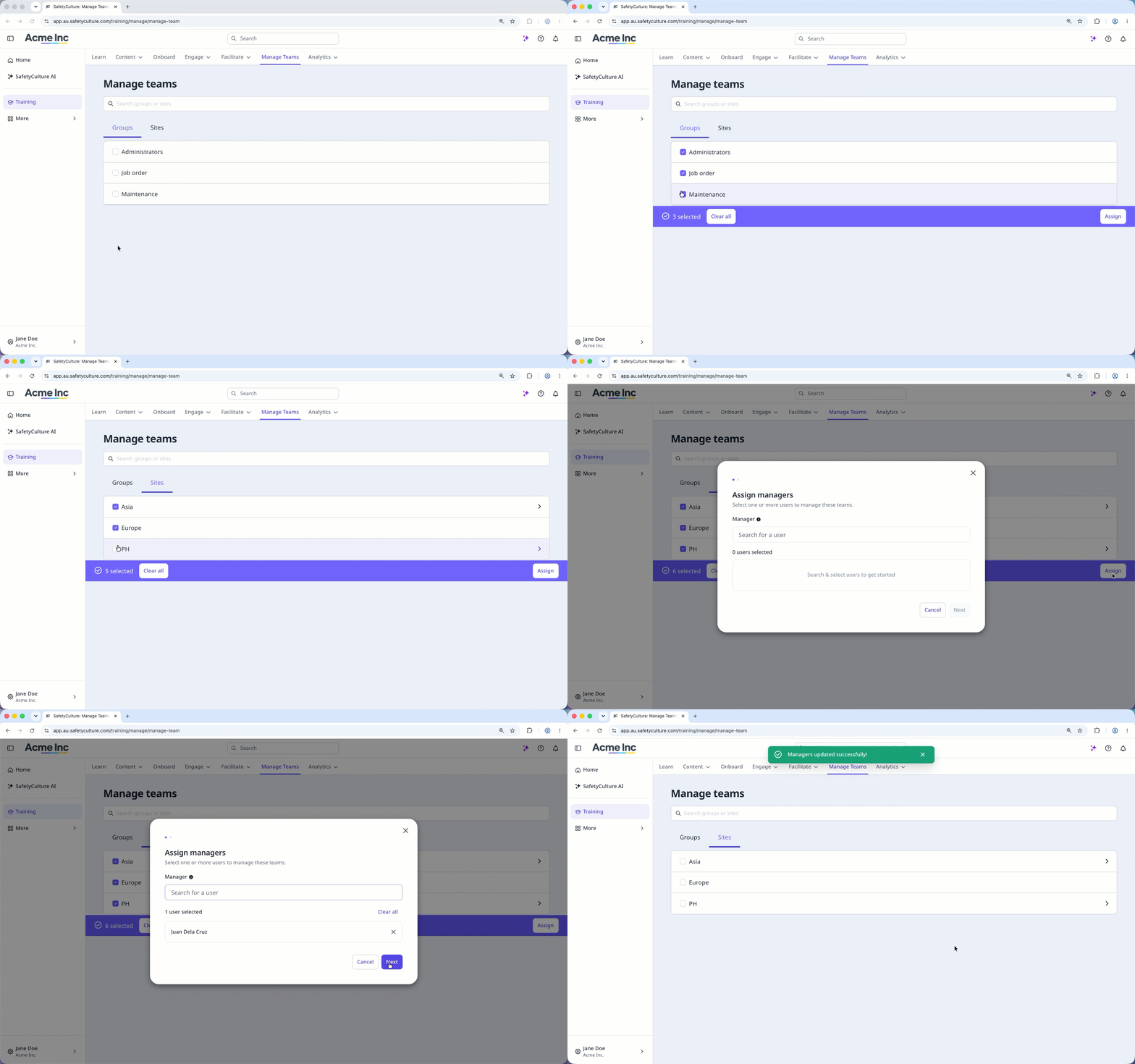
Select Training in the sidebar or select it in More.
Select Manage Teams at the top of the page.
Check the boxes of the groups and sites you want to assign team managers to. Your selections will be kept as you switch between the "Groups" and "Sites" tabs.
Click Assign on the lower-right corner of the page.
In the pop-up window, search for the user in the "Manager" field and select them.
Click Next.
Click Assign managers.
Unassign a team manager
Select Training in the sidebar or select it in More.
Select Manage Teams at the top of the page.
Click the group or site name.
In the side panel, click on the user's right-hand side or click Clear all.
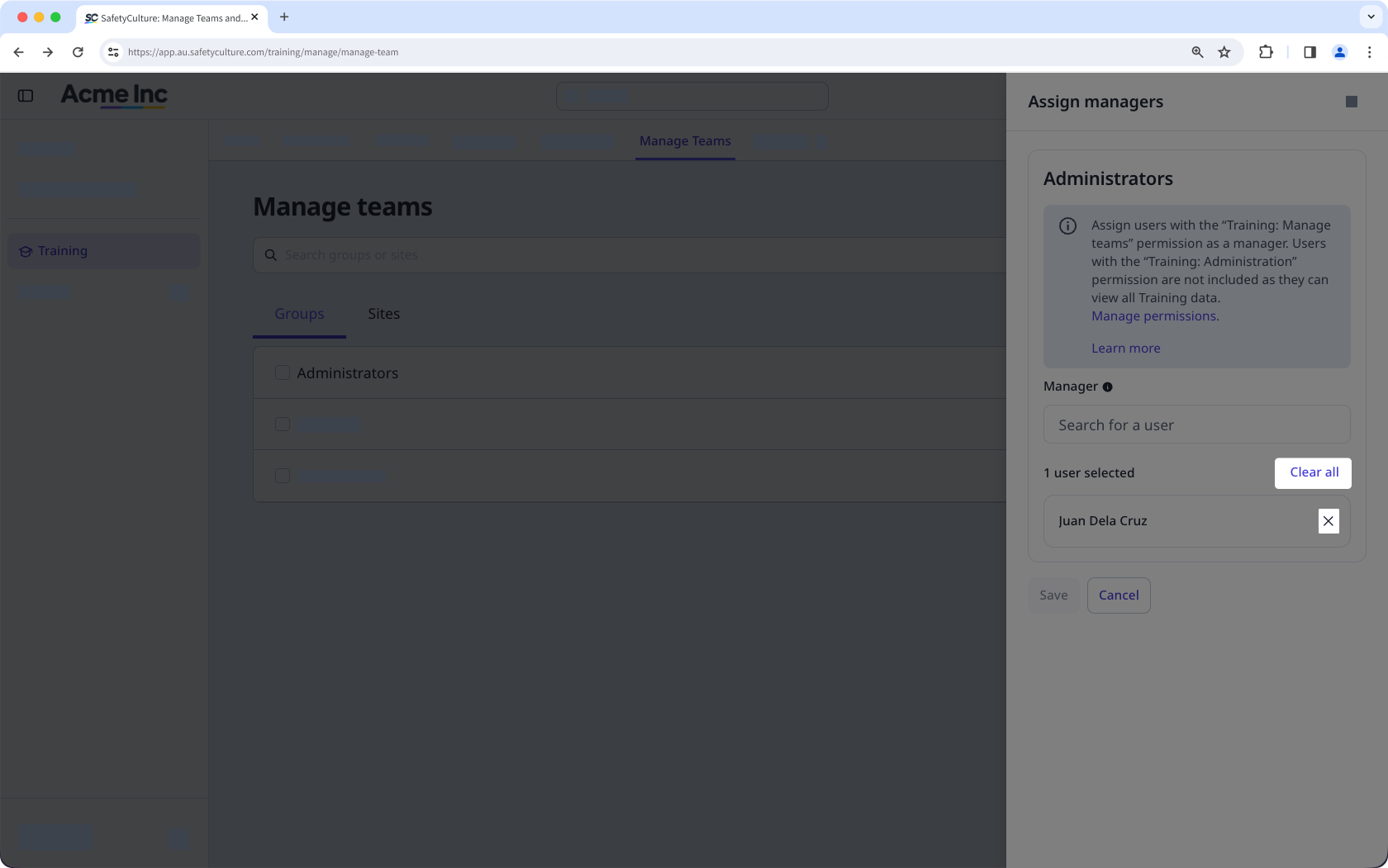
Click Save.