What you'll need
You can add existing or new users to a company individually or in bulk via CSV or Excel.
You can add a new or existing user in a company and assign them as the key contact when you request a document or form.
Add a user to a company
Select Contractors in the sidebar or select it in More.
Select a company.
Click Workers tab in the company profile.
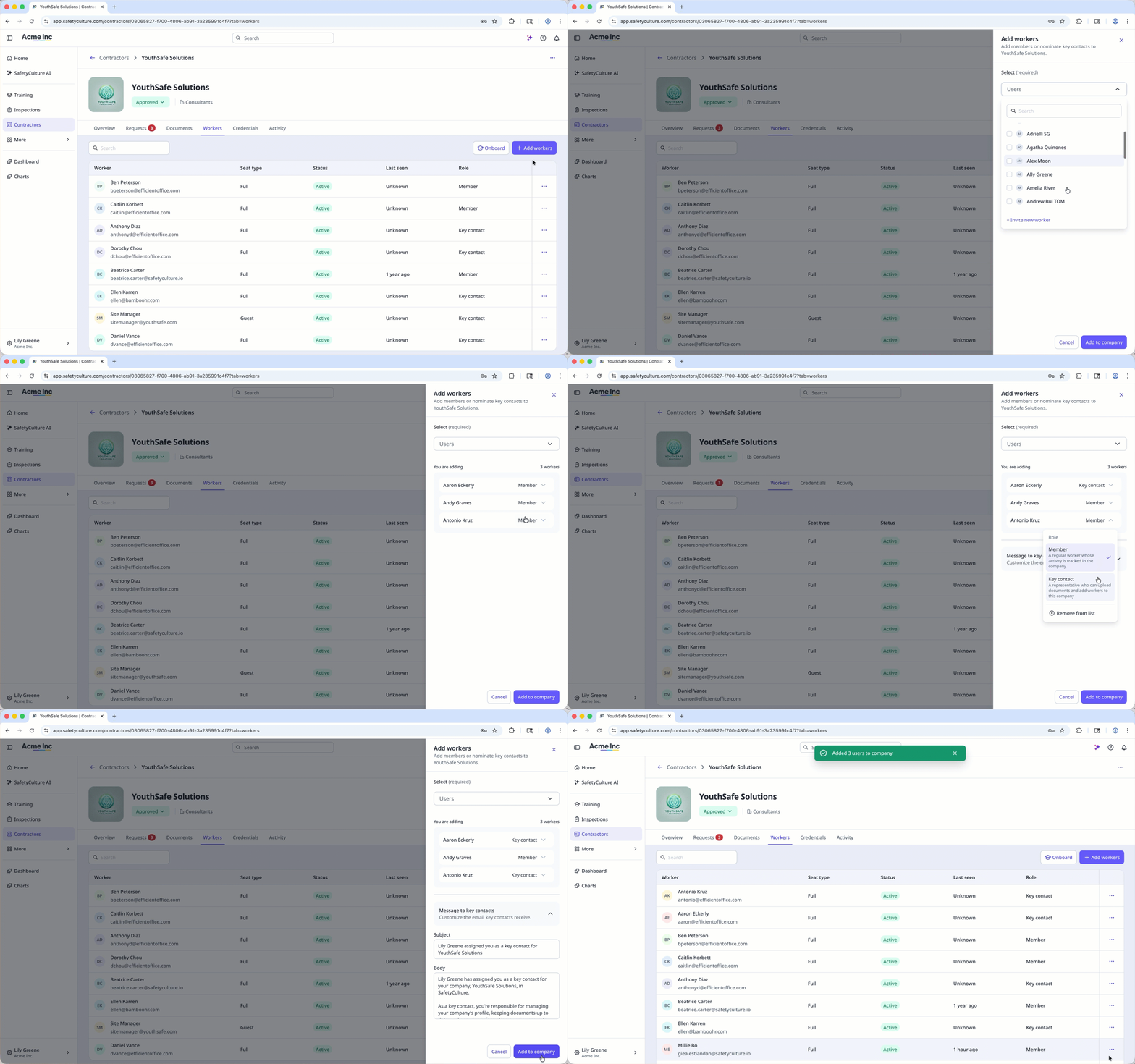
Click Add workers on the upper-right of the user list.
In the side panel, choose whether to select an existing user or invite a new one:
To select an existing user: Select a user from the dropdown menu.
To invite a new user: Click Invite new worker from the dropdown menu. In the pop-up window, enter the user's email address, first name and last name, and select a seat type. Then, click Add to team.
Click next to the user's name and select their role:
Member: A regular worker whose activity is tracked in the company.
Key contact: A representative who can upload documents and add workers to the company. You can also customize the email key contacts receive in the “Message to key contacts” section.
You can also click Remove from list if you want to remove a user before adding them.
When you're ready, click Add to company.
Remove a user from a company
Select Contractors in the sidebar or select it in More.
Select a company.
Click Workers tab in the company profile.
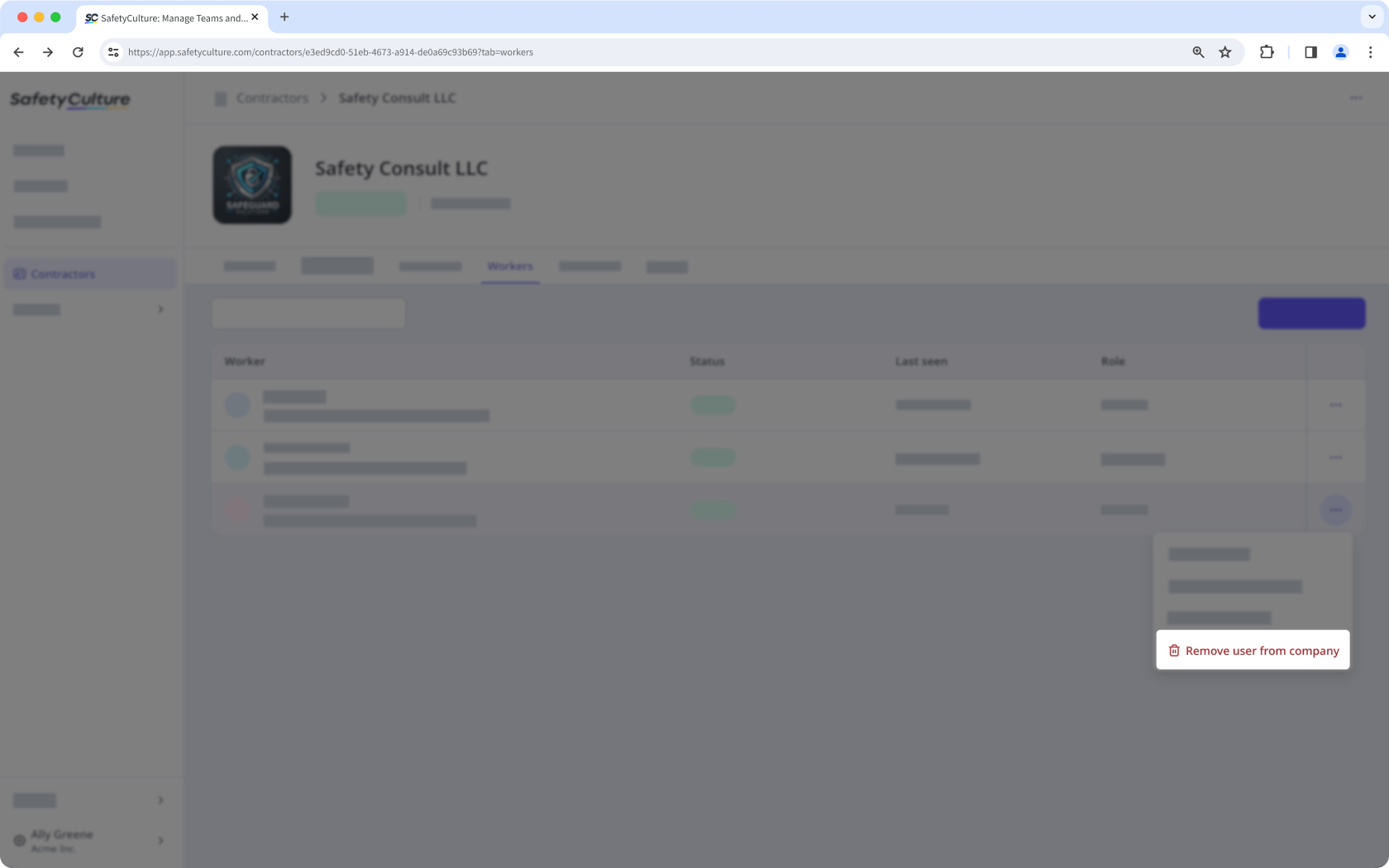
Click on the right-hand side of the user's row and select Remove user from company.