
What does it mean to hide features from navigation?
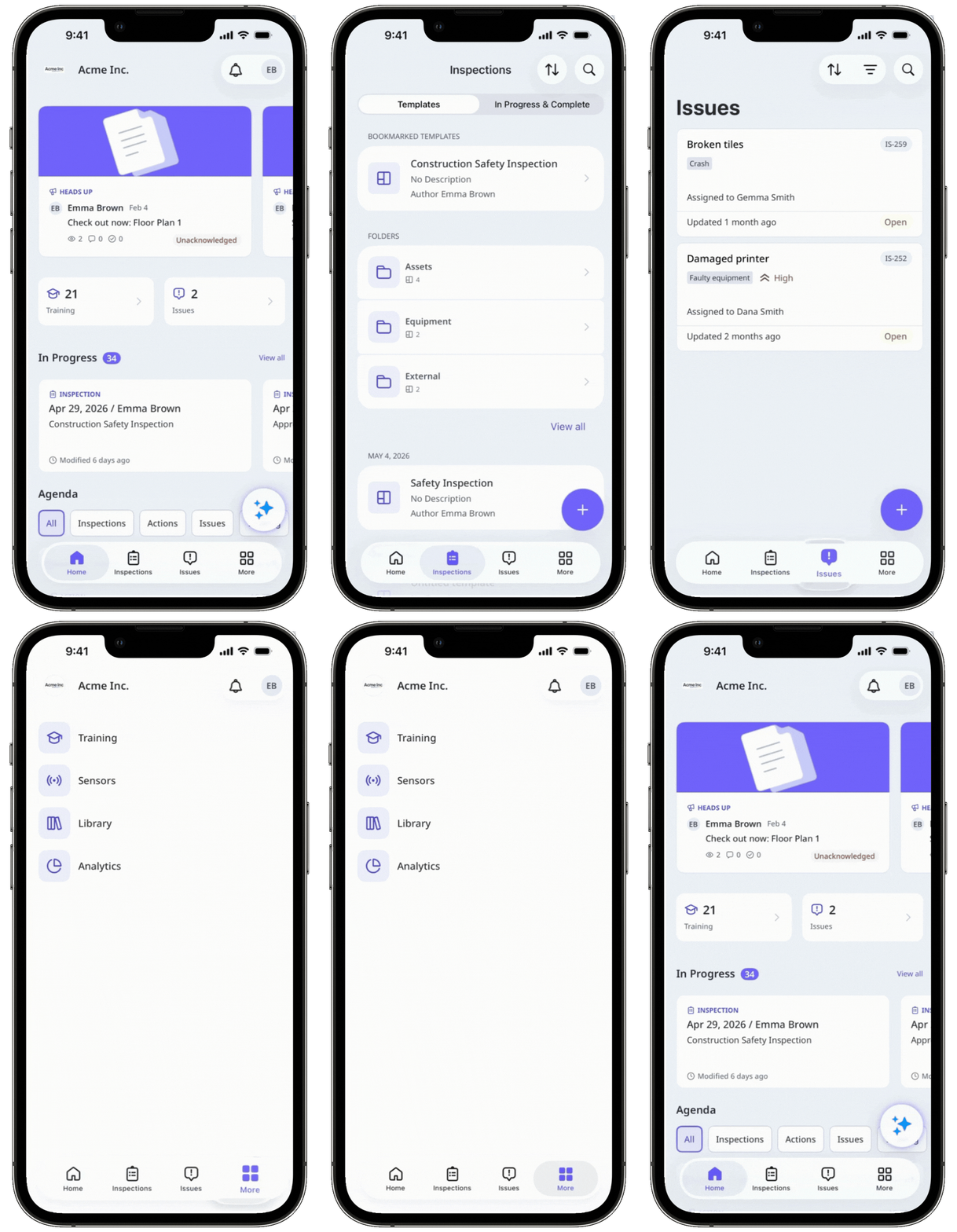
Hiding features from navigation lets you create a more focused experience by removing selected items from More, while keeping them accessible through direct links, notifications, or related workflows. A streamlined navigation helps your team find the tools they need and improve productivity.
For example, you can hide “Actions” from the navigation for everyone or for specific roles, while still allowing your team to create actions from inspections when needed.
What you'll need
Hide a feature from navigation
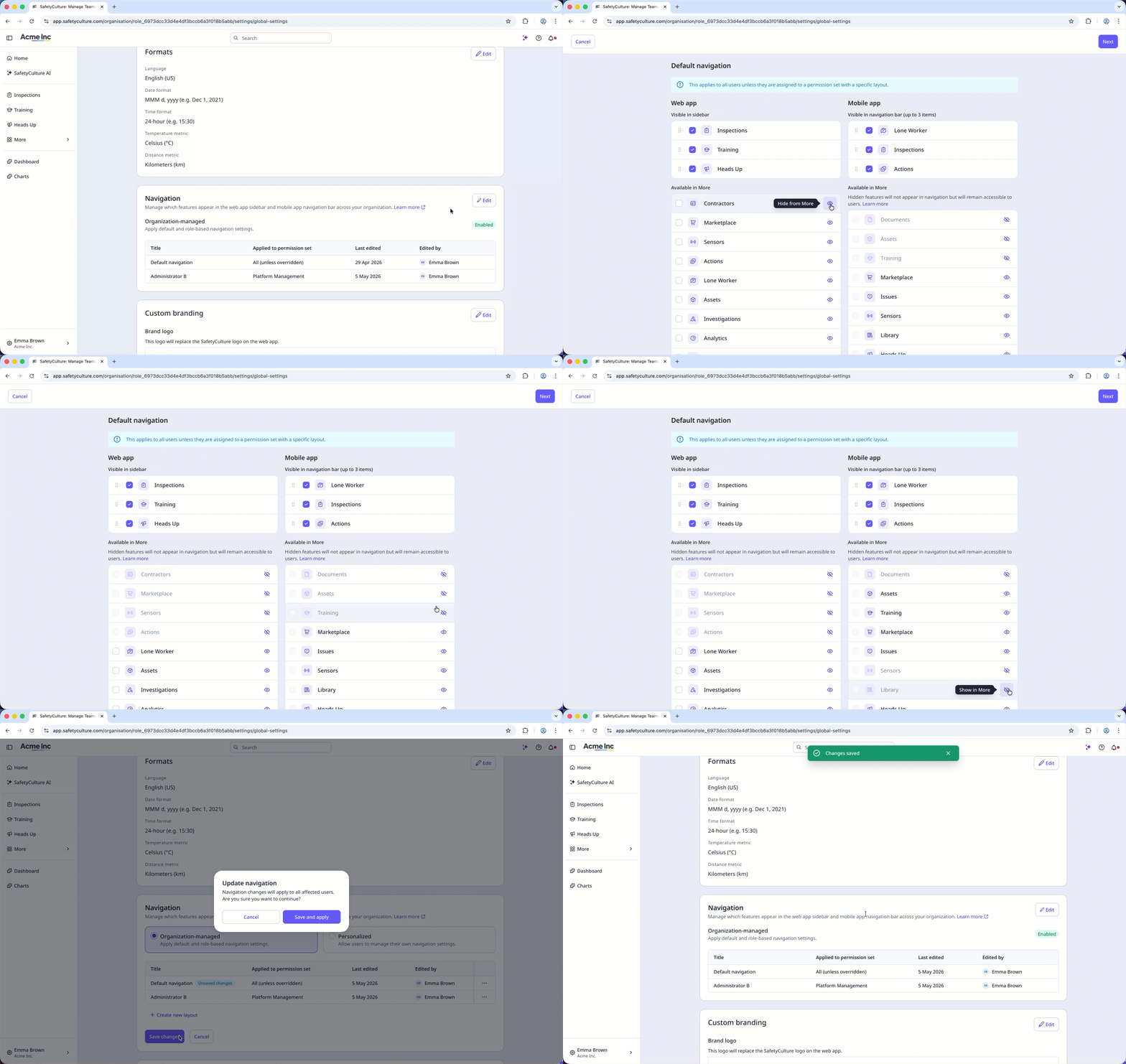
Click your organization name on the lower-left corner of the page and select Organization settings.
Scroll to the "Navigation" section, and click Edit.
Select Organization-managed and select or create a layout.
Click or to hide or show the features from More.
Click Next on the upper-right corner of the page.
Click Save changes on the lower-left of the “Navigation” section.
In the pop-up window, click Save and apply.
For mobile app users, navigation changes will appear only after fully closing and reopening the app a few times.


