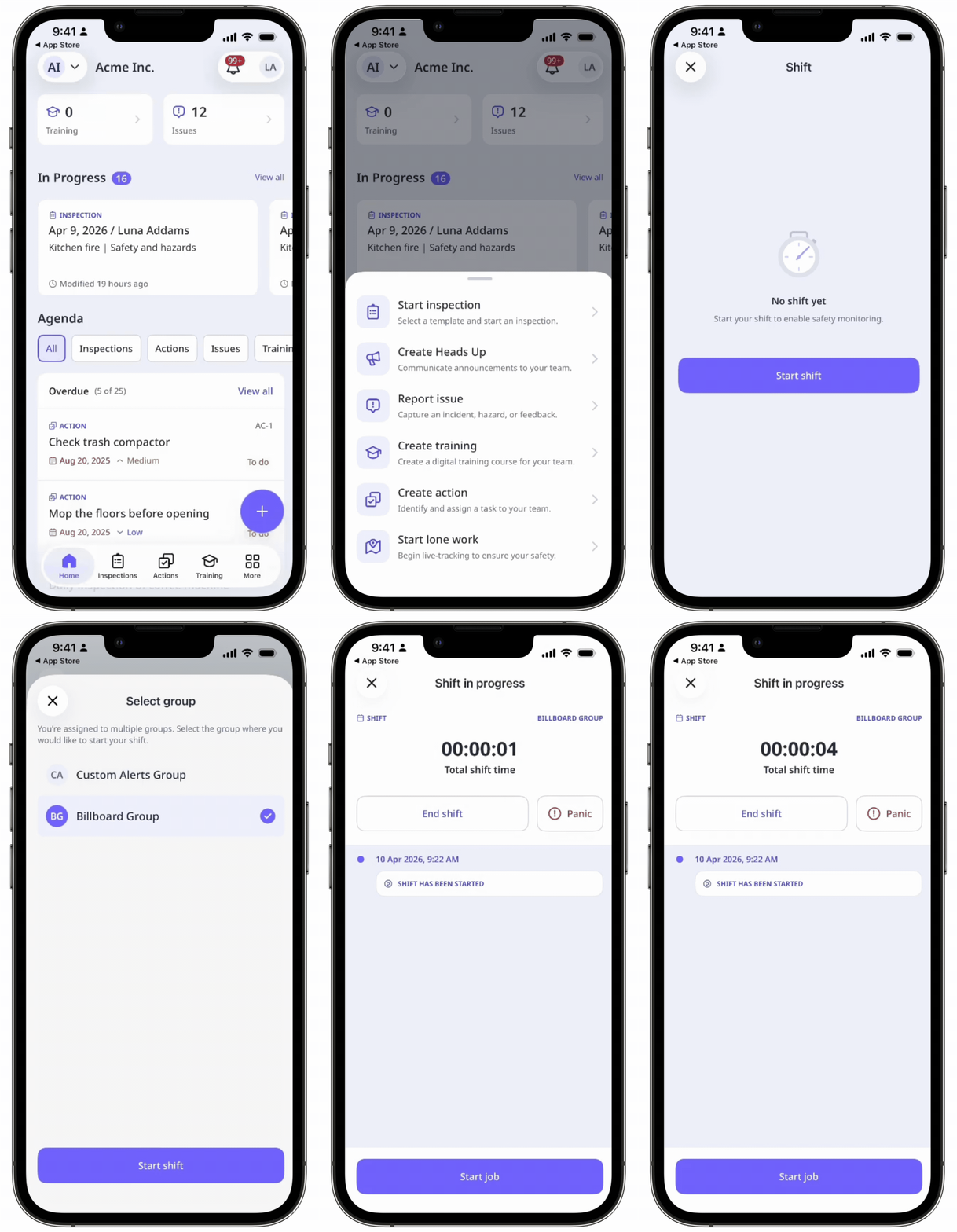
What are shifts in Lone Worker?
Shifts are set schedules that define when workers are on duty, giving your organization a structured way to monitor lone workers. This means you always know when someone is actually working, not just when they're scheduled to, while ensuring that they're safe while doing it. With shifts, managers can configure work hours and break durations to ensure continuous job coverage. Workers can start each shift knowing they're being monitored and can call for help the moment something goes wrong, even before their job begins.
For example, when a field technician heads out alone and starts their shift, safety monitoring kicks in immediately and they can start their assigned job. At the same time, their manager gets a real-time view of who's on duty and can step in early if something needs attention.
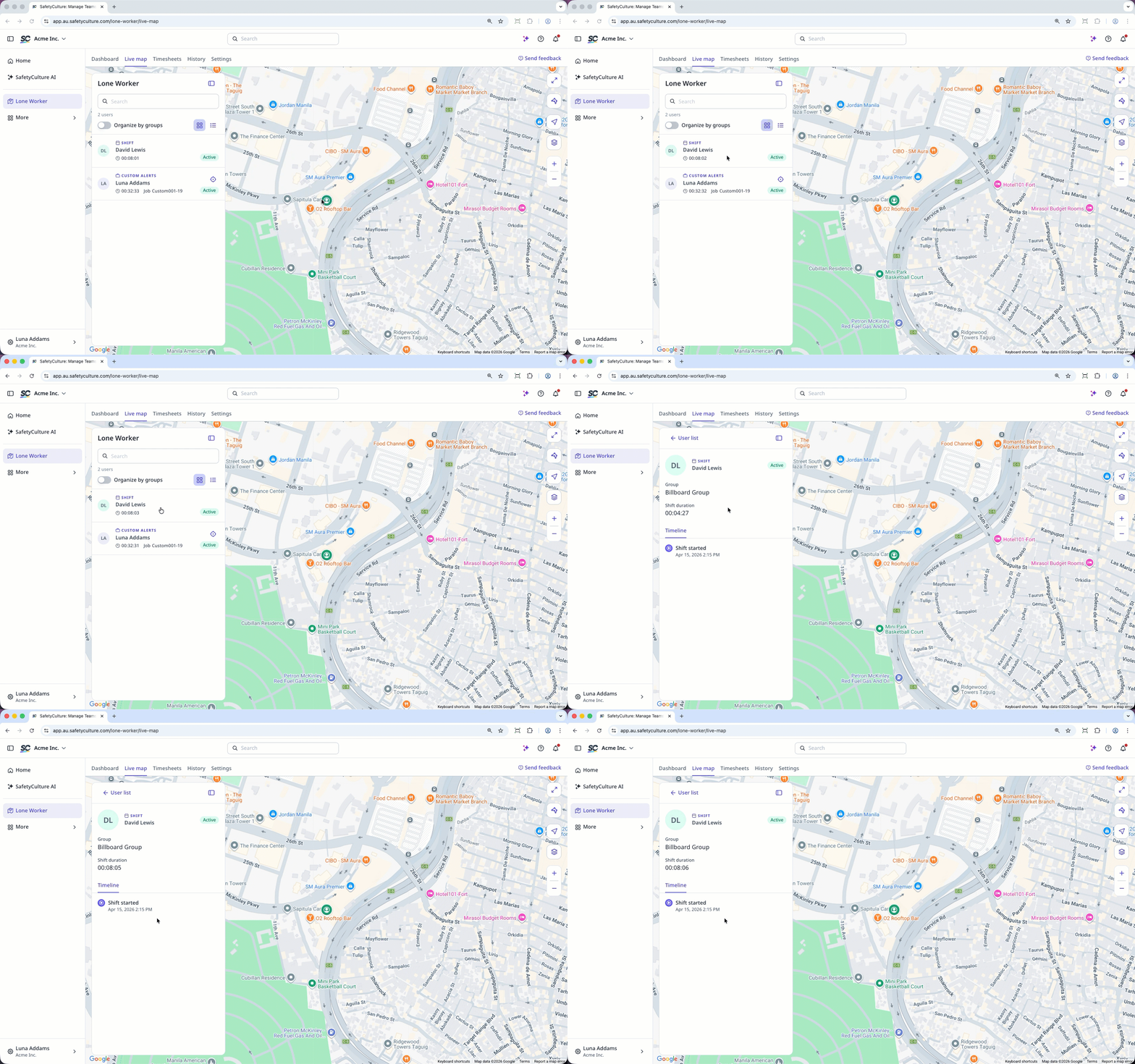
You can also view the active shifts from the Lone Worker dashboard.
View shifts on the Live map
Select Lone Worker in the sidebar or select it in More.
Click Live map at the top of the page.
Each active shift or job can be viewed on the Live map. Click the shift on the side panel to see the full details.