
How does inviting users to your organization work
When you invite users to your SafetyCulture organization, you can send the invite by email or by sharing an invite link. Invited users receive a link that directs them to SafetyCulture, where they can sign in if they already have an account or create a new one.
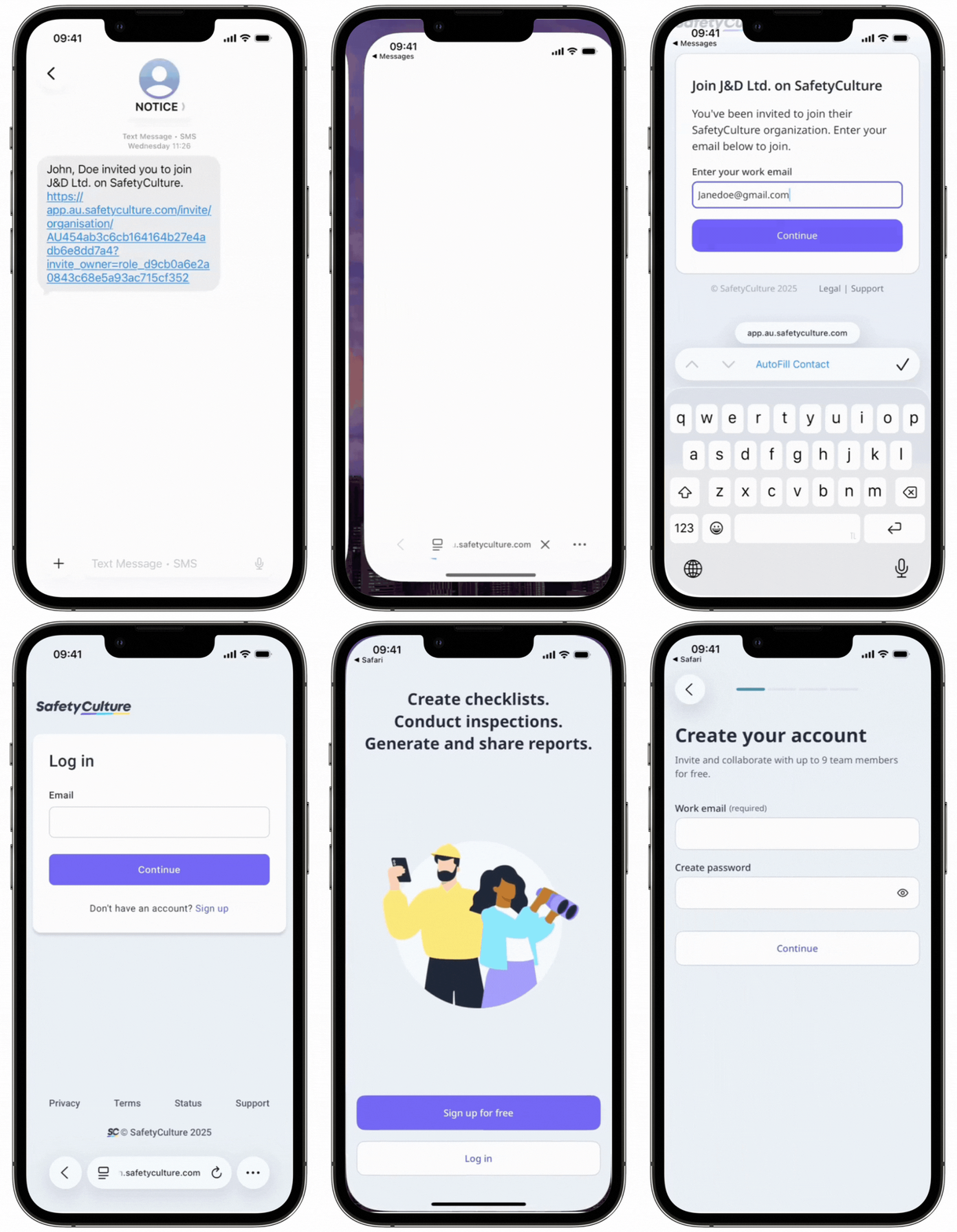
Users are only added to your organization once they’ve accepted the invite and logged in. This ensures that everyone who joins has a verified account and that your organization stays secure.
What you'll need
All users invited via link or email are automatically assigned a guest seat.
Invite a user to my organization
Open the mobile app.
Tap your user profile icon at the upper-right corner of your screen.
In the pop-up menu, tap
 People.
Tap Invite or at the upper-right of the screen.
To invite via email:
Tap Invite via email.
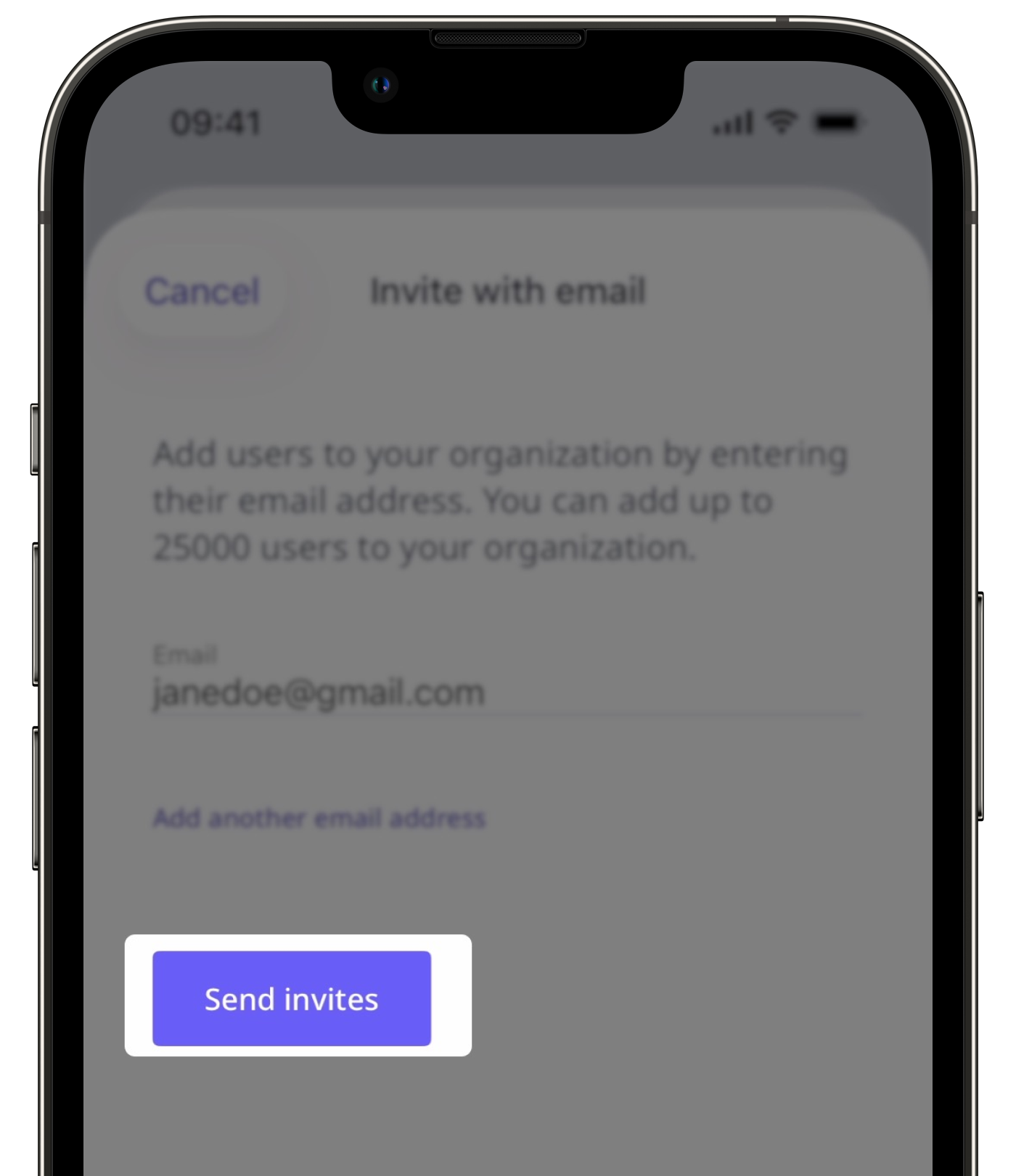
Enter the email address. If you want to add another, tap Add another email address or ADD ANOTHER EMAIL.
Tap Send invites.
To invite via share link:
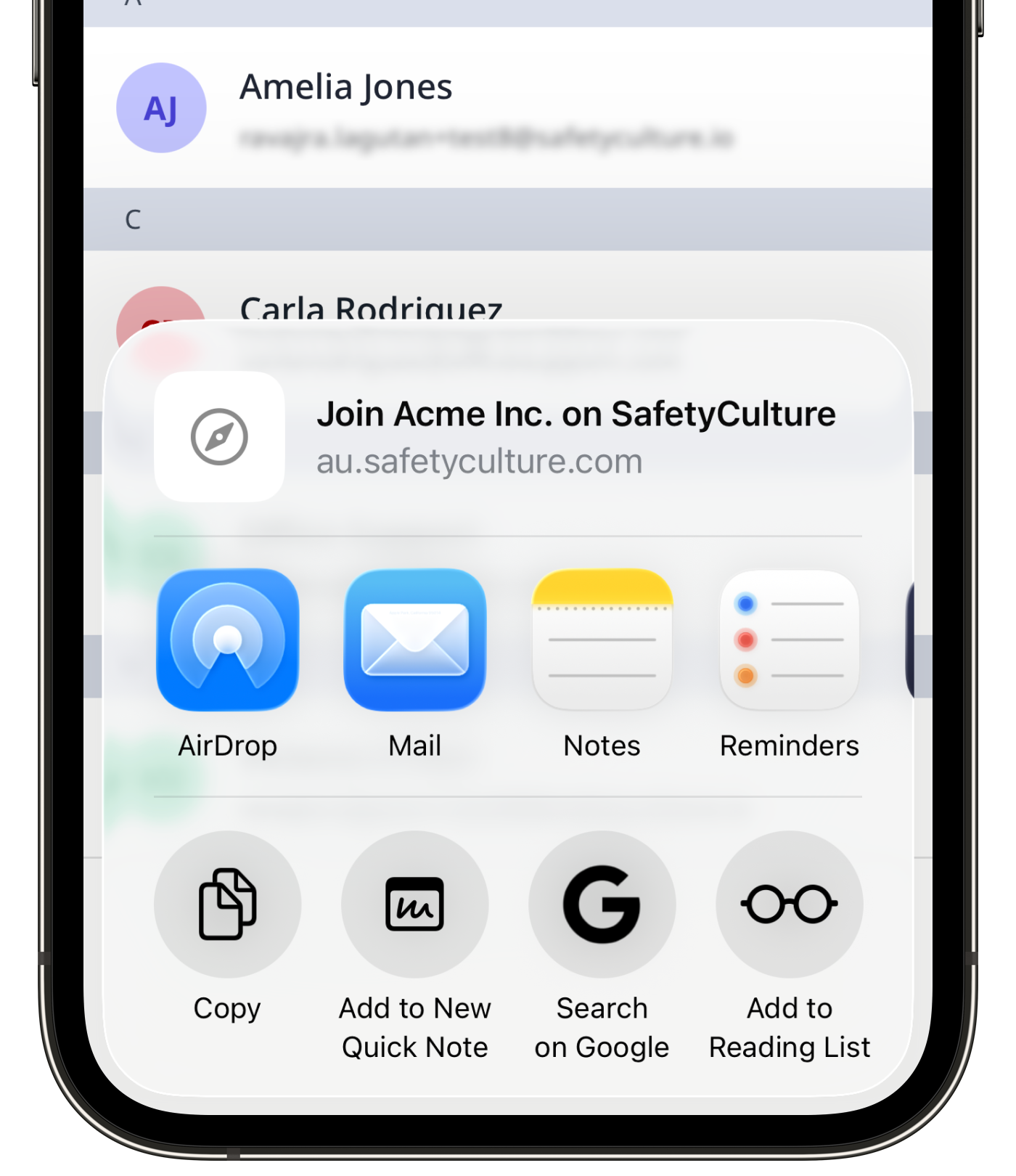
Tap Share invite link.
From the share menu, you can copy the invite link or choose an app to send it through.
You can send an invitation to 100 email addresses at once.


