
- Using SafetyCulture
- AI in SafetyCulture
- AI Assistant in SafetyCulture
AI Assistant in SafetyCulture
Learn what the AI Assistant in SafetyCulture is and what it can do via the web app and mobile app. Streamline your workflow and make data-driven decisions faster with a secure, AI-powered co-pilot experience.This feature is currently in Early Access.
What is the AI Assistant in SafetyCulture?
The AI Assistant in SafetyCulture is designed to bring together the tools and information you need in one place. It provides a conversational interface to perform tasks efficiently and help maintain safer workplaces through streamlined safety management processes. Instead of spending time moving between features, users can utilize the AI Assistant to help find answers, surface the right context, and take action directly in the platform.
This co-pilot experience saves time on repetitive tasks and makes it easier to stay focused on safety and productivity. With the AI Assistant, teams can work smarter, get support when they need it, and spend more time on the work that matters most.
If you turn AI Assistant off for your organization, users won't be able to access it.
Start a conversation
Click
 SafetyCulture AI in the sidebar or click
 on the right-hand side of the top bar.
Click
 Ask about... to choose the feature areas you want the AI Assistant to use in your chat.
Enter your question or prompt. Alternatively, click
 to start or stop voice input.
You can also click
 to upload one or more files to guide how the AI Assistant responds. You can upload images up to 5MB each or PDF files up to 50MB each.
Depending on the prompt, the AI Assistant will return text-based responses, create or modify data, or perform operations within your organization.
Open the mobile app.
Tap Home at the bottom of your screen.
Tap
 at the lower-right of your screen and select AI Assistant.
Tap
Ask about... to choose the feature areas you want the AI Assistant to use in your chat.Enter your question or prompt. Alternatively, tap
to start or stop voice input.You can also tap
to upload one or more files to guide how the AI Assistant responds. You can upload images up to 5MB each or PDF files up to 50MB each.Depending on the prompt, the AI Assistant will return text-based responses, create or modify data, or perform operations within your organization.
Add custom contexts to tailor the AI Assistant’s responses to your organization’s workflows and terminology.
Delete a conversation
Click
SafetyCulture AI in the sidebar or click on the right-hand side of the top bar.
Click
 on the upper-left of the page, and select the chat you want to delete.
Click
 on the upper-right of the chat and select
  Delete thread.
In the pop-up window, click Delete.
Open the mobile app.
Tap Home at the bottom of your screen.
Tap
at the lower-right of your screen and select AI Assistant.Tap
on the upper-left of the screen.Tap
on the right-hand side of the chat.In the pop-up menu, tap Delete.
Deleting is irreversible, and we cannot restore permanently deleted items. Confirmation is always required before any deletion, so be sure you're not accidentally deleting the wrong item.
The AI Assistant can only help with tasks based on the access and permissions assigned to you.
What can the AI Assistant do?
The AI Assistant can perform the following tasks for Actions:
Search for existing actions.
Create and update existing actions, including title, description, assignee, due date, priority, and status.
Assign actions to users and groups.
Here are some prompts you can try:
Show me all overdue actions assigned to me.Create an action called [action title] and assign it to [user]. Set the priority as high and due date to July 10, 2026.Update the due date on [action title] to November 26, 2026.
The AI Assistant can perform the following tasks for Analytics:
Run queries on your Analytics data, including metrics and attributes, to surface insights and answer specific questions about your organization's performance.
Break down and compare data across different time periods to help you identify trends and make data-driven decisions.
Creating, editing, and deleting dashboards and charts are not currently supported. The assistant will respond with a text-based message.
Here are some prompts you can try:
How many inspections were completed at [site] last month?Which templates had the most flagged responses in inspections this quarter?Show me the action completion rate by priority for the past 30 days.
The AI Assistant can perform the following tasks for Assets:
Search for existing assets, asset types, and fields.
Link assets to inspections and actions.
Here are some prompts you can try:
Add all [asset type] assets to [site].Show me all inspections and actions linked to [asset name].
The AI Assistant can perform the following tasks for Contractors:
Search for existing companies, company types, and company documents.
Update existing company details, including company name, status, phone number, email address, address, and ID.
Add and update document requests.
Here are some prompts you can try:
Which contractors have expiring documents in the next 30 days?Show me all active contractor companies in my organization.
The AI Assistant can perform the following tasks for Credentials:
Search for existing credentials and credential types.
View credential validity and approval status.
Here are some prompts you can try:
Show me all expired credentials in my organization.Show me all users in [group] and list their credentials. Identify anyone missing a [credential type].
The AI Assistant can perform the following tasks for Documents:
Search files and folders, including the files' contents. Only files with a maximum of 200 pages can be processed.
Update file details, including name, description, and label.
Create and rename existing folders.
List bookmarked files and folders.
Here are some prompts you can try:
Summarize the key points in [file name].Find documents related to [topic].Create a folder titled "Operational Safety Protocols".
The AI Assistant can perform the following tasks for Heads Up:
Search for existing Heads Ups.
Here are some prompts you can try:
Send a Heads Up to [group] about [topic].Show me all Heads Ups sent in the last 7 days.
The AI Assistant can perform the following tasks for Investigations:
Create, search, and edit investigations.
Edit investigation detail fields and sections.
Link investigations to actions, inspections, issues, and files.
List the investigation statuses configured for the organization.
Here are some prompts you can try:
Show me all open investigations at [site].What is the status of the [investigation name] investigation?Create a new investigation for the incident on [date] at [site].
The AI Assistant can perform the following tasks for OSHA Reporting:
Create new and update the establishments and cases.
Create new cases from inspections, issues, and investigations.
Search and view existing establishments, cases, and data, including the number of employee hours worked, average employee numbers, and the TRIR, DART, LTIR statistics.
Here are some prompts you can try:
Show me all OSHA recordable incidents for this year.Show me all OSHA cases for [establishment name] for [date range] and summarize them in a table.
The AI Assistant can perform tasks for Issues:
Search for existing issues and issue categories.
Update existing issues, including title, description, due date, date occurred, site, status, and assignee.
Add comments to issues.
Here are some prompts you can try:
Show me all open issues at [site].Report a new issue at [site name]. Set the priority as high and add the following description: [brief description].What is the status of issue [ID/name]?
The AI Assistant can perform the following tasks for organization and user management:
Search for users in the organization.
Create, edit, and search for groups, sites, and user fields.
Manage group membership, including rule-based groups.
Adding users, updating user details, managing permission sets, deleting groups and sites, and managing site membership are not currently supported.
Here are some prompts you can try:
Add [user] as a member of the [group name] group.List all deactivated users in my organization.Provide a profile summary for the user [name], including their group and site memberships.
The AI Assistant can perform the following tasks for the new schedules experience:
Search and view existing schedules.
Here are some prompts you can try:
Show me all scheduled inspections for [site] this week.Create a weekly inspection schedule for [template] at [site] and assign it to [site].Show me all scheduled inspections assigned to me that are coming up this month.
The AI Assistant can perform the following tasks for Templates and Inspections:
Create or download templates from the Library.
Search for existing templates and inspections.
Start inspections from templates.
Answer questions with the Site, Asset, Company, date and time, location, text, multiple choice, checkbox, temperature, and slider questions.
Add notes to questions.
Mark inspections as complete or incomplete.
Here are some prompts you can try:
Show me all templates in my organization and when they were last published.Search the public content library for templates related to [industry/topic] that I can import into my account.Show me all incomplete inspections from the last 30 days and who they were assigned to.Find my most recent incomplete inspection and update the site to [site].
The AI Assistant can perform the following tasks in the Template Editor:
Add response types including text, number, checkbox, date and time, media, slider, annotation, signature, instruction, and multiple choice.
Add pages, including table and approval workflows.
Add logic fields, such as require notes, media, and actions.
Convert Word and PDF files to templates.
Suggest improvements to template questions and content.
Here are some prompts you can try:
Review the questions in the template and identify any gaps.Add a new page called [page title] with five Yes or No questions.Mark all questions in [section/page] as required.
The AI Assistant can perform the following tasks for Training:
View users assigned to a course.
View course progress for users currently assigned to a course.
View completion status.
Here are prompts you can try:
Create a course about [topic].What is the completion progress for [course name] across all enrolled users?
The AI Assistant helps you get quick answers from your data, but it may not always be accurate. Make sure to check the response and source to confirm the information is correct.
Supported languages
Arabic |
Bengali |
Chinese (Simplified) |
English |
French |
German |
Hindi |
Indonesian |
Italian |
Japanese |
Korean |
Portuguese (Brazil) |
Spanish |
Swahili |
Frequently asked questions
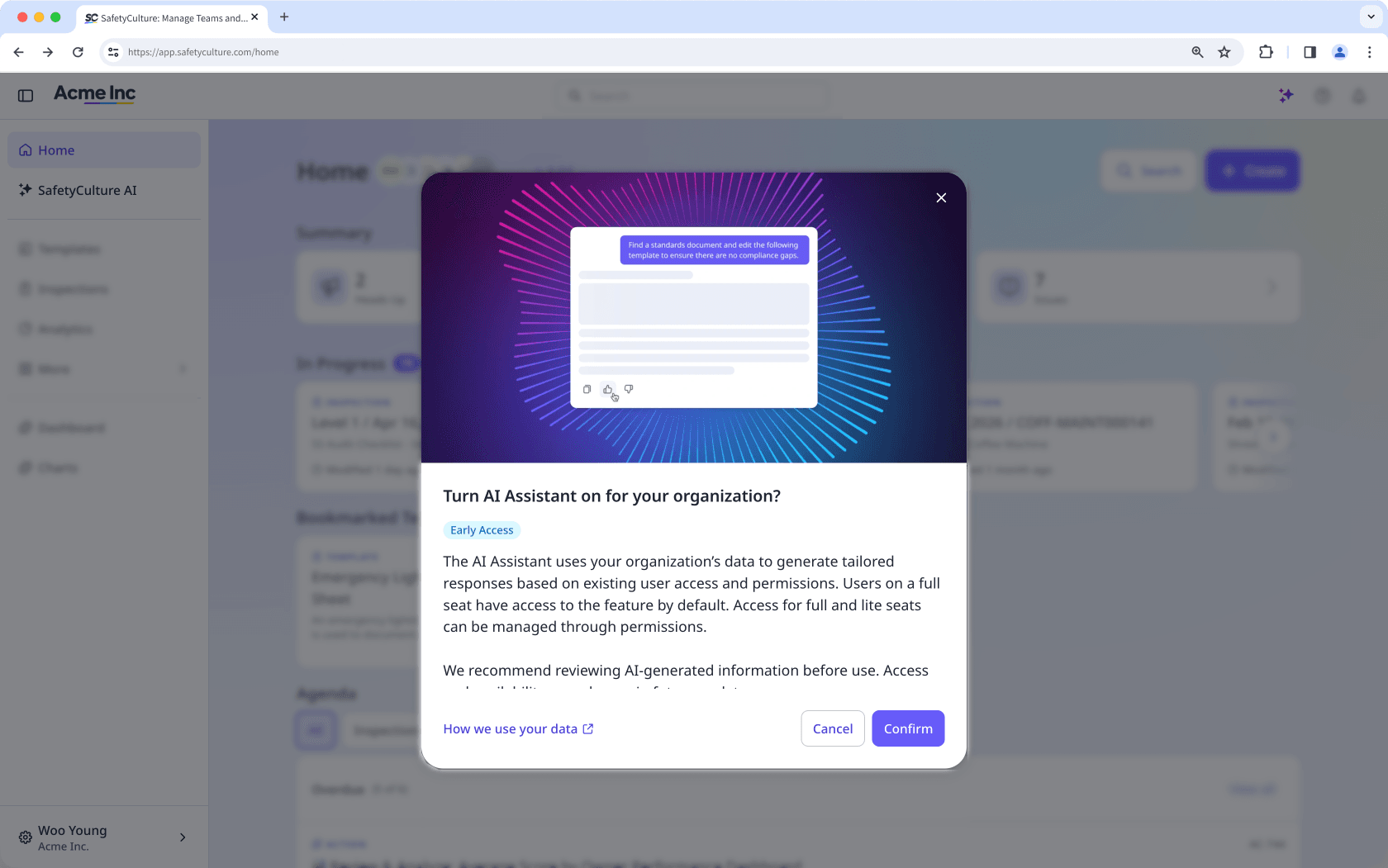
The AI Assistant is turned off by default. An organization admin needs to turn it on before anyone can use it.
Click
SafetyCulture AI from the menu on the left-hand side or on the upper-right of the top bar.
In the pop-up window, click Confirm.
Once turned on, the AI Assistant will be available to full and lite seat users with "AI Assistant: Access" permission.
Yes, the AI assistant can handle multiple tasks in a single prompt, as long as they're within its supported capabilities. To ensure you get the most accurate and helpful response, be clear and specific in your prompt by including relevant details and context.
To view your previous conversations with the AI Assistant, click or tap on the upper-left of the side panel on the web app or the mobile app. You can go back into previous conversations to continue where you've left off.
While both contexts share capabilities, the Template Editor context is designed to help users build and refine a template while editing to help them create better, more relevant content based on their organization's workflow.
You can share feedback directly through our feedback formor by contacting our support team. We're continuously improving the AI Assistant, and your feedback will help shape future updates and enhancements.
Was this page helpful?
Thank you for letting us know.