
What are logic fields?
Learn what logic fields are, the available logic fields, and logic conditions to help you build smarter, more efficient templates that guide users, capture accurate data, and streamline inspection workflows.What are logic fields?
Logic fields are conditions you add to template questions that automatically trigger a follow-up based on a user's response in an inspection. You can configure each logic field with different conditions that only take effect when met, such as asking follow-up questions or notifying your team. This helps you build smarter templates that guide users through relevant question flows, capture the right level of detail, and make it easier to tailor each inspection to your team's needs.
Available logic fields
Ask questions
You can add as many questions as you want in your template, but what if there are times you want to ask follow-up questions? With SafetyCulture, you can add logic fields to ask follow-up questions based on a user's selected response.
You can set up linked responses within a logic flow to automatically carry the same answer across multiple follow-up questions.
Notify team members
Notifications help you share important details with the right people. With SafetyCulture, you can automatically notify specific users, groups, or site member when a particular question response is selected. You can send notifications right away or after the inspection is complete. If you send notifications on inspection completion, marking an inspection as incomplete and then completing it again, resends the notification.
Notification delivery also depends on each recipient's notification settings.
You can notify up to 500 users at a time. If a group or organization includes more than 500 users, SafetyCulture selects 500 users at random to notify. In addition, when you share a template with another organization, they must select recipients in their own organization.
Skip to complete
There are times when a particular response makes the rest of an inspection irrelevant. For example, when an early check produces a result that means no further questions need to be answered. With SafetyCulture, you can add a Skip to complete logic field to a question so that when a specific response is selected, all remaining content in the inspection is skipped immediately. Follow-up questions are not shown, including any approval steps.
Require note
There are times when you need additional context behind a response. With SafetyCulture, you can require users to leave a note when they select a particular answer, helping capture important details, explanations, or observations that provide better clarity on the response.
Require media
Photos and videos help validate responses and provide clearer evidence during inspections. You can require users to attach media when a specific answer is selected, ensuring accurate documentation and giving you a clearer view of what’s happening on site.
Require action
Don't just find things; fix them! The Actions feature allows you to identify, track, and complete tasks created from inspections. By marking specific questions as requiring actions, users will need to create or link open actions as follow-up tasks to mark an inspection as complete.
Examples
Ask different sets of questions based on the response to a question
When conducting a field safety assessment, you may want to ask follow-up questions based on the response. For example, if you answer "Yes" to the question "Was a hazard observed?" the response can trigger additional hazard-related questions, ensuring a more focused and thorough inspection.
Notify a team member when a response is selected
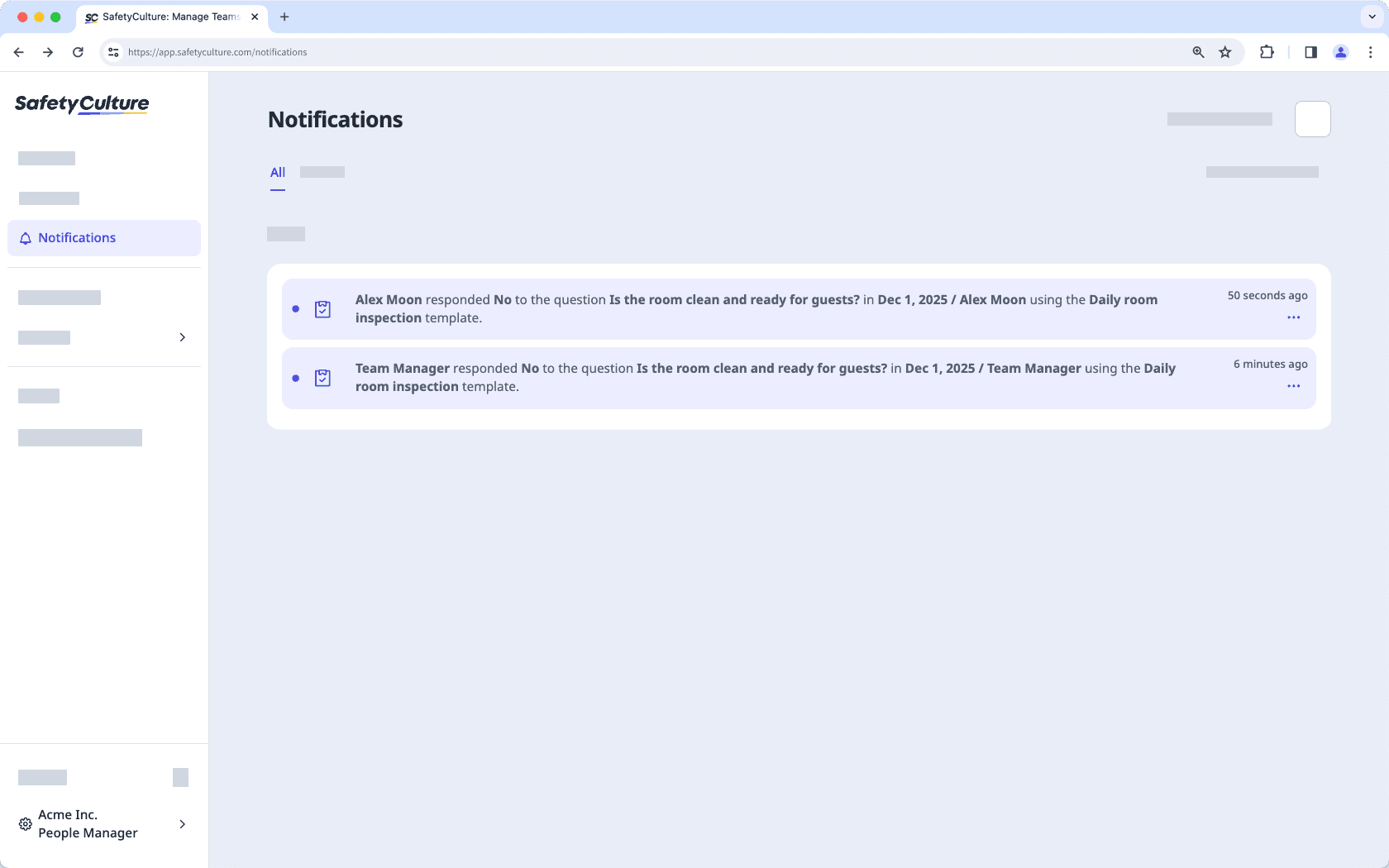
You can set up automatic notifications to alert team members when their input is needed based on a specific response during an inspection. For example, if not all corrective actions in an inspection have been added as "Actions", a notification can be automatically sent to Area managers, informing them of the issue. This ensures key team members are alerted in real-time or after inspection completion for quick resolution of critical issues.
Complete an inspection when a response is selected
Skip unnecessary steps by configuring a question to trigger skip to complete when a specific response is selected. For example, if the question "Is the equipment in good working condition?" is answered "Yes," all remaining questions are skipped and the inspector can complete the inspection immediately, as no further follow-up is needed. This saves inspectors time and keeps inspections focused on what actually requires attention.
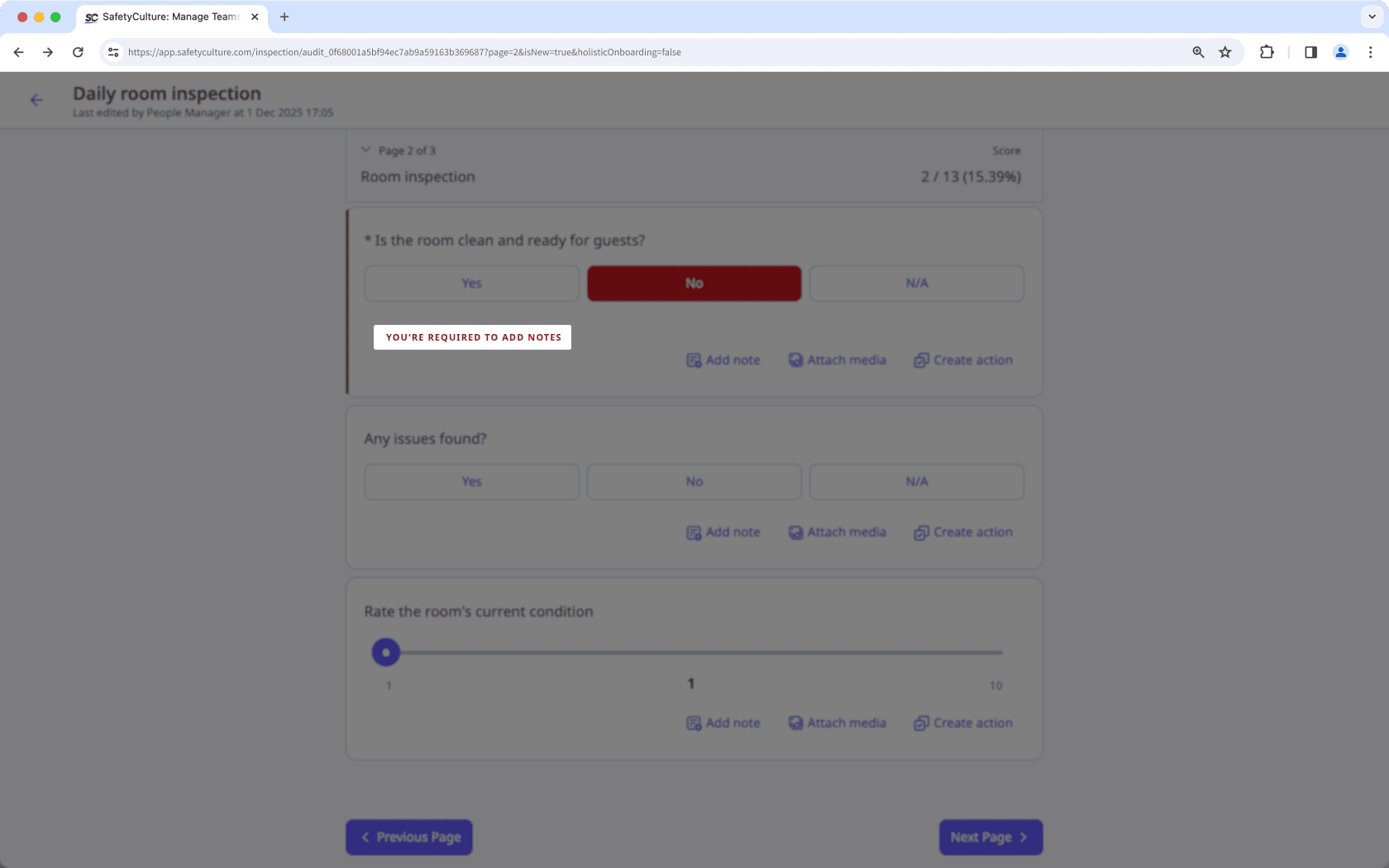
Require notes based on a response
Capture essential context by requiring a note when certain responses are selected. For example, if the question "Is the room clean and ready for guests?" is answered "No," the inspector must provide a note explaining which parts of the room are not ready and which areas still need cleaning. This helps document reasoning and ensures there is a clear justification before completing the inspection.
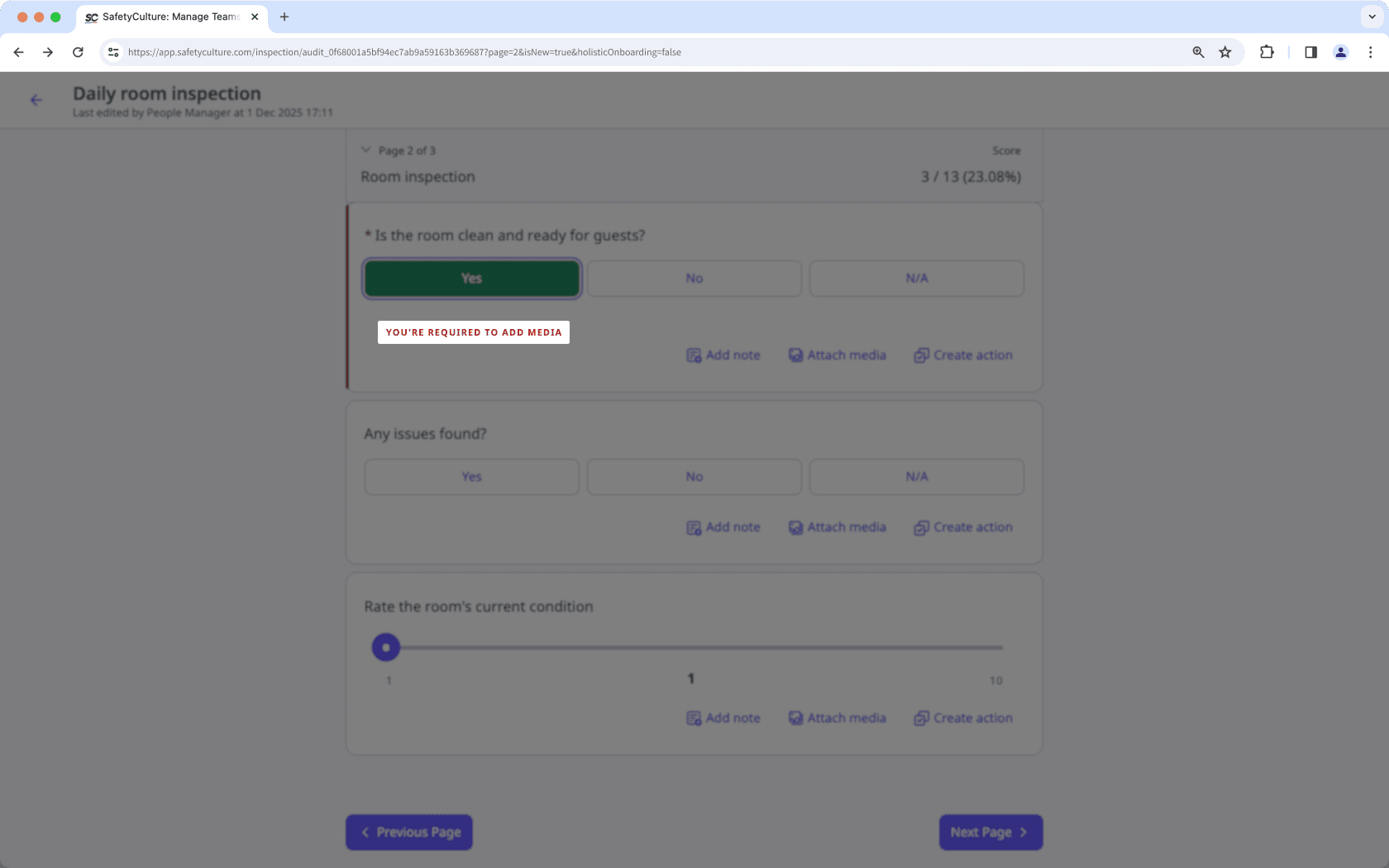
Require media evidence based on a response
Improve accuracy by requiring photos or videos when a specific response indicates an issue or needs confirmation. For example, if the question "Is the room clean and ready for guests?" is answered "Yes," the inspector must attach a photo showing the room's condition at the time of inspection. This ensures the reasoning behind the response is properly documented and provides clear justification before the inspection can be completed.
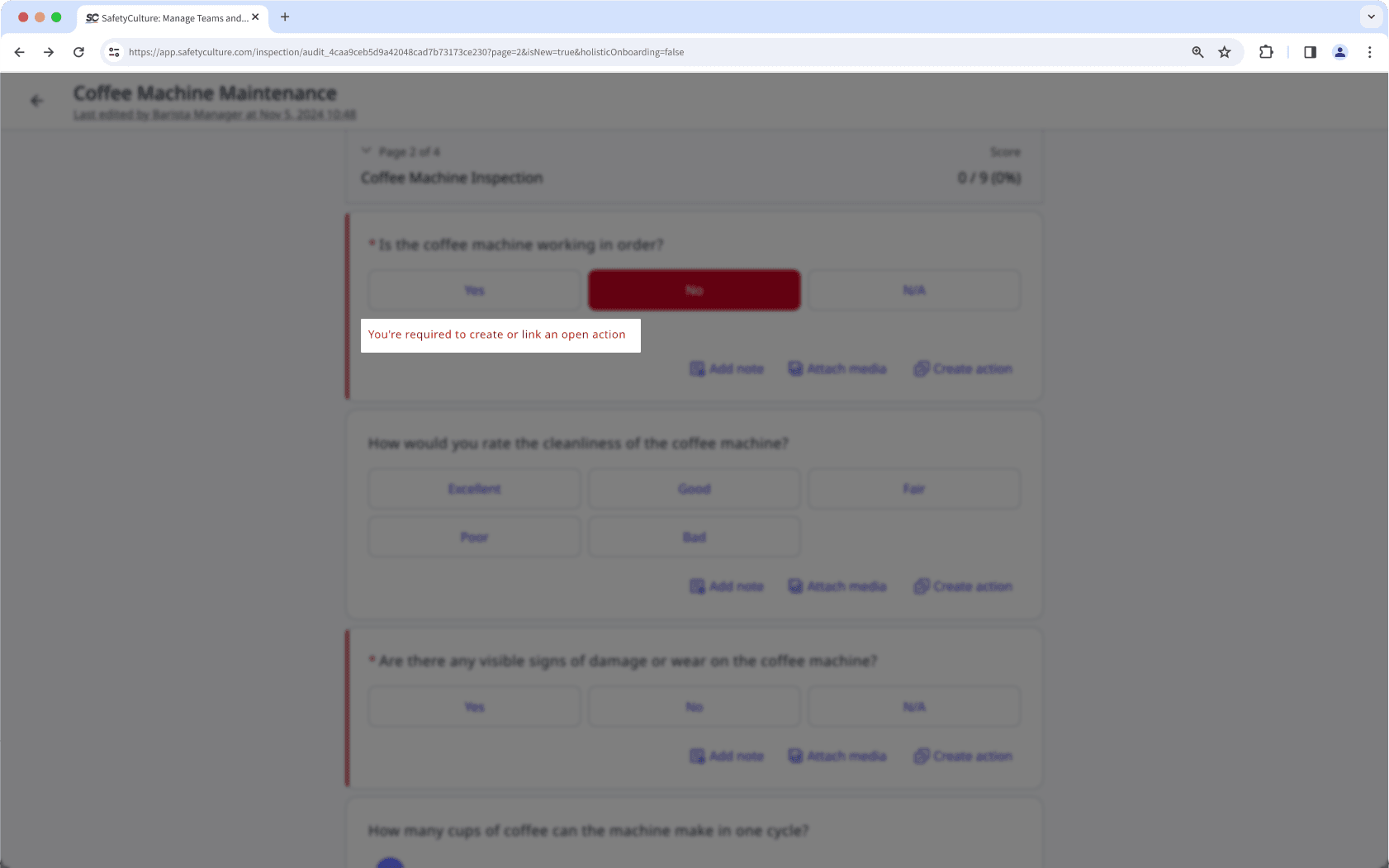
Require action based on a response
Use actions to ensure problems are followed up on and resolved. For example, during an inspection, if the answer to "Is the coffee machine working in order?" is "No," the inspector can be required to create an action to have the coffee machine fixed. This ensures failed checks lead to actionable tasks, helping teams track, assign, and complete necessary follow-up work before closing out the inspection.
Logic conditions
If answer is <response>
If answer is not <response>
If answer is selected <response>
If answer is not selected <response>
If answer is one of <response>
If answer is is not one of<response>
If answer is <text>
If answer is not <text>
If answer is <text>
If answer is not <text>
If answer is <text>
If answer is not <text>
If answer is less than <number>
If answer is less than or equal to <number>
If answer is equal to <number>
If answer is not equal to <number>
If answer is greater than or equal to <number>
If answer is greater than <number>
If answer is between <number> and <number>
If answer is not between <number> and <number>
If temperature fails
If temperature passes
If answer is less than <number>
If answer is less than or equal to <number>
If answer is equal to <number>
If answer is not equal to <number>
If answer is greater than or equal to <number>
If answer is greater than <number>
If answer is between <number> and <number>
If answer is not between <number> and <number>
If checkbox is checked
If checkbox is not checked
If slider value less than <value>
If slider value less than or equal to <value>
If slider value equal to <value>
If slider value not equal to <value>
If slider value greater than or equal to <value>
If slider value greater than <value>
If slider value is between <value> and <value>
If slider value is not between <value> and <value>
If signature name is <text>
If signature name is not <text>
If signature exists
If signature does not exist
Was this page helpful?
Thank you for letting us know.
- What are logic fields?
- Available logic fields
- Ask questions
- Notify team members
- Skip to complete
- Require note
- Require media
- Require action
- Examples
- Ask different sets of questions based on the response to a question
- Notify a team member when a response is selected
- Complete an inspection when a response is selected
- Require notes based on a response
- Require media evidence based on a response
- Require action based on a response
- Logic conditions