
Why create QR codes for files and folders?
Creating QR codes for files and folders helps frontline teams access the right information right when they need it most. Instead of digging through multiple folders, they can simply scan a QR code on their mobile device to open the most up-to-date file in seconds. It's a quick, convenient way to improve access and ensure your team is working with the right information at the right time.
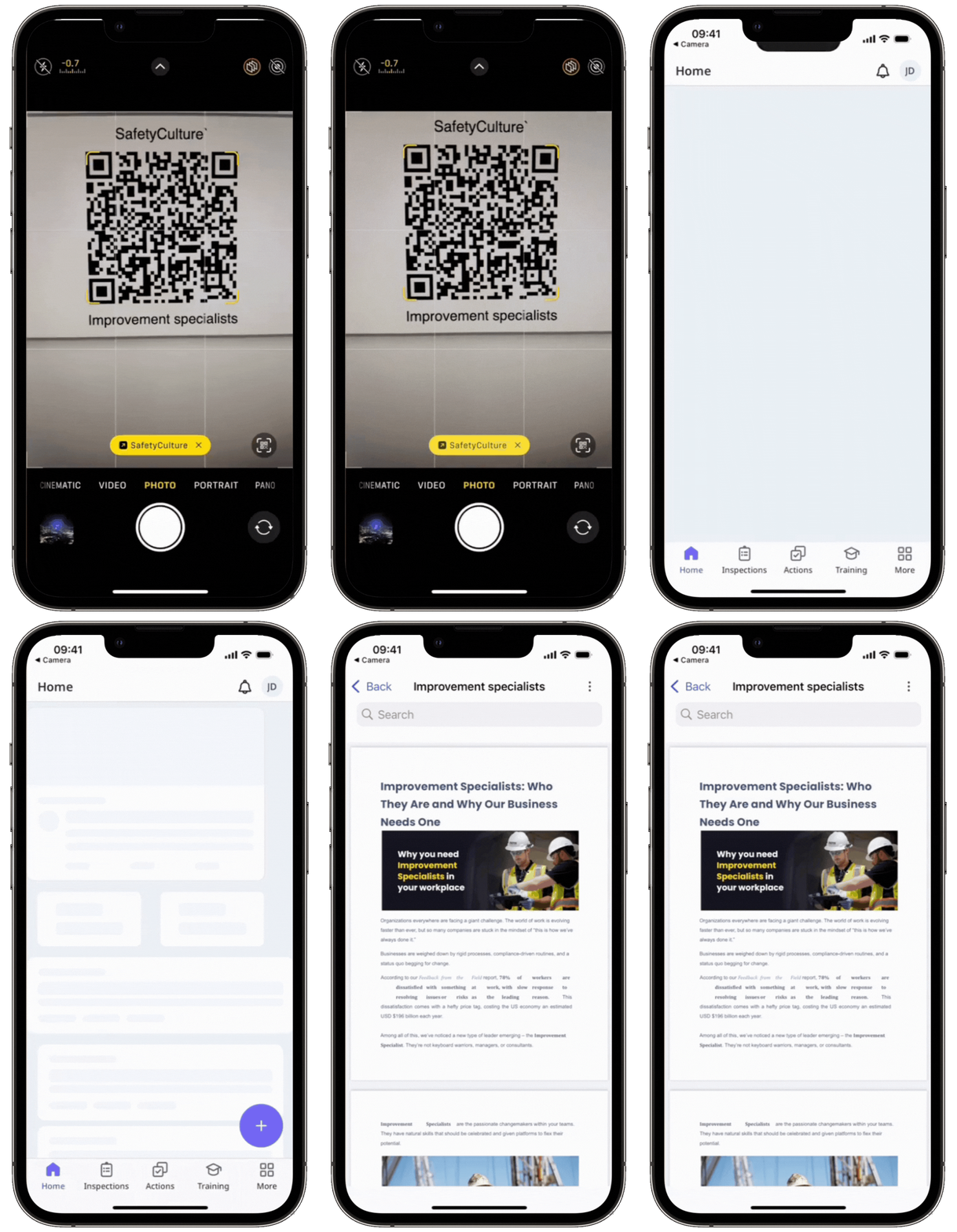
If you have "Documents: Administrator" permission, you can create QR codes for any files or folders in your organization.
Create a QR code for a file or folder
Select Documents in the sidebar or select it in More.
Select a folder if you want to create a QR code for a file or folder in it.
Click on the file or folder's right-hand side and select Create QR code.
In the pop-up window, click Download QR code on the bottom of the page. If you prefer to use a link, click Copy link to copy it.
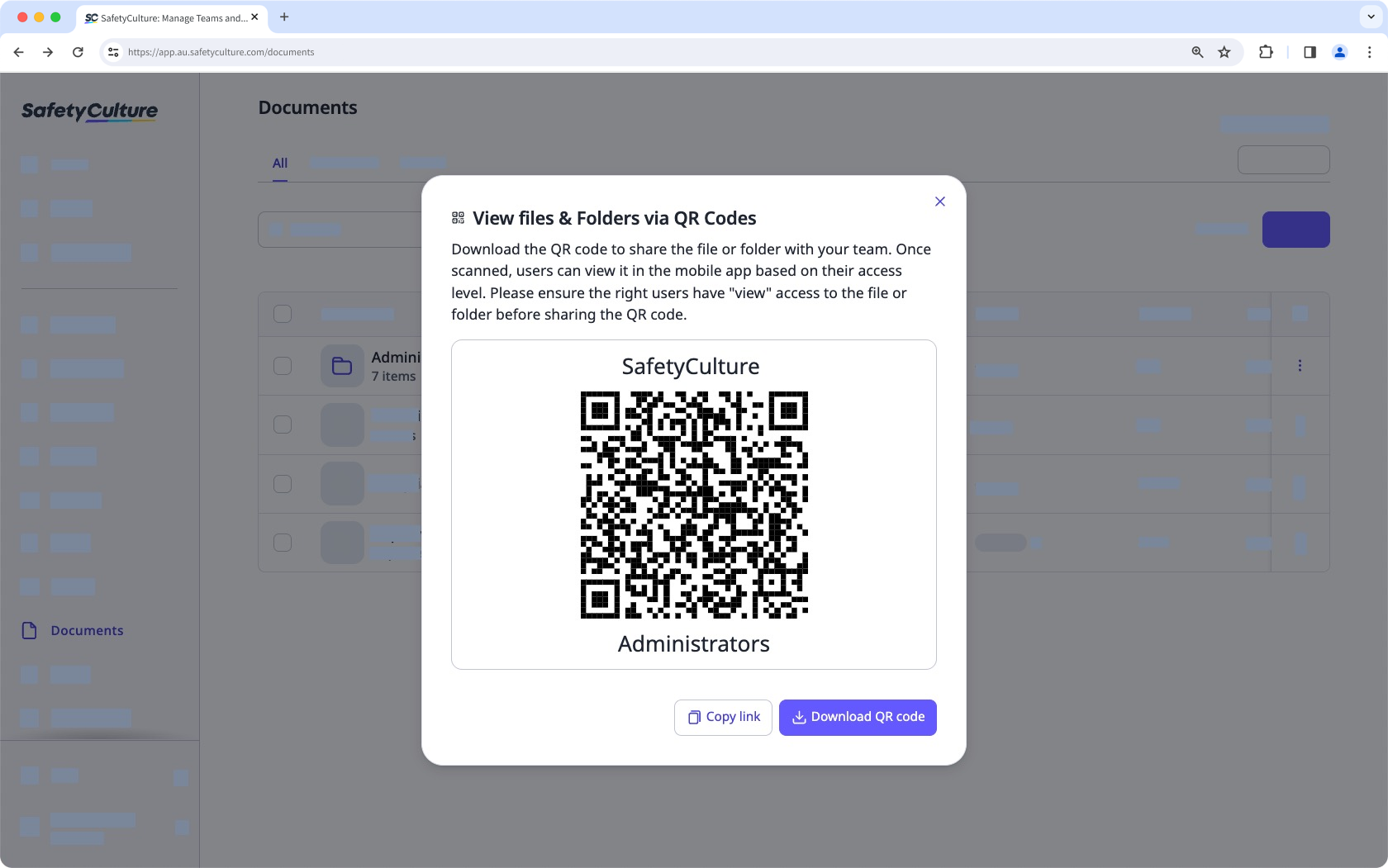
Print the QR code or share the link so your team members can view the file or folder easily.
Bulk create QR codes for files and folders
Select Documents in the sidebar or select it in More.
Select the files or folders you want to create QR codes for by checking the box of each item on the left-hand side of the page.
Select Create QR codes at the bottom of the page. This will download the QR codes as a .ZIP file to your device.
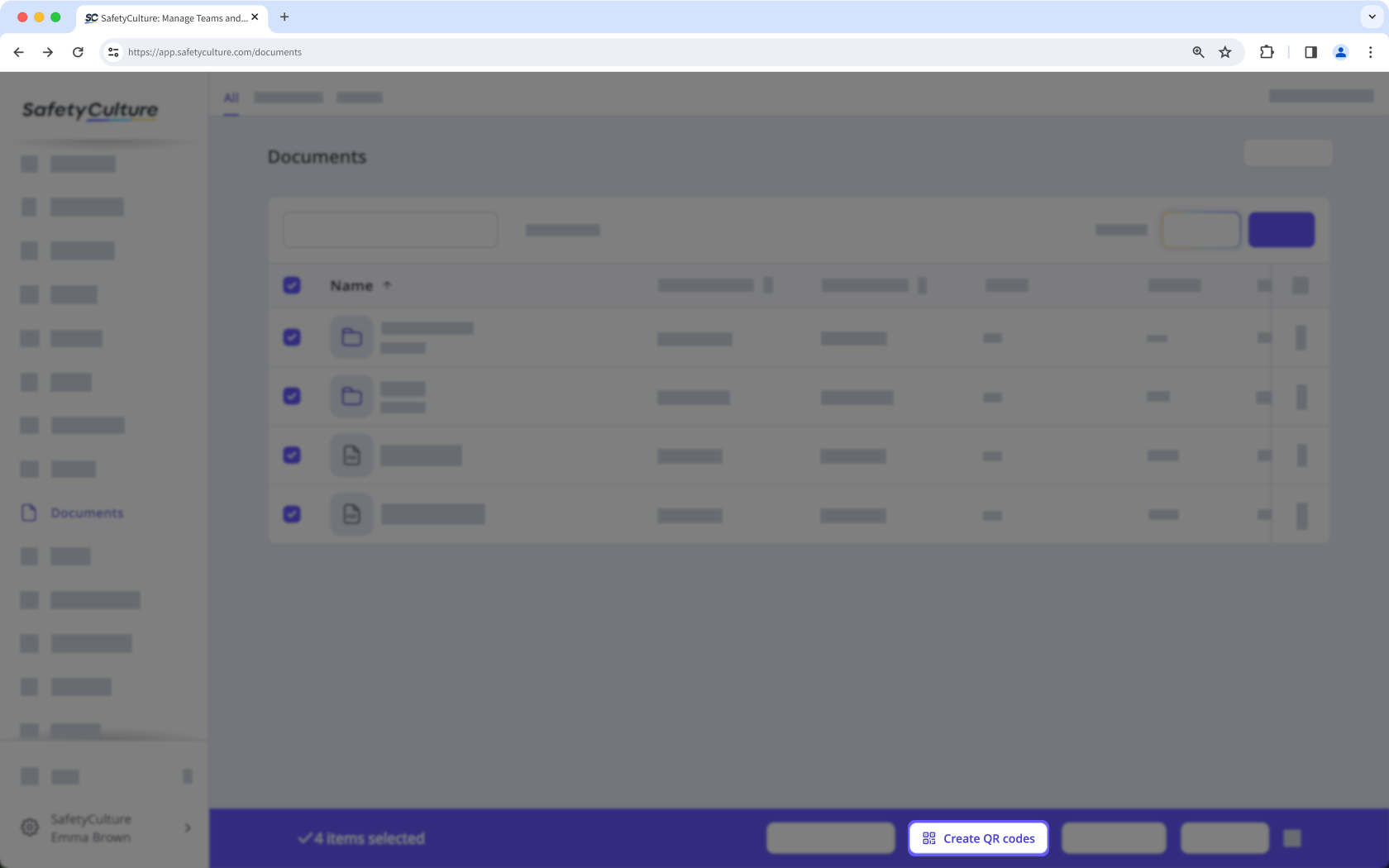
Print the QR codes so your team members can view the files or folders easily.
To scan a file or folder QR code, team members must have access to the file or folder and have the SafetyCulture mobile app installed on their mobile device.


