
What does it mean to track scores across inspections in Analytics?
Tracking inspection item scores in Analytics helps you measure performance and compliance at every level by breaking down results by page, section, or question. This level of detail lets you uncover trends, spot problem areas, and make confident, data-driven decisions. Whether you're reviewing broader categories or drilling into individual questions, item scores show where standards are being met and where improvements are needed.
This visibility helps you stay ahead of risks, track progress over time, and hold the right teams accountable. Instead of just collecting inspection results, you're turning them into insights that support better, safer, and more effective work.
To get the most out of your data, we recommend setting up scoring for your questions and custom response sets.
What you'll need
The “Page / Section / Question" attribute is only compatible with the Average score metric and Timeline view chart type.
Track scores across inspections
Select Analytics in the sidebar or select it in More.
Click Add chart on the upper-right of the page, and select Add custom chart.
In the chart builder, configure the chart as follows:
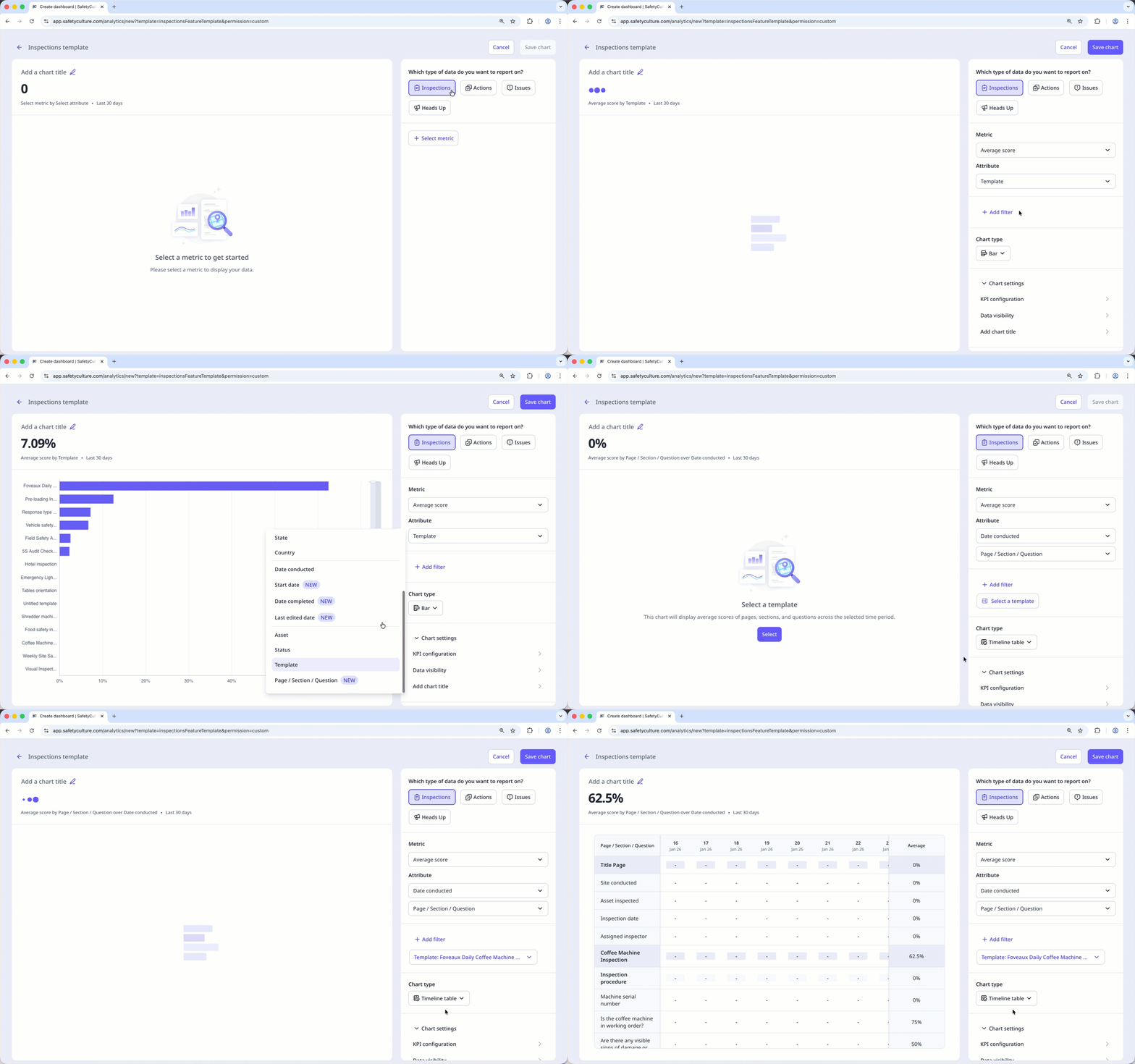
Data type: Select Inspections from the upper-right of the page.
Metric: Select Average score from the dropdown.
Attribute: Select Page / Section / Question from the dropdown.
Template: Click Select a template and select the template you want to track item scores for.
Chart type: Select Timeline table from the dropdown.
Click Save chart on the upper-right of the page to save the changes to the chart.
Click Save on the upper-right of the page to save the changes to your dashboard.
Configure your chart’s KPI to view your team’s progress towards a goal across a period of time.


