
Changes to asset type fields, such as renaming fields or modifying options for single select fields, apply to all assets of that type.
In addition, names for asset types and fields must be unique. You can add up to 200 custom fields for your asset types.
Edit an asset type and fields
Select Assets in the sidebar or select it in More.
Click Settings on the upper-right of the page.
In Types, select the asset type you want to edit.
Click on the upper-left of the page to rename the type.
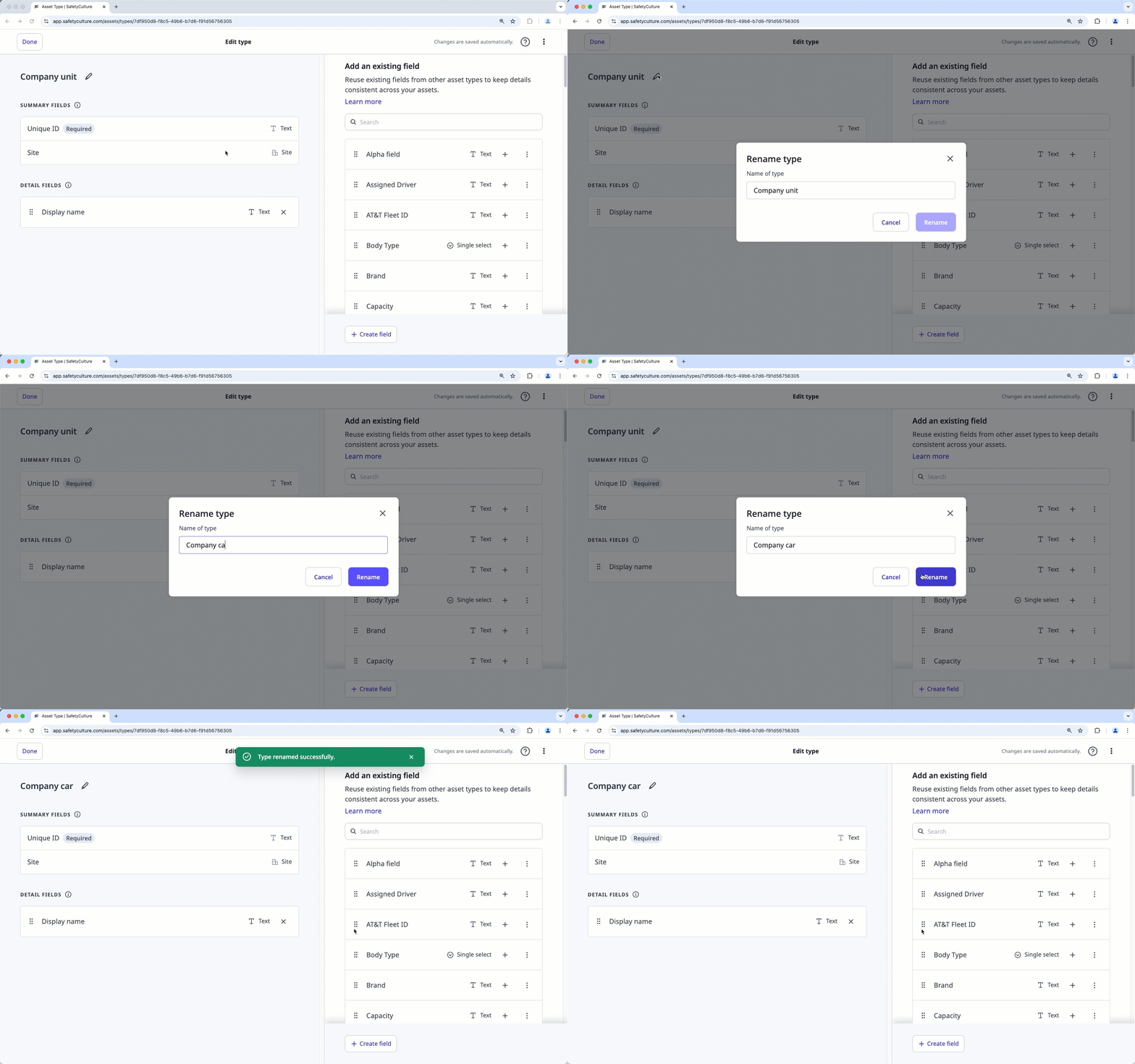
On the right-hand side of the page, create new or manage existing asset fields accordingly.
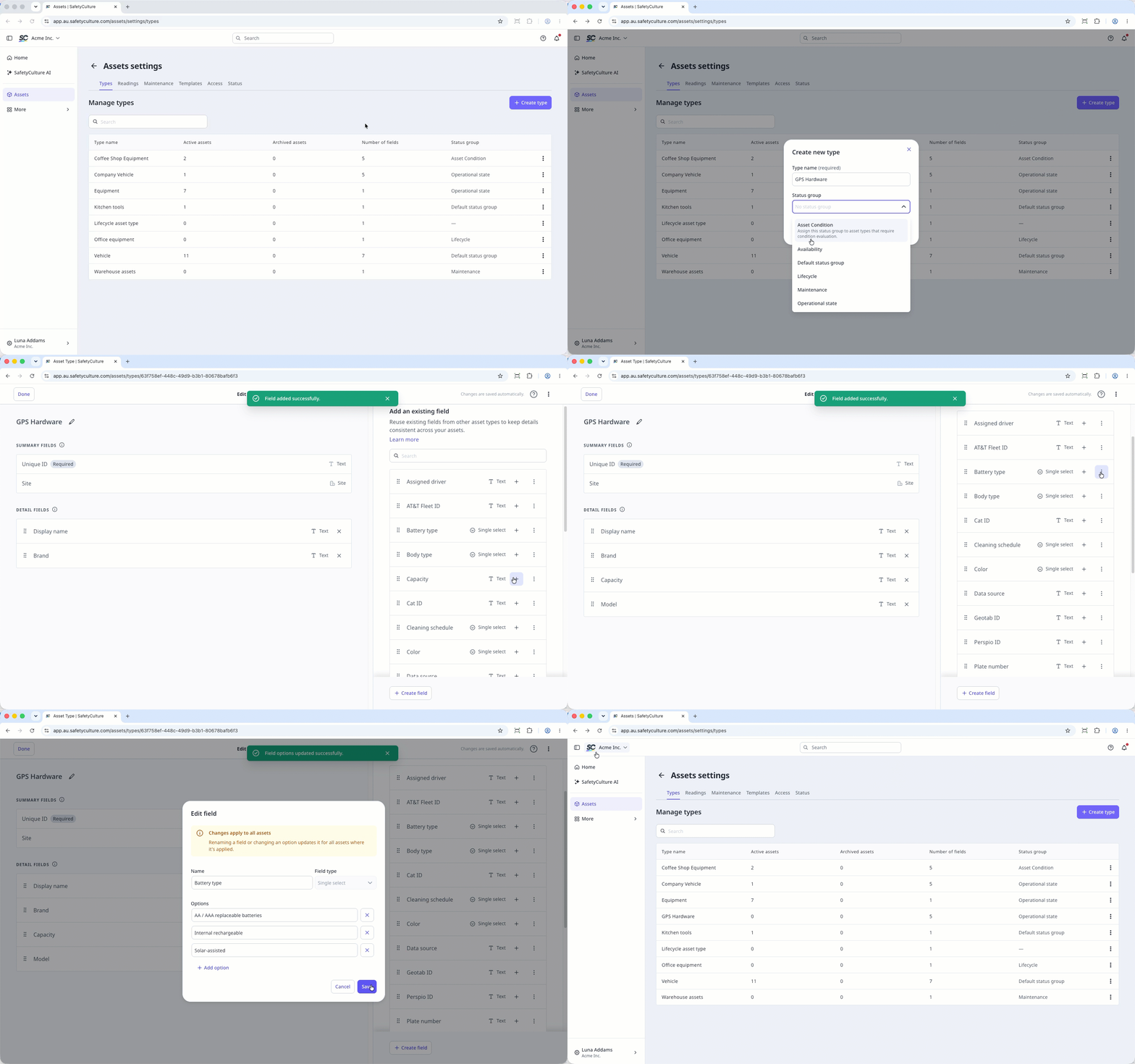
Create a new field: Click Create field on the lower-right of the page. In the pop-up window, enter the name of the field and select the field type. Then, click Save.
Add an existing field: Click on a field's right-hand side. Alternatively, click to drag and drop the field to the "Detail fields" section on the left-hand side of the page.
Edit a field: Click on a field's right-hand side and select Edit field. In the pop-up window, you can rename the field or edit any options for single select fields.
On the left-hand side of the page, manage your detail fields accordingly.
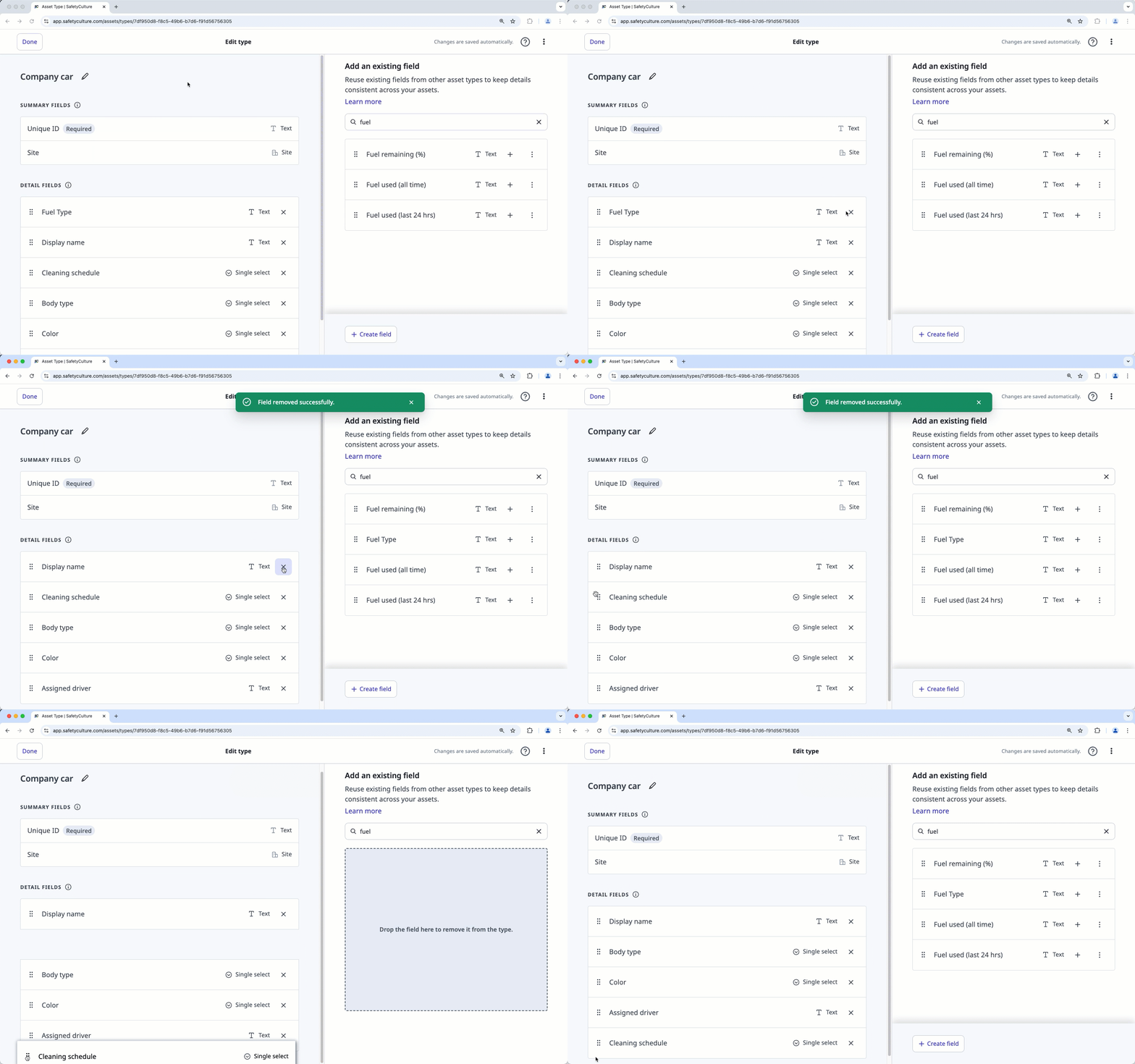
Remove a field: Click on a field's right-hand side or click to drag and drop the field to the right-hand side of the page.
Reorder detail fields: Click to drag and drop the field to your preferred arrangement.
Click Done on the upper-left of the page.


