
The preventative asset maintenance feature is currently in Early Access. If you're interested, go to the web app, select Assets from the menu on the left-hand side. Select Maintenance from the tab at top of the page and click Get Early Access.
Is Maintenance not in your menu? Reach out to your Customer Success Manager to express your interest.
Add assets to a program
Select Assets in the sidebar or select it in More.
Click Maintenance tab at the top of the page.
On the upper-right of the page, click Edit programs.
Click next to the program, then select Edit.
In
 Program details, click Add assets at the bottom of the page.
On this page, select assets you want to add to the program.
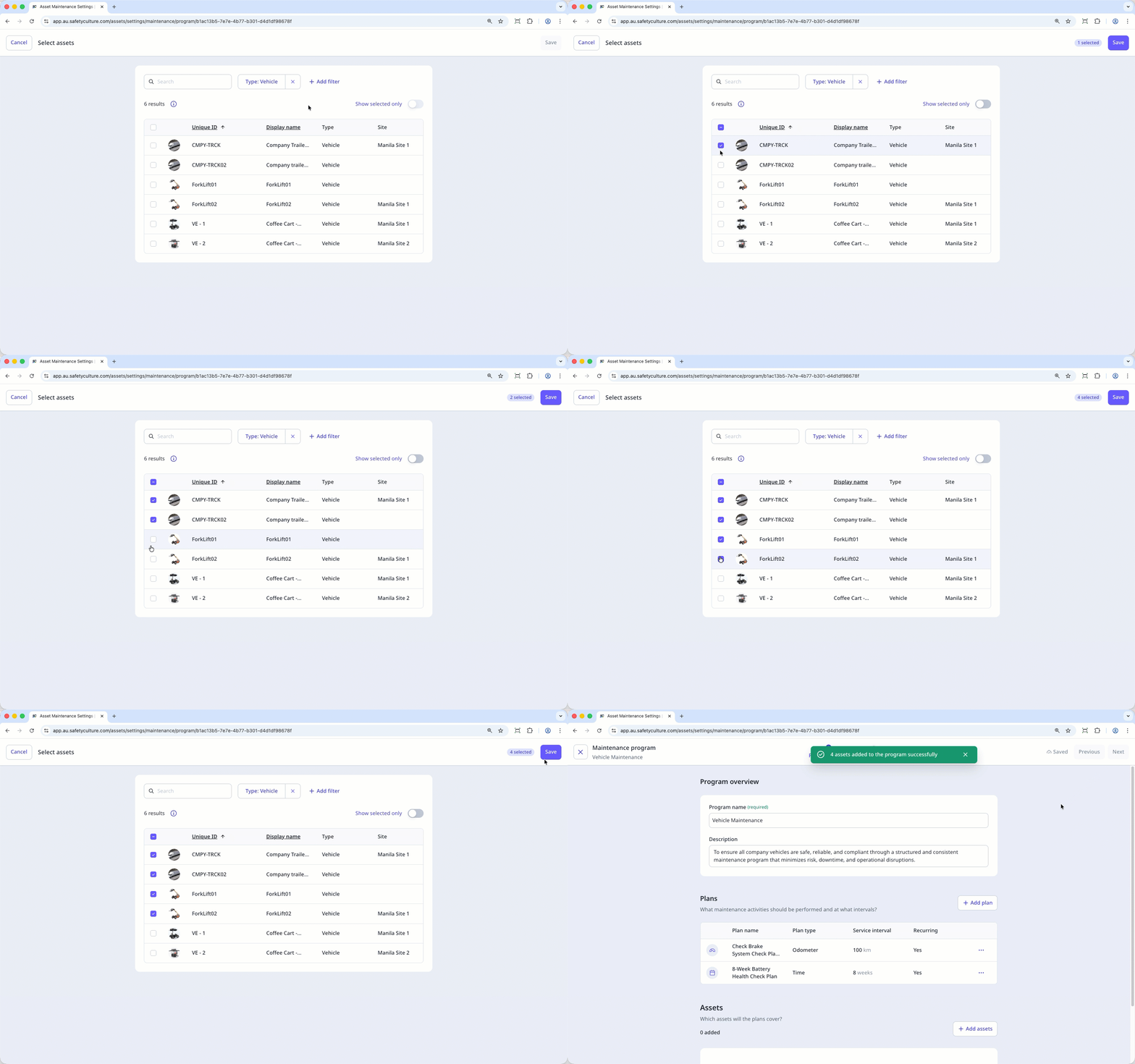
Click Save on the upper-right of the page.
Remove assets from a program
Select Assets in the sidebar or select it in More.
Click Maintenance tab at the top of the page.
On the upper-right of the page, click Edit programs.
Click next to the program, then select Edit.
In
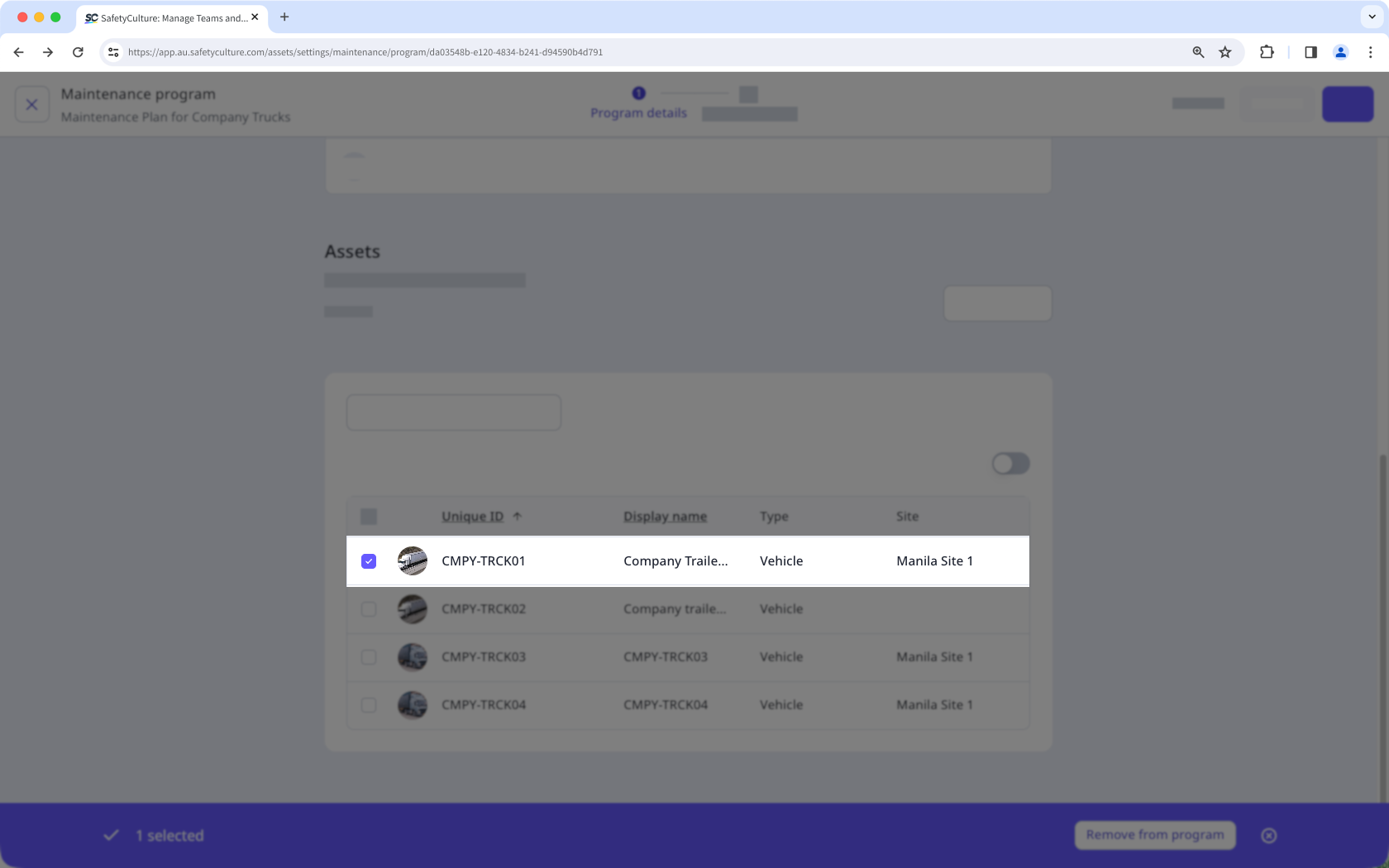
Program details, select the assets you want to remove from the program.To select a single asset, check the box on the asset's left-hand side.
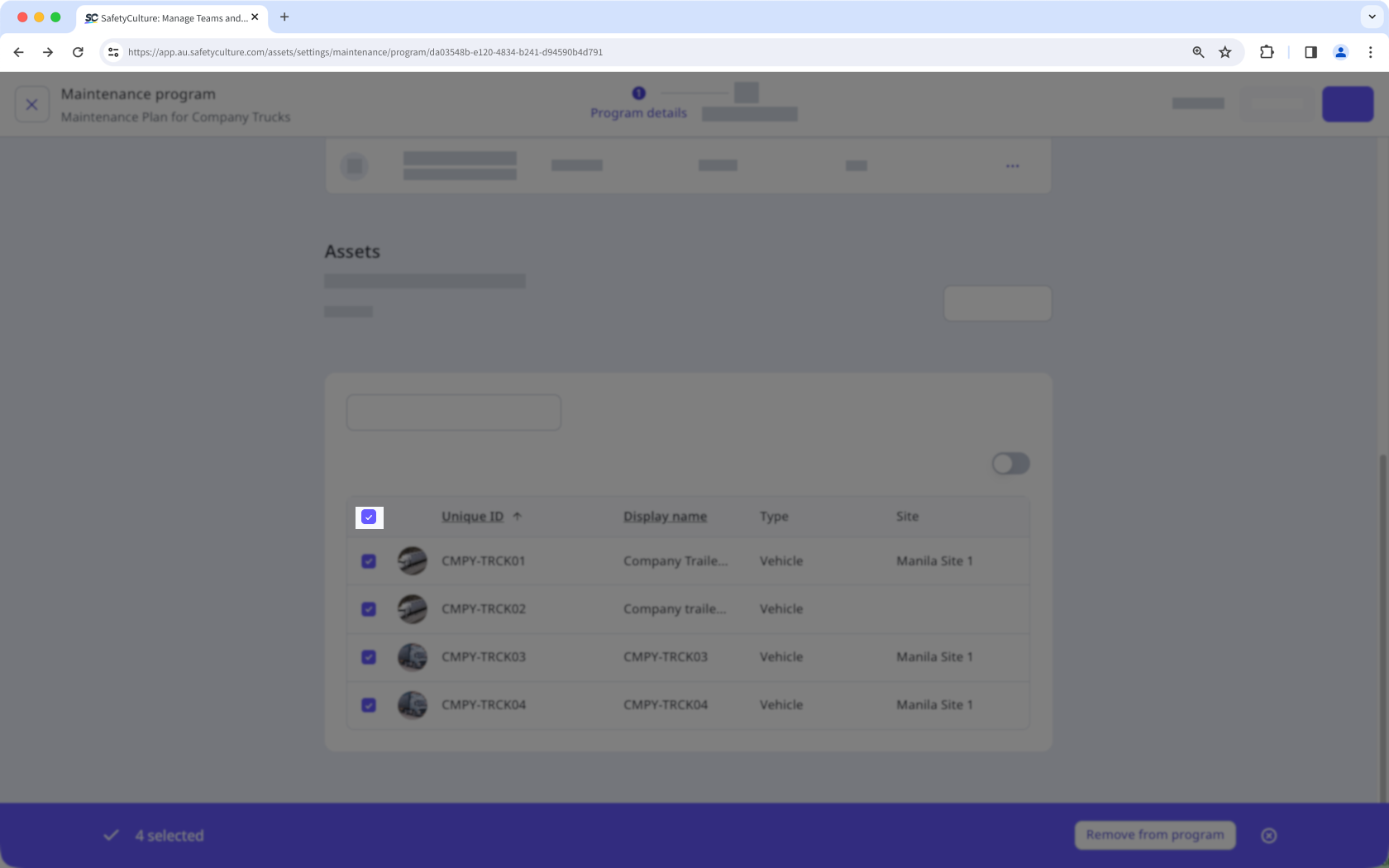
To select all visible assets, check the box in the table header.
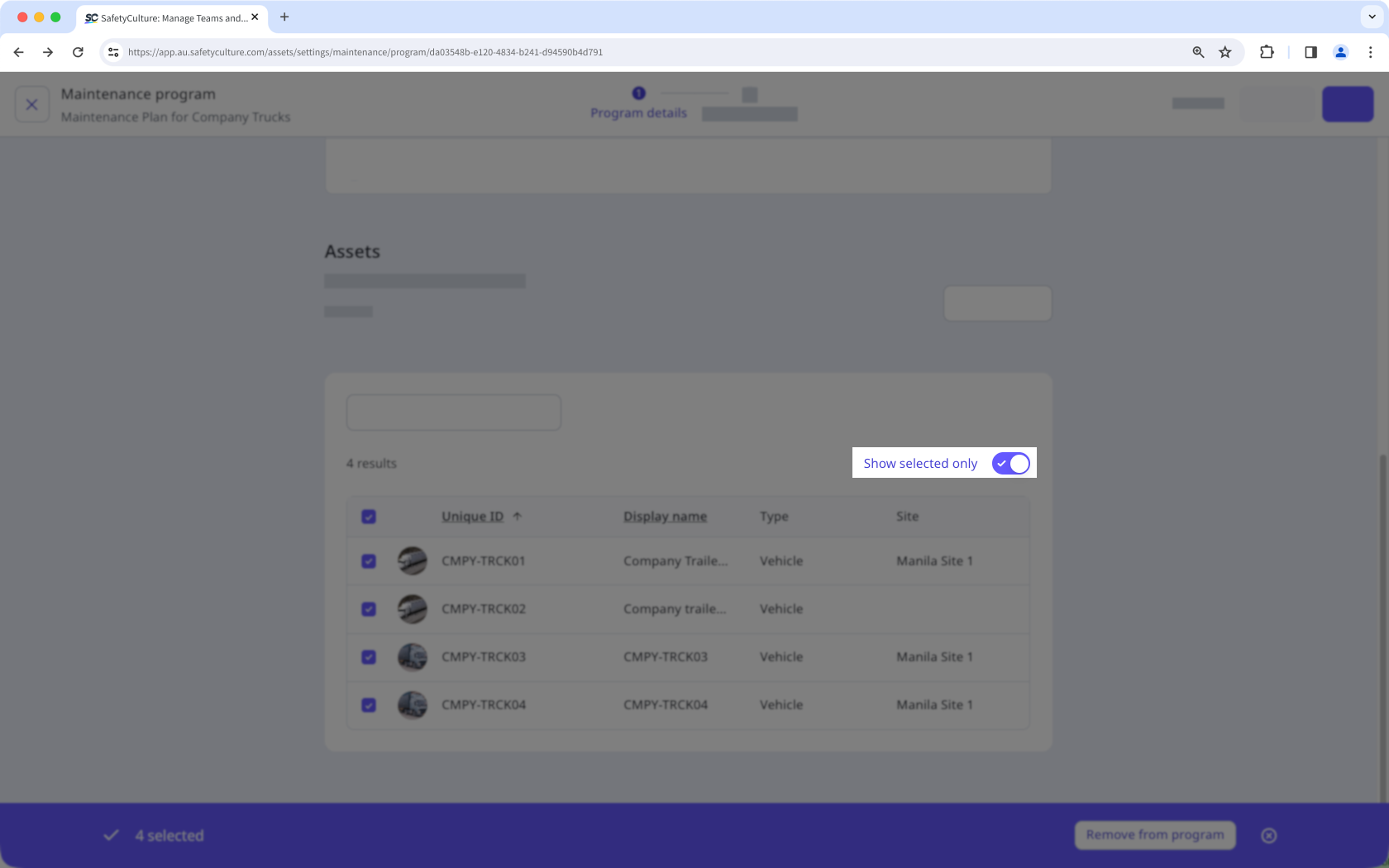
To view only the assets you selected, turn on Show selected only.
Click Remove from program on the lower-right of the page.
In the pop-up window, click Remove from program.


