How does displaying Google Sheets in SafetyCulture work?
In Google Sheets, users can track data, create calculations, and maintain organized lists, which seamlessly complement workflows in SafetyCulture. By bringing your spreadsheets directly into the SafetyCulture web app, your team can access live data and insights alongside their operational workflows. You can display either a view-only or editable version of the entire spreadsheet or selected sheets.
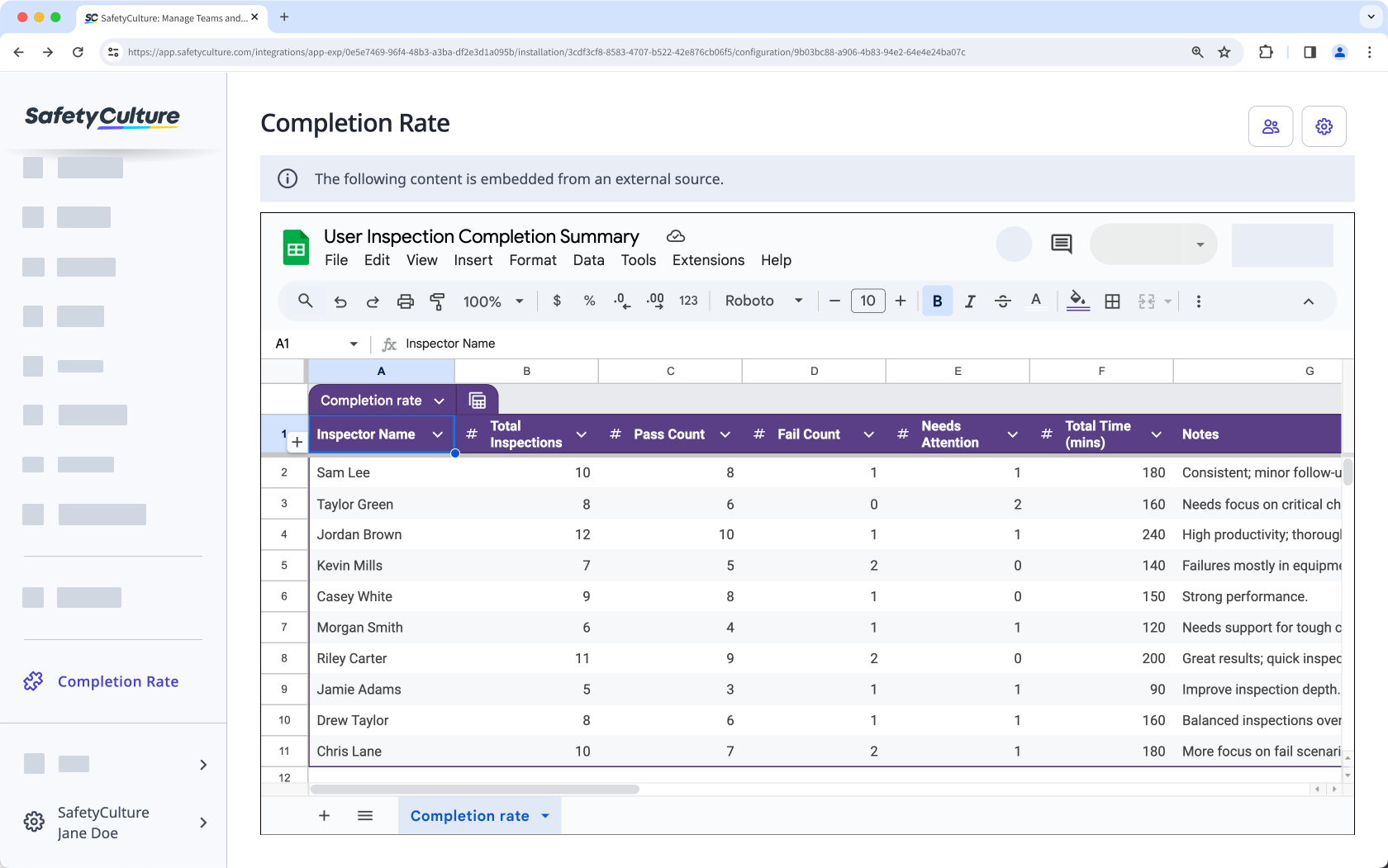
Embed your favorite productivity apps in SafetyCulture and transform your digital workspace into the ultimate collaboration tool.
What you'll need
1. Get a Google Sheets spreadsheet embed link
Click File.
Select Share and then select
 Publish to web.
In the pop-up window, click Embed tab, and select either the entire document or a sheet.
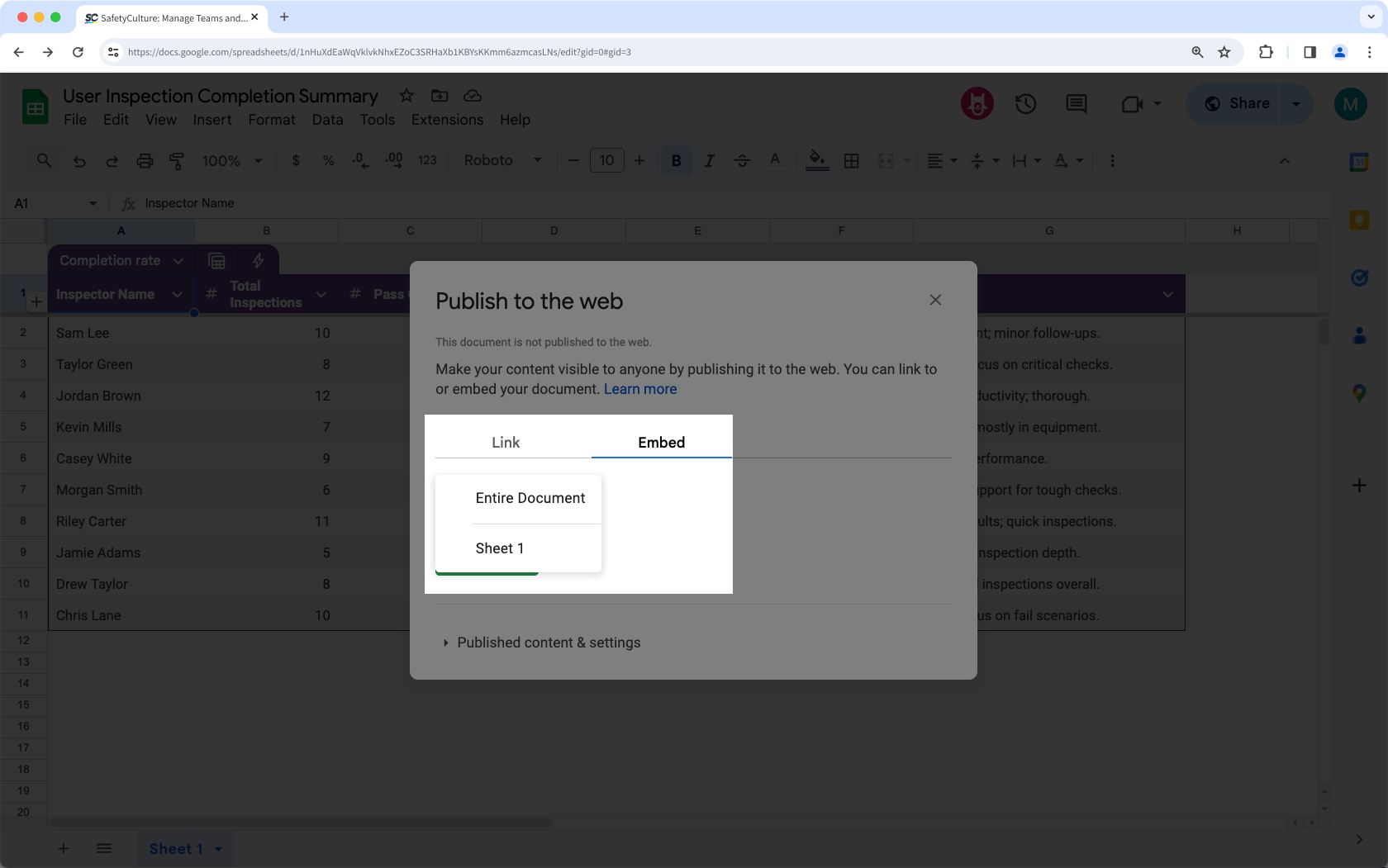
Click Publish.
In the pop-up window, click OK.
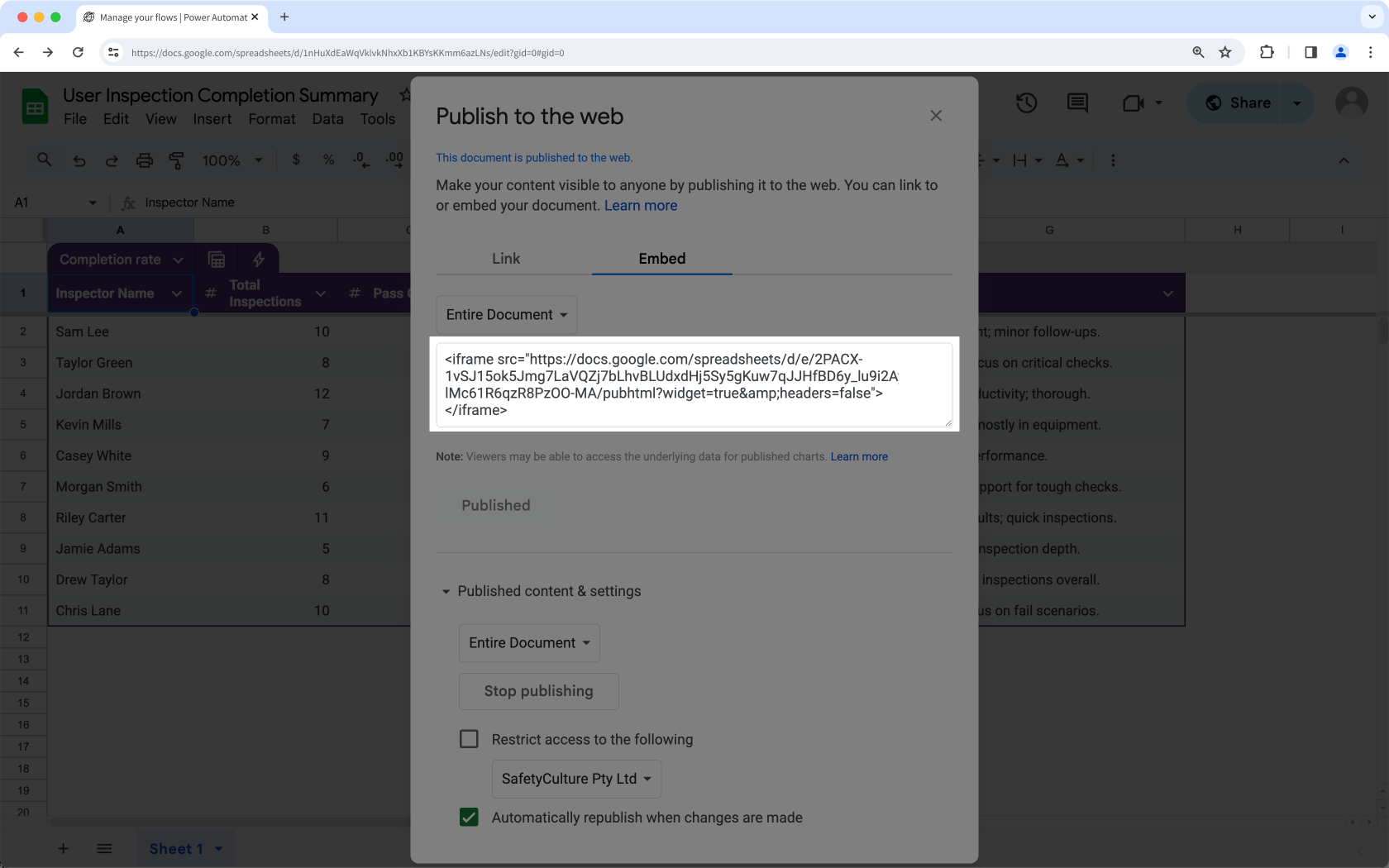
Copy the public view-only embed link, which will allow users to view a non-editable version of the document or sheet in the SafetyCulture web app.
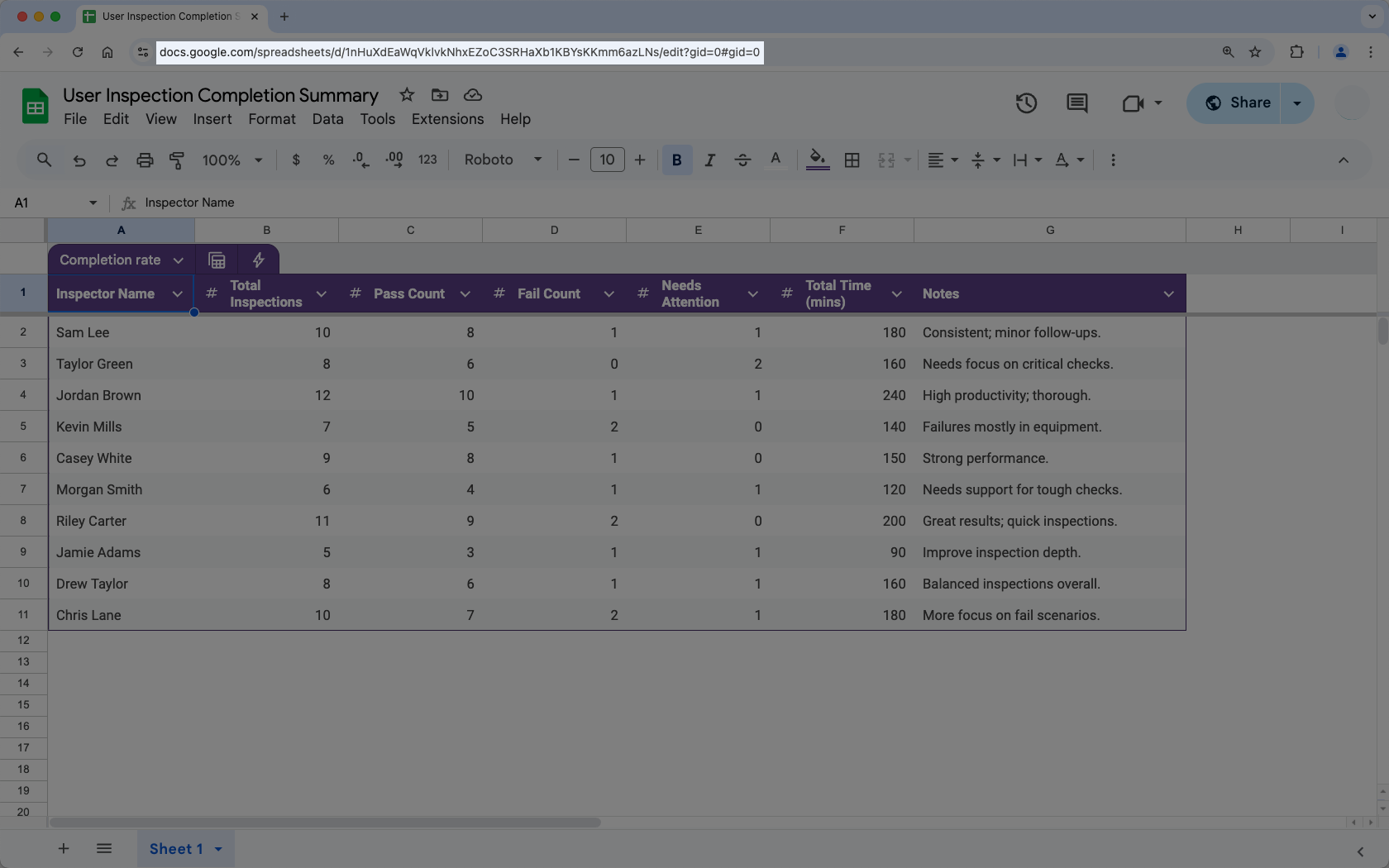
If your spreadsheet is restricted to your organization, users may still need to log in to their Google Sheets account to view the spreadsheet in the SafetyCulture web app.
2. Display a Google Sheets spreadsheet in SafetyCulture
Click your organization name on the lower-left corner of the page and select Integrations.
Search for "Google Sheets" and select the integration.
Click Install at the center of the page.
In the pop-up window, click Install.
Click Add page at the center of the page.
In the pop-up window, add the following details:
Label: Enter a name. This will appear on the left-hand side menu.
URL: Enter a Google Sheets spreadsheet embed link.
Click Save.
Click Add page to add another spreadsheet. You can add up to 10 Google Sheets spreadsheets for your organization.
View your Google Sheets spreadsheet from the menu on the left-hand side.