
How does scoring work in courses?
In SafetyCulture Training, users earn scores by completing a quiz slide or a game slide in each lesson within their course. Each of these lesson slides has a default question weight of 1. For example, a course contains 5 content slides and 5 quiz slides. Only the quiz slides will contribute to the score.
If a user answers 3 quiz slides correctly on the first try, they will get 60% or 3/5 as their course score. They can retake the lesson to improve their score, and if they answer all questions correctly on a later attempt, their score will be updated to 100%.
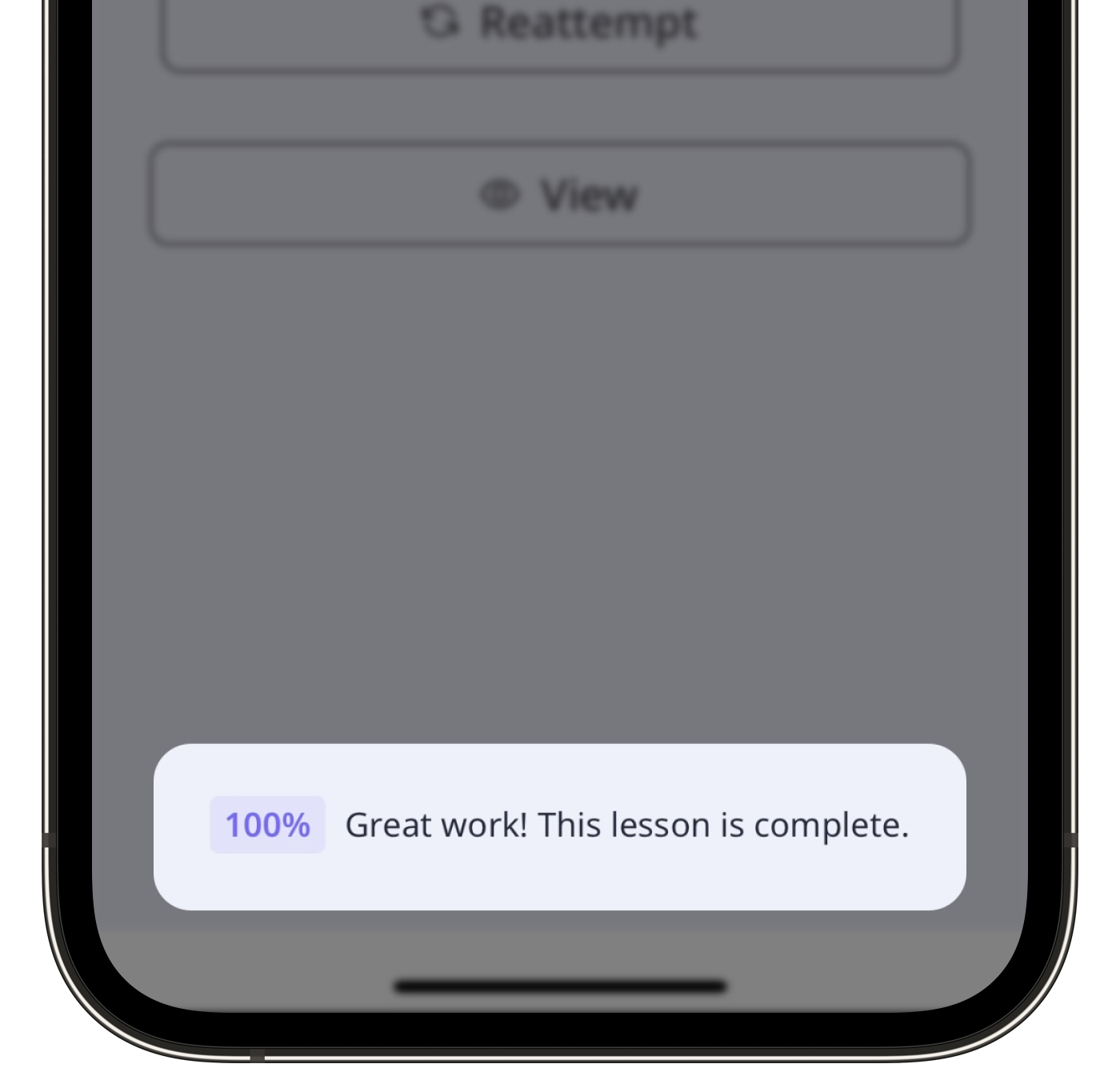
You can set a higher question weight to a lesson slide. This means that a correct or incorrect answer to this slide will have a greater effect on the final score. Depending on the lesson's completion setting, you can also require a minimum score before the user can complete the lesson.
If you have leaderboards turned on for a course, points earned by assigned users also contribute toward their ranking in the leaderboard.
What you'll need
Manage a lesson's scoring
Select Training in the sidebar or select it in More.
If you're on the "Learn" page, click Content at the top of the page and select Courses.
Create a new course or click View or Edit on an existing one.
If you're editing an existing course and it's published, click Edit on the upper-right of the page.
Create a new standard lesson or click an existing one to configure it accordingly. If you need some help to get started, you can create a lesson or lesson slide using AI.
Create a quiz slide or a game slide or click an existing one. Scroll down on the right-hand side panel and click Scoring.
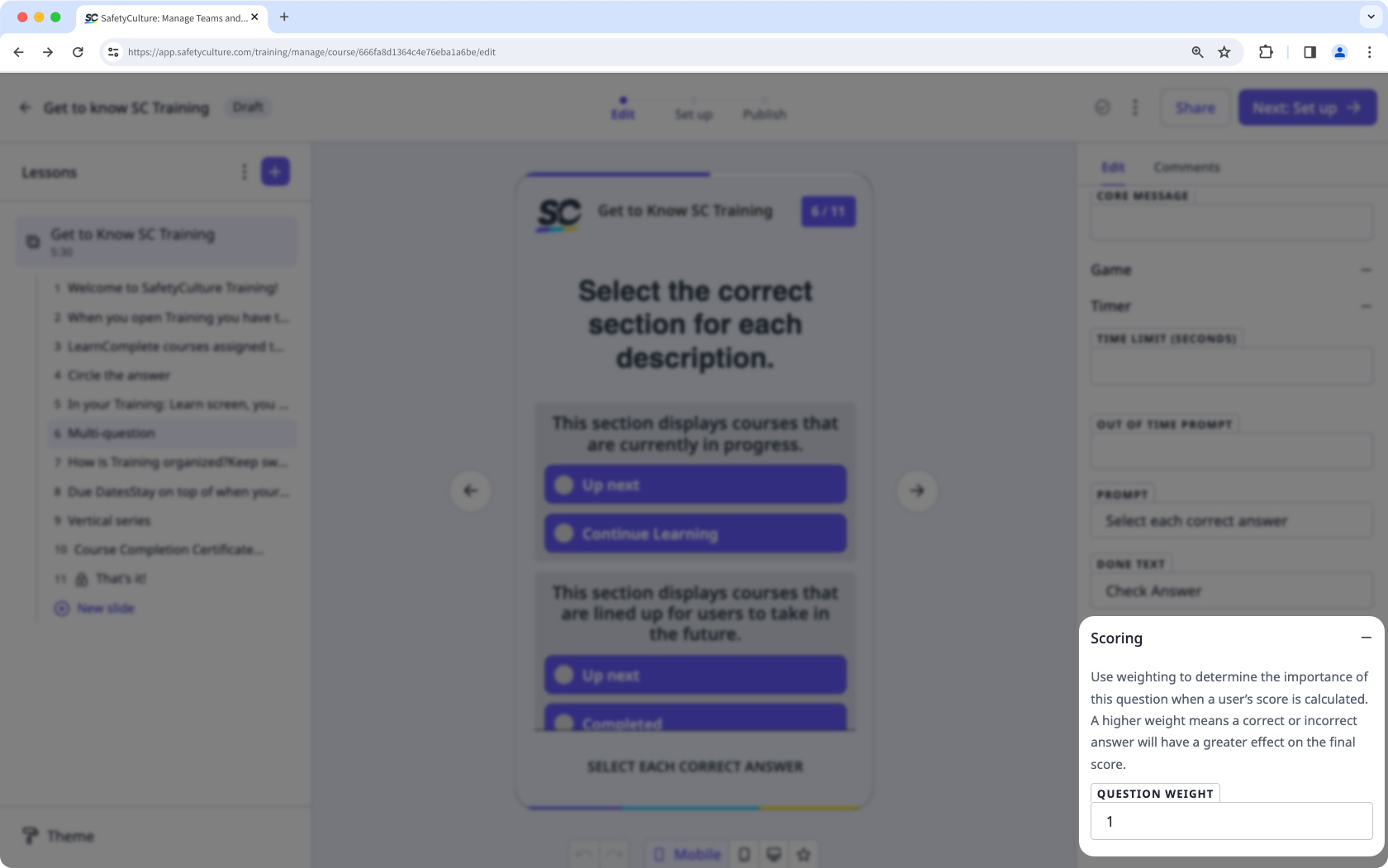
Set the question weight depending on the importance of this slide to the course. If you don't want the slide to contribute to the total score, set the question weight to 0.


