
Why use PIN and biometrics?
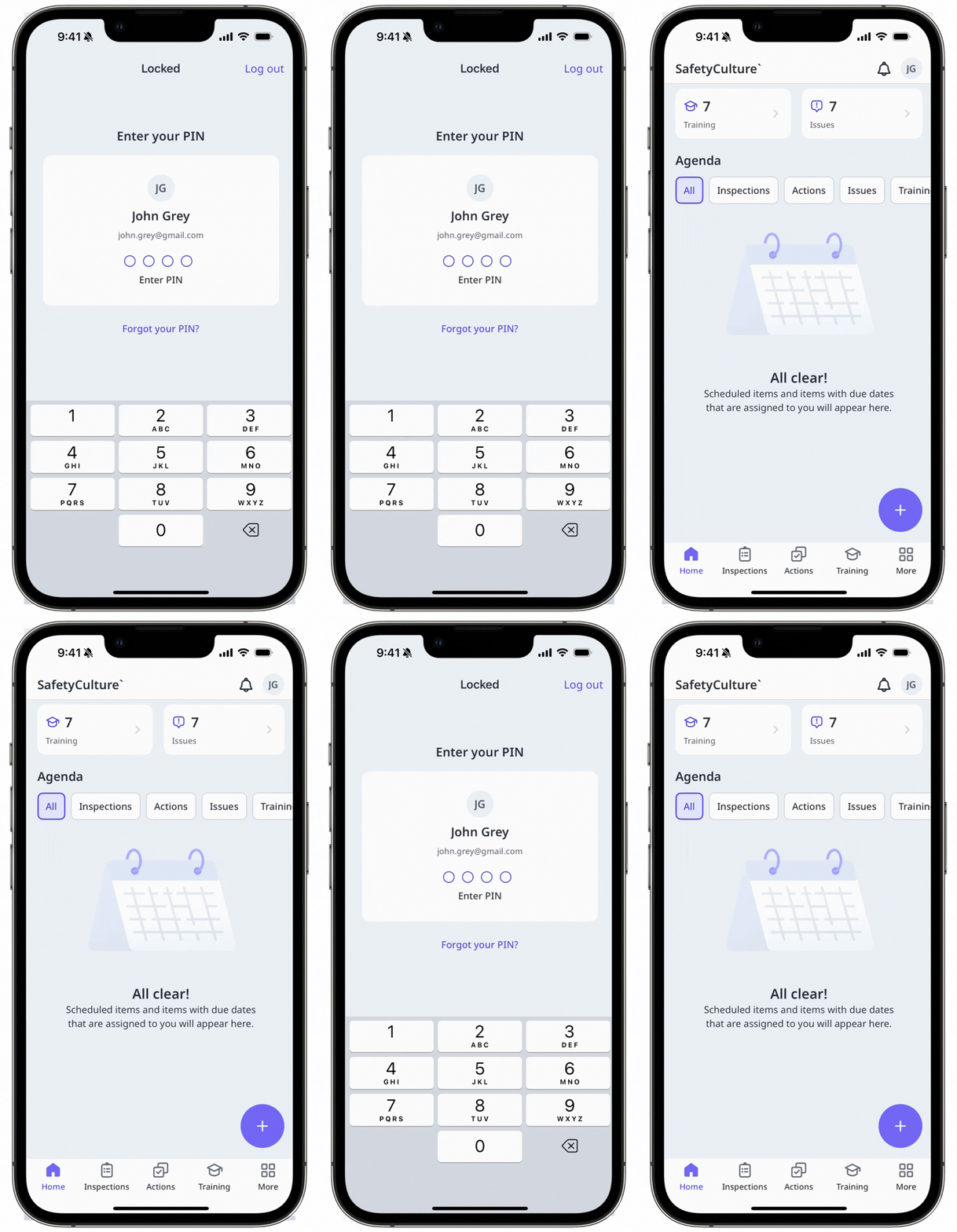
Safeguarding your critical workplace operations data has never been easier or more secure. By using a PIN and your device's biometrics (fingerprint or facial recognition), you can ensure that only authorized personnel can access your SafetyCulture app, which adds a layer of security and convenience for your day-to-day work.
What you'll need
If your organization requires a PIN, you’ll be prompted to set it up the next time they open the mobile app.
Turn PIN on or off
Open the mobile app.
Tap your user profile icon in the upper-right corner of your screen.
In the pop-up menu, select Settings.
Under the "Security" section, turn PIN on or off.
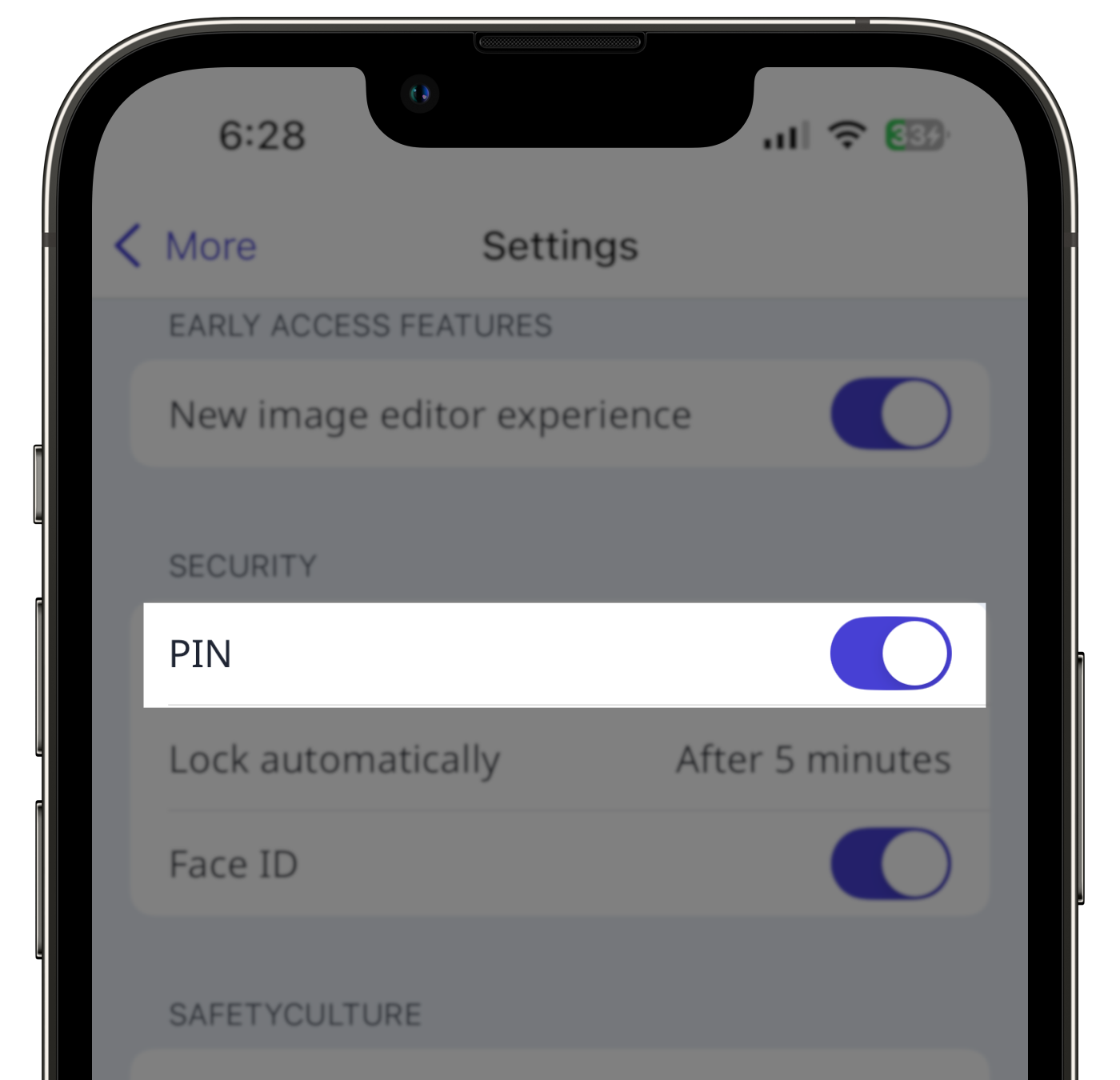
If you turned PIN on, follow the instructions to set and confirm your passcode.
Tap Lock automatically and select how long the mobile app should be closed or in the background before it locks itself.
To set up biometrics (fingerprint or facial recognition), a PIN must be set first, and biometrics must already be set up on your device. Learn more about biometrics for Android or Touch ID and Face ID for iOS devices.
Turn biometrics on or off
Open the mobile app.
Tap your user profile icon at the upper-right corner of your screen.
In the pop-up menu, select Settings.
Under the "Security" section, turn Biometric ID on or off.
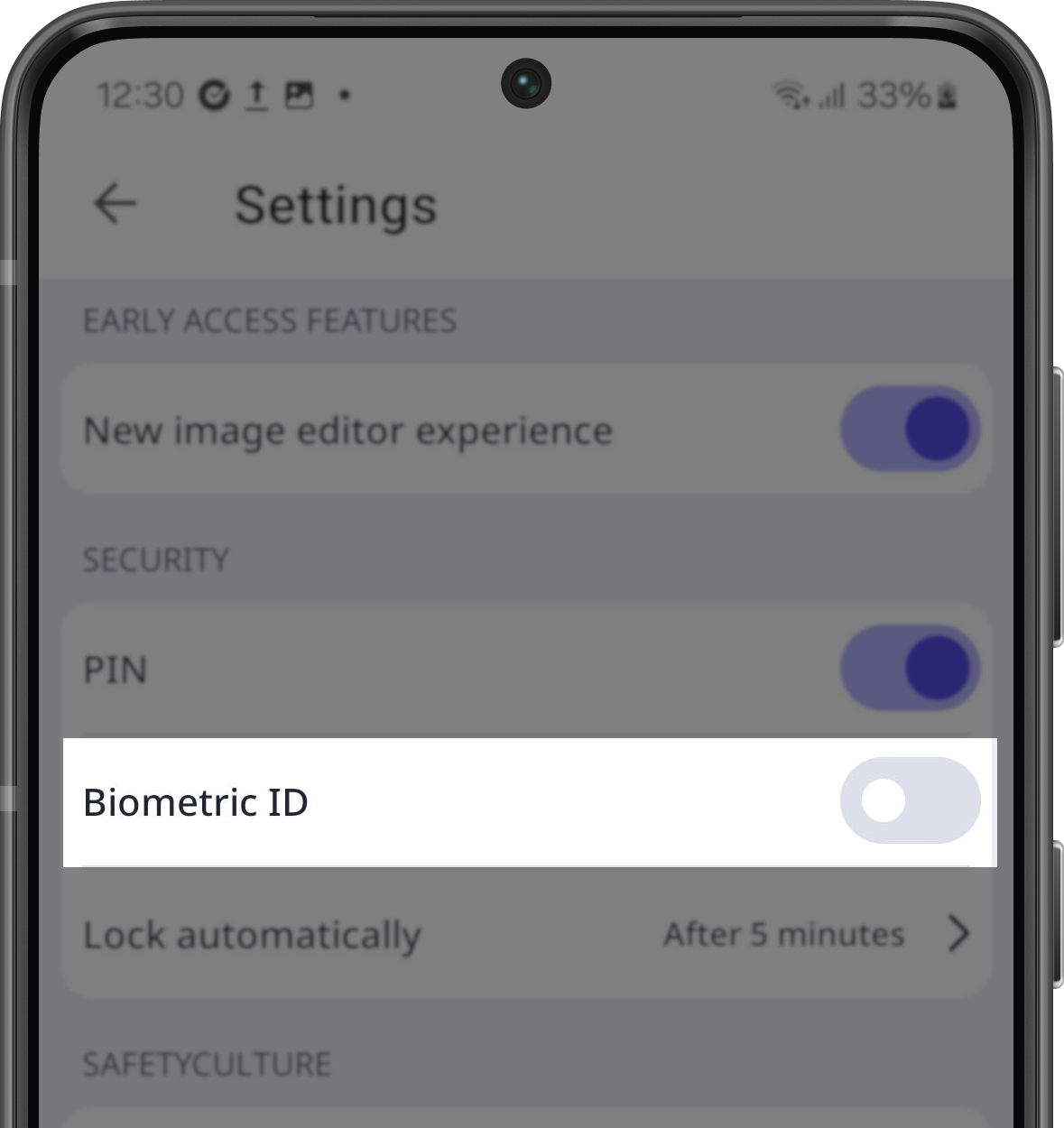
If you turned Biometric ID on, follow the instructions to enter your passcode.
Tap at the upper-left of your screen.
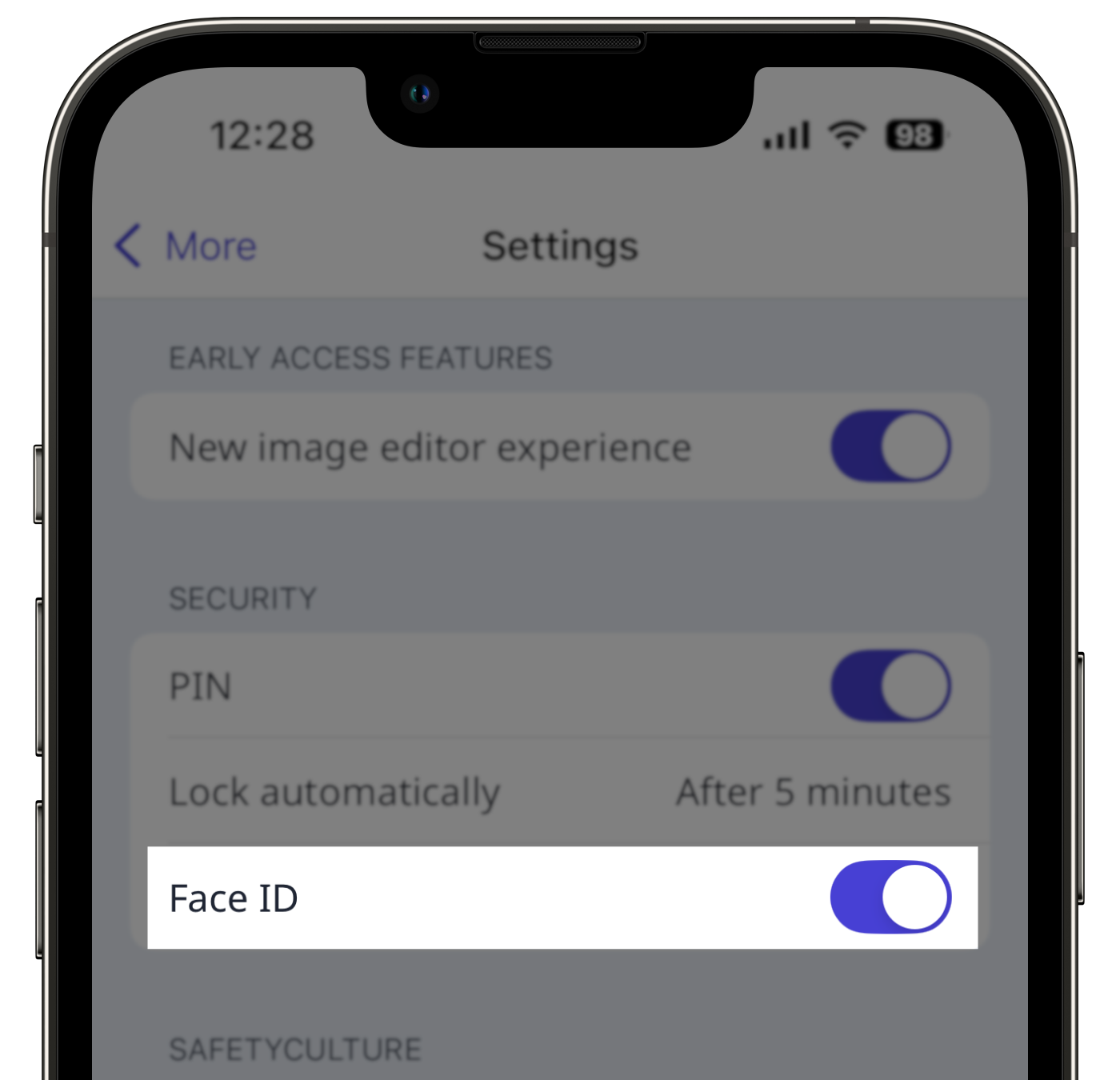
The Android app currently only supports fingerprint biometrics. If facial recognition biometrics is important to you, please let us know by providing your feedback.


