
Why use mobile app shortcuts on Android?
Shortcuts add quick links to SafetyCulture on your Android home screen. Use them to open key pages in fewer taps. This makes it easier to fit SafetyCulture into fast-paced, mobile workflows, starting inspections, checking notifications, or creating actions while out in the field.
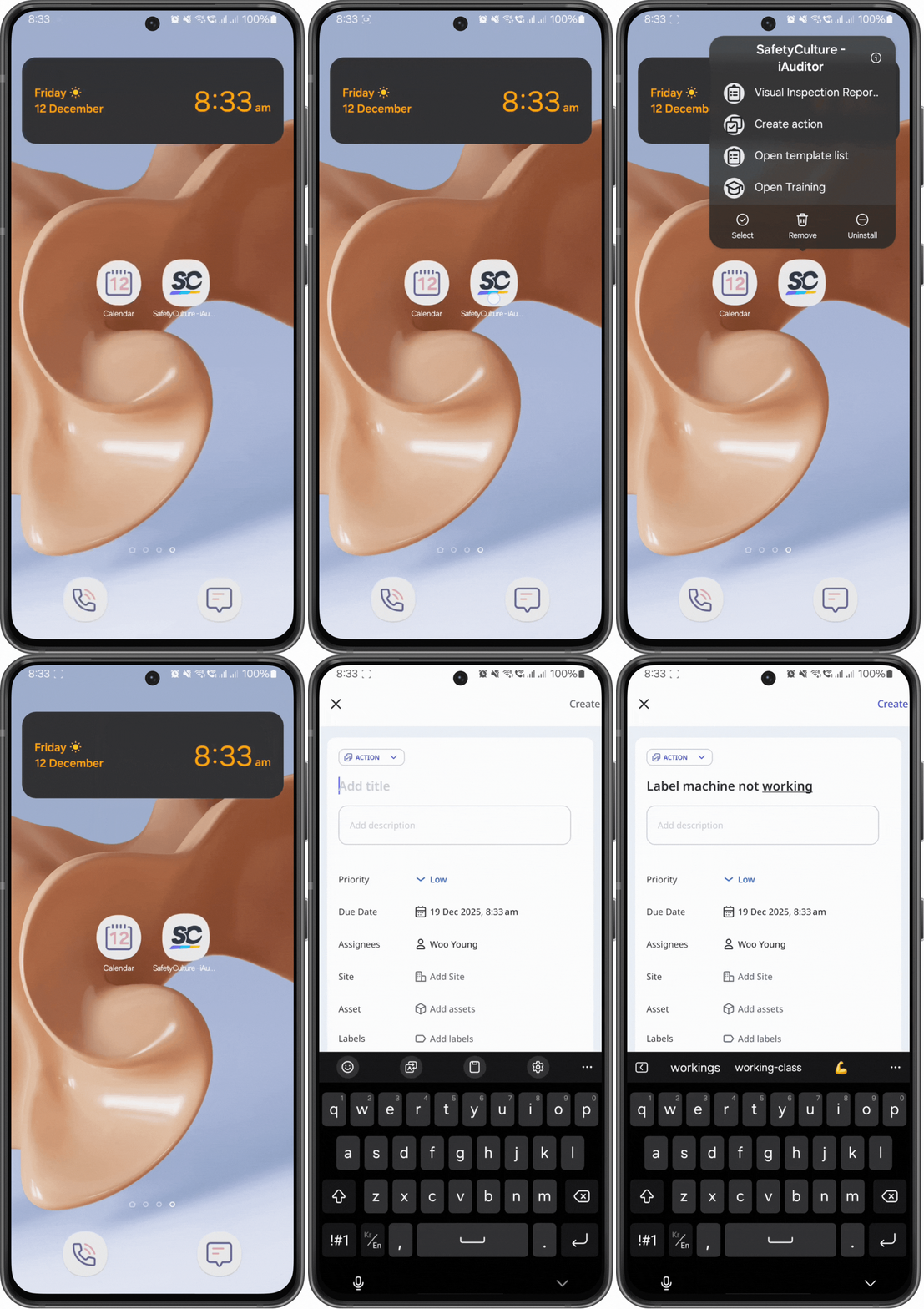
What you'll need
The shortcuts feature is currently only available to the Android mobile app. If you'd like to see the same feature for the iOS mobile app, please let us know by providing your feedback.
What shortcuts are available?
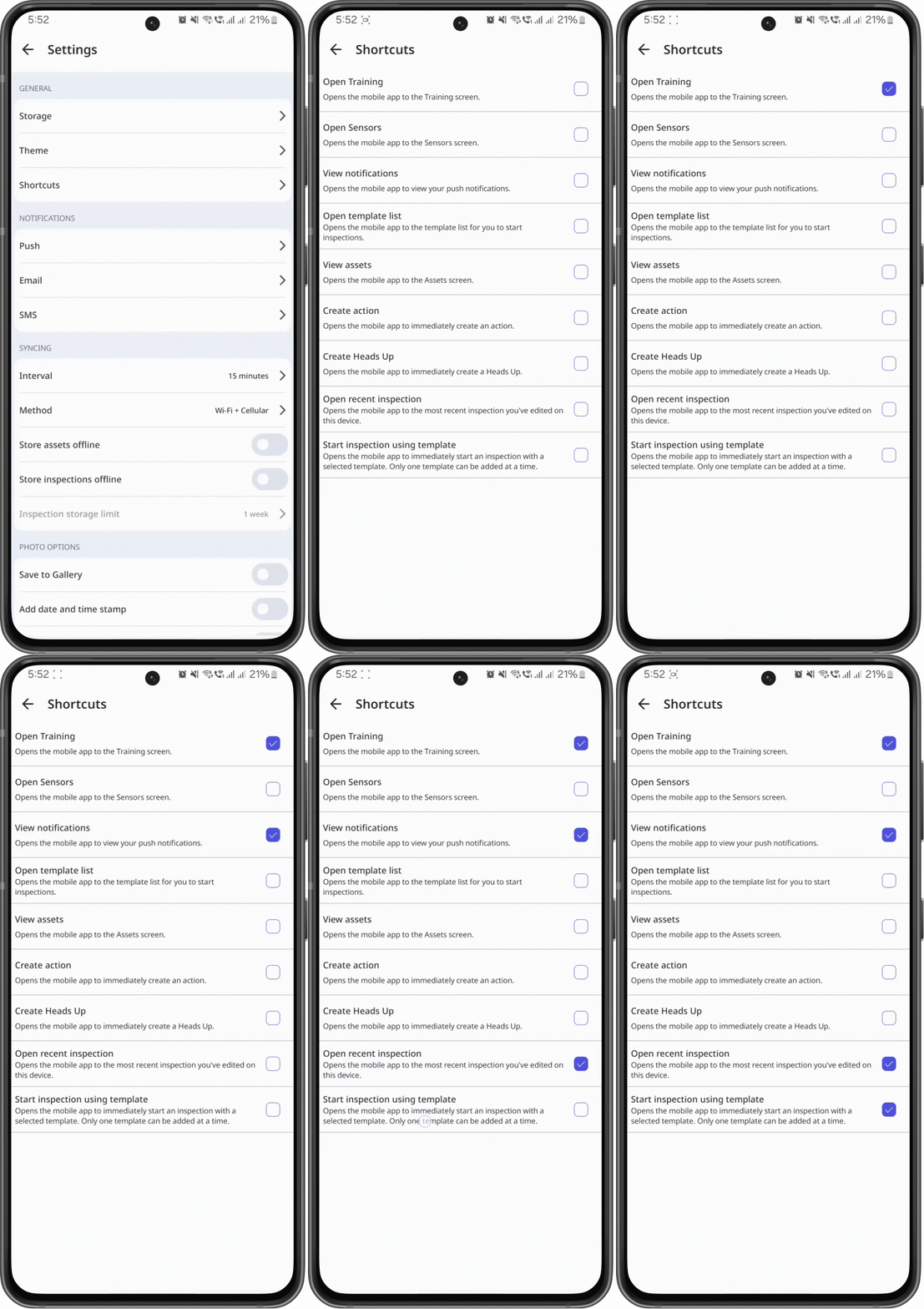
You can add up to four shortcuts at a time.
Shortcut | Description |
|---|---|
Open Training | Opens the mobile app to the Training page. |
Open Sensors | Opens the mobile app to the Sensors page. |
Open template list | Opens the mobile app to the Templates page. |
Open recent inspection | Opens the most recent inspection you've edited on the device. |
View notifications | Opens your push notifications in the mobile app. |
Create action | Opens the Action creation screen in the mobile app. |
Create Heads Up | Opens the Heads Up creation screen in the mobile app. Users require "Heads Up: Create" permission to create Heads Ups. |
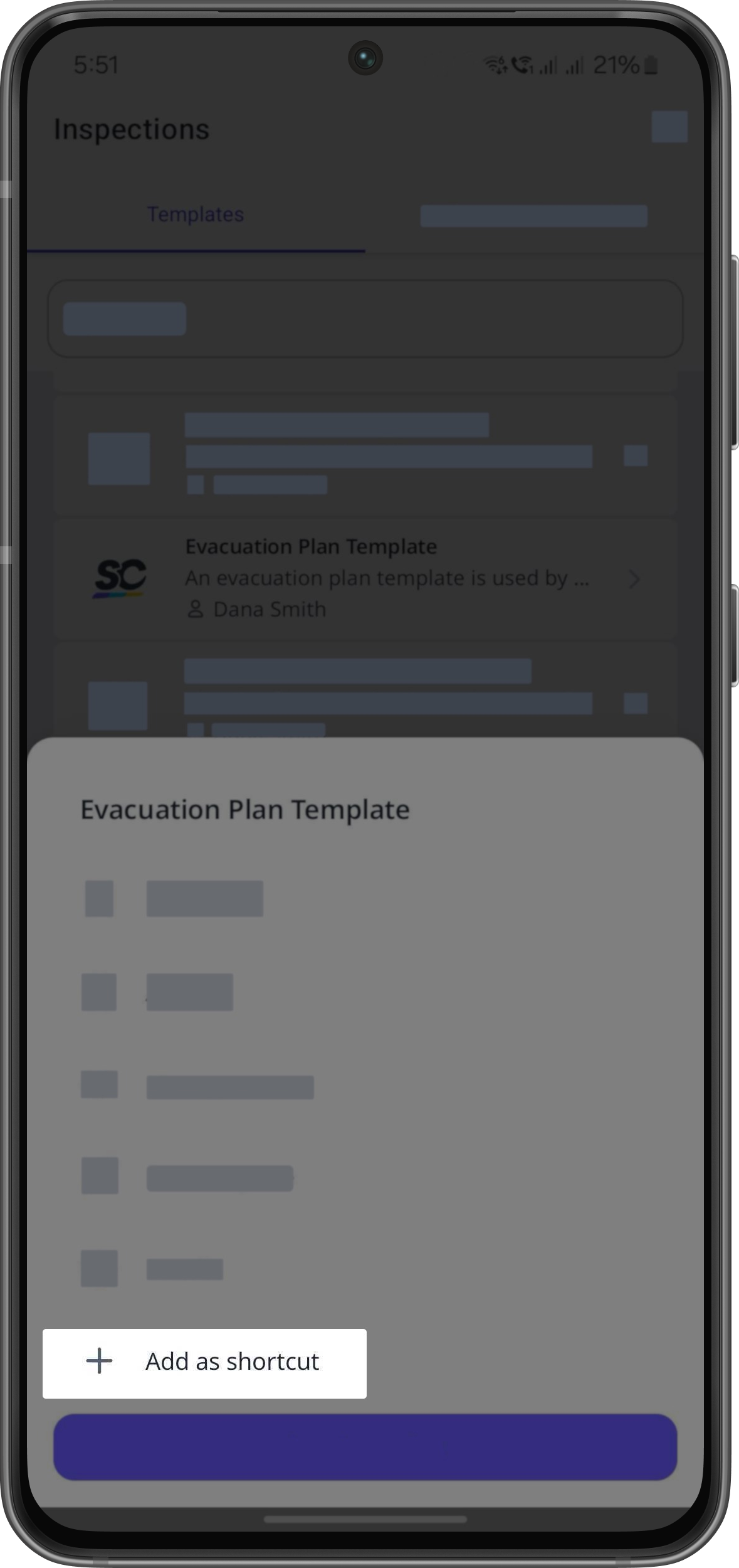
Start inspection using template | Opens the mobile app to start an inspection from a selected template. You can only choose one template at a time. Users require "Conduct" template access level at a minimum to start inspections. |
Set up shortcuts
Open the mobile app.
Tap your user profile icon at the upper-right corner of your screen.
In the pop-up menu, select Settings.
Under the "General" section, select Shortcuts.
Select up to four shortcuts from the list.
For the "Start inspection using template" shortcut, you'll need to add the template from the template list.
Now, you can use the shortcuts (opens in new tab) on your device.


