An asset first needs to be archived before being deleted.
Deleting is irreversible, and we cannot restore permanently deleted items. Confirmation is always required before any deletion, so be sure you're not accidentally deleting the wrong item.
Delete an asset
Select Assets in the sidebar or select it in More.
Select the Archive tab at the top of the page.
Find the asset you want to delete.
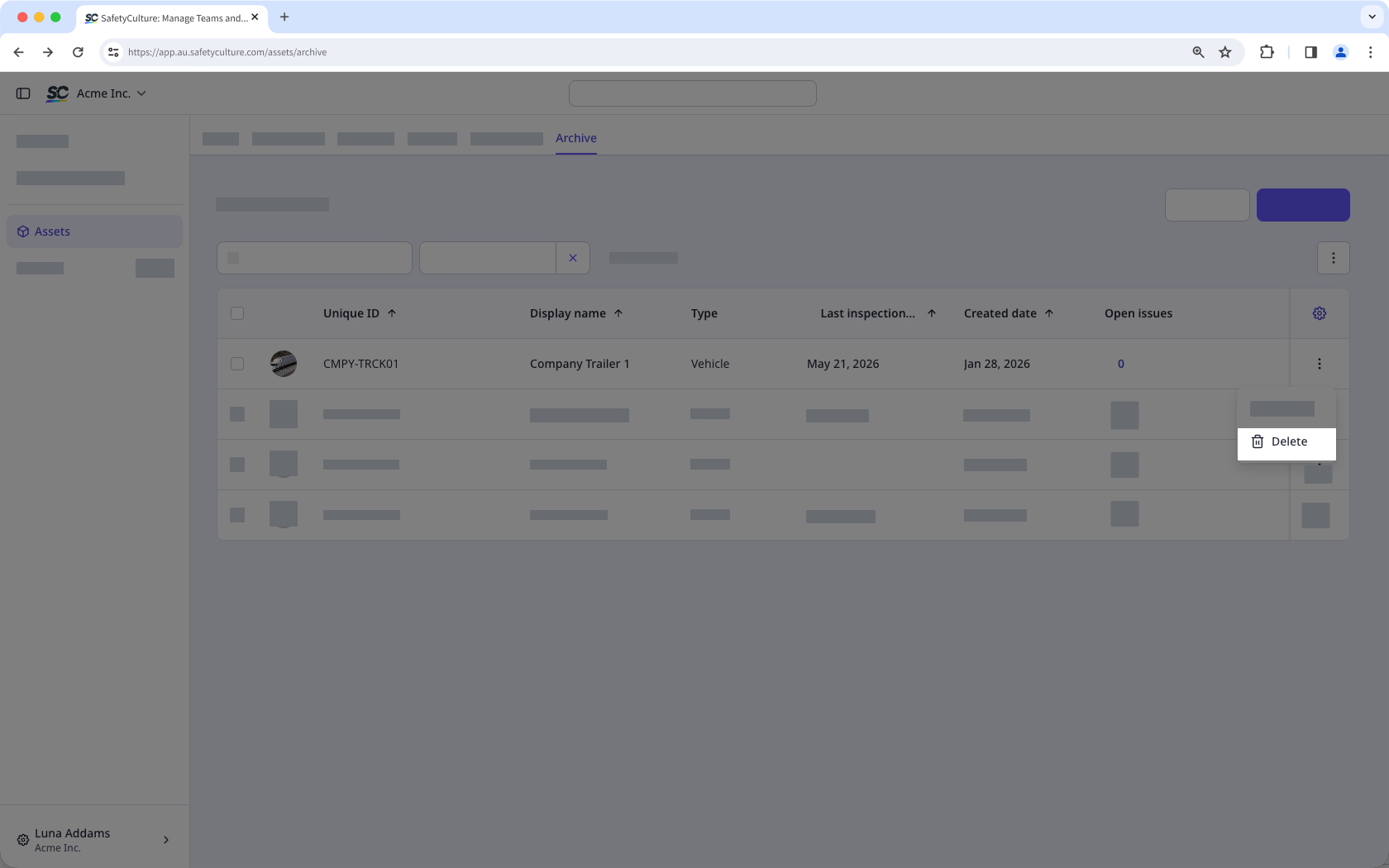
Click on the asset's right-hand side and select Delete.
In the pop-up window, click Delete.
Bulk delete assets
Select Assets in the sidebar or select it in More.
Select the Archive tab on the top of the page.
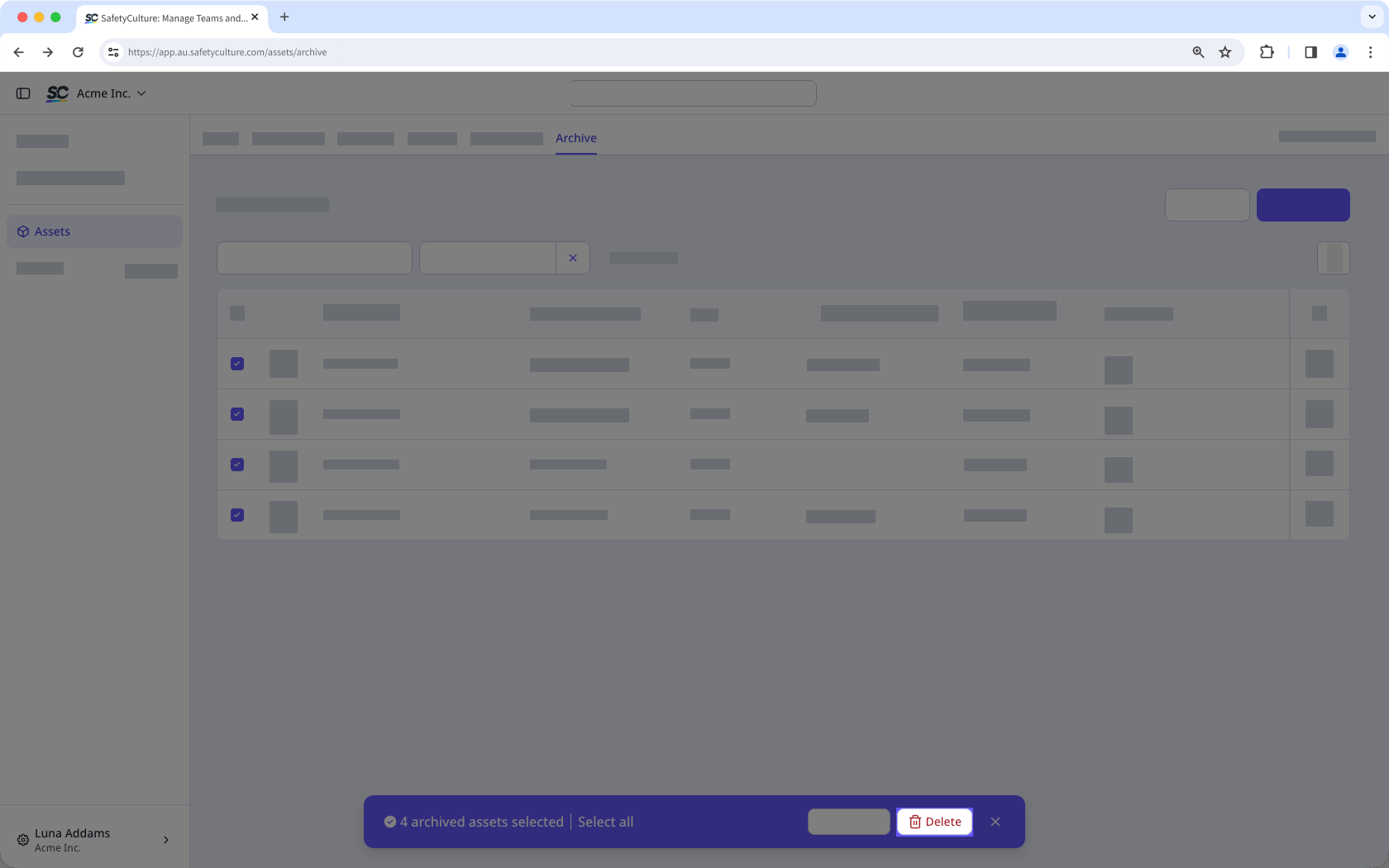
Check the assets' boxes and click Delete on the lower-right of the page.
In the pop-up window, click Delete.