What does it mean to clear cache?
When you use the SafetyCulture app on your mobile device, the media files that you view are temporarily saved on your device to improve loading times and provide a smoother experience. This process is known as caching. Clearing your cache removes these files, which may be large in size, and helps you free up storage on your device and potentially improve performance.
What you'll need
Unsynced media will not be deleted when you clear your cache.
Clear cache
Open the mobile app.
Tap your user profile icon at the upper-right corner of your screen.
In the pop-up menu, select Settings.
Select Storage from the list of options.
Tap Clear cached media.
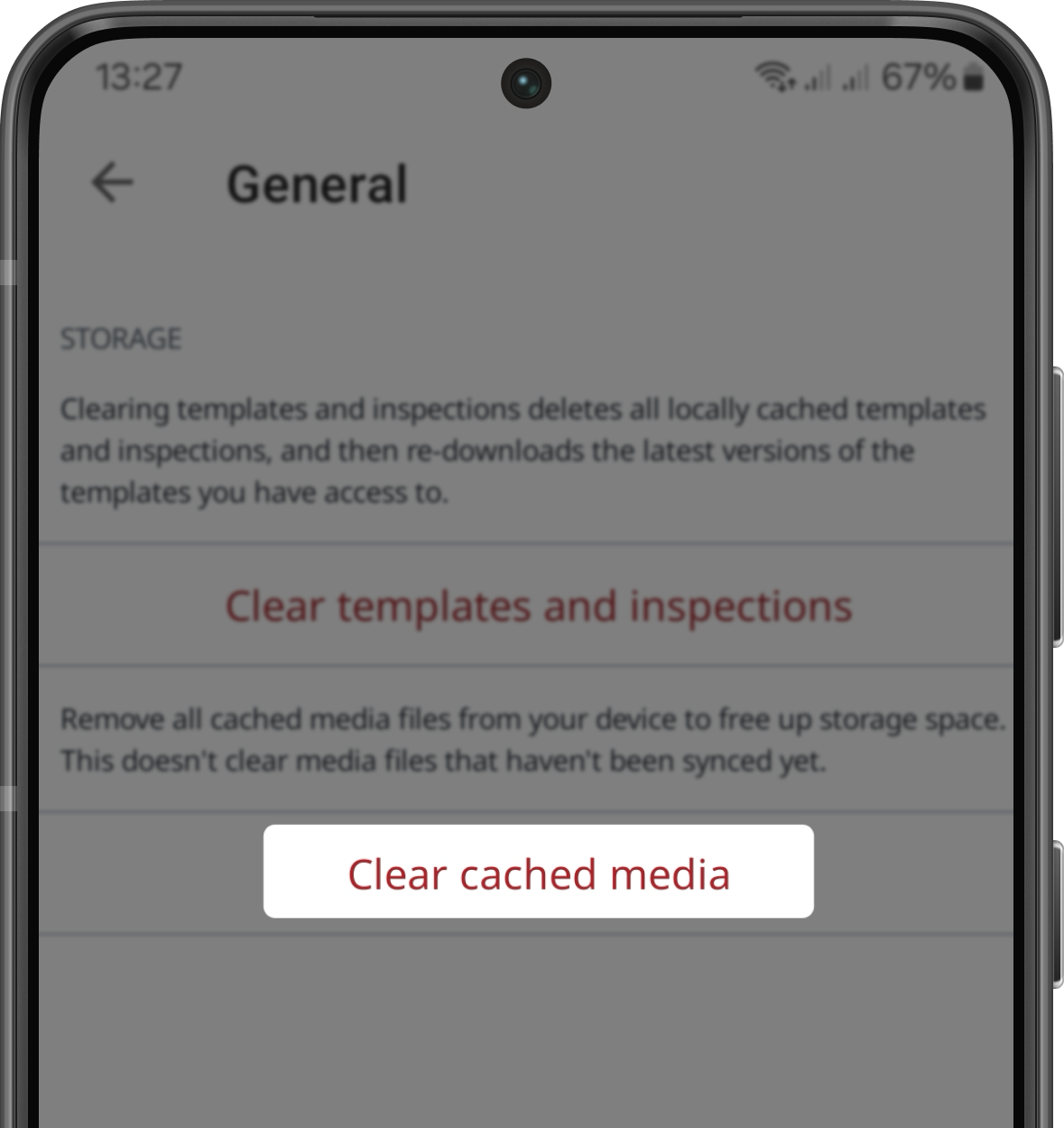
In the pop-up window, tap Continue.
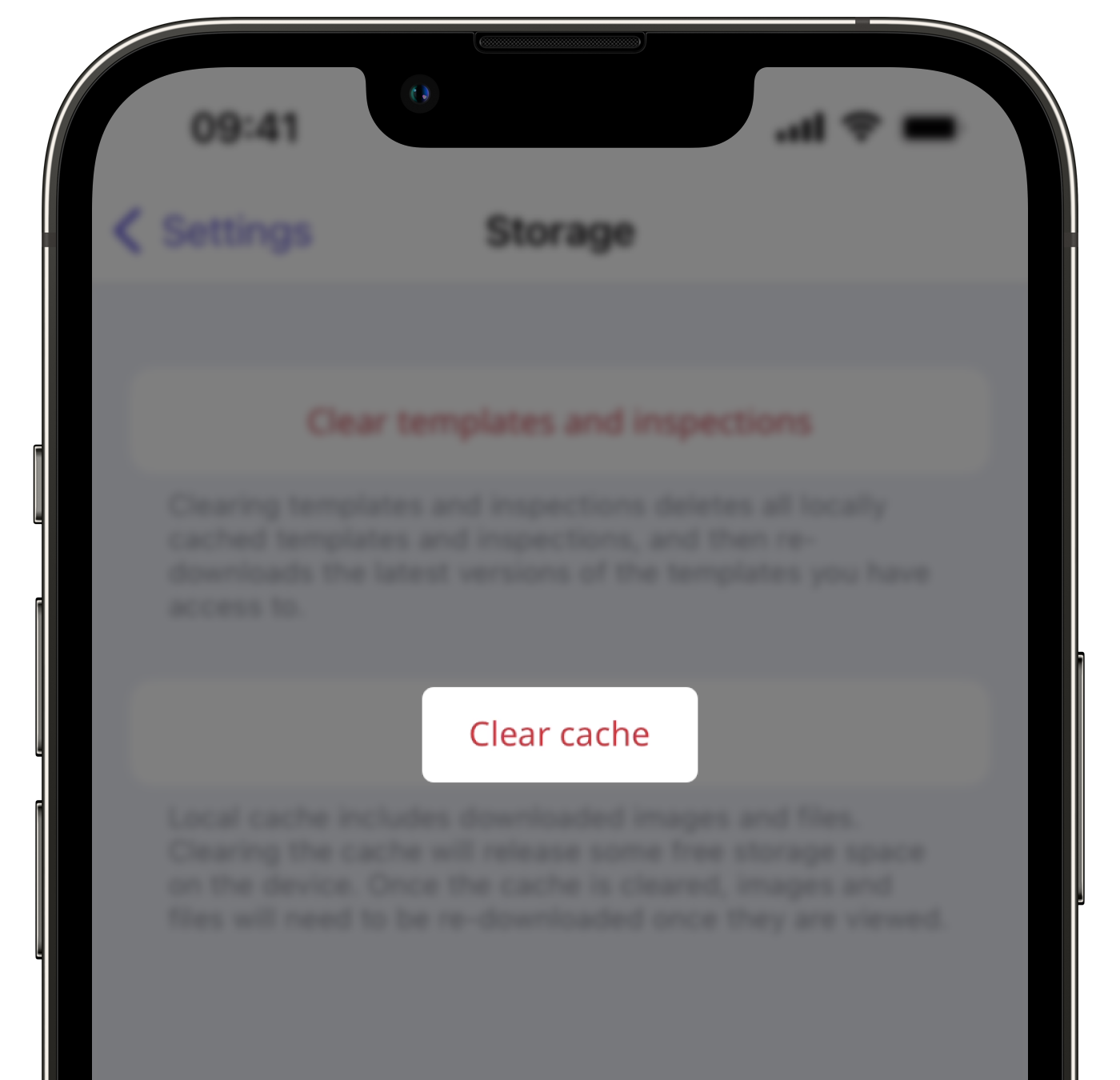
If these settings are unavailable, please check if your SafetyCulture mobile app is on the latest version via the Google Play Store for Android devices or the App Store for iOS devices.