
If you have "Heads Up: Manage" permission, you can manage, view acknowledgments, send reminders, and download all Heads Ups as CSV.
Share a Heads Up externally
Select Heads Up in the sidebar or select it in More.
Click Create Heads Up on the upper-right of the page.
In the "People" section, click
 Create link.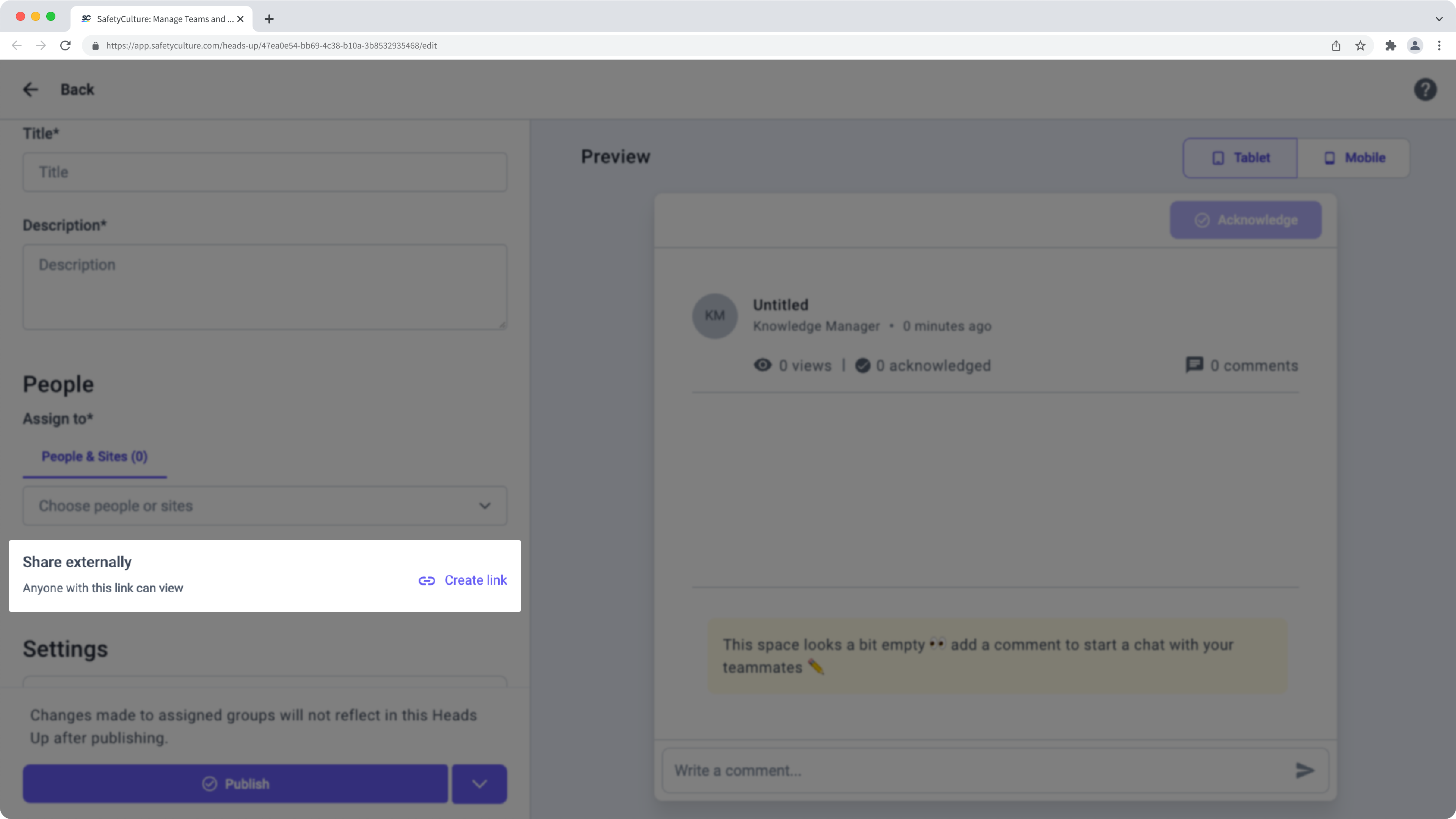
Click Copy or Download QR code.
Configure and publish the Heads Up accordingly before you share it externally.
Turn off external sharing for a Heads Up
Select Heads Up in the sidebar or select it in More.
Click Manage Heads Up on the upper-left of the page.
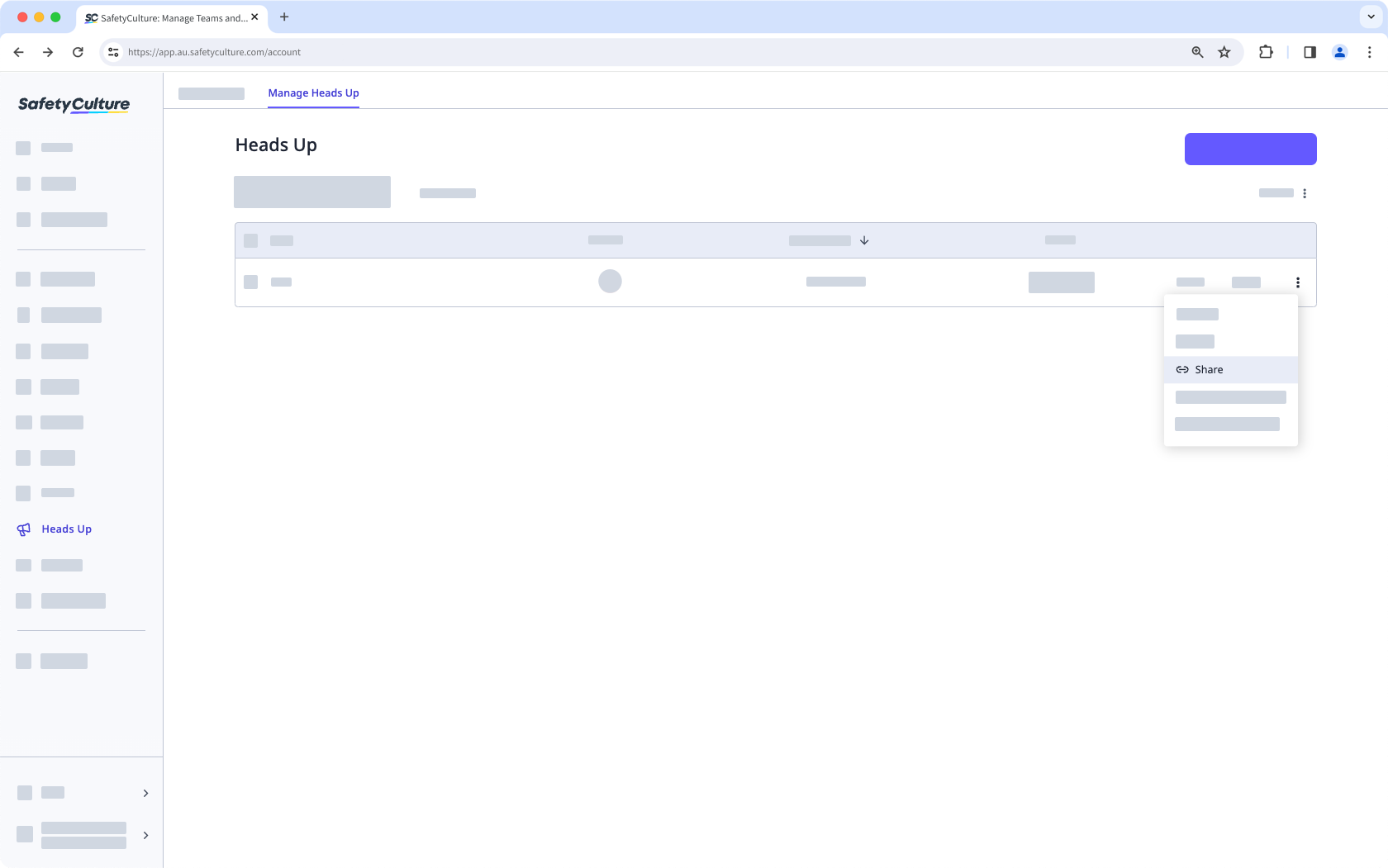
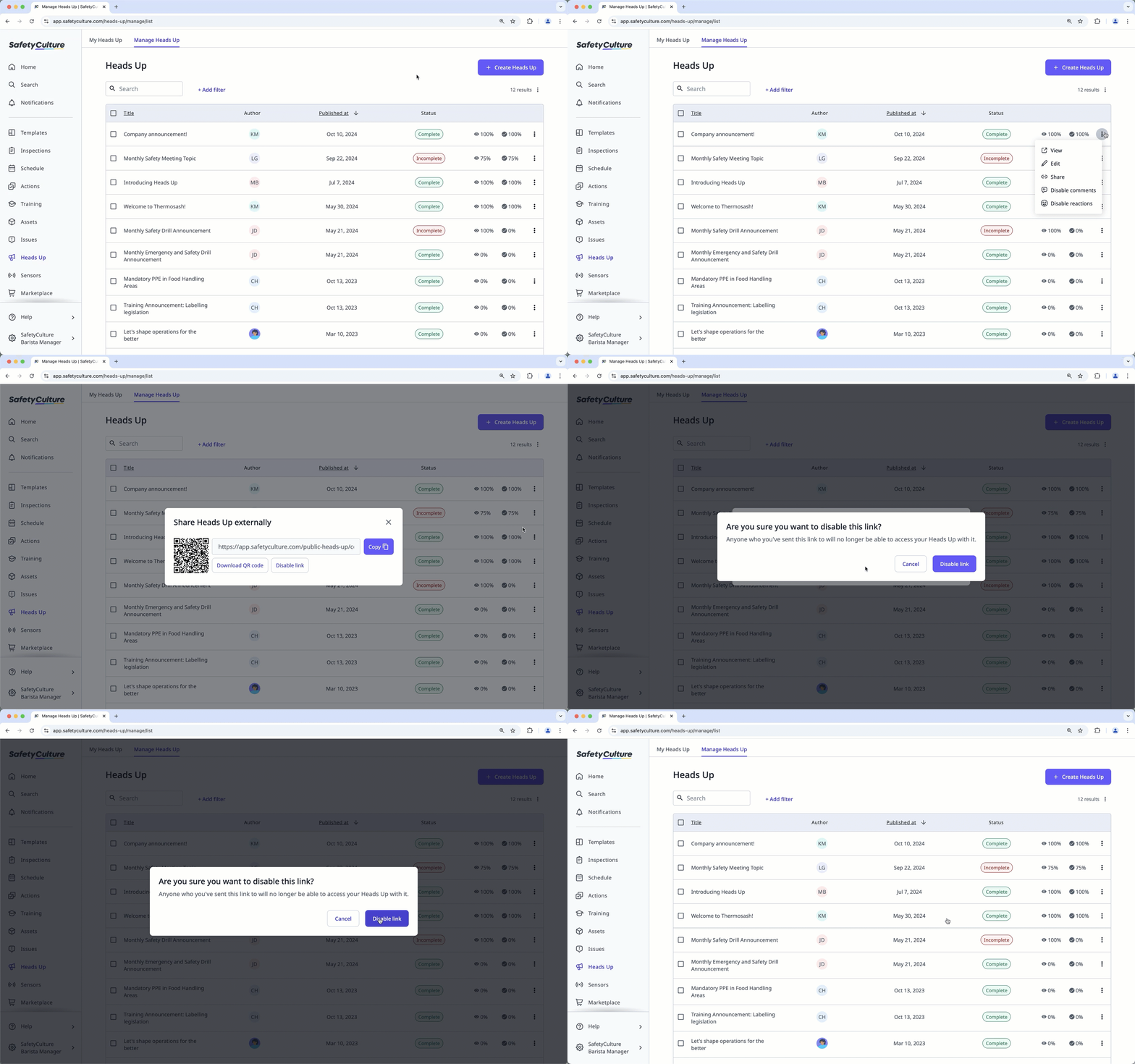
Click on the Heads Up's right-hand side and select
Share.Click Disable link.
In the pop-up window, click Disable link.
Acknowledgment is not available for people who view Heads Ups via external links. If you want them to acknowledge Heads Ups, consider adding them to your organization as users in guest seats.


