Last updated:

Sync my inspection schedules with my calendar app

Learn how to sync your inspection schedules with your calendar app.

We currently have a legacy and a new experience with the Schedules feature. This integration currently only supports syncing schedules from the legacy experience.

What happens when you sync inspection schedules with a calendar app?

When you sync inspection schedules with a calendar app, your upcoming inspections automatically appear as calendar events. You can see all inspections assigned to you in one place and start each one directly from the event. This helps you plan your day and reduce the chance of missing a scheduled inspection.

Once you turn on the integration, your calendar:

  • Shows inspection schedules assigned to you as events up to one month in advance

  • Includes a link in each event so you can start the inspection via both the web app and the mobile app

  • Hides past occurrences so your calendar stays focused on upcoming work
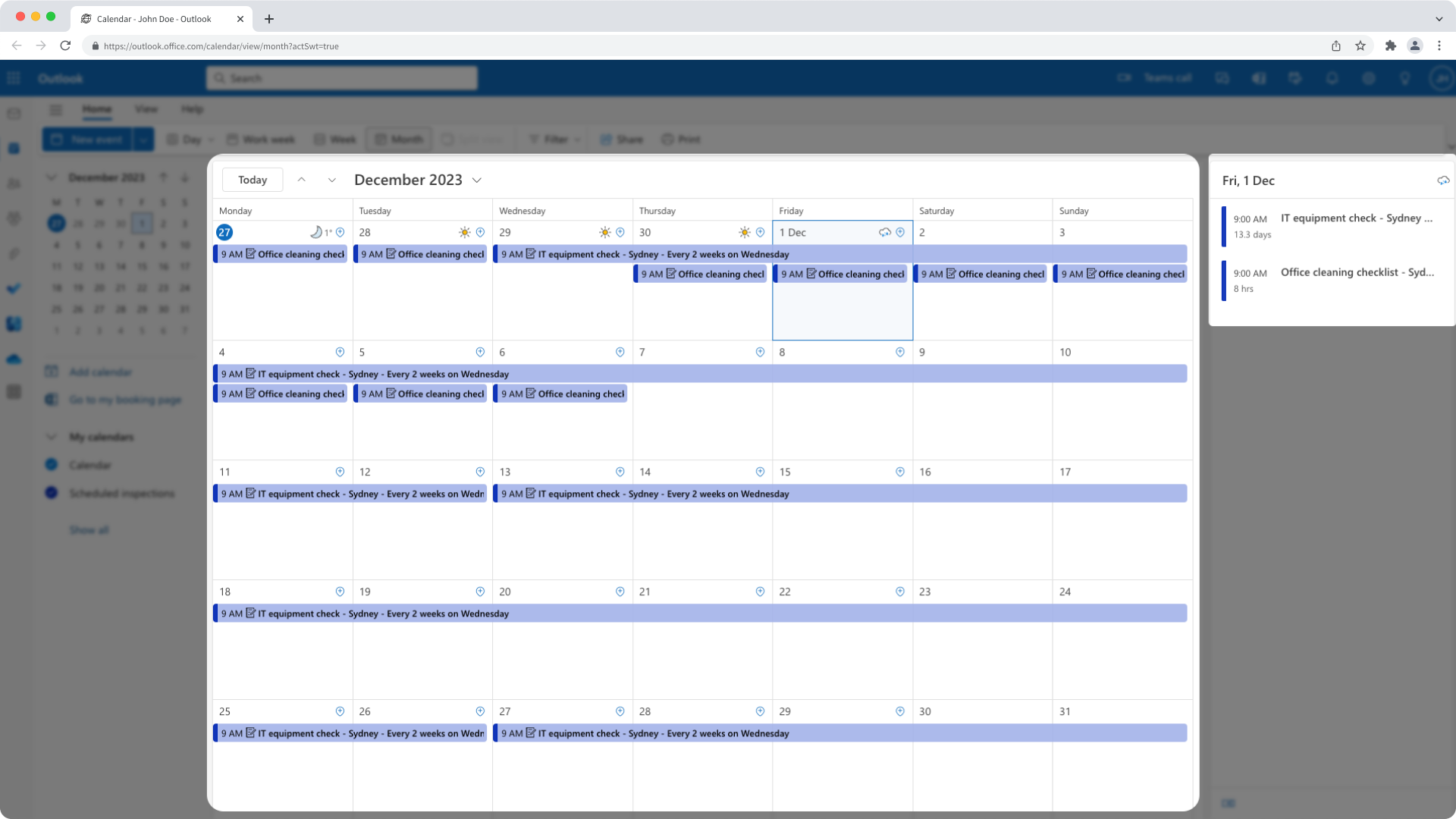
An example of the SafetyCulture inspection schedule integration in Microsoft Outlook.

Each calendar app refreshes their calendar subscriptions at different rates. Depending on the calendar app you use, inspection schedules that have just been assigned to you may take some time to appear.

This article shows you how to sync inspection schedules with Google Calendar and Microsoft Outlook. If you use another calendar, check that it supports subscribing to a calendar URL and follow the same steps.

How does the inspection schedule integration work with my calendar?

Once you've set up the integration, your calendar will:

  • Show inspection schedules that are assigned to you as events up to one month in advance.

  • Detail each calendar event with a link that allows you to start the relevant inspection via both the web app and the mobile app.

  • Hide past schedule occurrences.

Each calendar app refreshes their calendar subscriptions at different rates. Depending on the calendar app you use, inspection schedules that have just been assigned to you may take some time to appear.

Sync my inspection schedules

  1. Log in to the web app.

  2. Click your organization name on the lower-left corner of the page and select Integrations.

  3. Search for "Inspection schedule calendar" and select the integration.

  4. Click Install at the center of the page.

  5. In the pop-up window, click Install.

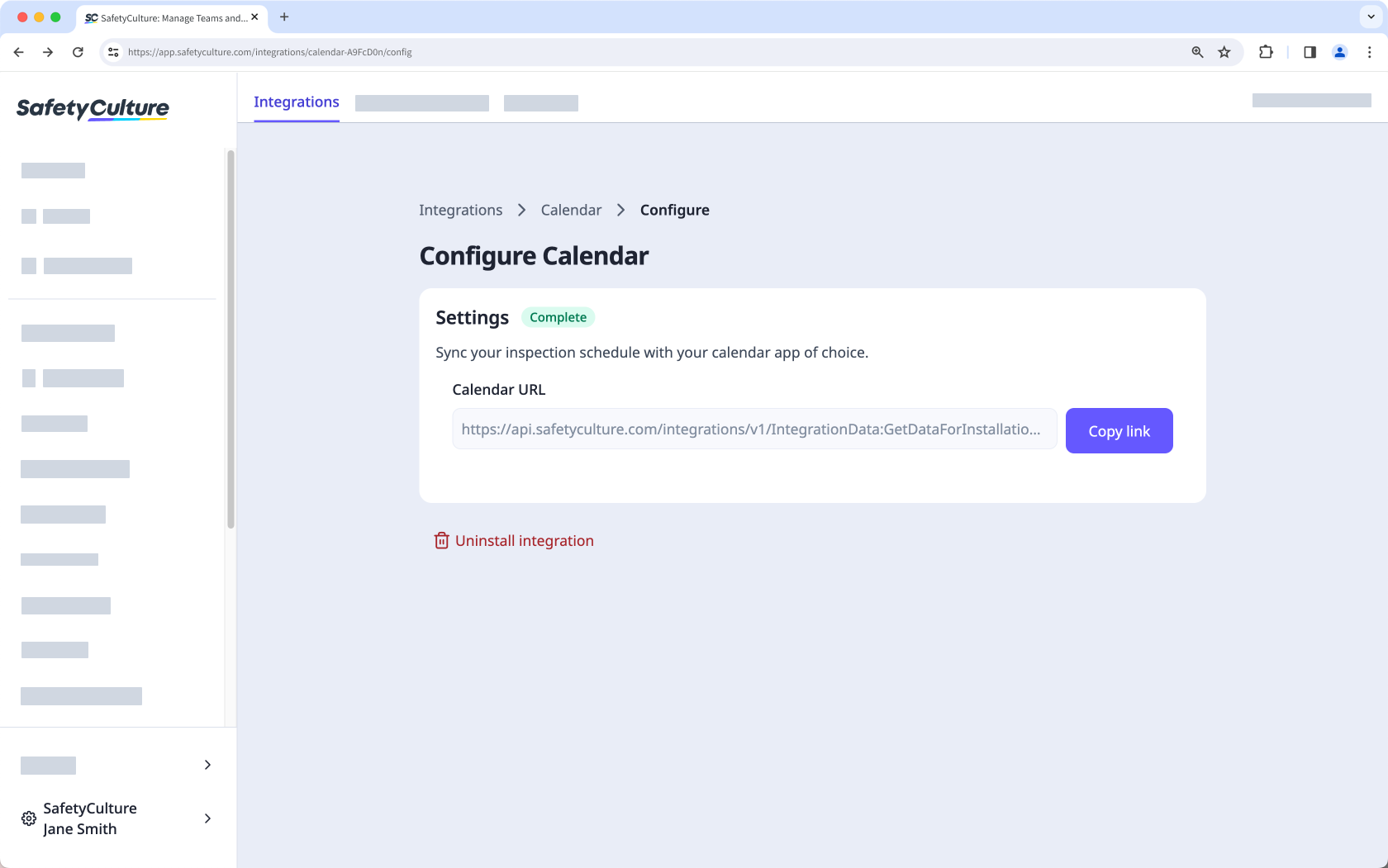
  6. Once the "Calendar URL" is generated, click Copy link. Set up the Inspection Schedule Calendar integration via the web app.
  7. Go to your Google Calendar.

  8. In the main menu on the left-hand side, click Plus icon next to "Other calendars" and select From URL.

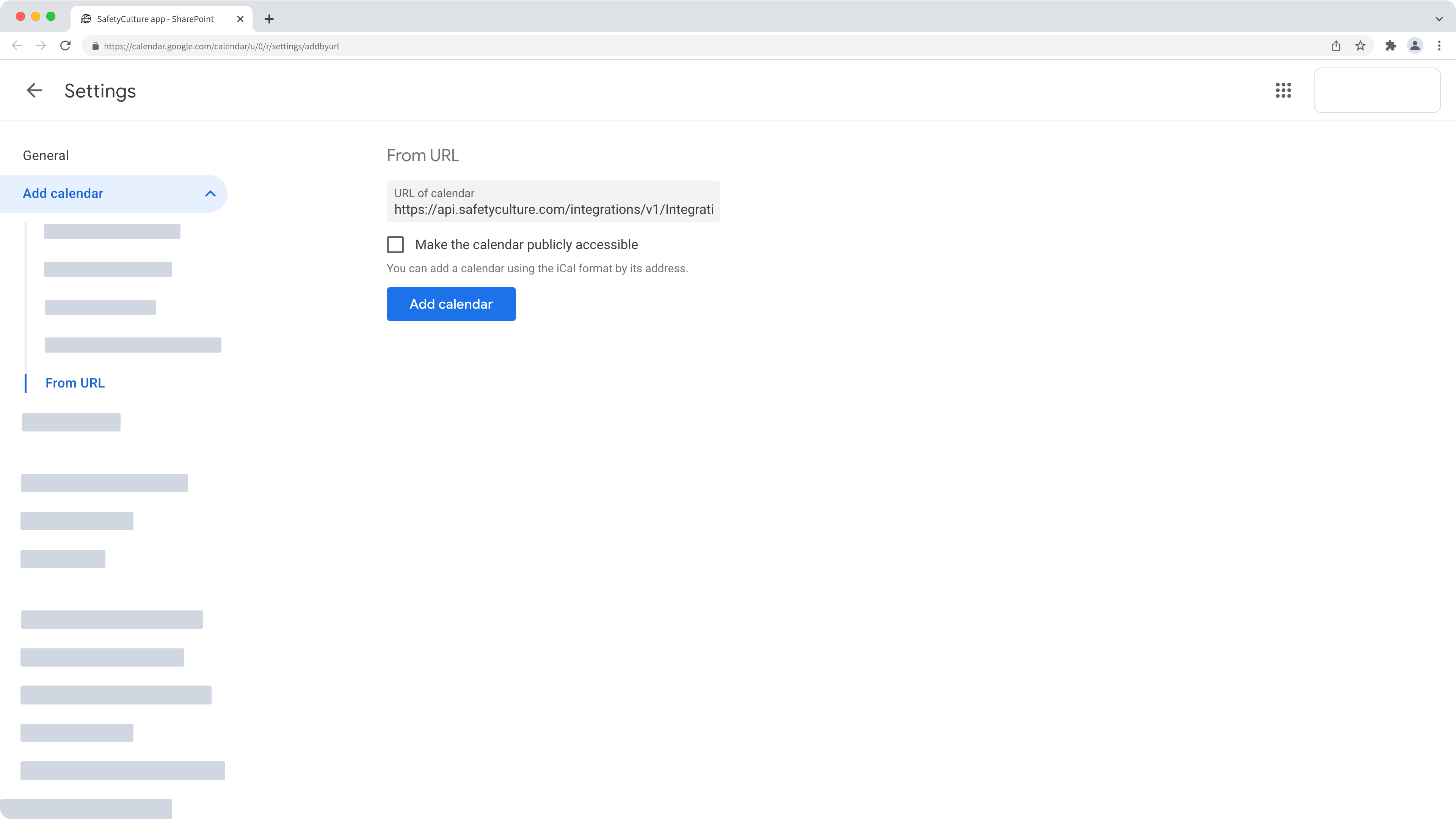
  9. Enter the calendar URL.

  10. Click Add calendar. The inspection schedule calendar should appear on the left-hand side under "Settings for other calendars". Add the calendar URL link in Google Calendar via the web app.
  1. Log in to the web app.

  2. Click your organization name on the lower-left corner of the page and select Integrations.

  3. Search for "Inspection schedule calendar" and select the integration.

  4. Click Install at the center of the page.

  5. In the pop-up window, click Install.

  6. Once the "Calendar URL" is generated, click Copy link. Set up the Inspection Schedule Calendar integration via the web app.

  7. Go to your Microsoft Outlook calendar.

  8. In the navigation pane on the left-hand side, click Add calendar.

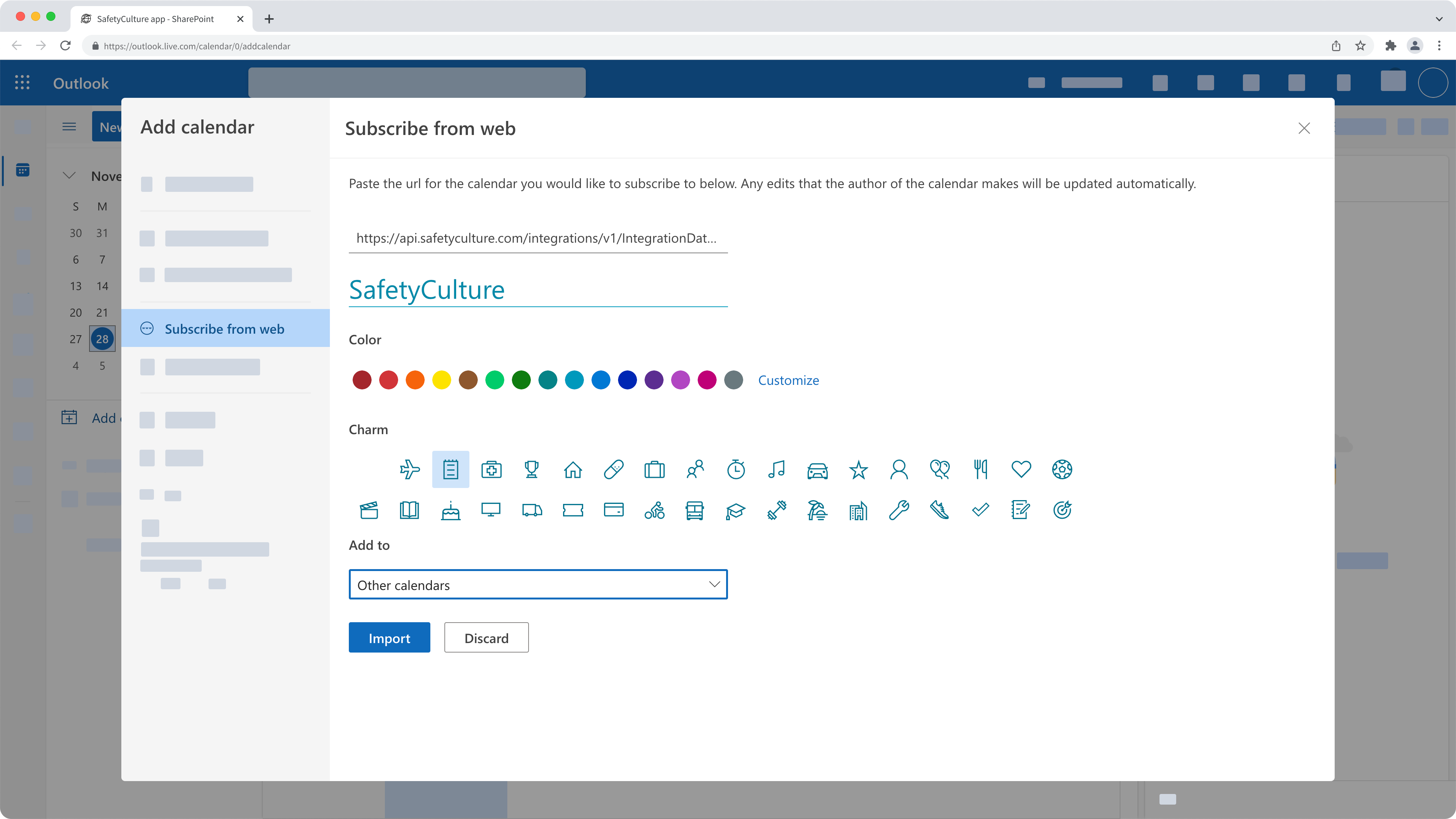
  9. In the pop-up window, select Subscribe from web and enter the calendar URL.

  10. Configure the calendar accordingly and click Import. Add the calendar URL in Microsoft Outlook via the web app.

Frequently asked questions

Any updates made only apply to future occurrences of the schedule. Depending on your calendar app's refresh rate, these changes will automatically sync with your calendar events.

The integration only adds events for schedules assigned to you. If you're an administrator, you can ask team members to share their calendar links so you can subscribe to their SafetyCulture schedules.

Yes, you can stop syncing your inspection schedules to your calendar at any time. The sync uses a subscribed calendar URL generated by SafetyCulture, so you need to remove or unsubscribe from that calendar in your calendar app.

For Google Calendar, learn how to remove a subscribed calendar in the Google Calendar Help Center.

For Microsoft Outlook, learn how to delete or unsubscribe from a calendar in Microsoft Support.

The exact steps vary by calendar app, but the goal is the same: remove the subscribed calendar that pulls in your SafetyCulture inspection schedules.

Need more help?
In this article