
How does giving external inspection access work?
Sharing an inspection externally helps you collaborate with users from another organization on the same inspection. You can manage how much they contribute by choosing their access level when you share the inspection. Once they accept the invite, they'll have access to the latest version of the inspection, and any changes made are reflected immediately. This helps both organizations stay aligned as the inspection progresses, without managing separate versions.
What you'll need
Give external inspection access to another organization
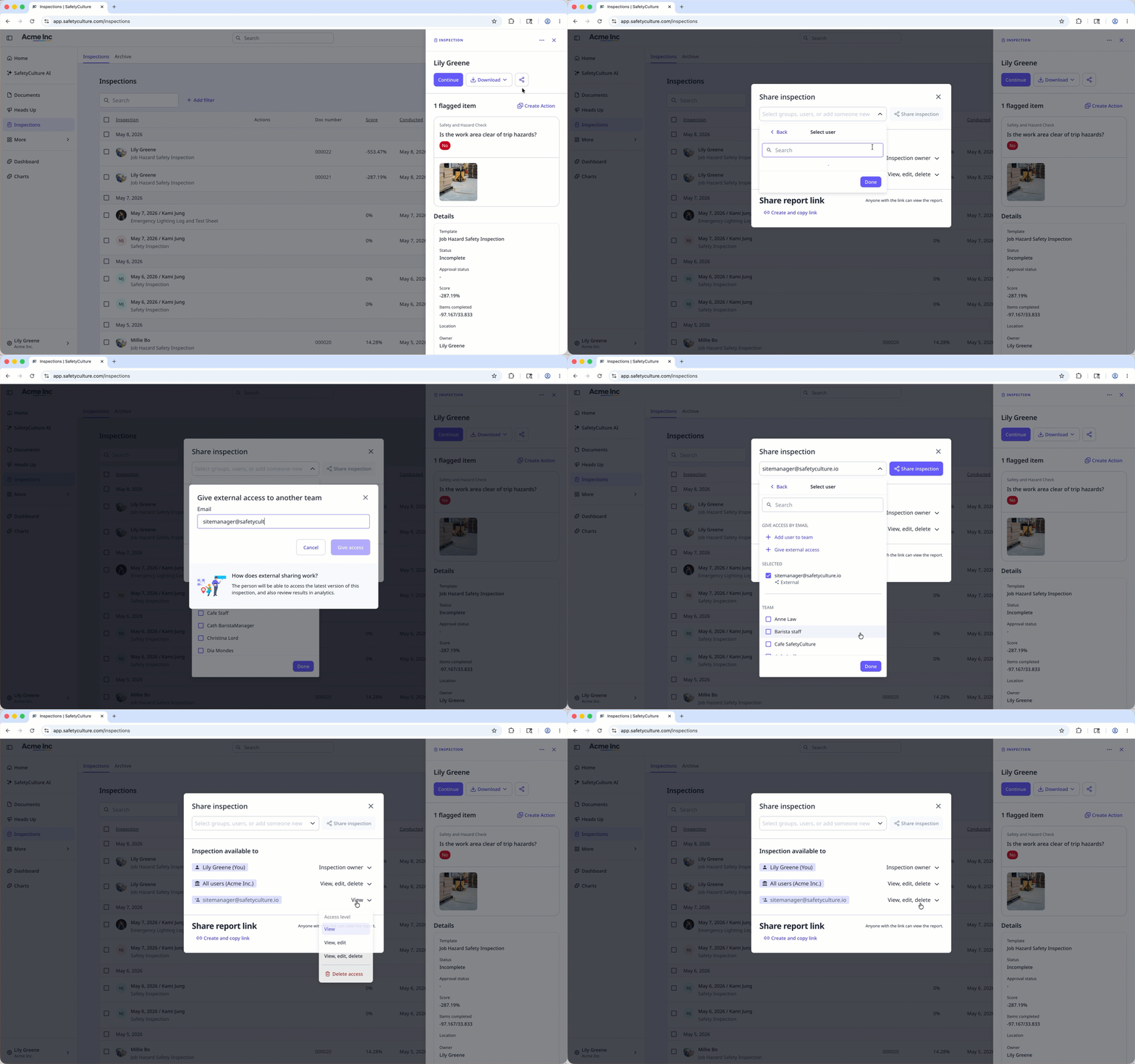
Select Inspections in the sidebar or select it in More.
Click the inspection and click in the side panel.
In the pop-up window, click the dropdown menu and select Users.
Click Give external access.
In the pop-up window, enter the email of the user in another organization, then click Give access.
Click Done in the dropdown menu.
Click Share inspection. This sends an email to the external user. They must accept the invitation before they can access the inspection.
Select the inspection access level.
Limitations
You can only give inspection access to users in another organization, not their groups. However, once the access is set up, users in other organizations can then give their groups inspection access, as long as they have the "View, edit" access level.
Inspection data from other organizations may not be fully available to you, as certain data sets are organization-specific, such as sites and actions.
You can only give external inspection access to users who are in the same data center as you.


