
What are custom response sets?
Custom response sets are multiple-choice response sets you can use within a specific template. With SafetyCulture, any new template you create includes default multiple-choice response sets such as "Yes, No, N/A" for questions. You can also create specific responses to your use case, whether it is a list of items or employee names.
What do responses look like in inspections?
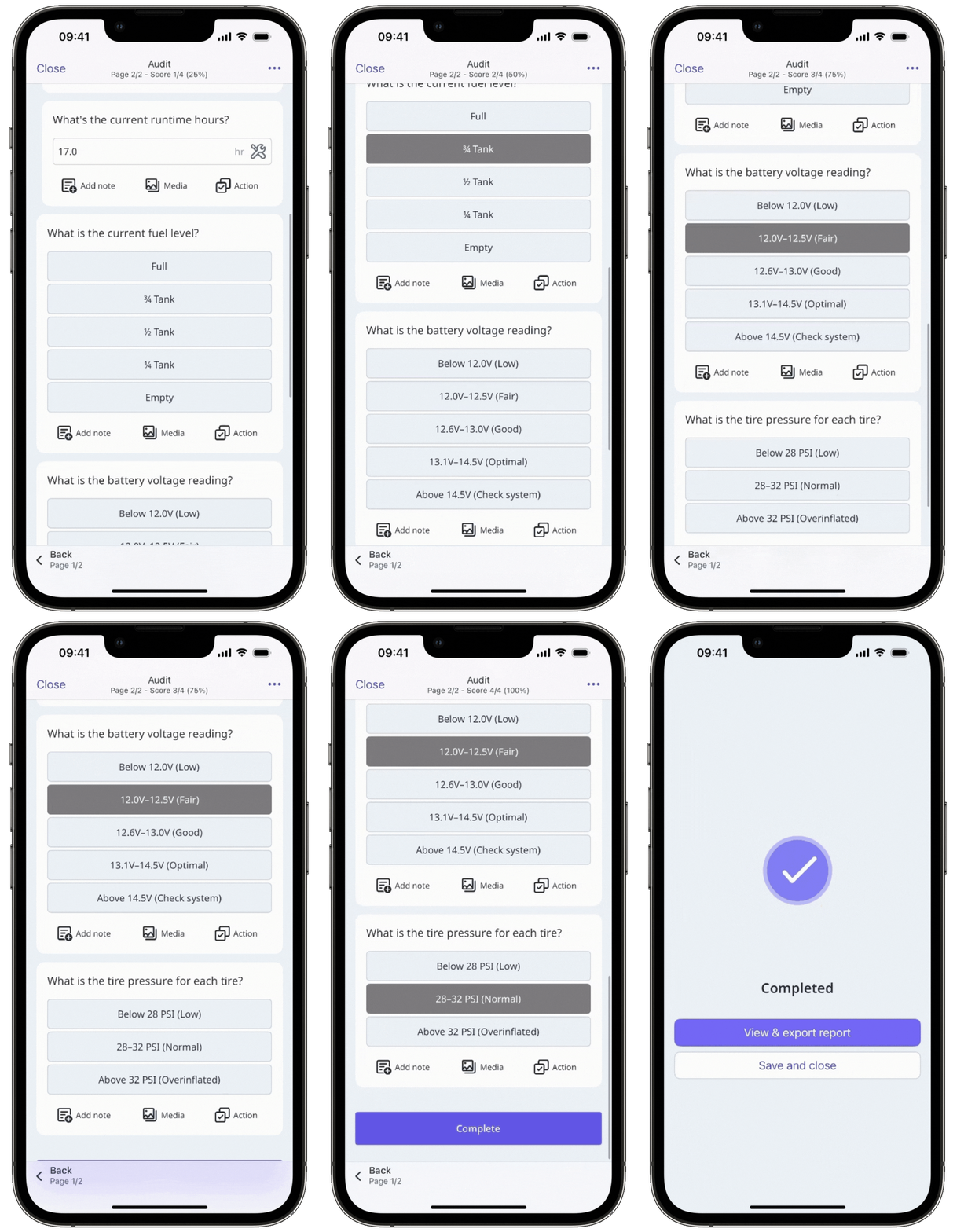
Responses in an inspection can be presented differently depending on the number and size of a custom response set. By default, responses are shown as tiles/cards in an inspection.
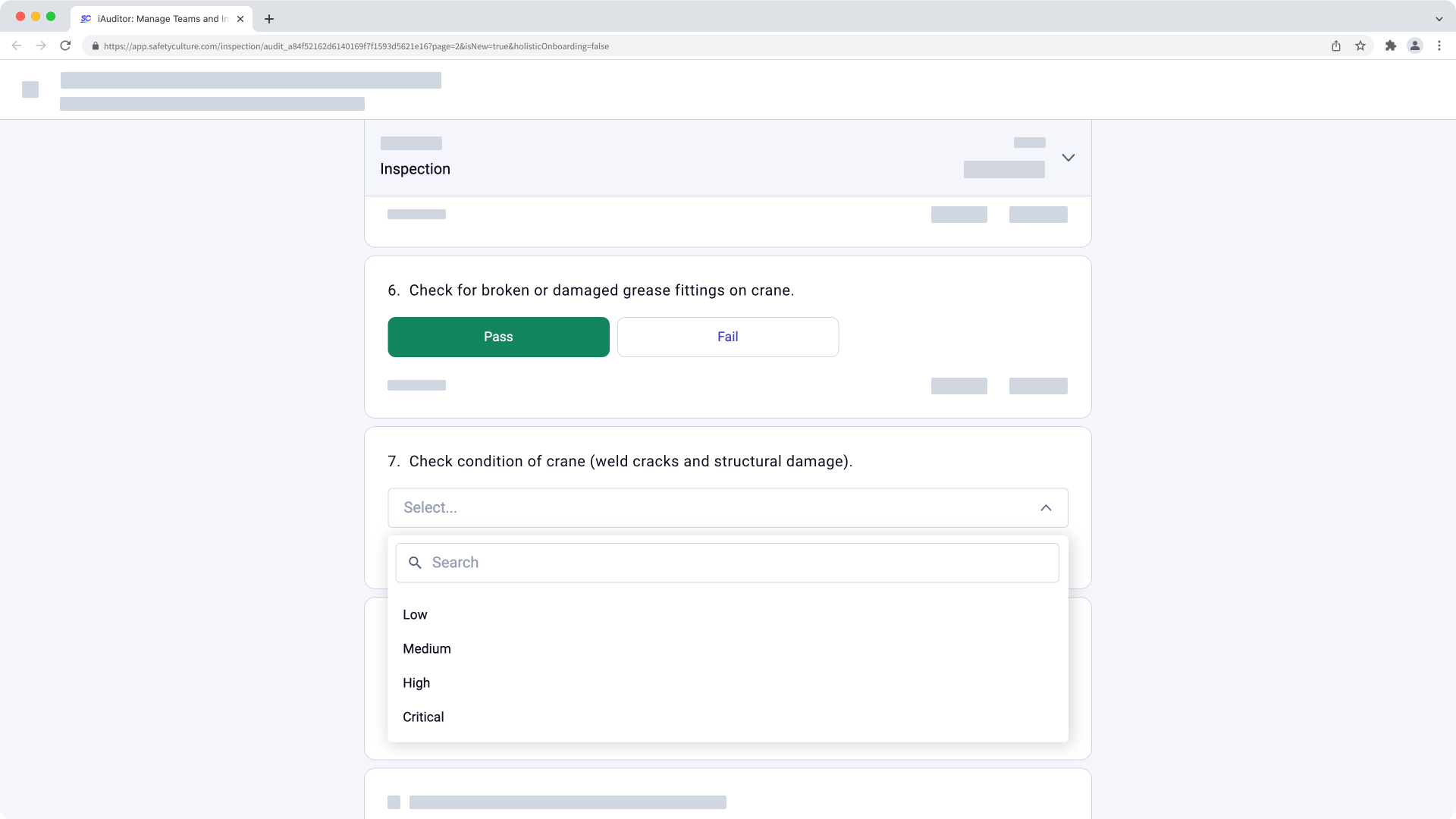
If the question or its custom response set has any of the following attributes, the interface would convert into a dropdown menu selection:
The question has "Multiple selection" enabled.
The custom response set has more than 5 responses.
At least one of the responses in the custom response set has more than 30 characters.
Deleted responses will show up as placeholders in Analytics when filtering data by inspection questions and responses instead of the actual label.
What you'll need
Update a custom response set
Select Templates in the sidebar or select it in More.
Click the template and select Edit template in the side panel.
Select any question and click on the right-hand side, under "Type of response".
Click on the right-hand side of the custom response set.
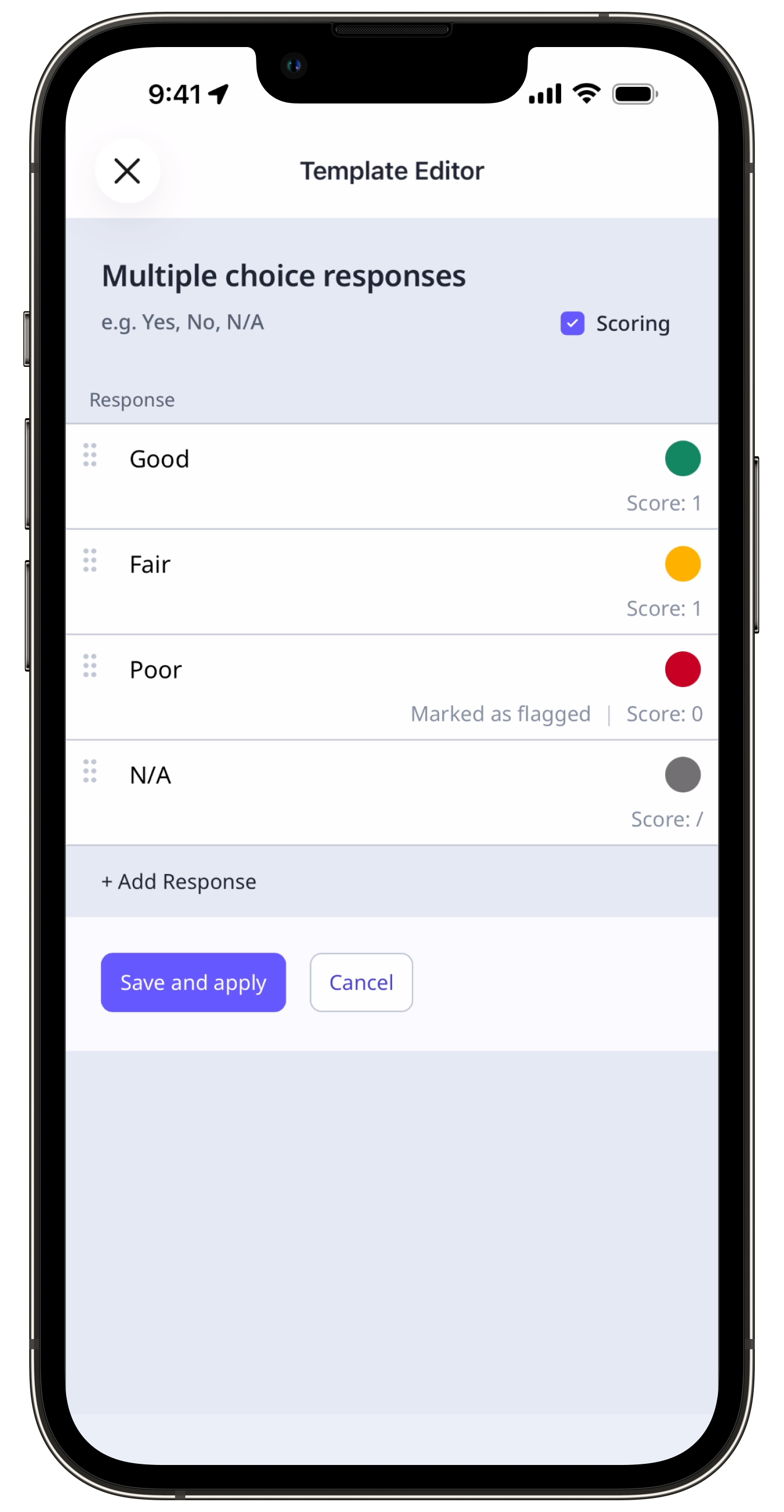
In the side panel, add, update, or delete responses accordingly:
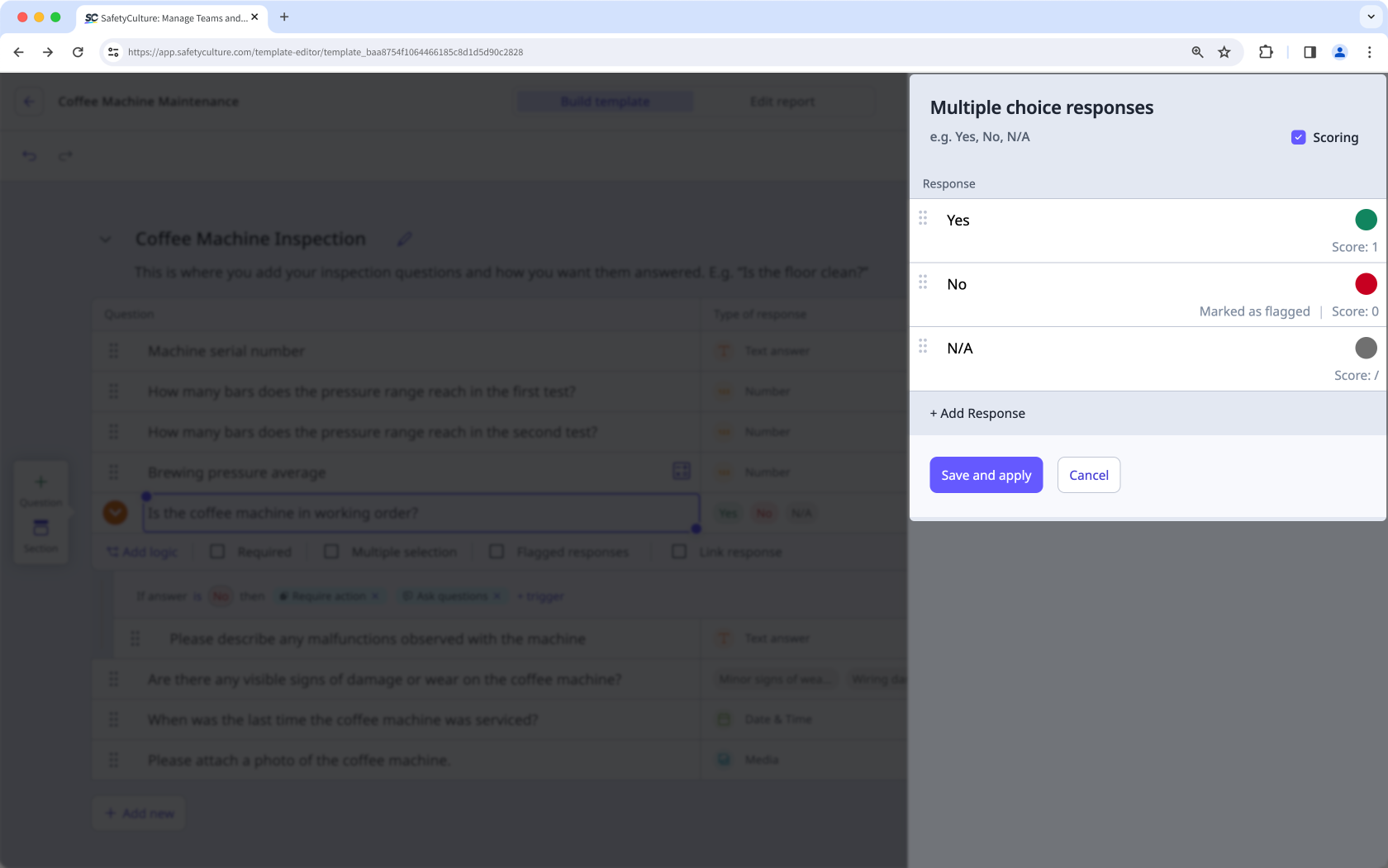
Color: Click the circle on the right-hand side of a response to select the color. You can enter the color hex code (opens in new tab) in the text field if you want to use a custom color.
Mark as flagged: Check the box if you want to mark a response as a flagged response.
Score: If scoring is enabled for a response set, you can customize the score for a response.
Delete: Click to delete a response from the set.
Click Save and apply. Changes to custom response sets apply to all questions that use it.
Click Publish on the upper-right of the page to publish the template. If you're not ready to publish the template, you can go back to the templates list and come back when you're ready.
Published changes made to templates only apply to new inspections moving forward.


